1. Decide how many libraries you really want
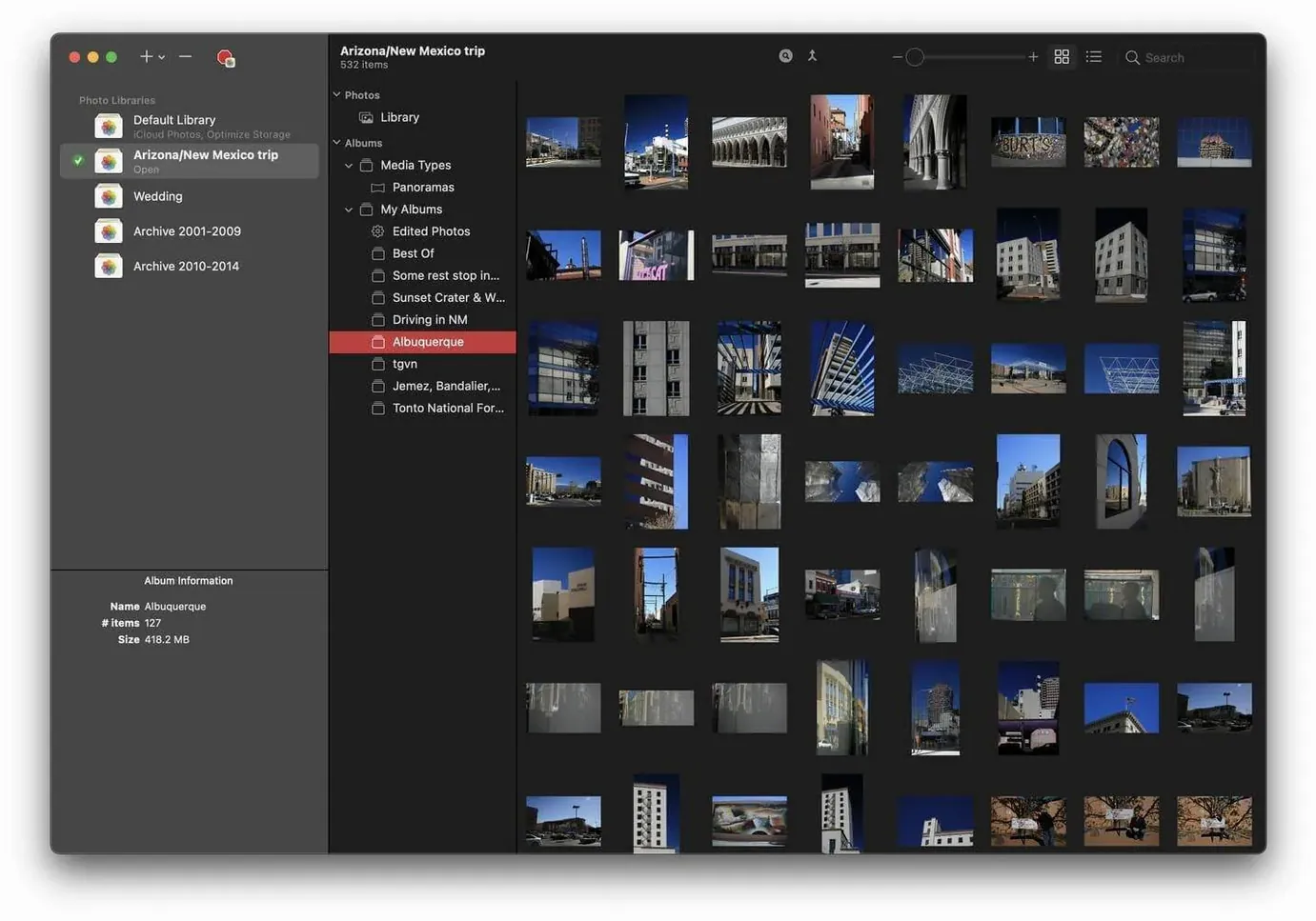
Some people keep work images separate. Others split by year or project. PowerPhotos lets you create as many libraries as you need, then switch between them without dragging folders around in the Finder.
2. Move albums between libraries
Got a vacation album in the wrong library? Drag it over. The app copies the photos and keeps the album structure intact — no export-then-import dance.
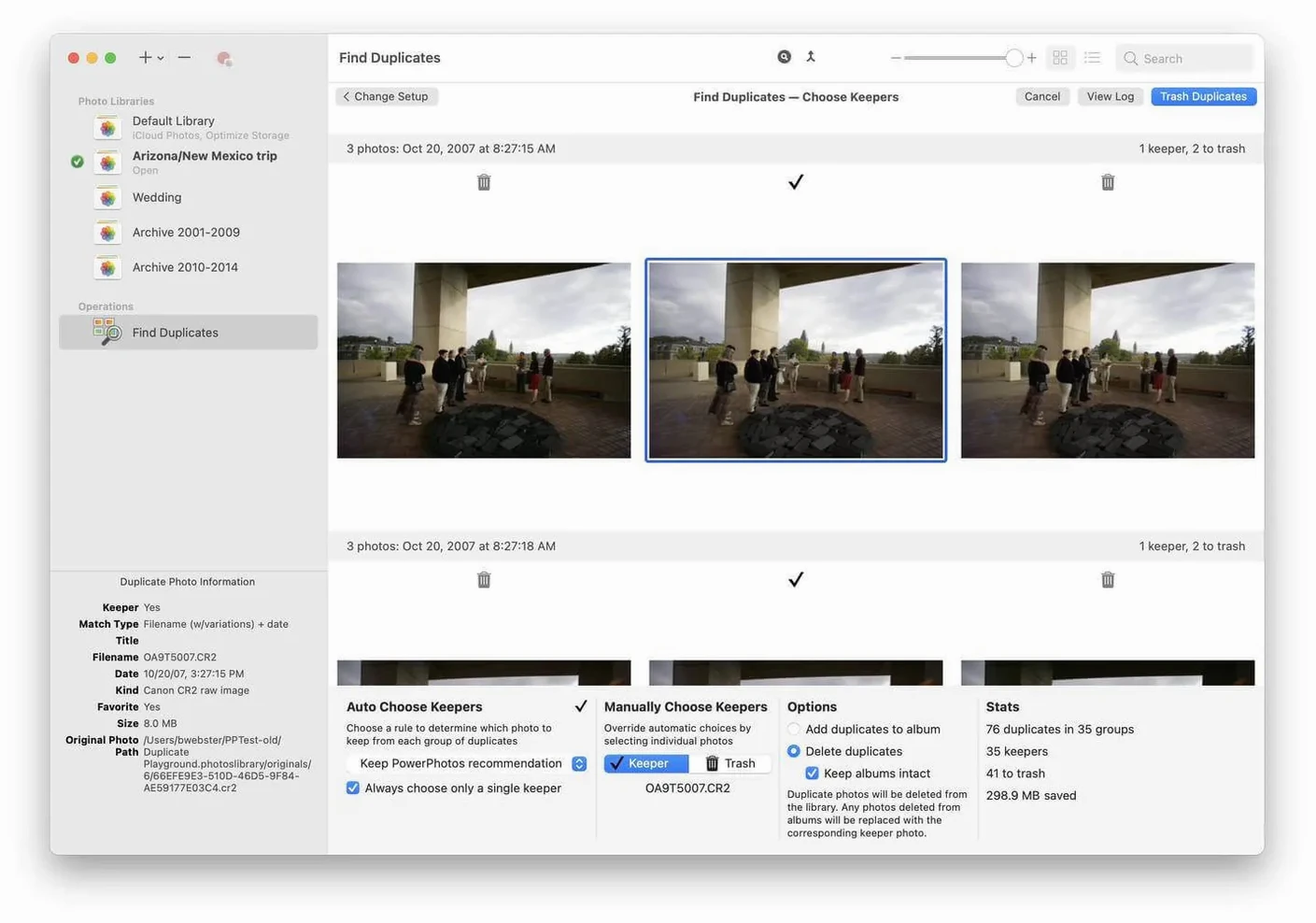
3. Find and clean up duplicates
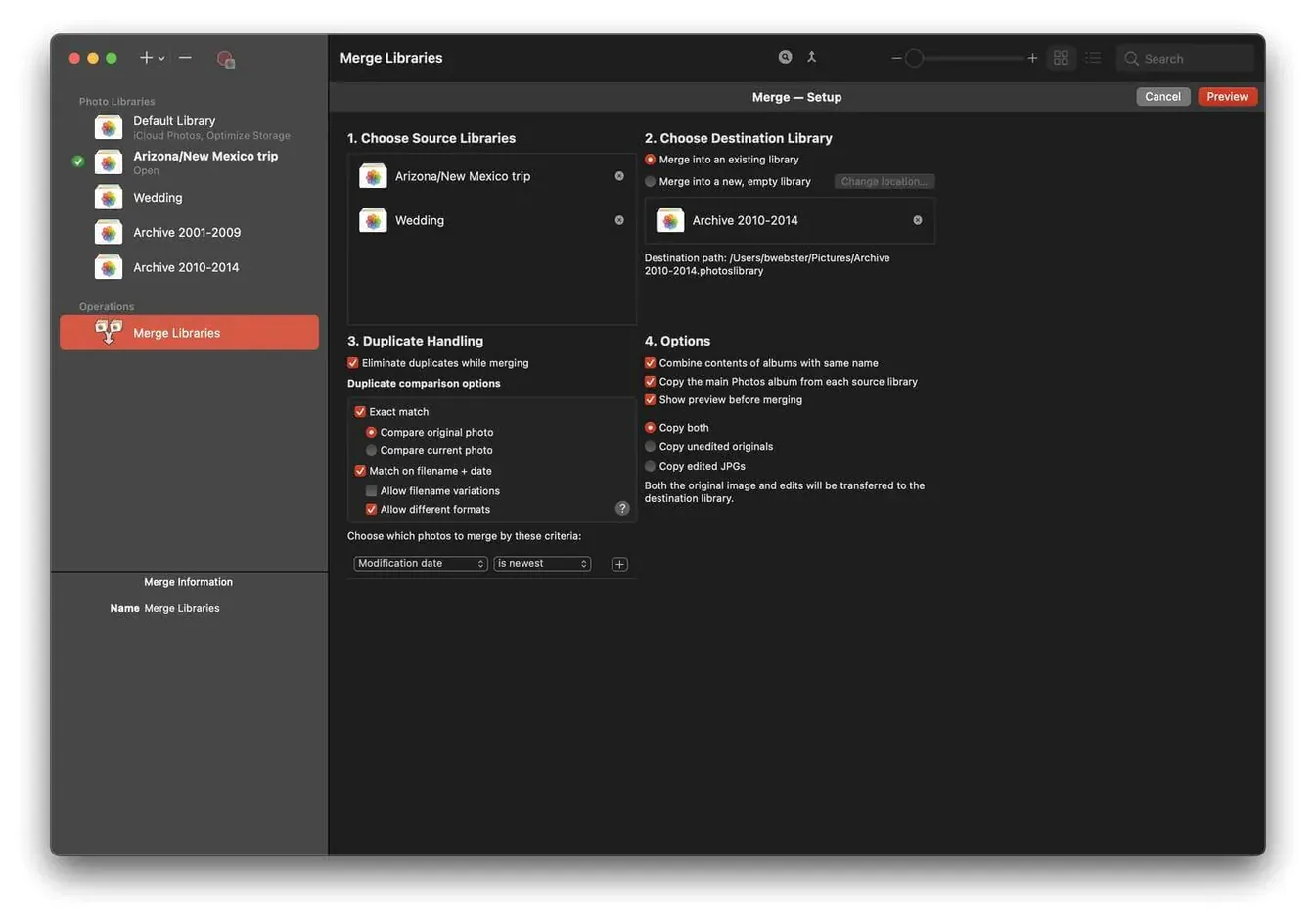
This is the part that saves real drive space. The duplicate browser puts photos side by side so you can see which version has the higher resolution, better metadata, or the edit you actually finished. Bin the rest.
4. Search everywhere at once
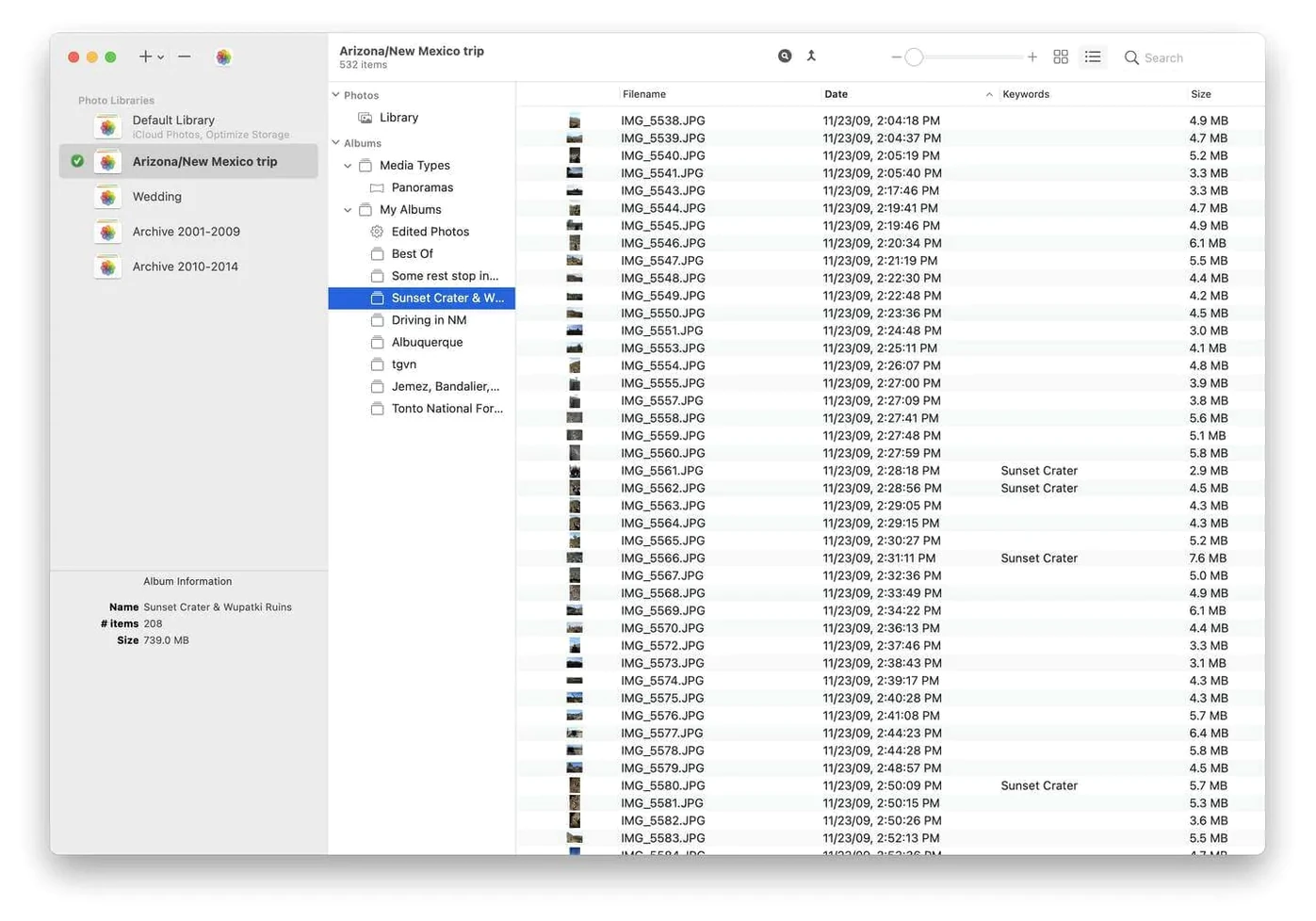
When you cannot remember which library holds that one photo of the dog, the unified search scans them all. Type a keyword and get results from every library you have added.
For anyone who has outgrown a single Photos library, a powerphotos mac setup keeps things tidy without giving up the built-in Photos app you already use.
How PowerPhotos fits into a real workflow
PowerPhotos does not replace Photos — it sits next to it. That is the whole idea. You keep using Photos for editing, sharing, and iCloud sync on one library, while PowerPhotos handles the library-level jobs Photos was never designed for.
In practice, that means a few things work together nicely:
- Finder and external drives. Move a library to an external SSD, then add it to PowerPhotos. The app remembers where it lives. No broken links, no "Photos cannot find the library" alerts.
- iCloud splitting. Keep a small "daily" library synced to iCloud, and archive older years into offline libraries. Your iCloud storage stops filling up, but you can still browse the archives through PowerPhotos whenever you want.
- Spotlight compatibility. Libraries managed through PowerPhotos remain standard Photos libraries. Spotlight can still index the one you have set as the system library, and media apps that pull from Photos keep working.
- Time Machine. Because each library is a self-contained bundle, backing up with Time Machine is straightforward. PowerPhotos does not wrap things in a proprietary format — it just keeps libraries organized.
One thing worth knowing: only one library at a time can be the designated System Photo Library for iCloud sync and shared albums. PowerPhotos makes switching that designation a two-click job from its preferences, so you can flip between them without digging through Photos' own settings.
Not many apps do exactly this
There are not many Mac apps in this exact niche, but a few come up in the same conversation.
Photos Duplicate Cleaner (from Systweak). This one focuses almost entirely on duplicate removal inside a single library. It does a decent job of finding exact and near-match duplicates, but it does not touch library management. If all you need is a one-time duplicate sweep, it gets the job done. If you want to split libraries, browse without opening Photos, or search across libraries, it does none of that. The interface also feels a generation older — functional, but not something you enjoy spending time in.
Duplicate Photo Cleaner (from WebMinds). Cross-platform and a bit more aggressive in its scanning approach. It can compare photos across folders, not just inside Photos libraries, which is useful if you have loose images scattered on your drive. The downside is that it does not understand Photos library structure natively. You are exporting or pointing it at folders, not working inside the ecosystem. For a powerphotos download user who lives inside Apple's Photos world, that extra abstraction gets old fast.
Gemini 2 (from MacPaw). A broader duplicate finder that handles photos, music, and other files. Slick interface, fast scanning. But it treats photos as files, not as a managed library. It will find duplicate image files anywhere on your drive, but it has no concept of albums, metadata hierarchy, or library integrity. If you delete something Gemini calls a duplicate, Photos might suddenly show a missing thumbnail. PowerPhotos understands the relationships inside the library, so it deletes safely.
PowerPhotos sits in a sweet spot: it is the only one that does real library management and duplicate detection with full awareness of how Photos organizes things. The others are either single-purpose cleaners or general file tools that happen to work on images.
Scanning 30,000 photos takes a minute
On an Apple Silicon Mac, duplicate scanning feels snappy. A library with around 30,000 photos takes a minute or two to analyze — not instant, but fast enough that you are not making coffee while it runs. The side-by-side comparison view loads smoothly, and deleting batches of duplicates commits quickly.
Memory use is modest. With two moderately sized libraries open, the app tends to hover around 200–300 MB of RAM. CPU activity spikes during scanning, then settles to near zero. It is not a background process that lingers and nibbles at resources when you are doing other work.
Stability has been solid through version 3.4.8. The only real danger point is moving very large albums between libraries on a drive that is nearly full — if macOS runs out of space mid-copy, the library can end up in a stuck state. PowerPhotos warns you about available space before starting the move, which catches most problems early. The built-in library repair function can fix minor issues if something does go sideways.
In daily use, most people will open PowerPhotos once a week or once a month — not every day. It is a maintenance tool, not a viewer you live in. That said, the quick library switcher (which lives in the menu bar if you enable it) is genuinely useful for households where two people share a Mac and each has their own Photos library. Switching takes a few seconds, and Photos opens directly to the right library.
If you have been searching around for a powerphotos mac download because your single library has grown unwieldy, the performance trade-offs are minimal. The heaviest operation — merging or splitting libraries with tens of thousands of images — takes time proportional to the library size, but you can set it running and walk away. Everything else feels lightweight.
- macOS 14 or later
- Apple Silicon and Intel Macs
- English interface
Notes from other shops 0
Sign in or open a shop account to leave a note.
No notes yet. If you've used this on a shop Mac, tell me how it went.