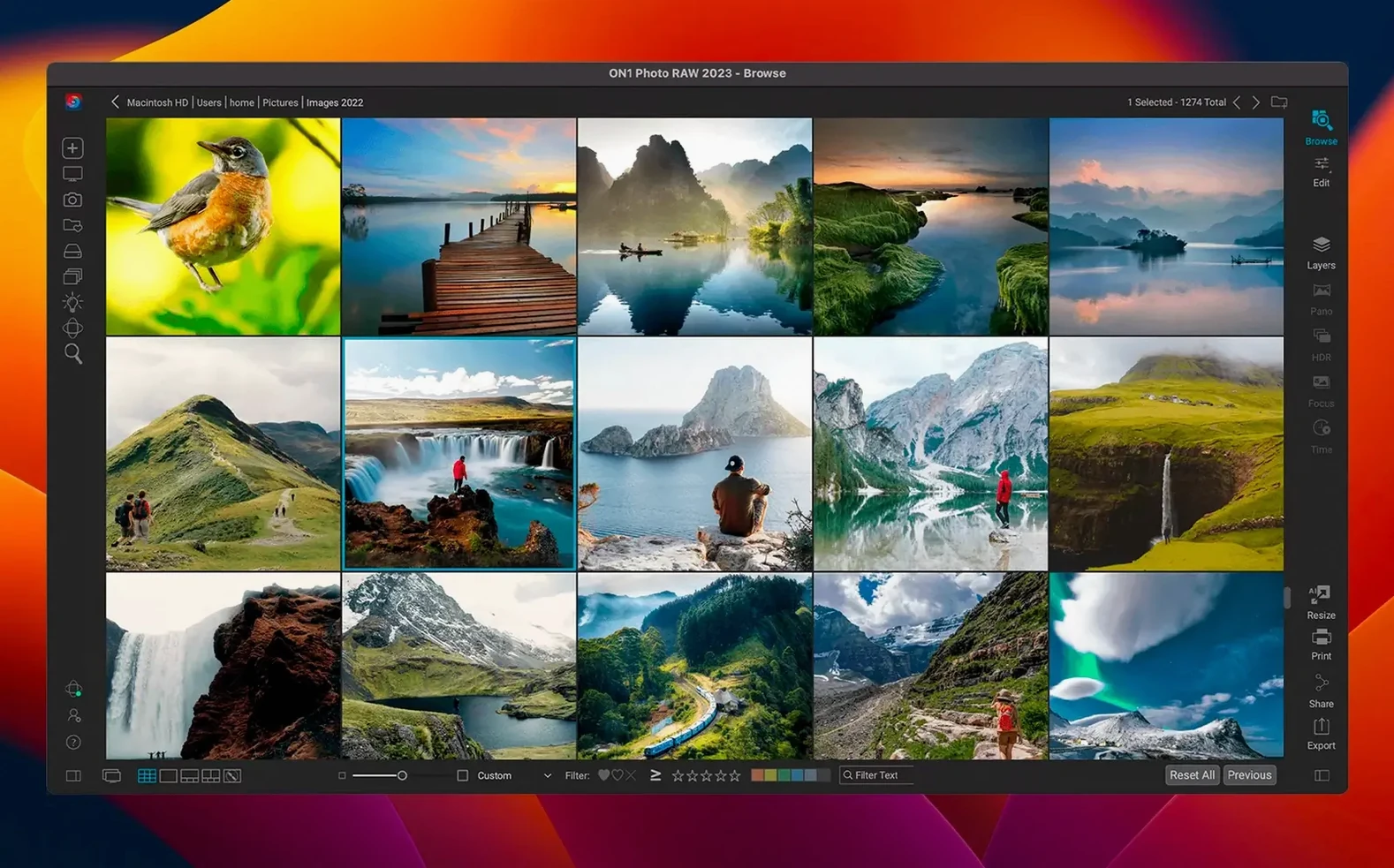
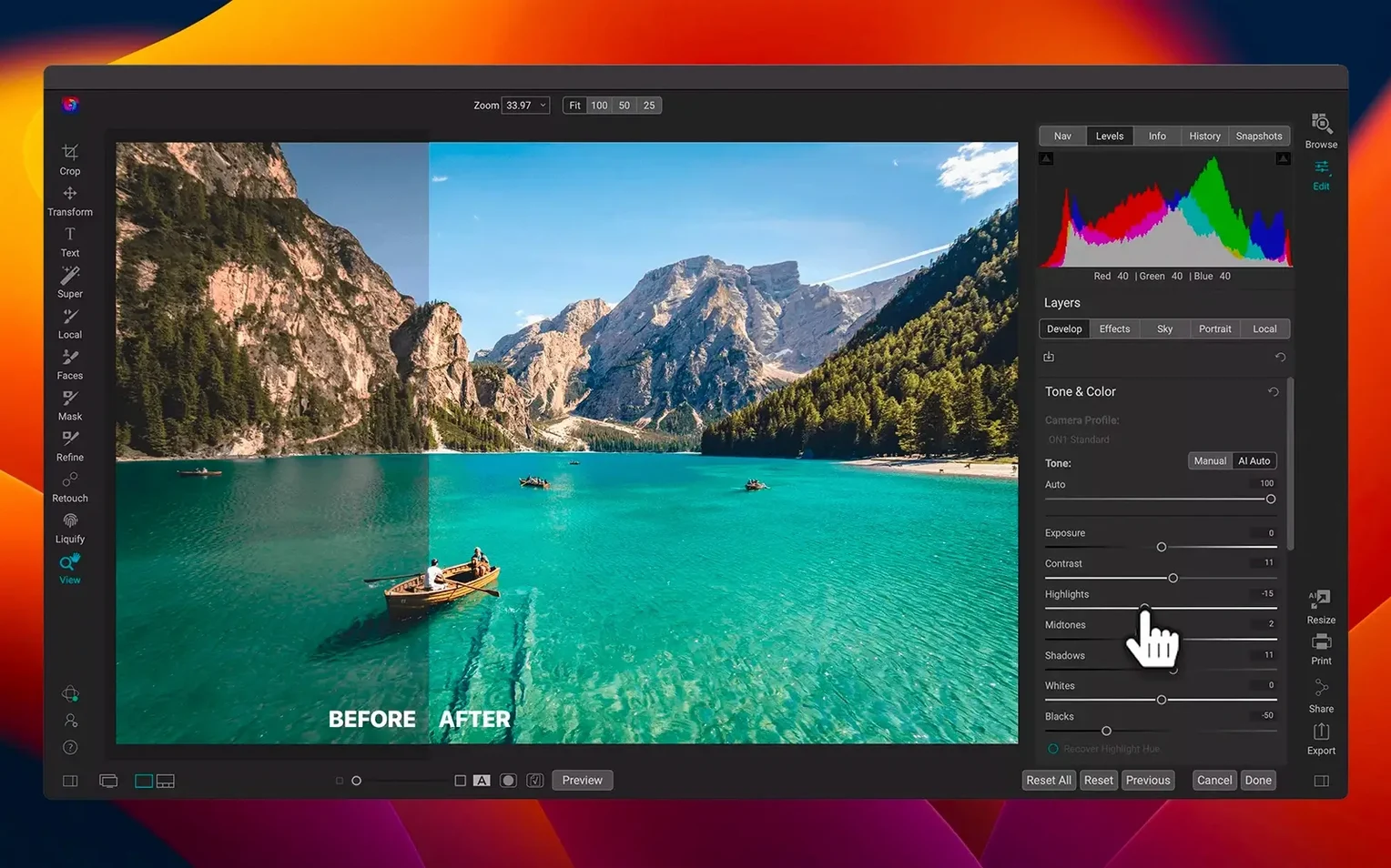
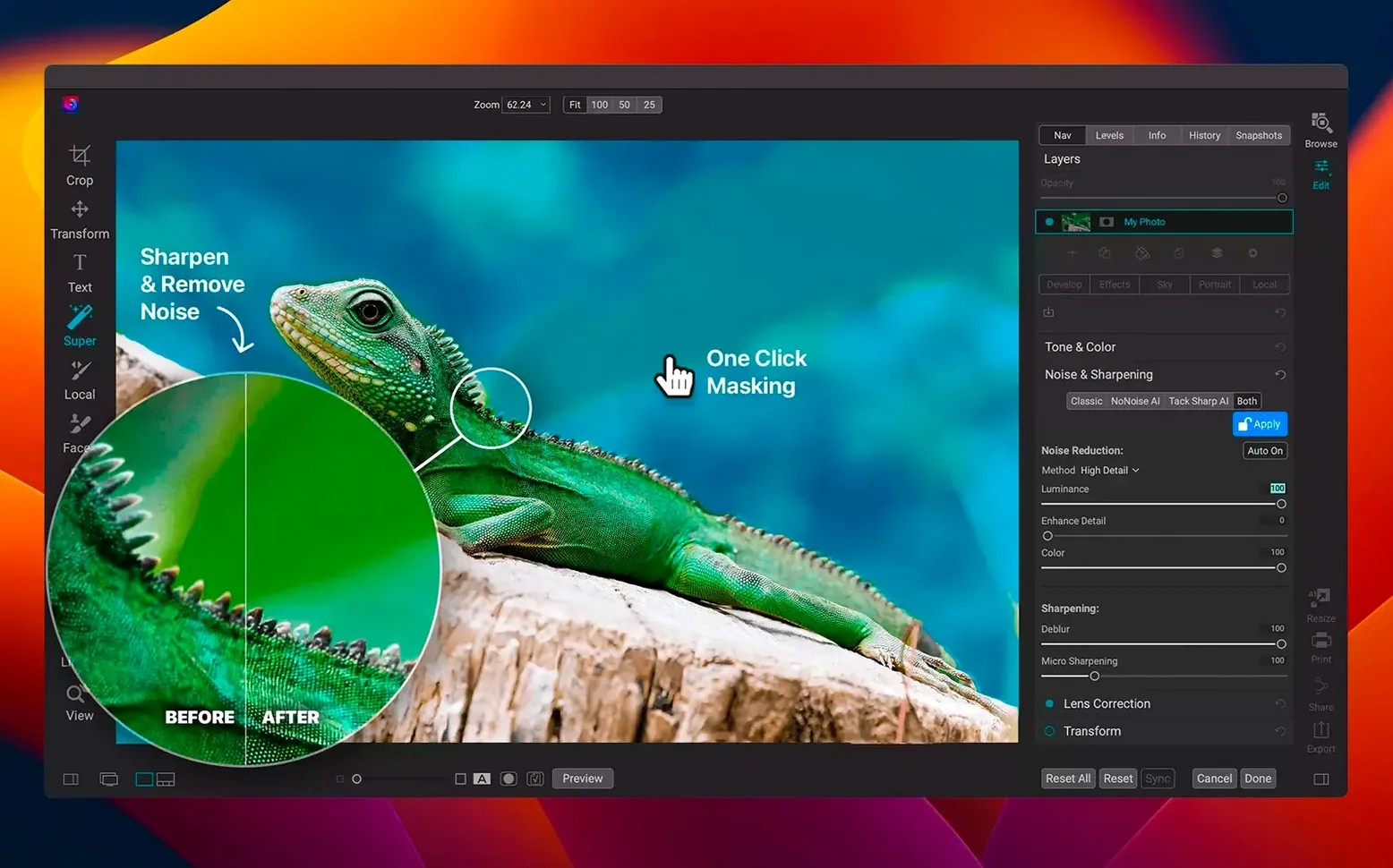
You come back from a shoot with a card full of raw files. You want to cull the blurry ones, correct the lighting on the keepers, maybe remove a distracting sign, and then send a few selects to a client — all without hopping between a browser, a developer, and a pixel editor. That’s the single-app workflow ON1 Photo RAW is built around.
The latest release sharpens two practical areas. Filters that used to make you wait — like a subtle glow or a vignette — now render noticeably faster. If you’ve recently picked up a new lens, the expanded profile library means the app already knows how to correct its distortion and falloff without you dialing it in manually.
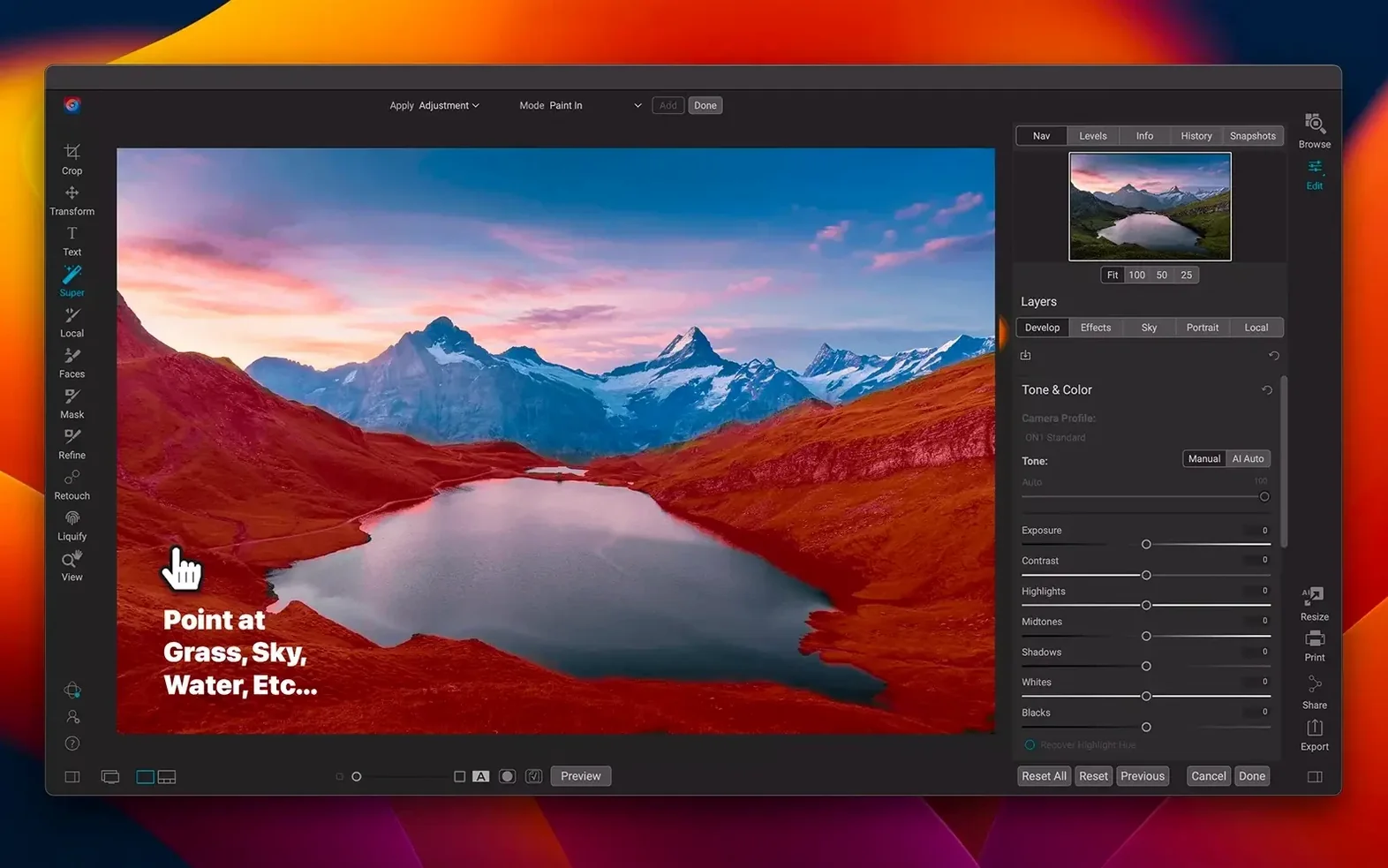
The layered editor gives you the kind of compositing and retouching flexibility you’d normally find in a dedicated pixel editor. You can stack adjustments, blend exposures, or replace a sky non-destructively, all within the same catalog that holds your organized library. No sidecar files to track down later.
Because the catalog lives locally and the interface speaks your language — from Portuguese to Korean — it feels like a tool that stays out of your way until you need it, then gives you everything in one place.
Option-drag sliders to reset any adjustment instantly
A handful of shortcuts and behaviors are easy to overlook, but they save real minutes over a long editing session. Holding Option while dragging a Develop slider resets it to its default — no hunting for a tiny reset arrow. The X key flags a photo as rejected during culling, while P picks it; both work in Browse and keep your rating flow uninterrupted.
The Effects module has a quiet feature I appreciate: you can save any filter stack as a preset by right-clicking the filter name and choosing Save Preset. Name it after the look (say, “warm print toning”) and it appears in the Presets panel for any image. Less obvious: dragging that preset onto another photo applies it without opening the Effects panel at all.
In the layered editor, double-clicking a layer thumbnail opens the blending options — opacity, blend mode, and the Blend If sliders — in one compact panel. The bracket keys [ ] resize your brush on the fly, and holding Shift constrains the brush to straight horizontal or vertical strokes, which comes in handy when you're cleaning edges along a roofline or a horizon.
A Retouch-and-Export Workflow, Start to Finish
Let’s walk through a common task: you have a portrait with uneven skin tones, a power line cutting across the top corner, and you need to deliver a finished JPEG sized for print. Here’s how it flows without leaving the app.
In Browse, you flag the shot with P. You switch to Develop and pull the highlights down a little, then open the Tone & Color panel to even out skin with the targeted adjustment tool — click on a warm patch, drag up or down to shift hue and saturation locally. The adjustment stays tied to that color range, so it doesn’t spill into the background.
To handle the power line, you send the photo to the layered editor with a right-click and choose Edit in Layers. You grab the Retouch brush, set it to Content-Aware mode, and paint over the wire. ON1 Photo RAW samples the surrounding sky and fills it in; a quick pass with a smaller brush cleans up the pole shadow. You add a new layer, set its blend mode to Soft Light, and paint a gentle vignette with a large black brush at low opacity — just enough to pull the eye inward.
From the File menu, you pick Export, set the format to JPEG, the color space to sRGB, and the long edge to 3600 pixels at 300 ppi. You type a naming preset — ClientName_Sequence — and run it. The export panel remembers your last settings, so next time it’s two clicks.
Send images straight from Apple Photos as an external editor
ON1 Photo RAW works as a standalone picture editor, but it also plays well with other apps when your workflow calls for it. You can set it as an external editor from Apple Photos: select an image, choose Edit With, and the app opens a rendered TIFF. When you save and return, the edited version sits alongside the original in your Photos library.
If you use a scanning app like VueScan to bring in film negatives, the resulting TIFFs drop right into a watched folder. Browse picks them up and you can apply grain reduction and tone curves in Develop before cataloging them. The local catalog structure — plain folders, no opaque database — means you can also point a backup tool like Carbon Copy Cloner straight at your photo directory without worrying about database corruption.
For print preparation, the soft-proofing view (under the View menu) uses your printer’s ICC profile to simulate how colors will land on paper. It’s a small thing, but it means you don’t need to round-trip through a separate layout app just to check gamut clipping. For designers who finish layouts in Affinity Publisher or InDesign, exporting a high-resolution TIFF with an embedded profile slots neatly into a print-ready document.
Tip: if you keep your catalog on an external SSD that travels between a desktop and a laptop, ON1 Photo RAW reads it on either machine without relinking — as long as the drive name stays the same, the paths hold.
This update keeps things practical:
- Faster filters — less waiting when you apply a glow or vignette.
- New lens profiles — automatic correction for recently released glass.
- macOS 13 Ventura or later
- Intel or Apple Silicon Mac
Questions from the stall
What’s new in the ON1 Photo RAW 2026 release?
The 2026.5.2 update brings snappier filter performance and adds new lens profiles for automatic distortion and vignette correction.
Can I use ON1 Photo RAW for both organizing and retouching?
Yes, it combines photo browsing, cataloging, and a full layered editor in one local app, so you don’t need separate software for culling and creative work.
Notes from other shops 0
Sign in or open a shop account to leave a note.
No notes yet. If you've used this on a shop Mac, tell me how it went.