Culling 3,000 RAW files before breakfast
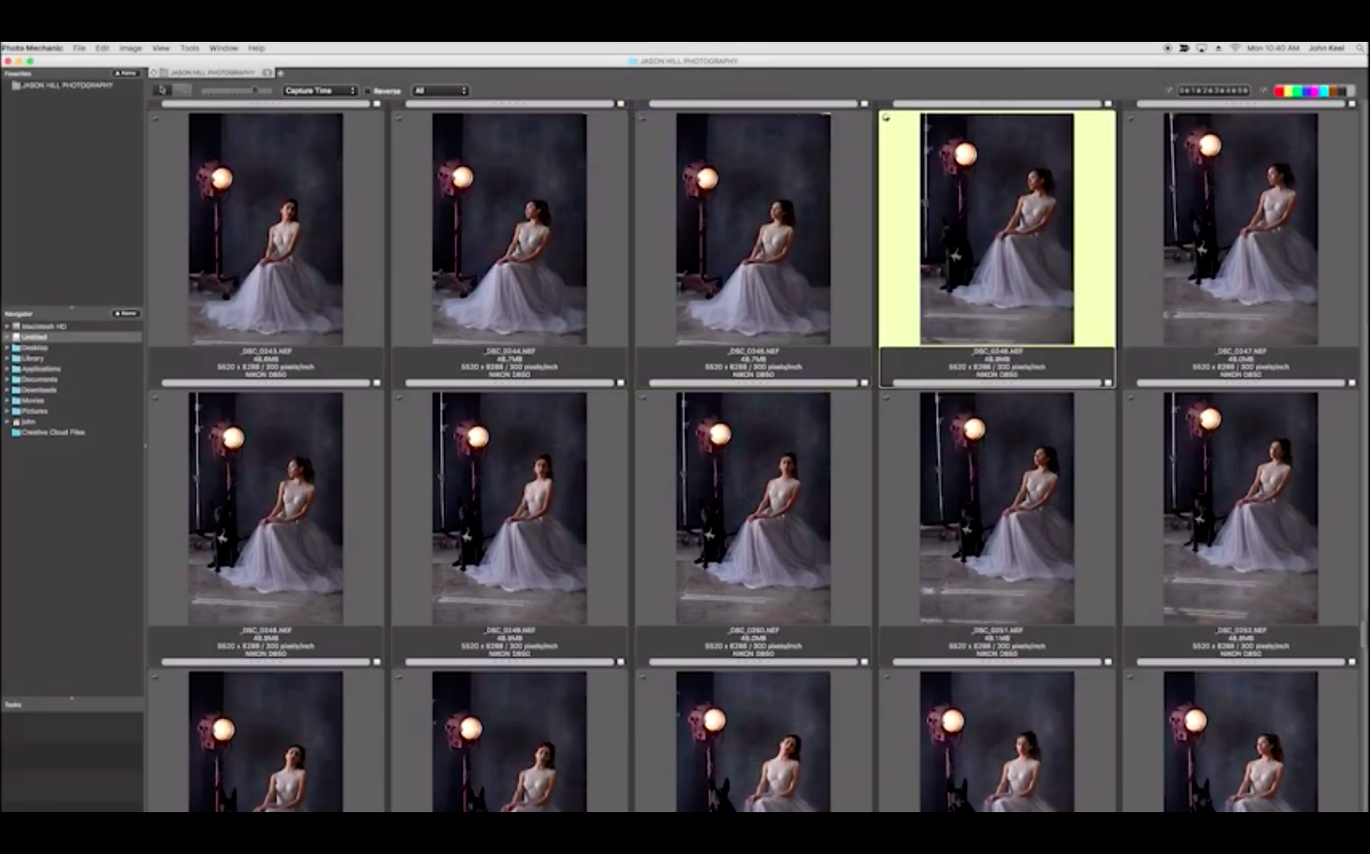
Culling a wedding gallery from 3,000 RAW files down to 400 keepers before the couple wakes up the next morning. Photo Mechanic loads previews directly from the memory card so you can tag picks and rejects at the speed of your arrow keys, not a spinning beach ball.
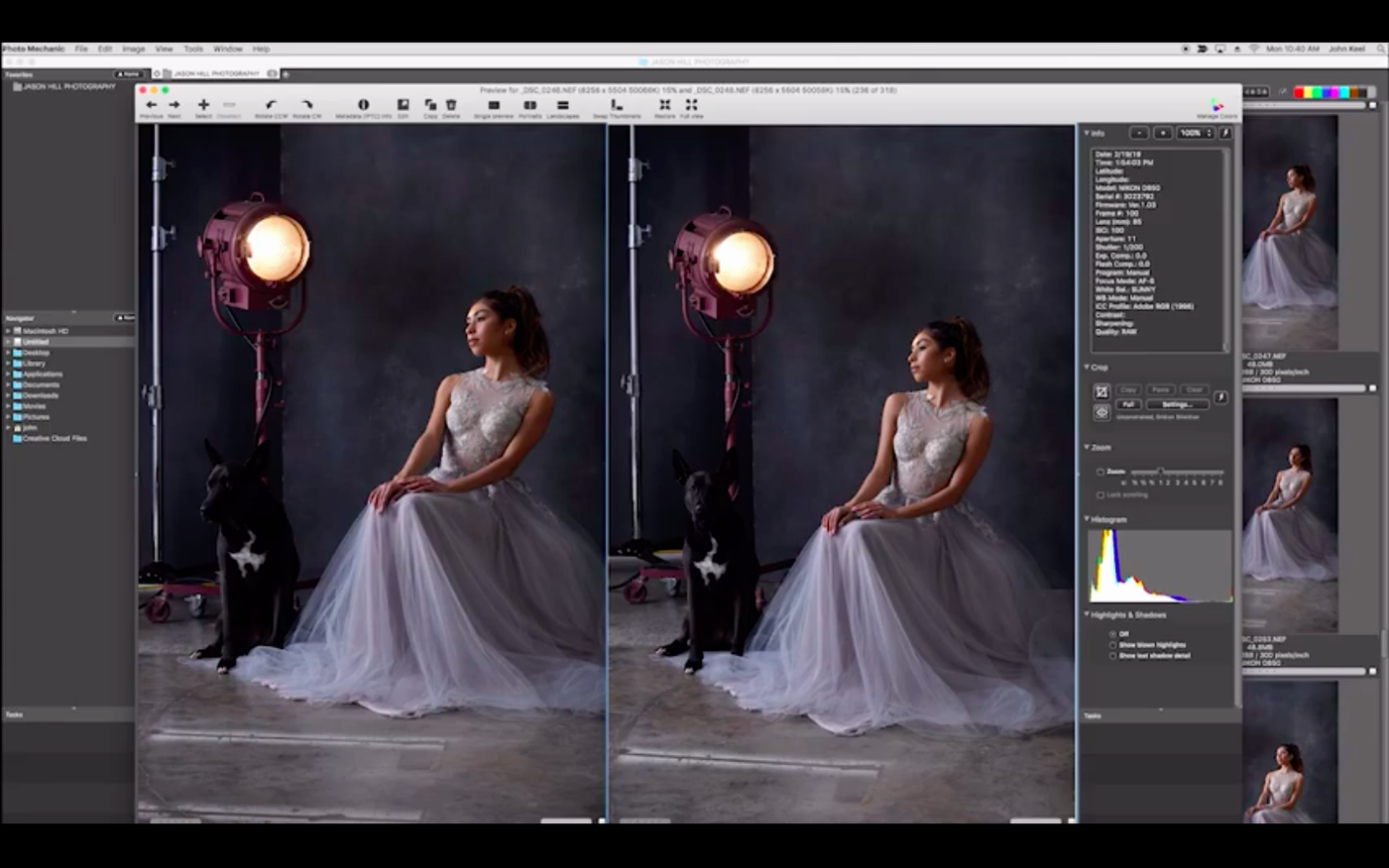
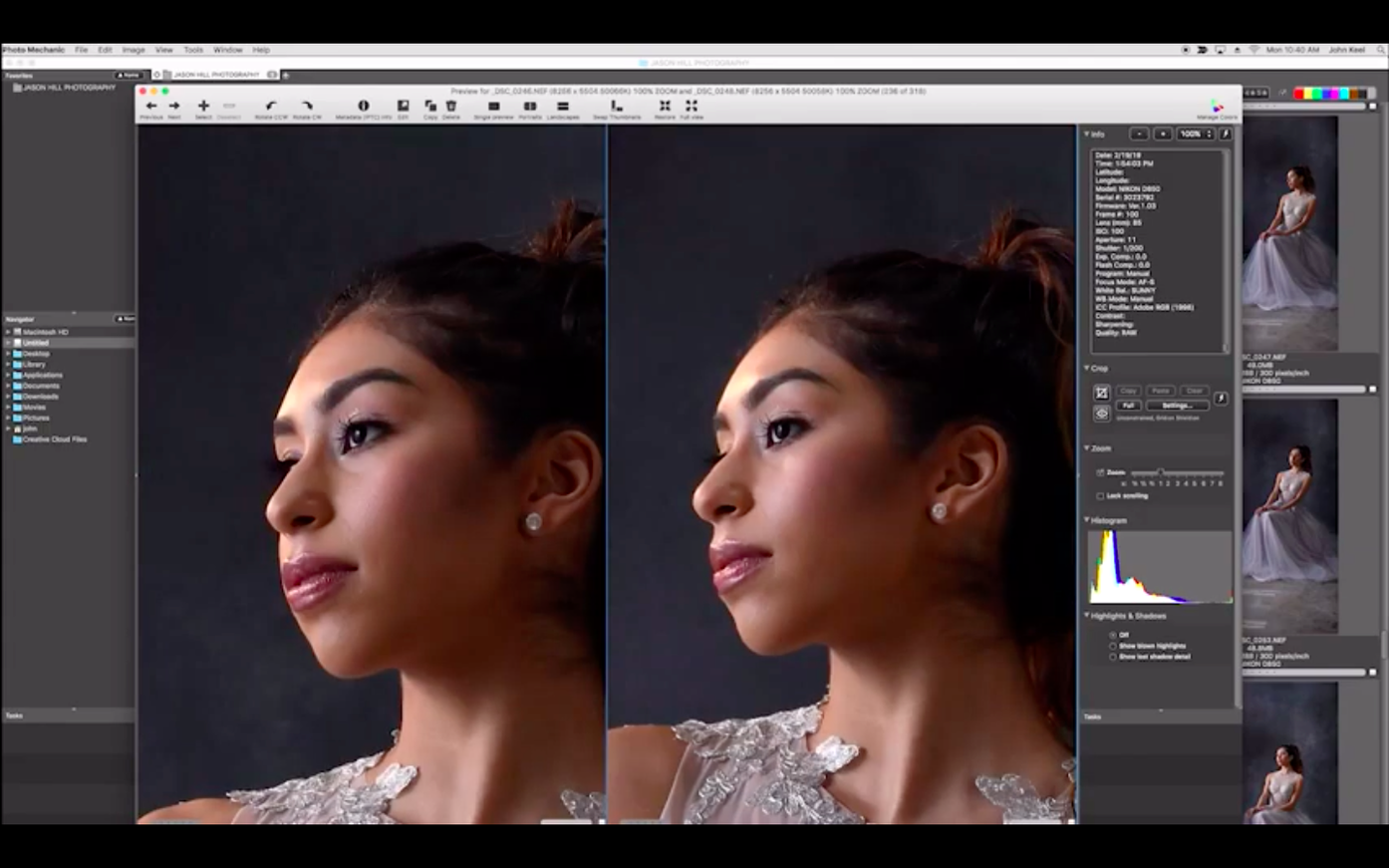
Comparing frames side by side
- Side-by-side comparison for choosing between similar frames
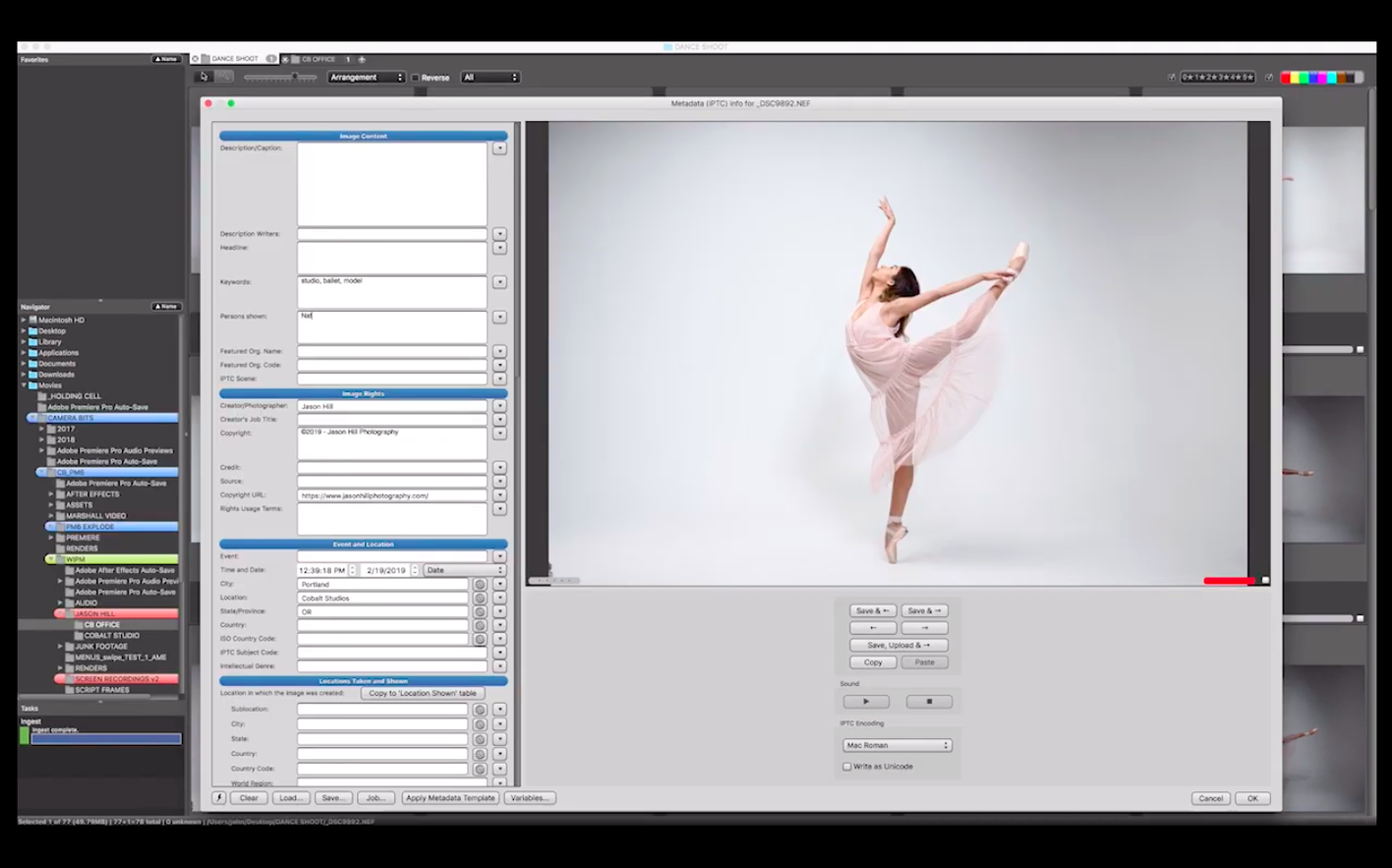
- Batch-editing IPTC metadata, keywords and captions across hundreds of images
- Sorting and searching by camera EXIF data like lens, focus mode or shooting parameters
- Uploading finished selects straight to an FTP server or sending contact sheets by email
- Printing proof sheets or burning client discs without opening another app
No catalog, just your folders
- It browses files where they live — no catalog or library database to maintain
- Image editing is metadata-only; pixel-level adjustments happen in your RAW processor
Apple Silicon makes 2,000 thumbnails instant
Version 2025.1.8239 runs native on Apple Silicon, and you feel that the moment you open a folder with 2,000 RAW files. Thumbnails populate as fast as you can scroll — no placeholder icons, no waiting. On an Intel Mac the app was already quick, but the ARM-native build removes the translation layer entirely, which matters when you're flipping through bursts at full speed.
The other change that affects daily work is the tightened macOS 13 requirement. Dropping older OS support let CameraBits clean up legacy code paths for things like the full-screen viewer and the batch rename dialog. Those windows now open instantly rather than drawing themselves piece by piece.
Incremental builds between major releases usually address specific format compatibility — new camera RAW profiles, odd EXIF maker notes from recent bodies — but the developer posts those details in the Readme and forum announcements rather than splash screens. If you photograph with a camera released in the last eighteen months, grabbing the latest build matters more than the version number suggests.
Small conveniences I'd miss if I switched apps
- Snap-to-contact-sheet on launch. If you quit while browsing a folder, Photo Mechanic reopens right back there. Not a preference you toggle — it just does it. Saves ten seconds of folder navigation every session.
- Color class and star rating travel together. Tag a photo red for "portfolio" and give it three stars in the same keystroke — those labels stick in the XMP sidecar and Lightroom reads them without a hiccup.
- Variable-speed scrubbing in full screen. Hold the left or right arrow and the app accelerates through frames. Tap for single-step, hold for a fast scroll. Ingest a 64 GB card, fill the contact sheet, and you can fly through the take without lifting your finger.
- The "Save Selection" command. Select 47 scattered keepers, hit a shortcut, and only those files appear in the contact sheet. Run your batch rename or export on that subset, then clear the selection to see everything again. No subfolders, no virtual collections — just a temporary filtered view.
- Spot-replace in the IPTC Stationery Pad. The find-and-replace field inside the metadata tool works across the entire batch. Misspelled a venue name across 300 captions? Fix it once, apply, done.
Save a Stationery Pad template first
Before you drop a single memory card onto the app, spend fifteen minutes on preferences. It pays back every session.
Set your IPTC Stationery Pad template. Open the Stationery Pad from the Edit menu and fill in the fields you always repeat: your name and contact info, a copyright notice, your city as the default location. Save it as a snapshot. From then on, applying it to an ingest batch is two clicks. You can still override individual fields per job, but the boilerplate is handled.
Choose your viewer background. The full-screen preview defaults to medium gray. I switch mine to white for client reviews and black for late-night editing — the difference in perceived contrast matters more than you'd expect. It's under Preferences > Preview.
Point the "Open With" shortcuts somewhere useful. You can assign external editors per file type — RAW files to your processor of choice, JPEGs to a pixel editor, TIFFs to Photoshop. Set those once in the Launching preferences and the right app opens when you send a file out. For a small shop, this alone removes the "wait, which program do I use for this" friction.
Decide on a folder naming convention for ingest. Photo Mechanic can create dated folders automatically during import. A pattern like YYYY-MM-DD_JobName keeps archives searchable without thinking. Set it in the Ingest dialog, save it as a preset, and your file system stays tidy forever.
Learn exactly three shortcuts on day one. T to tag a keeper, Command-Delete to mark a reject, and the arrow keys to move between images. Those three cover ninety percent of a culling session. Everything else — color labels, star ratings, zoom to 100% — you can layer on once the basic rhythm feels natural.
Ingest a portrait shoot by 7 PM, deliver proofs by morning
It's 7 PM and a memory card from an afternoon portrait shoot is sitting on the desk. The client needs a proof gallery by morning.
Insert the card. Photo Mechanic's Ingest dialog opens automatically because I've set it to launch on media detection. I choose the destination — a folder named 2025-04-08_MartinezPortraits — and pick my IPTC Stationery Pad snapshot from the dropdown. The Stationery Pad stamps my copyright, contact details and the shoot location into every file as it copies. I check "Apply IPTC Stationery Pad" and hit Ingest. The card copies to my working drive while I pour coffee.
When the contact sheet fills, I switch to full-screen preview and start culling. Arrow key forward, arrow key forward, T on a strong expression, arrow key, arrow key, Command-Delete on a blink. The previews snap into view without lag. A sequence of five near-identical frames comes up — I pull up the side-by-side comparison, lock one image as the reference, and flick through the alternates until the best micro-expression is obvious. Tag it, move on.
After twenty minutes I've tagged 47 keepers. I select all, invoke "Save Selection" to isolate them, and open the batch rename dialog. The files get renamed to Martinez_Proof_001 through Martinez_Proof_047 with a simple sequence pattern. The originals stay untouched on the card as a backup.
I still need to add specific keywords — "outdoor," "golden hour," "senior portrait" — so I open the IPTC Stationery Pad again, clear the fields I don't want to overwrite, type the new keywords, and apply to the 47 selected files. The copyright and contact info from ingest remain intact; I'm only adding, not replacing.
The client wants a web gallery. I select all keepers, open the Export dialog, choose JPEG at 2048 pixels on the long edge with sRGB color space, and point the output to a folder on my desktop. Two minutes later the resized proofs are ready. I upload them directly to the client's FTP folder using the built-in FTP uploader — no external client needed — and send a quick email with the link.
The whole session, from card insertion to sent email, runs under an hour. Photo Mechanic never touched a pixel. It moved data, applied metadata, sorted the good from the bad, and handed clean files to the next tool in the chain. That's exactly what it's built to do.
- macOS 13 or newer
- Apple Silicon Mac
Questions from the stall
Does Photo Mechanic edit pixels or just metadata?
It handles metadata — IPTC captions, keywords, copyright — and file management. For color grading and retouching you'll round-trip files to a pixel editor.
Can I send photos directly to clients from the app?
Yes, you can email resized proofs or upload a whole folder to an FTP server without leaving the browser window.
Does it support viewing camera shooting parameters?
It reads EXIF data including camera model, lens, white balance, focus mode and other technical fields, which you can also use for sorting and searching.
Notes from other shops 0
Sign in or open a shop account to leave a note.
No notes yet. If you've used this on a shop Mac, tell me how it went.