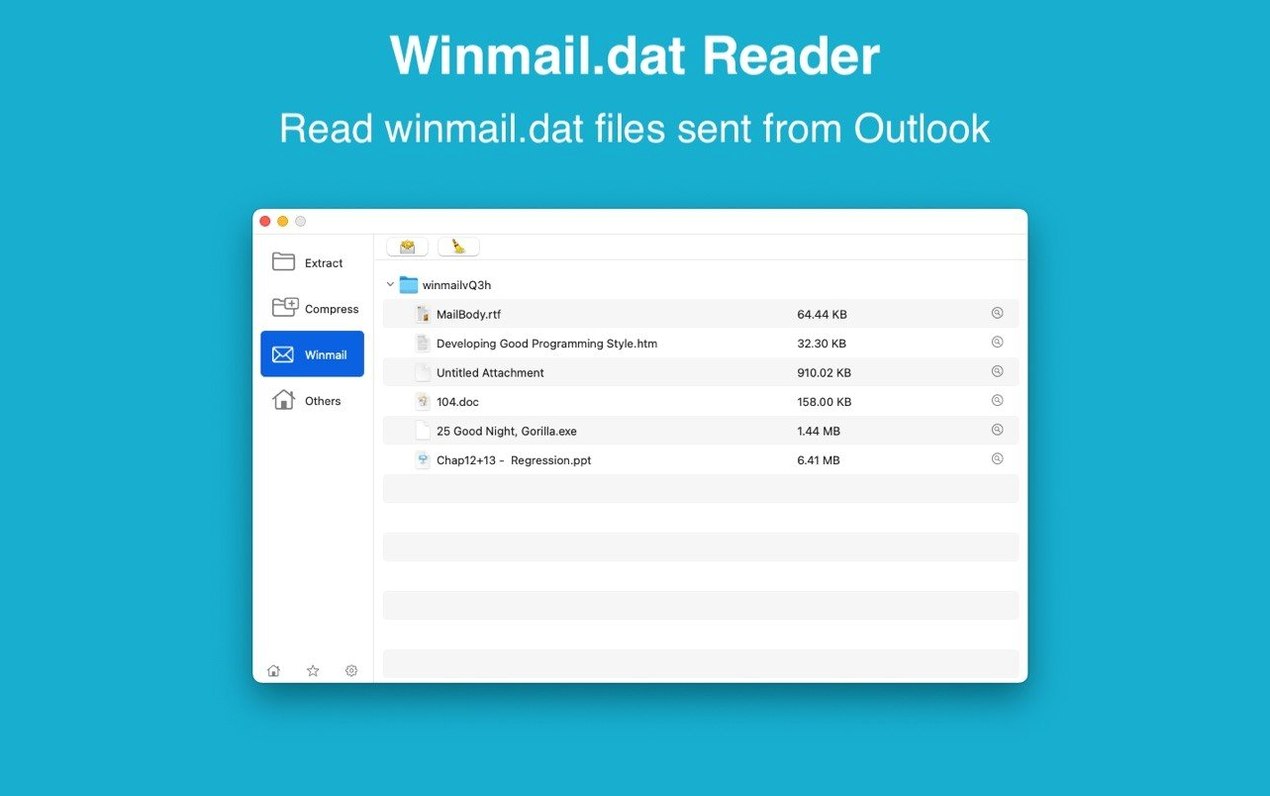
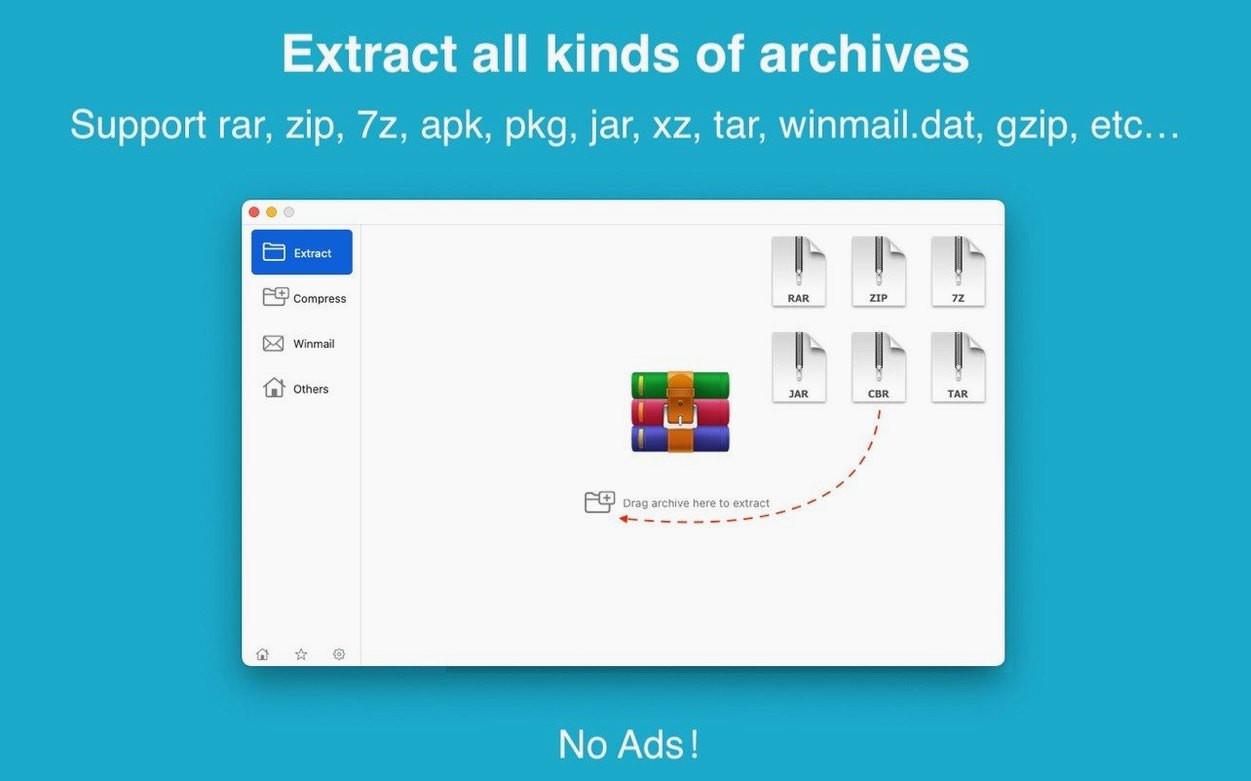
There's a winmail.dat preview tucked inside RAR Extractor, which is the kind of practical touch that tells you the developer has dealt with real inbox headaches. It is a straight-ahead archive utility for opening and creating compressed files, but before we get into what it does, let's make sure it will actually launch on your machine.
macOS 11.5+ and native Apple Silicon support
- macOS version: Requires macOS 11.5 or newer.
- Architecture: Runs natively on both Apple Silicon (ARM) and Intel 64-bit Macs. No Rosetta guesswork.
- Languages: The interface switches between English and Simplified Chinese.
Drag-to-dock and encrypted archive extraction
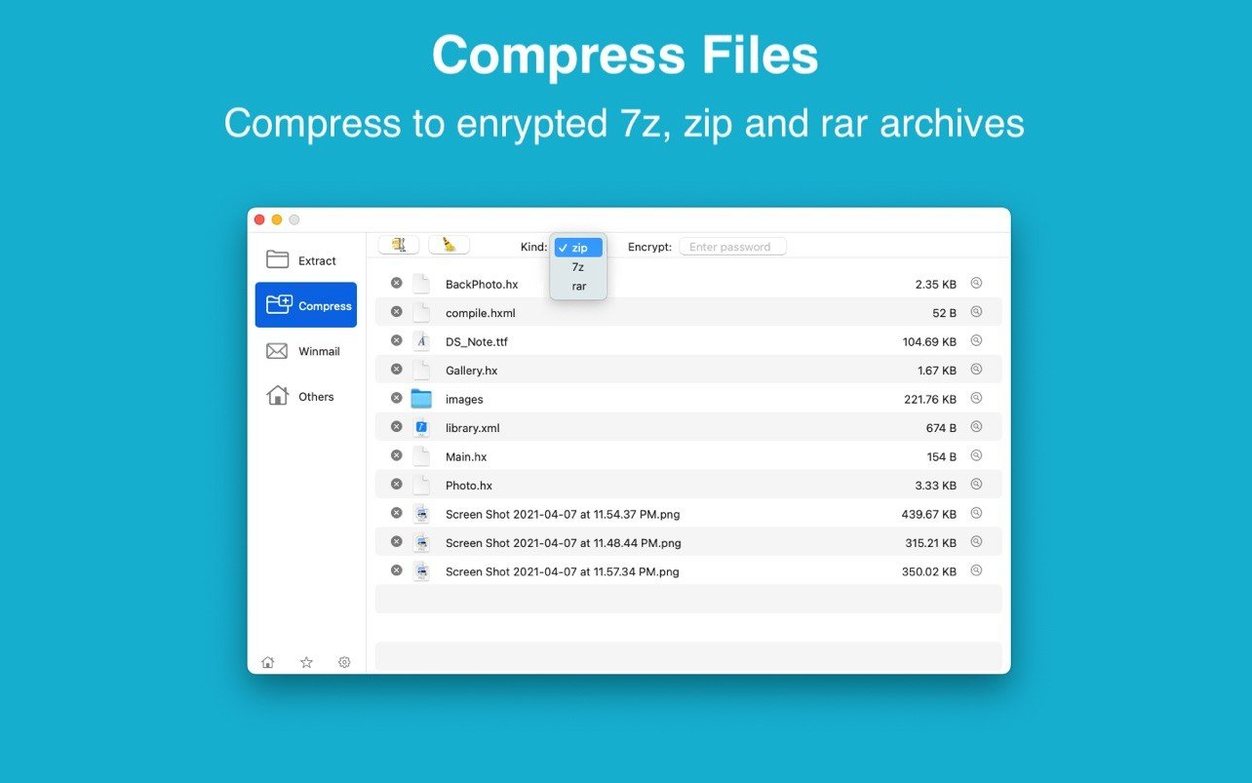
RAR Extractor handles the basics well — extracting encrypted archives, showing contents in a clean file list, and letting you drag an archive straight to the desktop or the Dock icon to unpack it. The dual-window display is handy when you're juggling folders, and you can set it as your default archive opener so double-clicking a file just works. The standout feature is that winmail.dat preview, a small thing unless you regularly deal with attachments from Outlook users on Windows. It also supports creating new archives.
Gatekeeper blocks the app after install
A few things trip people up, and they're almost always quick to fix once you know what's going on.
The app won't open after dragging it to Applications. This is just Gatekeeper doing its thing. If you see a warning about an unidentified developer, head to System Settings > Privacy & Security and click "Open Anyway" near the bottom of the panel. Once you do that once, it'll launch normally from then on. The Terminal bypass in the install steps handles this too, but the System Settings route feels less intimidating if you're not a command-line person.
Password-protected archives just show an error. RAR Extractor doesn't always prompt for a password automatically — sometimes it tries to extract first and falls over. The trick is to open the archive in the app's file list view first. Double-click the archive, let the contents load, and when it asks for the password, type it in there. Extraction after that tends to go smoothly.
A winmail.dat file extracts as gibberish. That's because you dragged it out without previewing it first. Open the dat file inside RAR Extractor — the preview panel will show you the actual attachments and let you save them individually. If you just extract the whole thing blindly, you get the raw encoded data, which no other app on your Mac will know what to do with.
Batch extraction stalls halfway through. Usually this means one of the archives in the batch is encrypted and the app is waiting for a password it hasn't asked for yet. Try extracting the password-locked archive on its own first, then run the batch again without it. The rest should fly through.
Extracting a mix of zip, RAR, and winmail.dat files
You've just downloaded three zip files of product photos from a supplier, a RAR archive of packaging templates from your designer, and — because someone in accounts still uses Outlook on a Windows machine — a winmail.dat attachment with invoice details. Here's how the next ten minutes go.
You drag the three zip files onto the RAR Extractor Dock icon. The dual-window view opens: your source files on the left, a destination chooser on the right. You pick a folder called "Supplier Photos" and hit extract. A few seconds later, all three are unpacked and sitting there, neatly separated into their own subfolders because you checked "extract to separate folders" without even thinking about it.
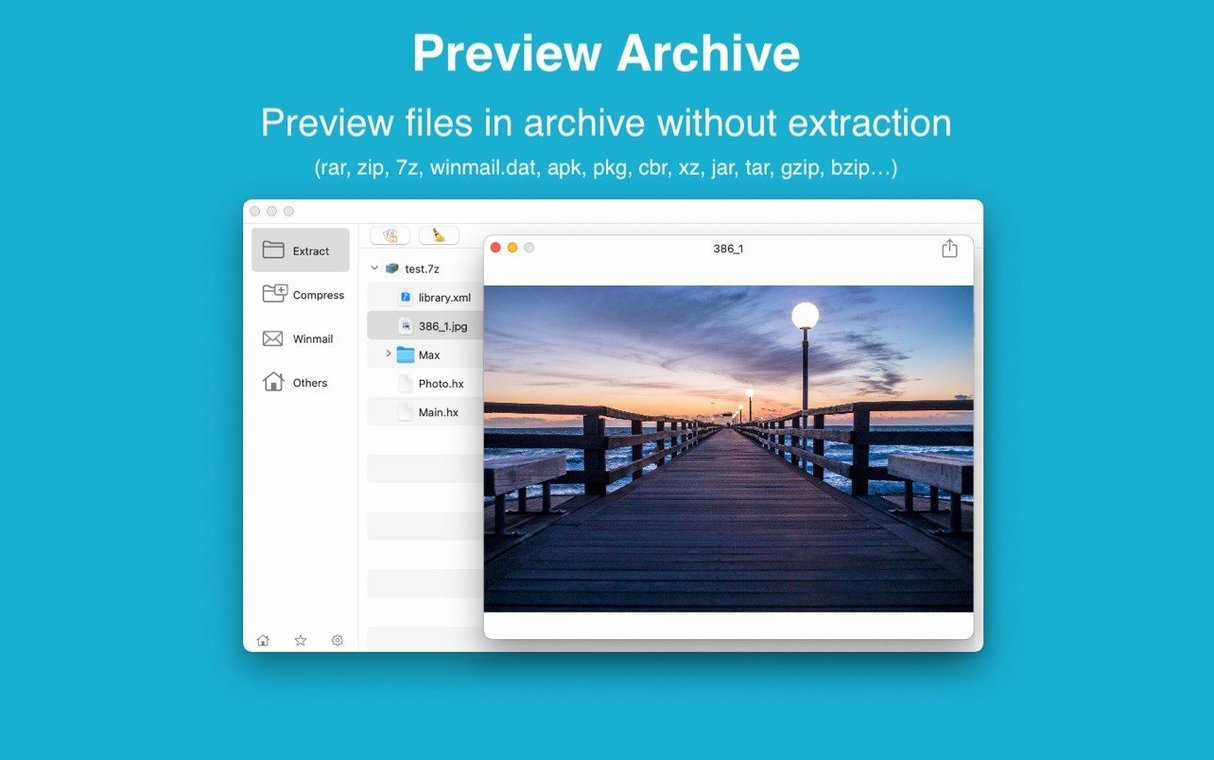
Next, the packaging templates. This RAR file is encrypted — the designer texted you the password earlier. You double-click the archive to open it in the file list first. The password prompt appears, you paste it in, and the contents populate. You spot a preview of the main dieline file right there in the panel, which confirms you've got the right version. You select just that file and extract it to your "Active Projects" folder, leaving the rest of the archive untouched.
Finally, the winmail.dat file. You open it inside RAR Extractor and the preview panel shows three PDFs and a spreadsheet. You save the PDFs straight to your invoices folder. That's it — five tasks, one app, no hopping between three different utilities.
Extracting entire multi-gigabyte archives you only need one folder from
The most common one is treating every archive the same way. Dragging a huge multi-gigabyte archive to the desktop for extraction seems efficient, but if you only need one folder from inside it, you're wasting time and disk space. Open the archive first, look at the file list, and extract just what you need. Your SSD will thank you.
Another is ignoring the dual-window layout entirely. People close the destination panel out of habit, then wonder why extracted files end up in the same folder as the archive. Keeping both panels visible gives you control over where things land, and it's especially useful when you're working across an external drive and your main disk.
Some beginners set RAR Extractor as the default archive app and then panic when their old tool stops opening zip files. This isn't permanent — you can switch the default back anytime in Finder's Get Info panel for any file type. But give it a week. Most people find they don't miss the old app.
Creating password-protected archives without noting the password somewhere safe is a self-inflicted wound. RAR Extractor uses AES-256 encryption, which is properly strong — there's no backdoor recovery if you forget what you typed. Use a password manager or write it down before you hit create.
Using it alongside your current unarchiver
"Does this replace the other unarchiver I already have?" It can, but it doesn't have to. If your current tool handles zip and tar files fine, you might keep it around and use RAR Extractor specifically for RAR files, encrypted archives, and winmail.dat previews. Plenty of people run two archive utilities side by side without conflicts. The one thing to watch is the default file association — only one app gets to claim "open with double-click" for each format.
"Will it mess with my existing archive files?" No. It reads and extracts — it doesn't modify the original archives unless you deliberately use it to create a new compressed file. Your old RARs and zips stay exactly as they were. The extraction creates copies, not transformations.
"Does it phone home or need an account?" It works offline. There's no sign-in screen, no account creation. You launch it and it extracts files. The interface is available in English and Simplified Chinese, and that's the extent of the personalisation it asks for.
"What if someone sends me a format I've never heard of?" The format list is long — ARJ, LZH, CAB, CPIO, and a couple dozen more that haven't been common since the early 2000s. If you're digging through old backup CDs or receiving archives from people on obscure Linux setups, the odds are good. For everyday use, RAR, ZIP, and 7Z cover almost everything, and RAR Extractor handles those without drama.
- macOS 11.5 or newer
- Works on both Apple Silicon and Intel Macs
Questions from the stall
Does RAR Extractor handle password-protected archives?
Yes, it supports extracting encrypted archives, so you can open password-locked RAR and other compressed files.
Can I use RAR Extractor as my default app for archives?
Absolutely — you can set it as the default archive application, and then opening or extracting files happens with a double-click.
What is the winmail.dat preview feature?
It lets you view the contents of winmail.dat files, which are those garbled attachments Microsoft Outlook sometimes sends, without needing a separate converter.
Notes from other shops 0
Sign in or open a shop account to leave a note.
No notes yet. If you've used this on a shop Mac, tell me how it went.