
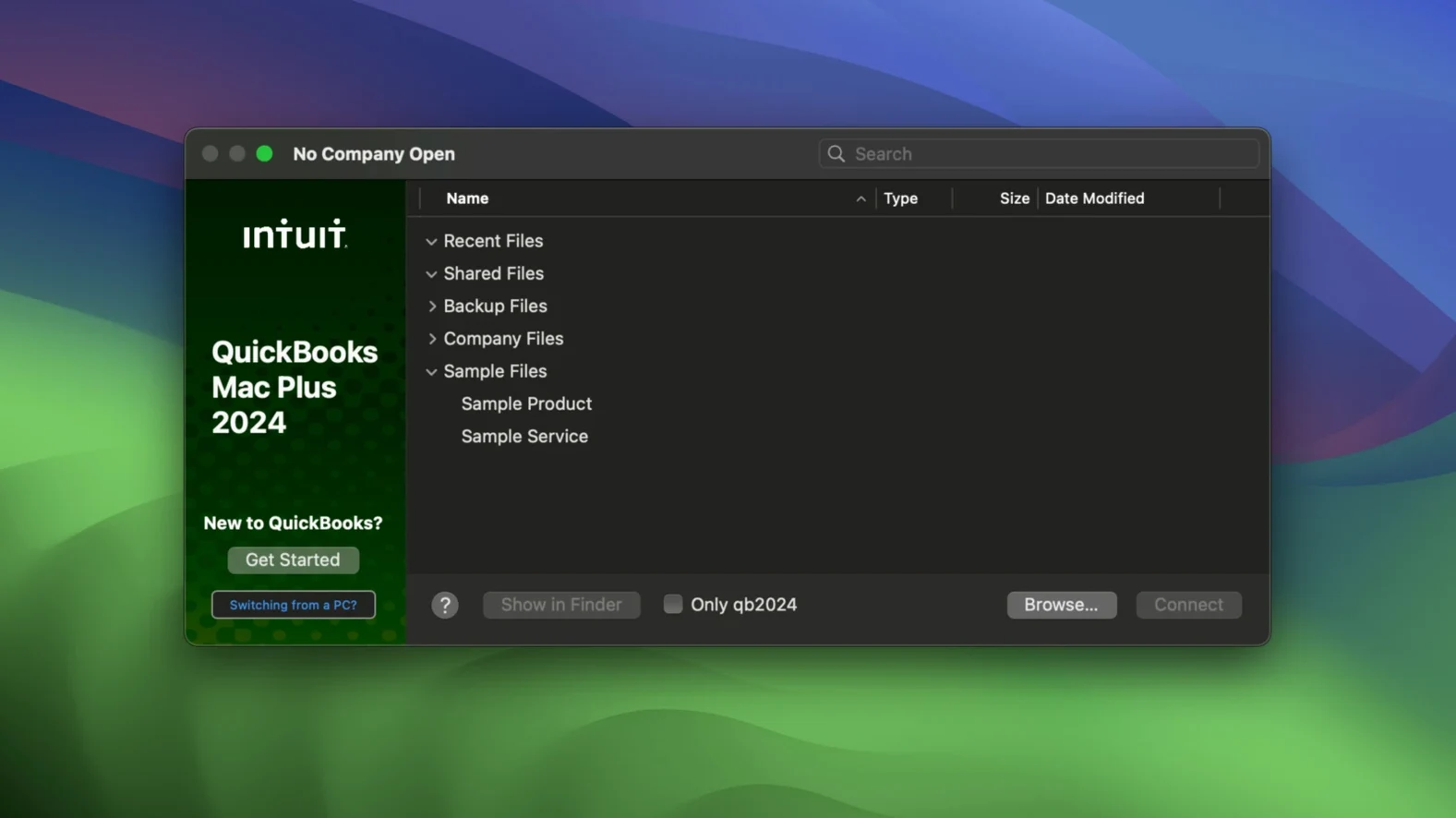
When spreadsheets stop cutting it and you need real invoicing, expense tracking, and tax calculations without moving everything online, a desktop accounting app still makes sense. QuickBooks Mac Plus puts those tools on your Mac so you can send invoices, run payroll, and see your numbers at a glance.
Will QuickBooks Mac Plus run on my Mac?
It needs macOS 12 Monterey or newer and works on both Intel and Apple Silicon machines. If you're still on Big Sur or earlier, you'll have to update your operating system first.
What does the dashboard actually show me?
The home screen gives you a clear snapshot of income, expenses, paid invoices, and other recent activity. It's the first thing I'd check each morning to see where the business stands.
Can I bring in data from my old system?
Yes — you can import tables from Excel and Xero, which saves re-typing every customer and transaction when you switch. The inventory tool also lets you enter your products and services and track them as sales happen.
What about taxes and payroll?
Tax calculations run automatically on invoices and purchases, and the built-in payroll support handles employee pay runs. Connecting your bank account feeds transactions straight in, so income and expense tracking stays current without manual entry.
Tuesday morning on your dashboard
Let me walk you through how a Tuesday morning might go with QuickBooks Mac Plus. You've just made coffee and sat down at your desk. The first thing you do is open the dashboard — it loads your company file and shows yesterday's activity at a glance. Three new paid invoices came in overnight, a supplier payment cleared, and your inventory count for the cotton totes dropped below the reorder threshold you set. You can deal with that in a minute.
Next you open the bank feed. Two transactions need categorizing: a craft fair booth fee (you mark it as a business expense, rent category) and a Venmo payment from a wholesale buyer (you match it to the open invoice you sent last week). One click each, done.
Now the inventory alert. You open the inventory tool, see you're down to four totes, and create a new purchase order for your screenprinter. While you're there, you add three new ceramic mug variants that arrived yesterday — QuickBooks updates the counts in real time, so your online shop inventory sheet stays accurate when you export later.
Mid-morning, you need to send three invoices for custom orders. You pull up each customer record, fill in the line items from your saved products list, and the tax calculates automatically. One customer asked for net-30 terms; you set that and move on. You attach the receipt photos you snapped on your phone earlier — the app stores them with the transaction, so tax time won't be a scavenger hunt.
Before lunch, you run payroll for your two part-timers. The numbers flow from their hourly rates and the hours you entered, deductions calculate, and you print the pay stubs. Last step: you open the reports section and glance at the 90-day projection. Income looks steady, the craft fair fee already shows in expenses, and nothing looks off. You close the lid and go eat.
Settings worth adjusting right after you install
Out of the box, a few defaults are worth tweaking so the app fits how you actually work. Here's where I'd start:
- Backup locations. The R10 update added company-specific backup paths. Go into preferences and set a separate backup folder for each company file you run. If you juggle a side hustle and your main shop, this keeps restore points cleanly separated.
- Invoice templates. The default invoice layout is functional but plain. Spend ten minutes adding your logo, adjusting the color to match your brand, and setting the payment terms you normally use. Future invoices will look consistent without extra effort.
- Bank connection rules. When you first connect your bank, take a moment to set up categorization rules for recurring transactions — things like "Etsy deposit" always maps to sales income, "Square fee" always maps to processing fees. After the first month, the feed practically sorts itself.
- Tax rates. Verify the default sales tax rate matches your city and state. If you sell at markets across state lines, add the other jurisdictions now so they're available on the invoice screen later.
- Inventory alerts. Set low-stock thresholds for the products you actually run out of. The default might be too high for slow movers and too low for your bestsellers.
You keep your company file, even if you stop upgrading
Does this lock my data inside a subscription? No. This is desktop software that works with company files stored on your own Mac. You're not locked out of your own books if you stop upgrading. The file format has been around long enough that moving to another tool later is doable, especially with the Excel import and export features.
Will it slow down an older Mac? The app runs on both Intel and Apple Silicon, and it doesn't require a constant internet connection beyond the bank feed feature. On an M1 or newer Mac, it's snappy. On an older Intel machine running Monterey, it still works fine — the heaviest operation is usually generating large reports, and even that is more about disk speed than processor muscle.
Can I share a company file with my accountant? Yes. You can copy the company file to a shared folder, an external drive, or send it securely. Your accountant opens it in their copy of QuickBooks Mac Plus, does their work, and sends it back. It's old-school, but it keeps both sides in control.
What if I'm coming from QuickBooks for Windows? The file formats aren't directly interchangeable, but you can export your Windows data to Excel and import it here. It takes an afternoon of cleanup — reconciling customer names, checking category mappings — but once it's in, it stays clean.
Does it handle multiple currencies? The base version is geared toward US dollar accounting. If you occasionally pay a supplier in Canadian dollars or Euros, you can record the transaction manually at the exchange rate you paid, but don't expect automatic multi-currency revaluation.
Is the payroll truly built in, or is it an add-on? Payroll is part of the app — you set up employees, enter hours, and run pay runs without a separate service. Tax tables update periodically. If you have very complex payroll needs (multiple states, garnishments), check the current tax table coverage for your situation, but for a small team it handles the common cases.
Two practical backup improvements landed in version 23.1.9.R10 Plus:
- A new Backup Save As option for making manual backups whenever you want
- Company-specific backup locations, so each business file remembers where it saves
- macOS 12 Monterey or later
- Works on Intel and Apple Silicon Macs
Notes from other shops 0
Sign in or open a shop account to leave a note.
No notes yet. If you've used this on a shop Mac, tell me how it went.