
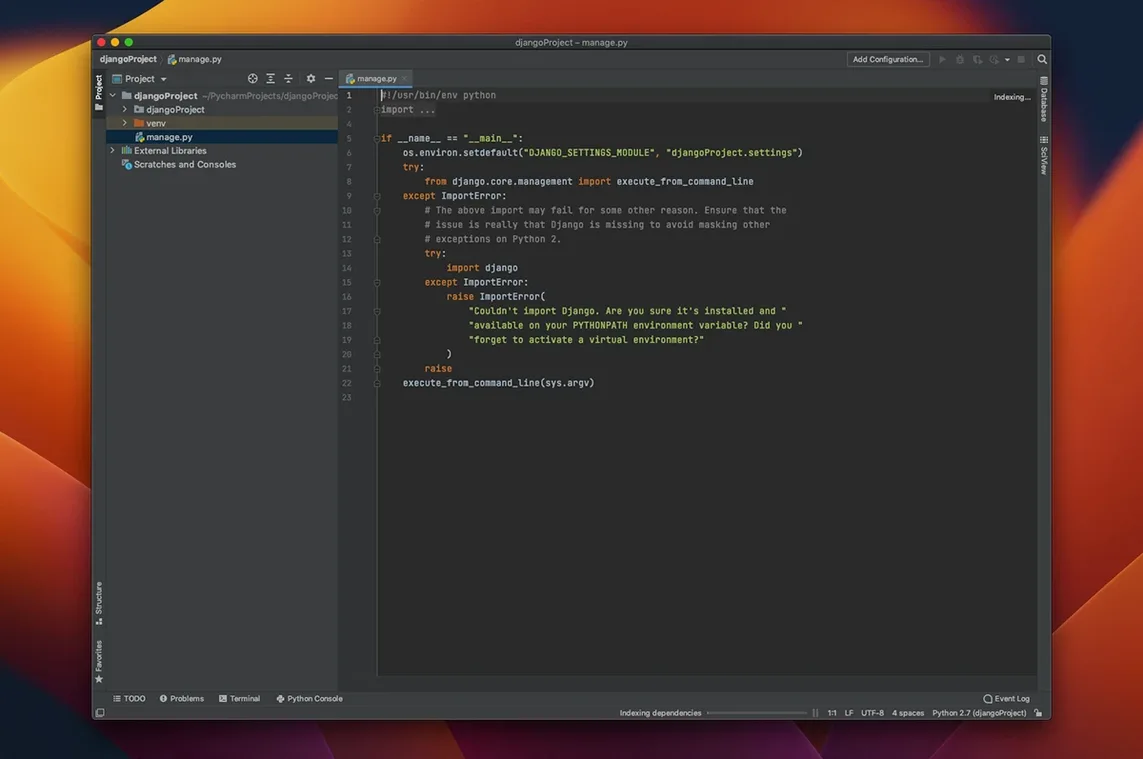
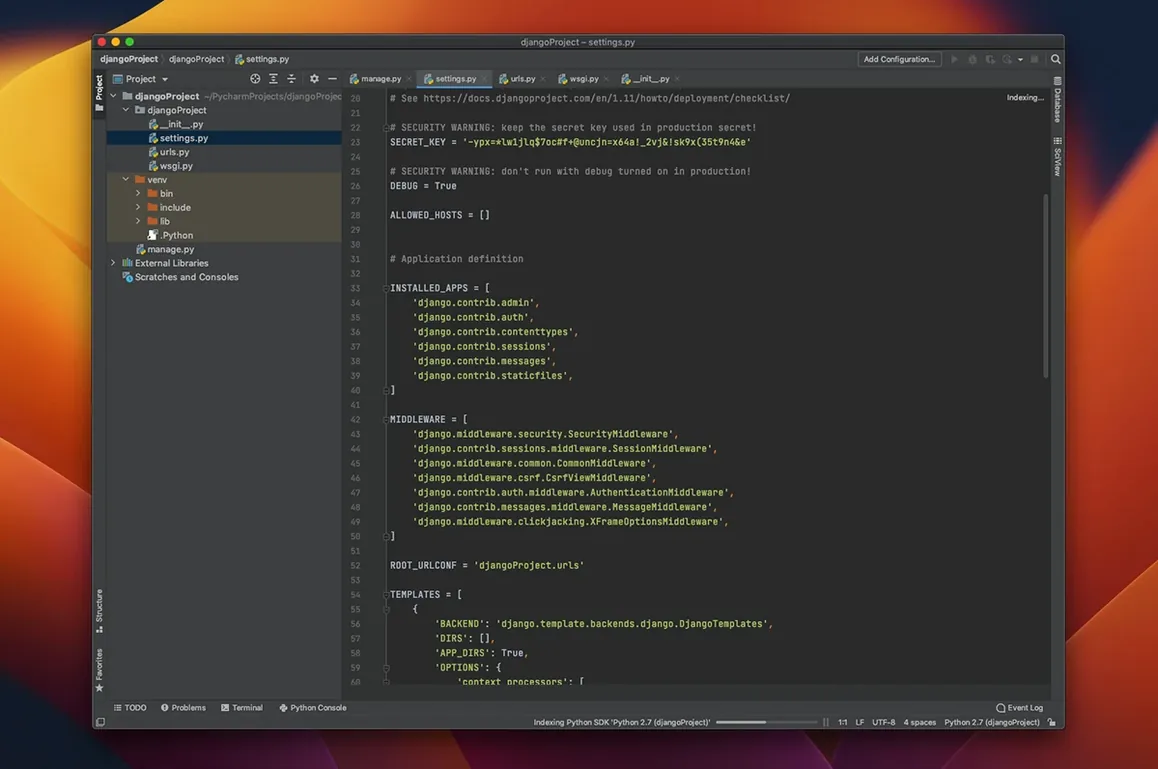
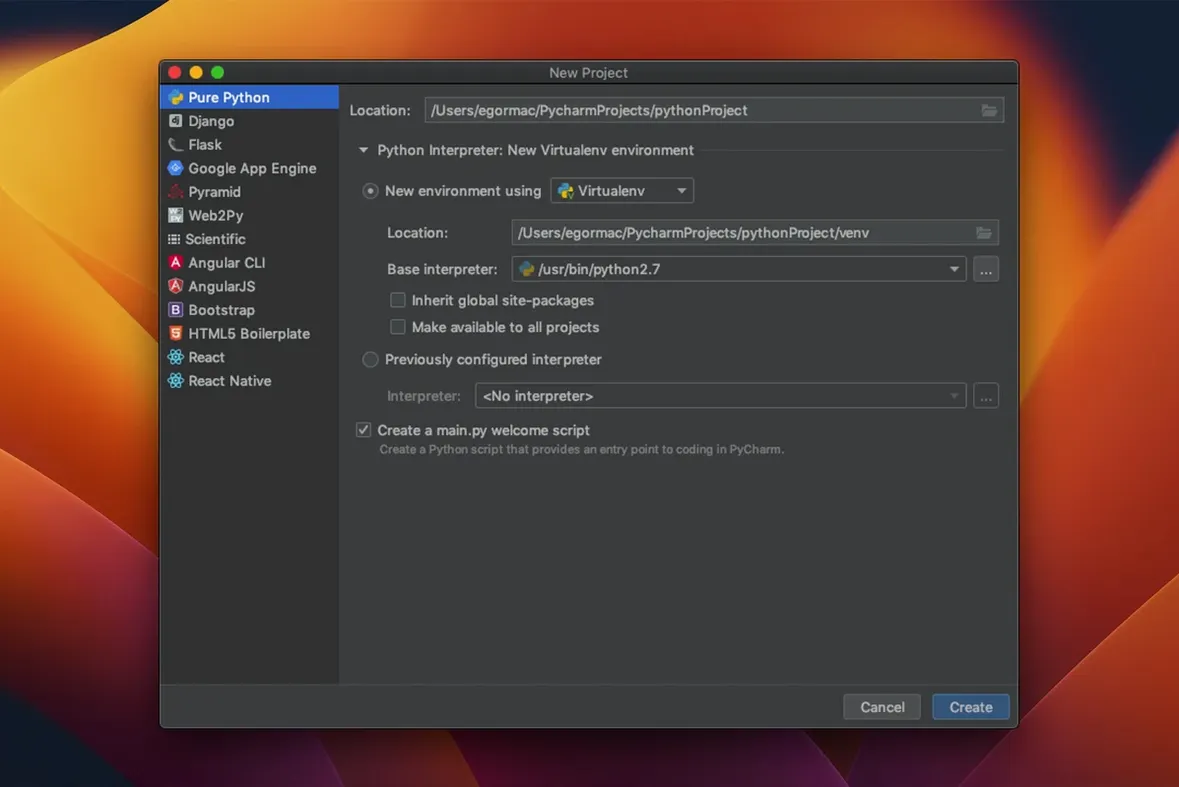
If you’ve been writing Python in a lighter editor like Sublime Text or VS Code, PyCharm wraps that same language in a full IDE built to catch mistakes before they catch you. The current version, 2026.2.3, is available for Mac and stays focused on professional Python work.
Scientific libraries and Jupyter are core features
- Projects that lean on scientific libraries or Jupyter notebooks—both are core features here, not plugins.
- Keeping code tidy with built-in PEP 8 checks that flag style issues as you type.
- Quickly navigating large codebases and renaming or restructuring blocks with smart refactorings.
- Testing snippets in an interactive Python console without leaving the IDE.
Feels heavier than a text editor on older Macs
- It’s a full IDE, so the interface feels heavier than a text editor on older hardware.
- macOS 11 is the baseline—you’ll need that or a newer release, on either Intel or Apple Silicon.
Error detection works while you type, and quick fixes pop up right next to the problem. An integrated terminal means you can run scripts, manage virtual environments, and handle Git commands all from the same window.
Let indexing finish after opening a big project
One thing I hear often: PyCharm feels sluggish indexing a big project right after install. That's normal—it's building its map of your code so navigation and refactoring stay snappy later. Grab a coffee and let it finish. If it keeps dragging, check Settings → Appearance & Behavior → System Settings → Shared indexes. Turning that on downloads pre-built indexes instead of building them from scratch.
Another hang-up: the interpreter goes missing after a macOS update. You'll see red squiggles everywhere and autocomplete stops working. Head to Preferences → Project → Python Interpreter, click the gear icon, and point it back to your environment. If you use pyenv or conda, make sure that path survived the update.
Jupyter notebooks sometimes refuse to show output inline. That's usually a kernel mismatch. Restart the kernel from the notebook toolbar and double-check the notebook is using the same Python environment you set for the project.
Tip: If you grabbed a PyCharm torrent Mac file and the IDE won't start, corrupted caches are often the culprit. Delete the ~/Library/Caches/JetBrains/PyCharm2026.2 folder and try again.
Jumping between files feels responsive now
Once the indexing dust settles, PyCharm 2026.2.3 feels responsive in daily use. Jumping between files, searching across the project, and running tests all happen without the little pauses I used to tolerate in older JetBrains releases. The type-checking fixes in this version also mean fewer false red lines, so I spend less time second-guessing the IDE.
Memory use is the trade-off. On an Apple Silicon Mac it comfortably sits around 2 GB with a medium Django project open, and can climb past 4 GB once you add Jupyter notebooks and a few Docker containers. That's not lean, but it's stable—I haven't seen a beachball or crash through multiple workdays. Virtual memory swapping is rare if you have 16 GB of RAM.
The integrated terminal and Docker tooling don't add noticeable overhead, and the remote interpreter connection stays solid even over spotty Wi-Fi. If you're running on an older Intel machine with 8 GB, close projects you're not actively working on to keep things breathing.
Version 2026.2.3 is a tune-up release that smooths out a few rough spots:
- Fixed several type-checking false positives that could flag perfectly valid code.
- Improved type inference from Numpy-style docstrings.
- Cleared up issues affecting Ruff, Jupyter, Databricks, and interpreter setup.
- macOS 11 or later
- Runs on Intel and Apple Silicon Macs
Questions from the stall
Does PyCharm work with Jupyter notebooks?
Yes, Jupyter support is part of the core functionality, so you can open and edit notebooks right inside the IDE alongside your Python files and scientific libraries.
Notes from other shops 0
Sign in or open a shop account to leave a note.
No notes yet. If you've used this on a shop Mac, tell me how it went.