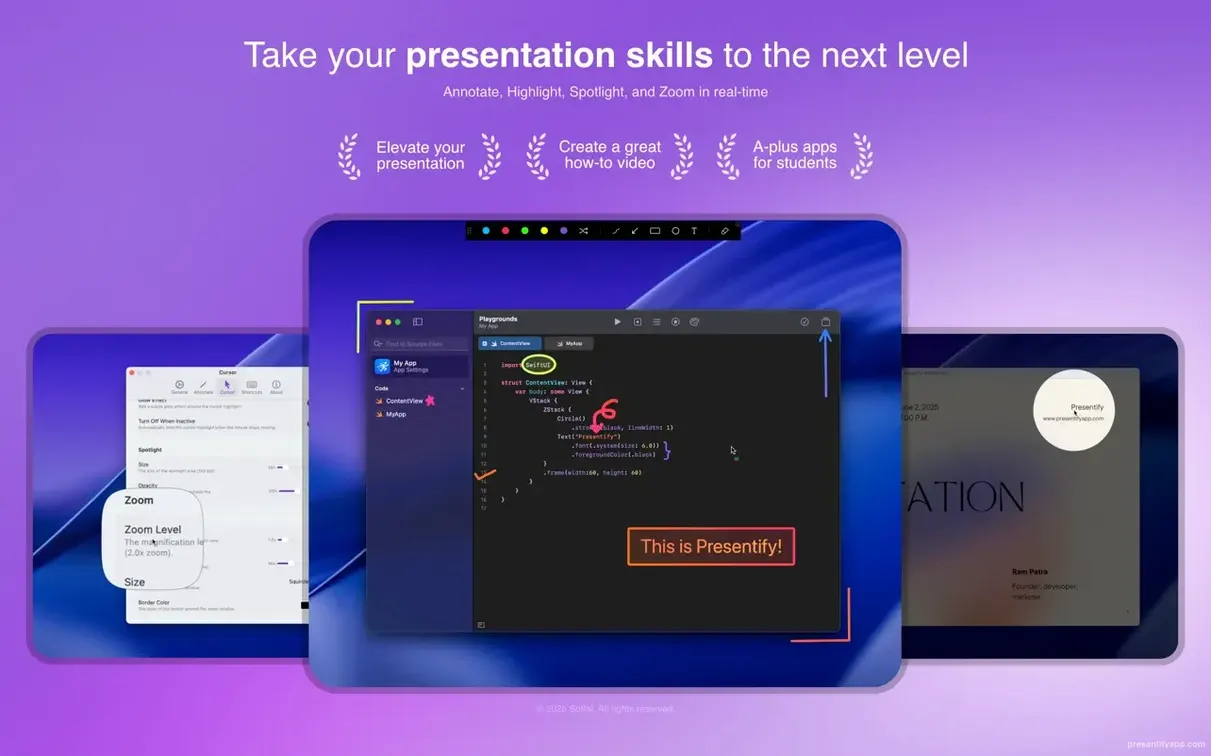
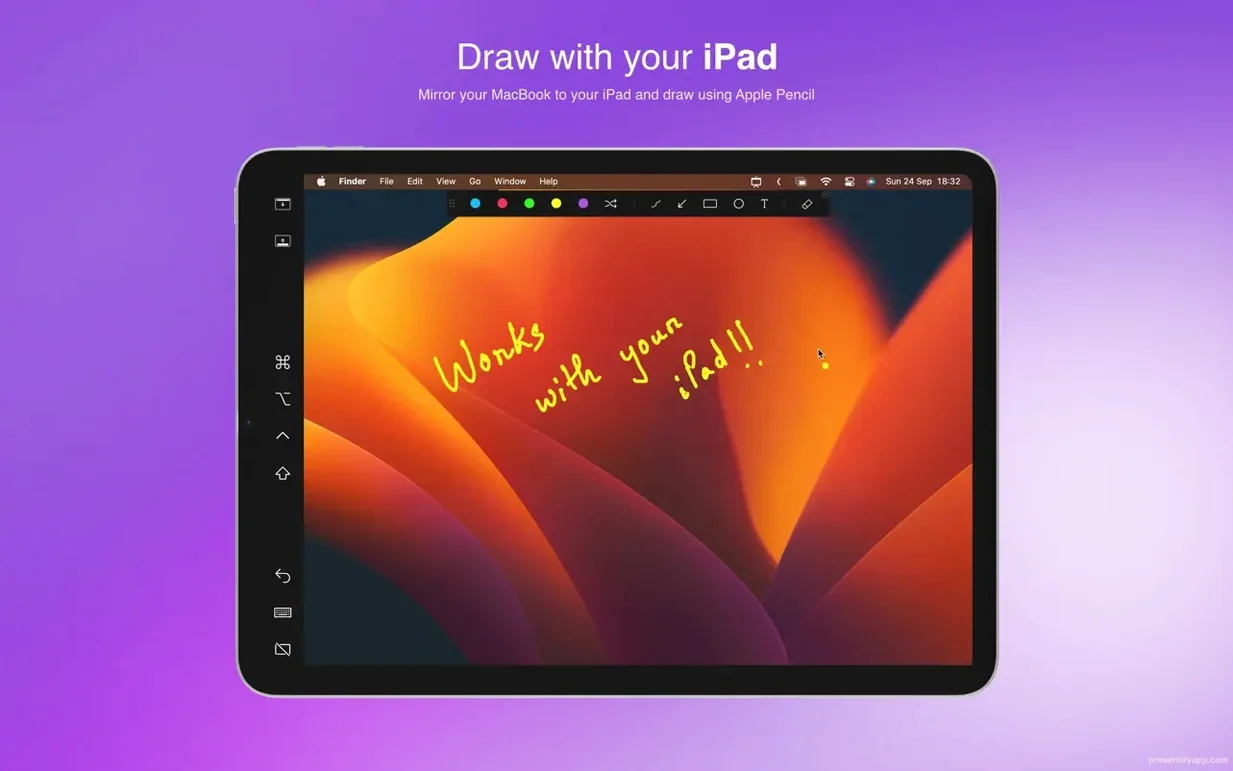
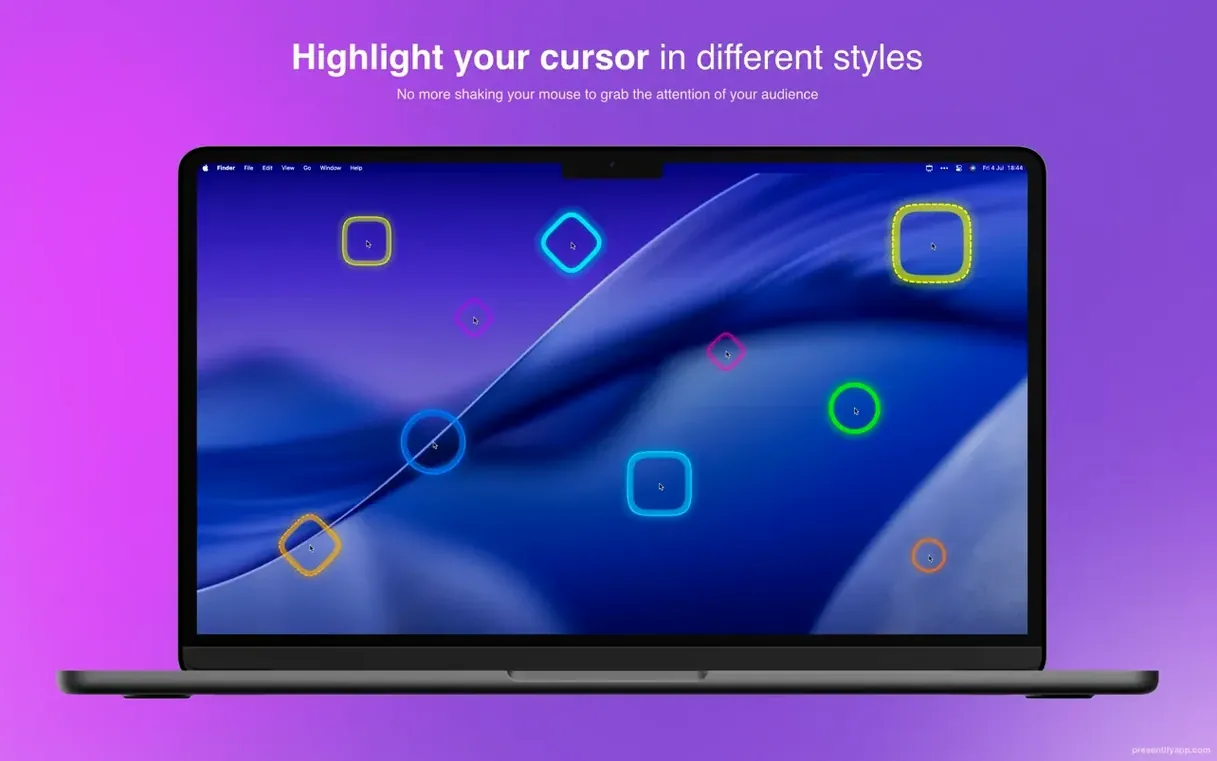
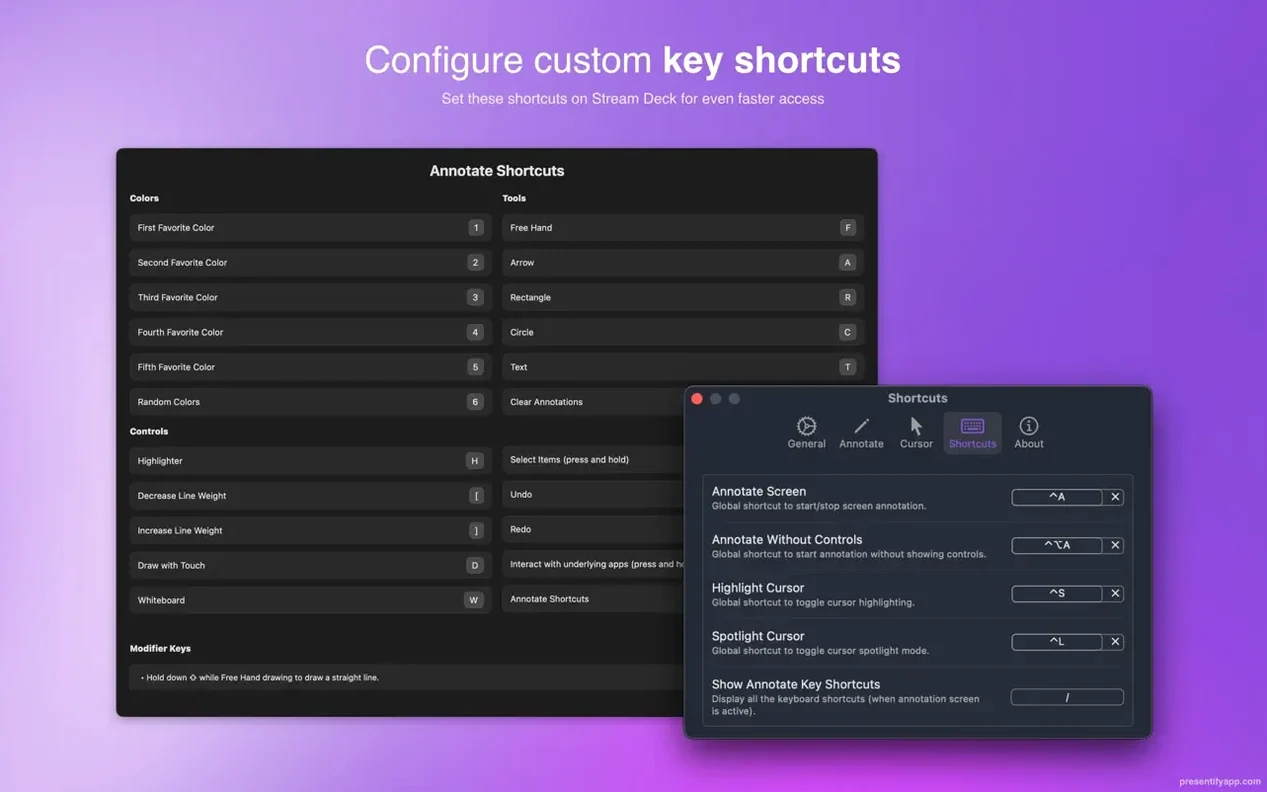
You get a set of seven drawing tools that stay on top of every window, including full-screen slides and video calls. I like how it puts the essentials — rectangle, arrow, freehand, text — right in the menu bar without crowding the screen during a live demo.
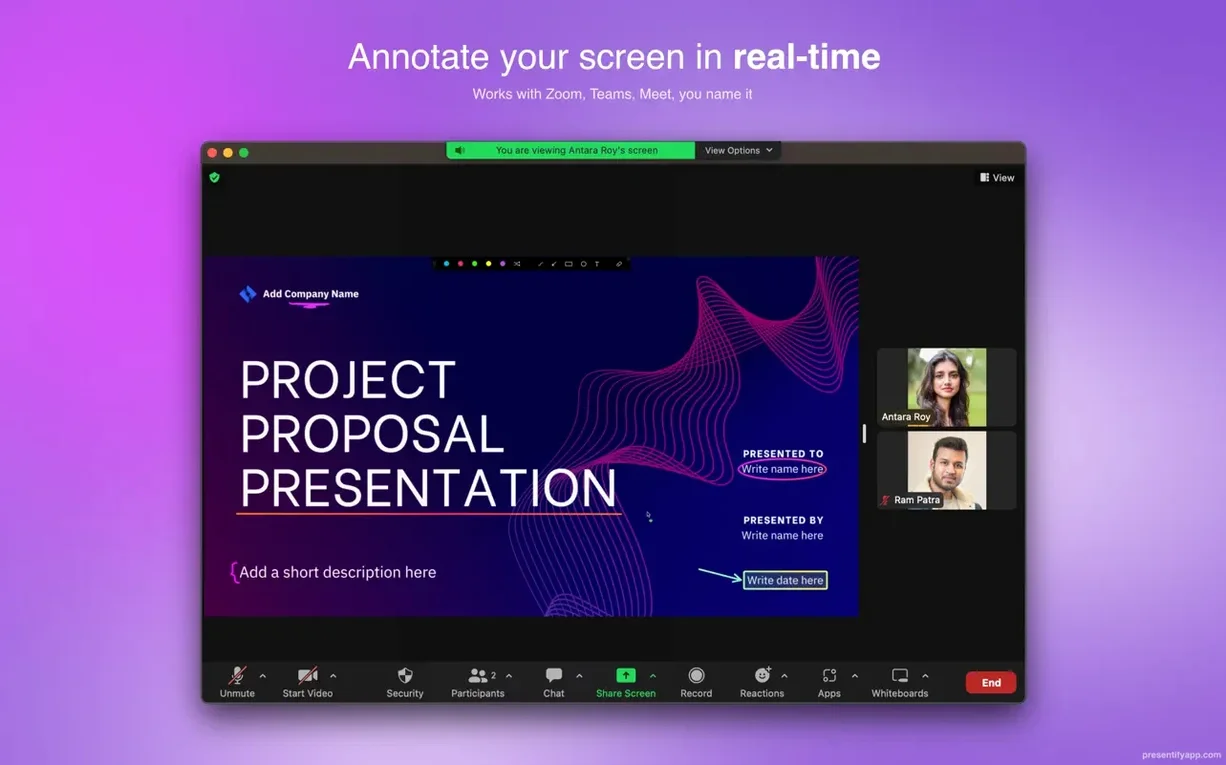
- Hold a custom hotkey and draw directly over any app, browser tab, or shared screen in Zoom, Google Meet, or Skype.
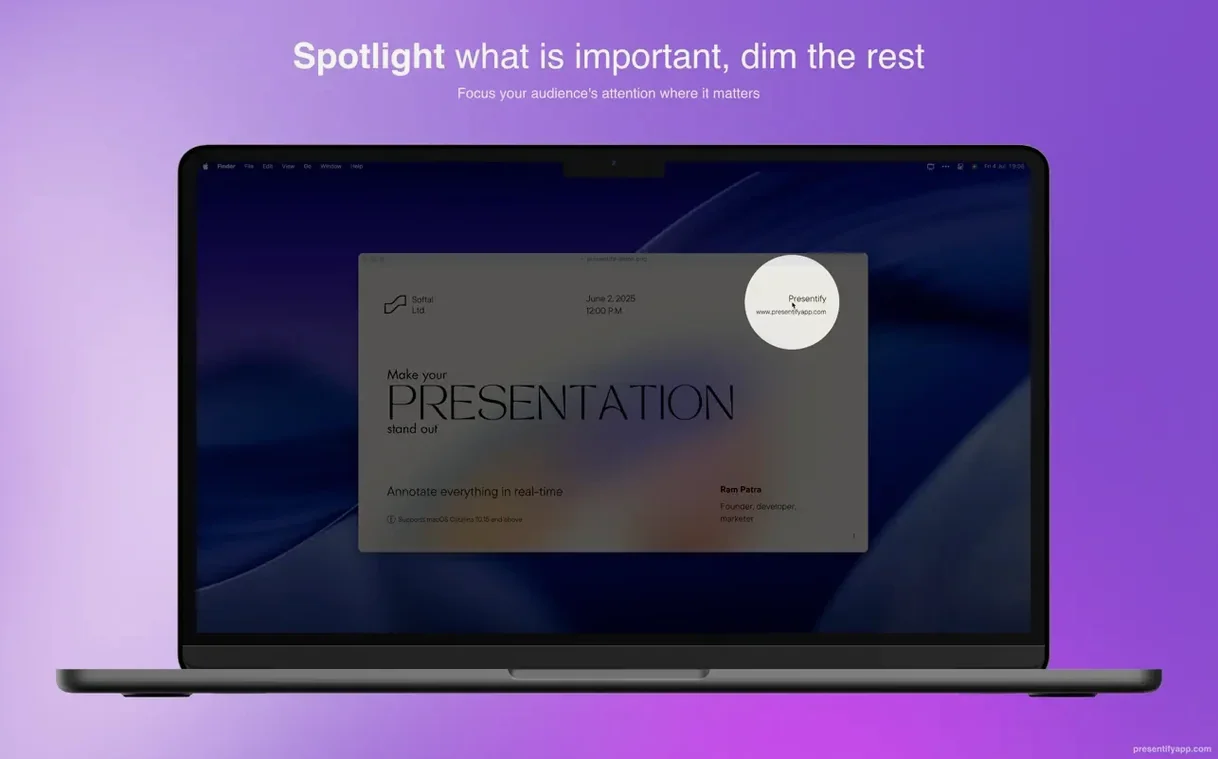
- Switch between a rectangle, ellipse, line, arrow, freehand pen, text annotation, or spotlight mode that dims everything outside a movable circle.
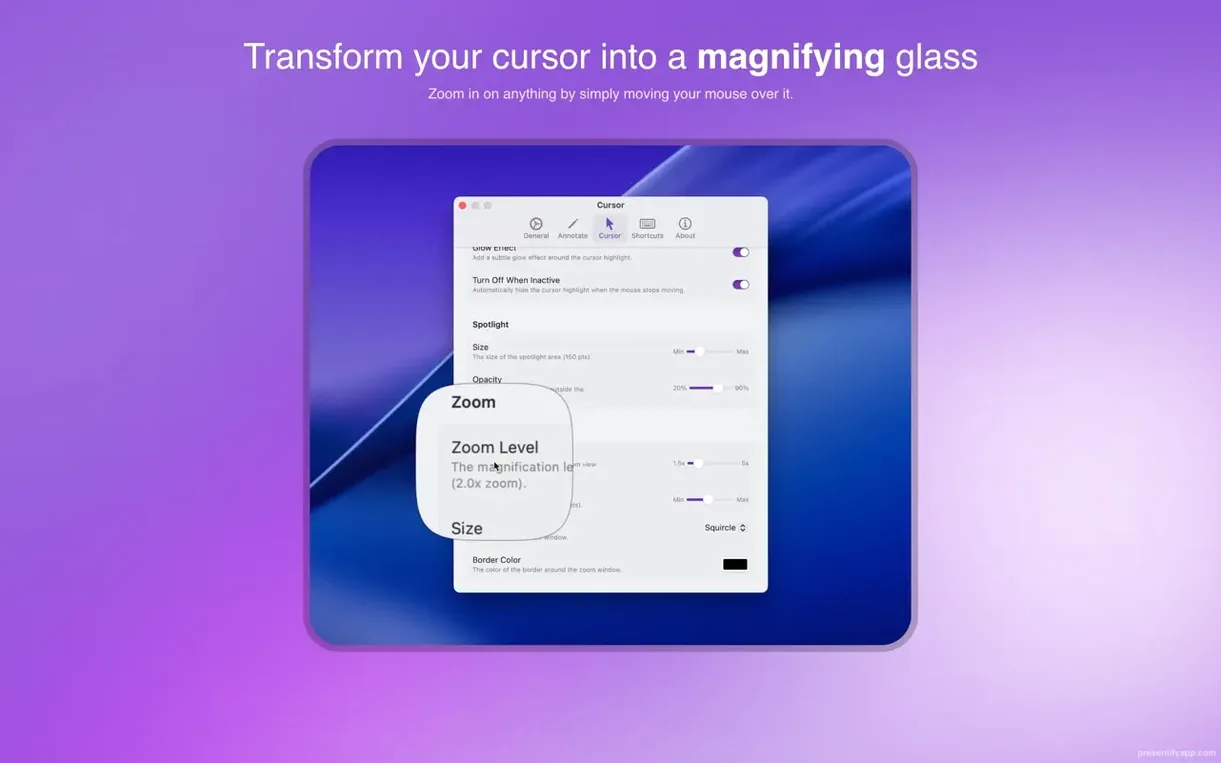
- Use the zoom tool to magnify a small UI element while you explain it — great for design walkthroughs.
- Pick a solid color or let the random gradient option cycle through a fresh shade each stroke.
- Work with a graphics tablet from XP-Pen or Wacom for smoother handwriting and finer marks.
- Markings erase themselves after a delay you set, so you never leave ink behind when you move to the next point.
It lives in the menu bar, runs on macOS 13 Ventura and newer, and speaks Russian, English, German, Spanish, and French. A practical little companion for anyone who walks clients through software or teaches online.
Before you install: it won’t get in your way when you’re not presenting
One thing I hear a lot from folks who teach online or run client calls: “Will it get in the way when I’m not presenting?” It won’t. Presentify sits quietly in the menu bar — no floating palettes, no dock icon stealing space — until you trigger it with a hotkey. The annotation layer only appears when you want it. If you’re a presentify for mac user who switches between a dozen apps during a workday, that matters.
Another common worry is whether it plays nicely with Keynote and full-screen mode. It does. You can draw right over slides, code editors, PDFs, or paused video frames without leaving full-screen. The toolbar stays tucked away, and you control everything with keyboard shortcuts. People also ask about tablets — yes, XP-Pen and Wacom work smoothly, which is a relief if you prefer a stylus for handwriting or sketching diagrams on the fly.
There’s often a question about leaving marks behind. The auto-erase timer is the answer. You set how many seconds a mark stays visible, and it fades without you lifting a finger. If you ever need to interact with an app underneath — say, clicking a button while annotations are up — just hold Fn in the default setup. Simple, and it prevents that awkward mid-presentation scramble.
Hold Shift to draw perfect shapes and other hidden routine-builders
A few touches took me a while to discover, but they quickly became part of my routine. The presentify free download crowd sometimes overlooks these, so here’s what to look for:
- Hold
Shiftwhile drawing a rectangle or ellipse to constrain proportions — perfect for clean boxes around UI elements. - Double-tap the hotkey to toggle the last-used tool on and off, which is faster than hunting through the menu when you’re mid-sentence.
- The spotlight tool dims everything outside a resizable circle, and you can drag that circle around without switching tools — just click inside it and move.
- Text annotations accept a quick paste, so you can grab a label from your notes and drop it onto the screen without retyping.
- Random gradient colors aren’t just decorative; they give each stroke a slightly different shade, which helps distinguish overlapping marks when explaining layered ideas.
Tip: If you’re recording a tutorial later, set the auto-erase timer a little longer than you think you need — that pause while someone rewinds to catch a detail makes all the difference.
Online instructors who need to mark up problems on screen
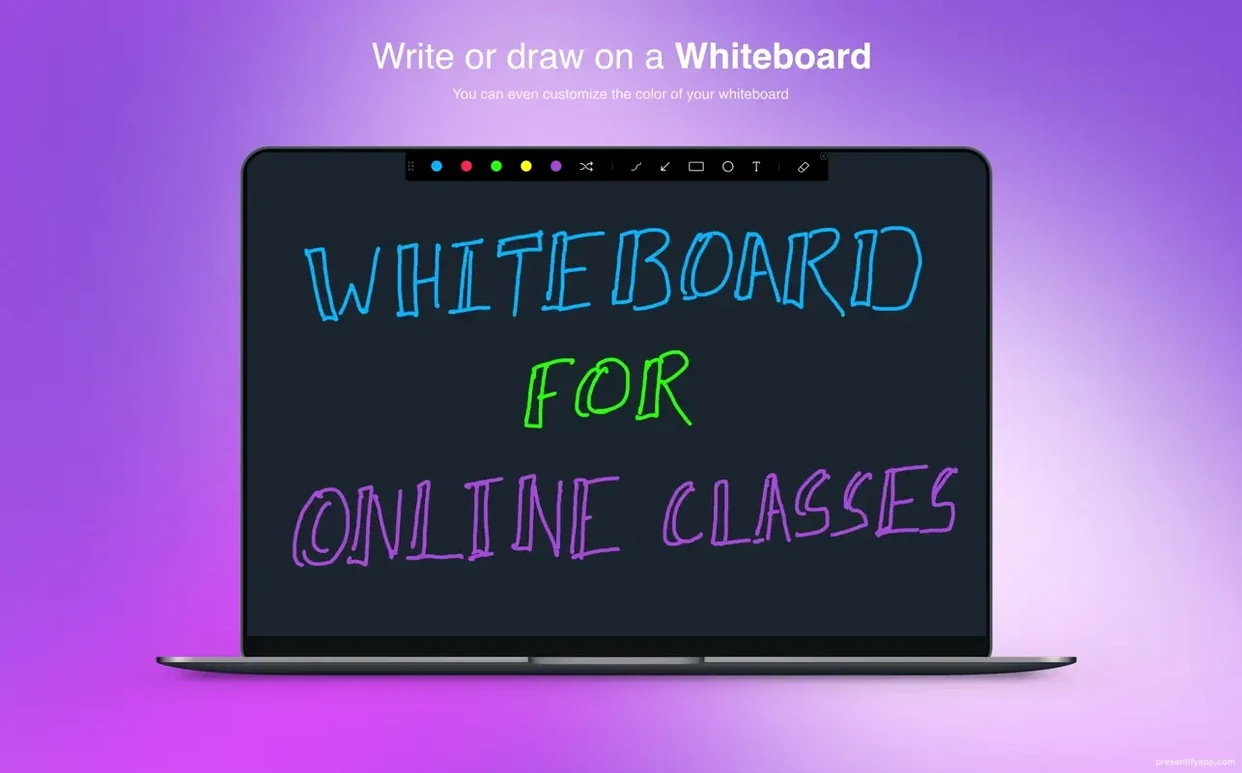
Online instructors are the first group that comes to mind. If you’re walking students through a math problem, a code review, or a language exercise, drawing directly on the screen feels more immediate than pointing with a cursor. The text tool and freehand pen cover both typed labels and quick diagrams, so you can switch between explaining a formula and circling a verb conjugation without changing apps.
Design reviewers and video creators who use presentify free to test the waters often stick around. When you’re recording a UI critique, the spotlight and zoom tools let you focus attention on a single button state or spacing issue, then zoom back out to show the whole layout. No post-production cropping needed. And because it works over any window — Figma, a browser, a local video player — you’re not locked into a specific recording workflow.
Freelancers who run client walkthroughs over Zoom or Google Meet get a quieter benefit: the annotations keep stakeholders oriented during live demos. Instead of saying “look at the top-right corner, no, the other one,” you draw an arrow and move on. The auto-erase keeps the screen clean for the next topic. If you present regularly — even just a few times a week — that alone saves a surprising amount of friction.
- macOS 13 Ventura or later
- Runs on Intel and Apple Silicon Macs
Notes from other shops 0
Sign in or open a shop account to leave a note.
No notes yet. If you've used this on a shop Mac, tell me how it went.