
Developers, system administrators, and tinkerers who spend time inside macOS configuration files tend to outgrow Xcode's built-in plist editor pretty quickly. PlistEdit Pro picks up where that leaves off, aimed squarely at people who need direct control over property lists and JSON files without the ceremony of a full IDE.
Drag-and-drop clarity for nested plist structures
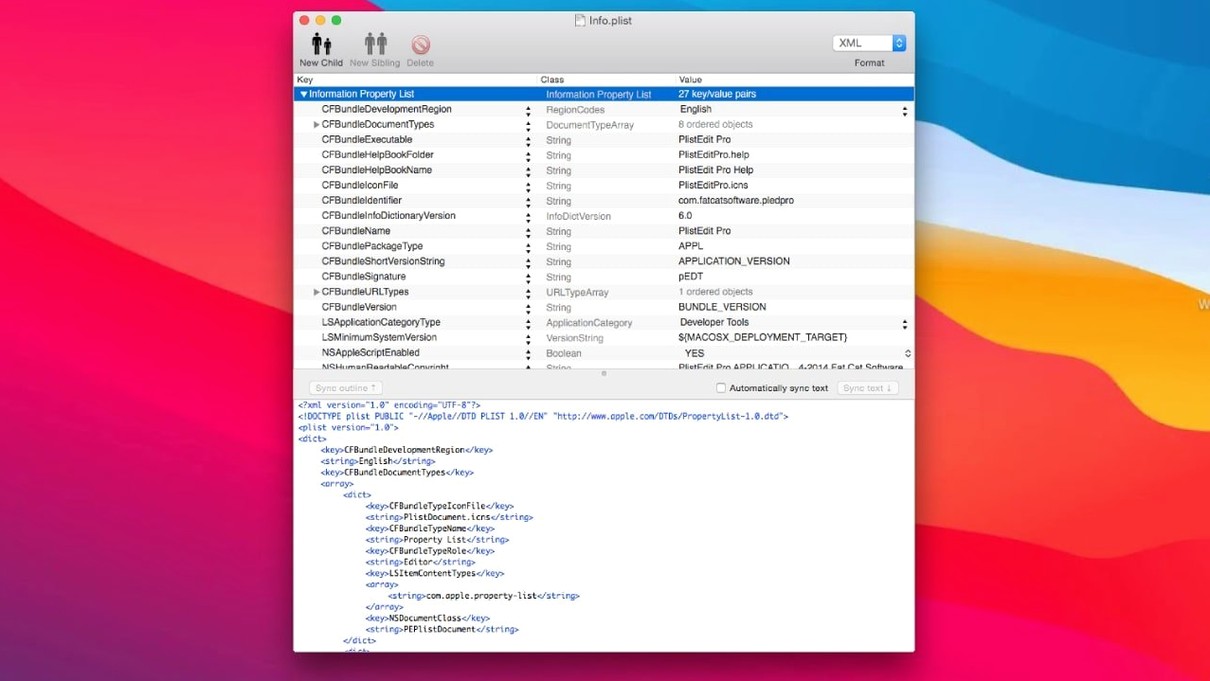
- Editing nested keys and arrays with a clear drag-and-drop outline view that shows structure at a glance.
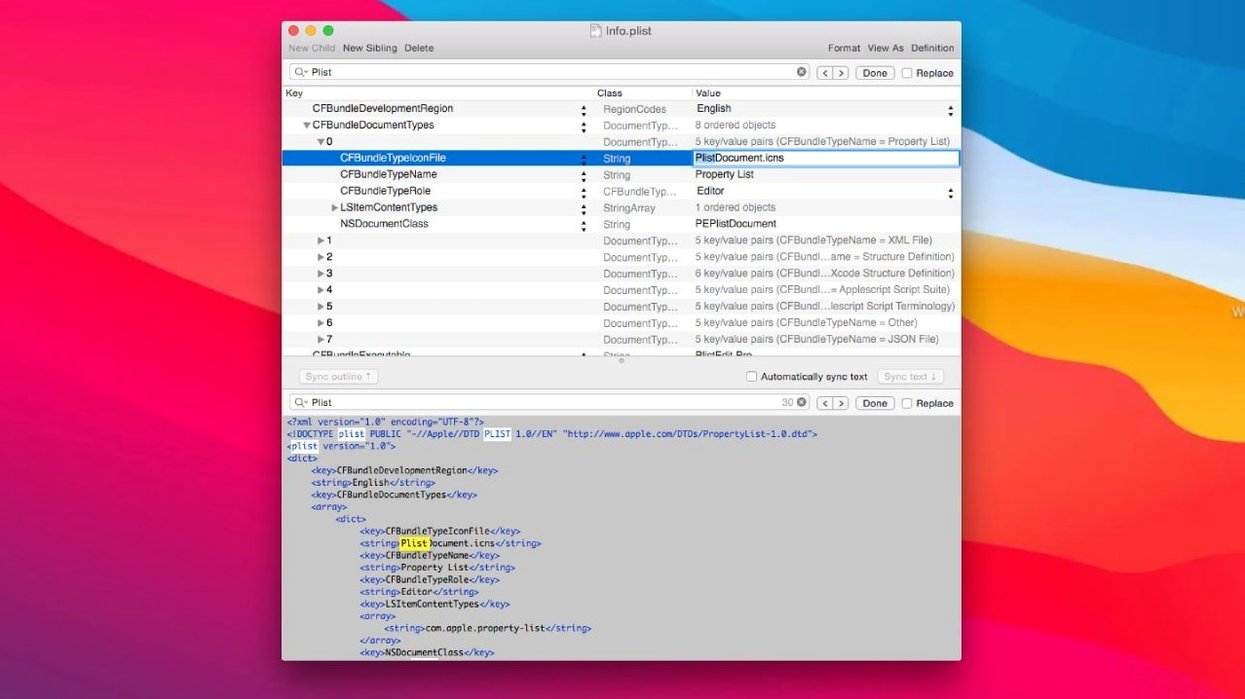
- Hunting down values across large files with the built-in find and replace, which works across multiple entries.
- Browsing and editing macOS preference files directly through the preferences browser, so you can tweak system and app settings without digging through hidden folders.
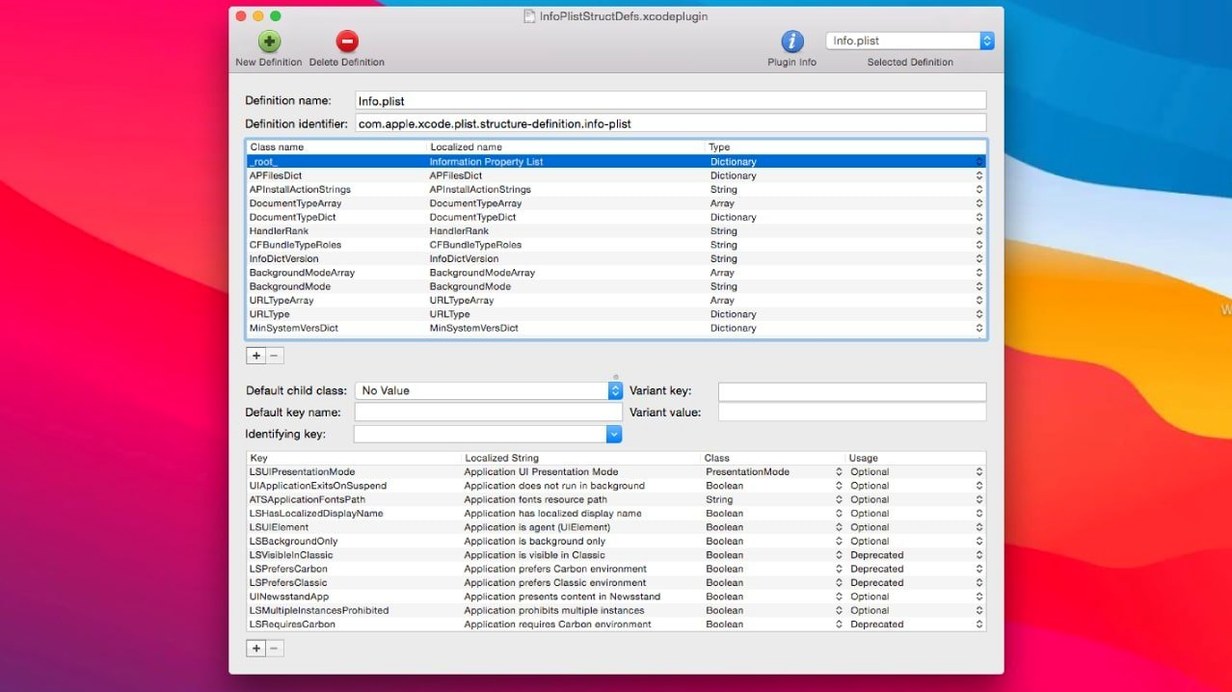
- Applying structure definitions to standard plist files—the editor understands the schema and labels fields properly instead of showing raw key names.
- Switching between JSON and plist work in the same app, with full editing support for both formats.
- Automating edits from scripts using the included
pleditcommand-line tool.
Not a text editor—purpose-built for plist and JSON hierarchies
- It edits property list and JSON files—it's not a general-purpose text or code editor.
- The plain text view is functional, but the outline view is where the real efficiency lives for complex hierarchies.
- Requires macOS 14 or later.
A workflow: tweaking a stubborn preference that has no GUI
Some macOS settings hide in plist files with no checkbox or slider anywhere in System Settings. Here’s how I’d track one down and change it, start to finish.
- Open the preferences browser. Instead of guessing which domain owns the setting, I browse the list of app and system preference files PlistEdit Pro already knows about. For something Finder-related, I pick
com.apple.finder. - Search for a likely key. I type a word that matches what I want to change—say, “spring” for spring-loaded folders. The find bar scans the open file instantly, and I jump straight to the matching entry in the outline view.
- Edit the value in place. With the key selected, I double-click the value column and type the new setting. No need to switch to a raw text view or worry about breaking the XML structure.
- Test it. I run
killall Finderin Terminal to restart Finder and see whether the change took effect. If I got the value wrong, undo is right there—multi-level undo means I can step back through several edits without reopening a backup. - Save and move on. The file saves as standard binary or XML plist, whichever it originally used. The whole thing took under a minute, and I never opened Xcode or touched a raw text editor.
A sharp companion for Terminal scripts and system file browsing
PlistEdit Pro isn’t trying to be the center of a workflow—it’s more like a sharp tool you reach for at specific moments. That said, it plays nicely with other parts of the Mac ecosystem.
With Terminal and shell scripts, the pledit command-line tool means you can read or modify plist values from a build script, a launch agent, or a configuration management tool without opening the GUI at all. For example, a deployment script could set a preference key across multiple Macs by calling pledit with the domain and key name.
With AppleScript, you can automate repetitive edits. If you find yourself adjusting the same set of keys in several plist files on a regular basis, an AppleScript that opens each file, changes the values, and saves gets it done while you focus on something else.
With Xcode, the relationship is complementary. You might edit an iOS app’s Info.plist in PlistEdit Pro for quick navigation through nested dictionaries, then jump back to Xcode for building and signing. Copy and paste between the two apps keeps the data consistent—you can copy a whole subtree in PlistEdit Pro and paste it into Xcode’s plist editor without losing the structure.
With macOS’s own defaults system, the preferences browser saves you from hunting through ~/Library/Preferences manually. It reads the same files that the defaults command touches, but shows them organized by domain, with human-readable labels where structure definitions exist.
Snappier scrolling and modern rendering after the macOS 14 floor
Version 1.10.0 moved the app to a macOS 14 minimum, which meant dropping some older compatibility paths but also let it rely on modern system frameworks for rendering and file handling. In practice, that shows up as snappier scrolling in large outline views and fewer redraw glitches when expanding deeply nested dictionaries.
The 1.1 update brought a few small quality-of-life improvements that I notice in daily work. Moving the preferences browser’s filter checkboxes into a toolbar menu cleaned up the window—there’s less chrome between you and the list of domains, and it’s faster to toggle a filter with one click than hunting for a checkbox. The popover that replaced the old “ask to revert when file changes on disk” dialog feels less intrusive. When another process modifies a plist you have open, a small popover appears near the file’s tab instead of a modal sheet blocking the whole window. You can dismiss it or act on it without losing your place in the outline.
Beyond Xcode’s plist editor for browsing system preference files
Xcode’s built-in plist editor is the most obvious comparison. It’s free and already installed if you do any Apple-platform development. For basic key-value edits in an Info.plist, it’s fine. The difference shows up when you need to browse macOS preference files, search across multiple plist files in a folder, or use a command-line tool—none of which Xcode’s editor offers. Xcode also doesn’t handle JSON, so if you switch between plist and JSON configs, you’re using two different tools. PlistEdit Pro treats both formats as first-class citizens and gives you the same outline view for each.
PrefEdit (by Bresink) focuses more narrowly on preference files. It has a similar domain browser concept and lets you edit defaults-style plists cleanly. However, it doesn’t have the JSON editing support, the folder-wide search, or the pledit command-line tool. If all you do is tweak app preferences, PrefEdit is a lighter option, but for developer work that spans plist and JSON across multiple files, PlistEdit Pro covers more ground.
BBEdit can open plist files as text and even display them in a structured view with its plist and JSON language modules. It’s a powerhouse text editor, and if you already live in BBEdit for code, it might handle casual plist edits well enough. The difference is in purpose-built niceties: PlistEdit Pro’s structure definitions understand the meaning behind standard plist keys and display them with descriptive labels. Its drag-and-drop outline manipulation is faster for reorganizing arrays and dictionaries than cutting and pasting XML nodes in a text view. And the preferences browser—showing you a live, organized list of macOS preference domains—has no equivalent in a general-purpose editor. For someone who edits plists daily, those specific touches add up to less friction than a great text editor that happens to understand plist syntax.
Version 1.10.0 tidies up the interface for macOS Tahoe. The preferences browser options that used to live as standalone checkboxes now sit neatly in a toolbar menu, and the file-revert prompt is a compact popover instead of a full dialog. All small changes that keep the workspace feeling current.
- macOS 14 or later
- Runs on both Intel and Apple Silicon Macs
- Interface: English
Questions from the stall
Can PlistEdit Pro edit JSON files as well as plist files?
Yes, it provides full editing support for both standard property list formats and JSON files, and you can switch between the two in the same app.
Does PlistEdit Pro include any automation or scripting tools?
It includes thepledit command-line tool, which lets you incorporate property list editing into shell scripts and automated workflows.
Notes from other shops 0
Sign in or open a shop account to leave a note.
No notes yet. If you've used this on a shop Mac, tell me how it went.