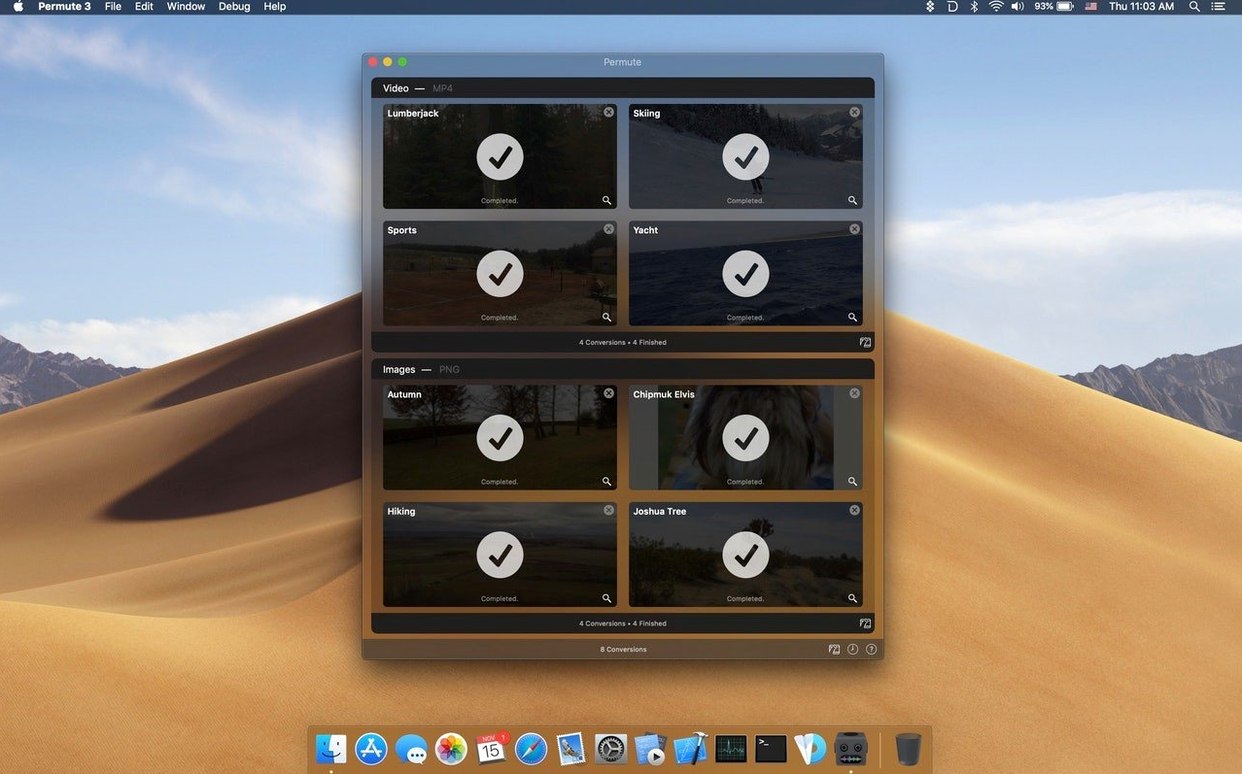
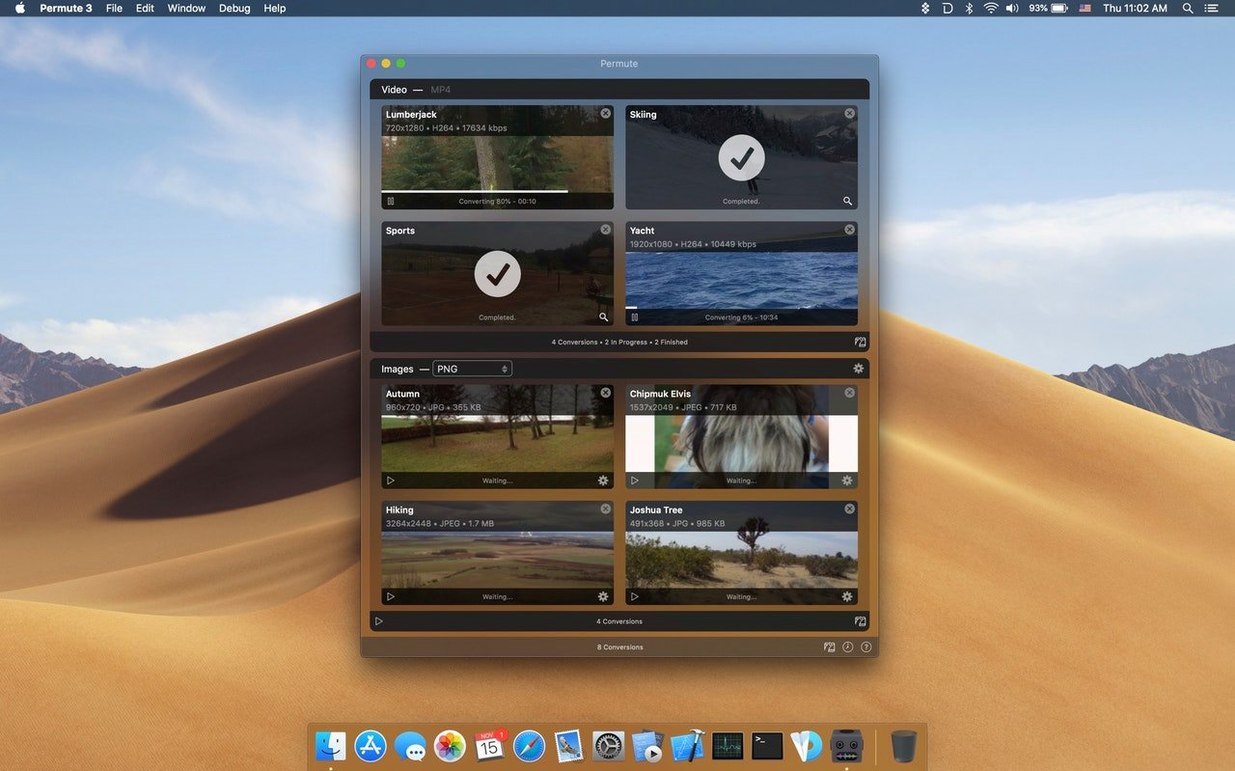
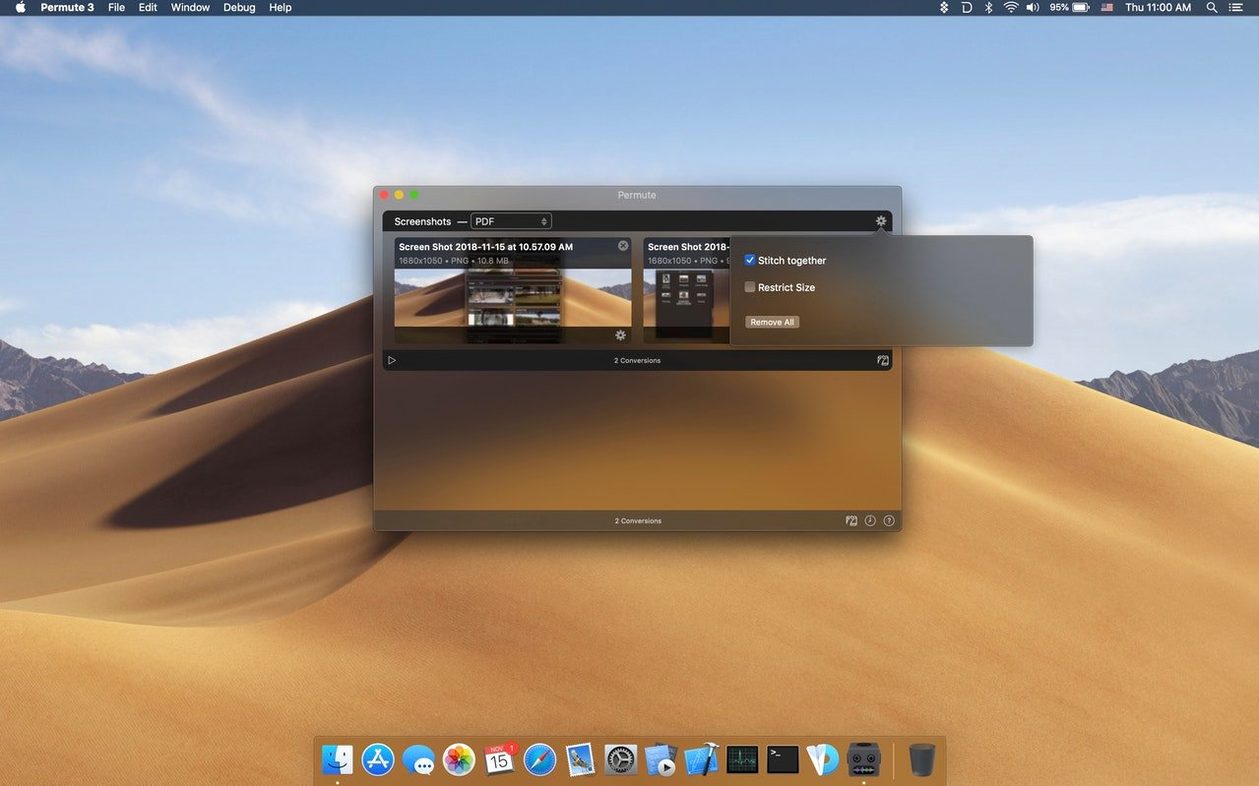
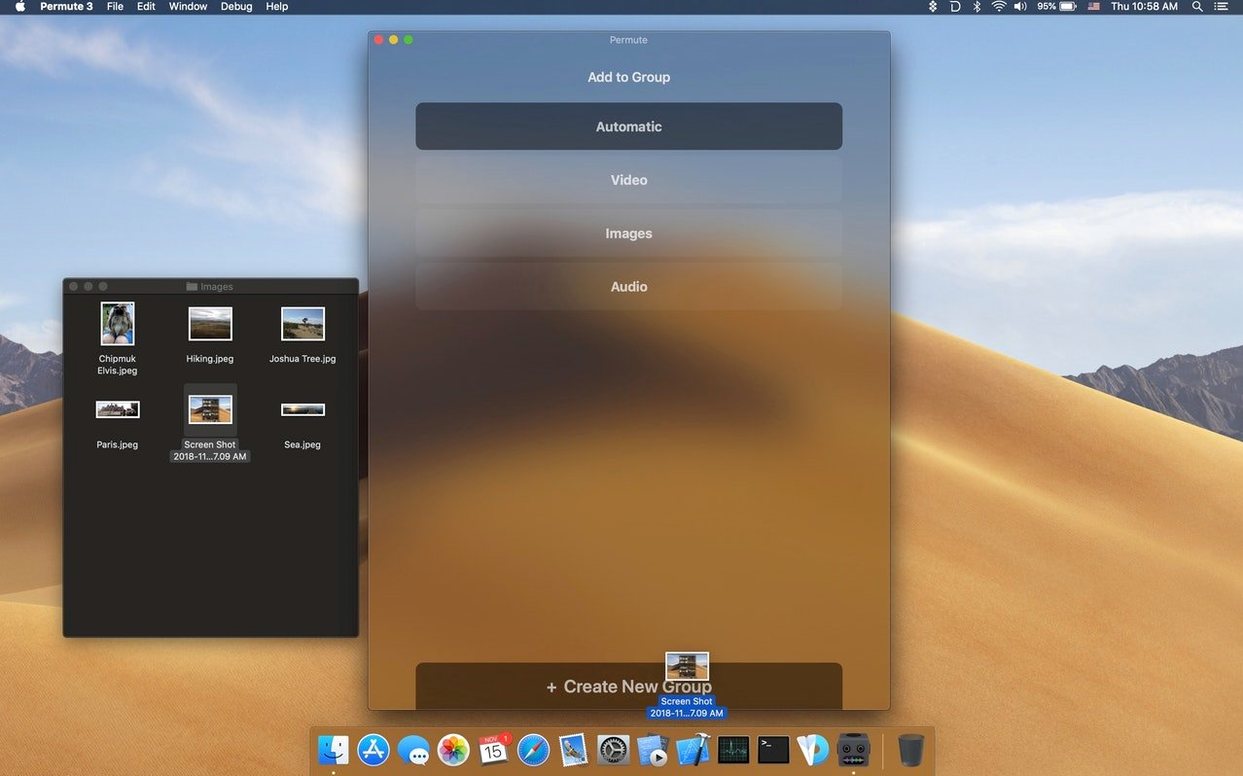
Permute runs natively on Apple Silicon Macs and requires macOS 26. It’s built and maintained by a single developer, Charlie Monroe, and leans on the battle-tested FFmpeg libraries under the hood — something you’ll appreciate when you push it beyond simple file swaps.
Tools you’ll reach for
- Merge two videos into one. Quick way to stitch clips without opening a timeline editor.
- Add a subtitle track. Burn or mux a subtitle file directly into a video during conversion.
- Convert files to ISO format. Useful for archiving discs or preparing bootable images.
- Audio-only conversion. Pull audio from video or transcode between lossless and compressed formats without extra steps.
Why the single-developer approach matters
With a small codebase and one set of eyes on every release, fixes and feature requests tend to move fast. Permute also supports a wide range of interface languages — from Arabic and Persian to Ukrainian and Simplified Chinese — making it practical for bilingual shops and international teams who need a converter that doesn’t get in the way.
How a session usually goes, start to finish
Last Tuesday I needed a short clip from a client’s presentation recording, plus a clean audio version for their podcast editor. Here’s roughly how that played out in Permute — it’s a pattern I’ve settled into.
- Drop the file in. I dragged a 1.2 GB 4K recording straight into the main window. No import dialog, no project setup — the job appeared as a row with a format dropdown next to it.
- Pick the output. For the video clip I chose HEVC with the built-in 1080p preset; for audio I picked MP3, 192 kbps. If I’d needed them merged with another clip or a subtitle track, I’d have added that here with the plus button before starting the queue.
- Set trimming points. I tapped the scissors icon on the video job, dragged the start and end markers to the 90-second segment I needed, and closed the trimmer. The queue updated instantly.
- Hit convert. Both jobs ran in parallel. Permute grabbed the CPU and the Neural Engine where it made sense, and both files landed in my output folder in under two minutes.
- Check and send. I quick-looked the results right from Finder, renamed them, and attached them to the email. That’s it — no leftover temp files to clean up.
I didn’t open QuickTime, iMovie, or a separate audio tool. For jobs like this, staying in one window keeps me focused. When a client changes their mind about the format five minutes later, I just switch the dropdown and re-run the job without hunting for settings.
Shop owners, makers, and other people who live in the right-click menu
It’s not a power user’s encoder or a timeline editor, and it doesn’t pretend to be. The people I see happiest with it tend to fall into a few camps:
- Shop owners and makers who handle their own product photos, short promo clips, and tutorial screen recordings. You need clean output fast, not a semester of encoding theory.
- Teachers and trainers converting lecture recordings to audio, trimming dead air, or adding subtitle tracks before posting materials for students.
- Bilingual households and teams — the UI speaks fifteen languages, and the subtitle muxing is straightforward enough that you’ll actually use it instead of putting it off.
- Anyone who regularly strips audio from video. If you’ve ever downloaded a talk or interview just to listen to it while packing orders, Permute’s audio-only conversion saves a separate extraction step.
- Users who tried HandBrake and found it overkill. If you just need a clean permute 4 mac experience without fiddling with profiles, this is closer to the tool you probably wanted.
People batch-converting Blu-ray rips or tuning x265 parameters for archival will want more knobs. For the rest of us, the defaults are sensible and the queue is honest about what it’s doing.
A dedicated output folder saves you from hunting down converted files
You can start converting the moment you drag the app to Applications, but a few small moves in the first hour make everything smoother later.
- Set a dedicated output folder. By default Permute writes next to the original file. I let it dump everything into a
~/Convertedfolder so I’m not hunting through client directories for fresh exports. It takes ten seconds in Preferences. - Pin your three most-used formats. Right-click any format in the dropdown and choose Add to Favorites. After a week you’ll have a shortlist that matches your real workflow — mine is HEVC 1080p, MP3 192 kbps, and WebP for product images.
- Learn the trimmer’s keyboard shortcuts. Arrow keys nudge frame by frame; Shift-arrow jumps further. If you trim clips often, this is faster than dragging markers with a trackpad.
- Check the merge-and-subtitle workflow once. Even if you don’t need it today, knowing that the plus button stacks extra tracks or files onto a job prevents that moment where you open a separate tool for a two-minute task.
- Leave the app open for a day. Permute handles drag-and-drop so casually — from Finder, from the clipboard, from a browser download stack — that you start reaching for it without thinking. Let that habit form.
4K encodes stay out of your way with silent fans on Apple Silicon
On an Apple Silicon machine, conversions feel snappy without the fans spinning up on every job. Short clips and image batches finish in seconds; longer 4K encodes saturate the efficiency cores and stay out of the way of everything else I’m running — email, browser with too many tabs, a lightweight accounting app. Memory use sits around 200–300 MB during normal work, climbing only when merging large video files. I’ve never seen it swap.
Stability has been uneventful, which is exactly what you want from a converter. In six months of near-daily use across the permute 3 download cycle and now version 4, I’ve had one crash — and it was on a corrupted source file that QuickTime also refused to open. The queue picks up where it left off after a restart, so even that didn’t cost me time.
Charlie Monroe ships updates regularly — sometimes small fixes, sometimes format support additions — and the app doesn’t nag you about them. If you’re coming from an older permute 4 install, the move to Apple Silicon-only in version 4.0.8 means the binary is lean and genuinely native. No Rosetta translation layer, no Intel code paths hanging around. For a tool you’ll probably keep in the dock and use a dozen times a week, that quiet efficiency adds up.
- macOS 26 or later
- Apple Silicon Mac
Questions from the stall
Can I merge two video files into one with Permute?
Yes. Permute includes a merge feature that lets you combine two video files into a single output without using a separate editor.
What audio conversion options does Permute offer?
It can convert audio files between formats and extract the audio track from a video file, all within the same straightforward interface.
Notes from other shops 0
Sign in or open a shop account to leave a note.
No notes yet. If you've used this on a shop Mac, tell me how it went.