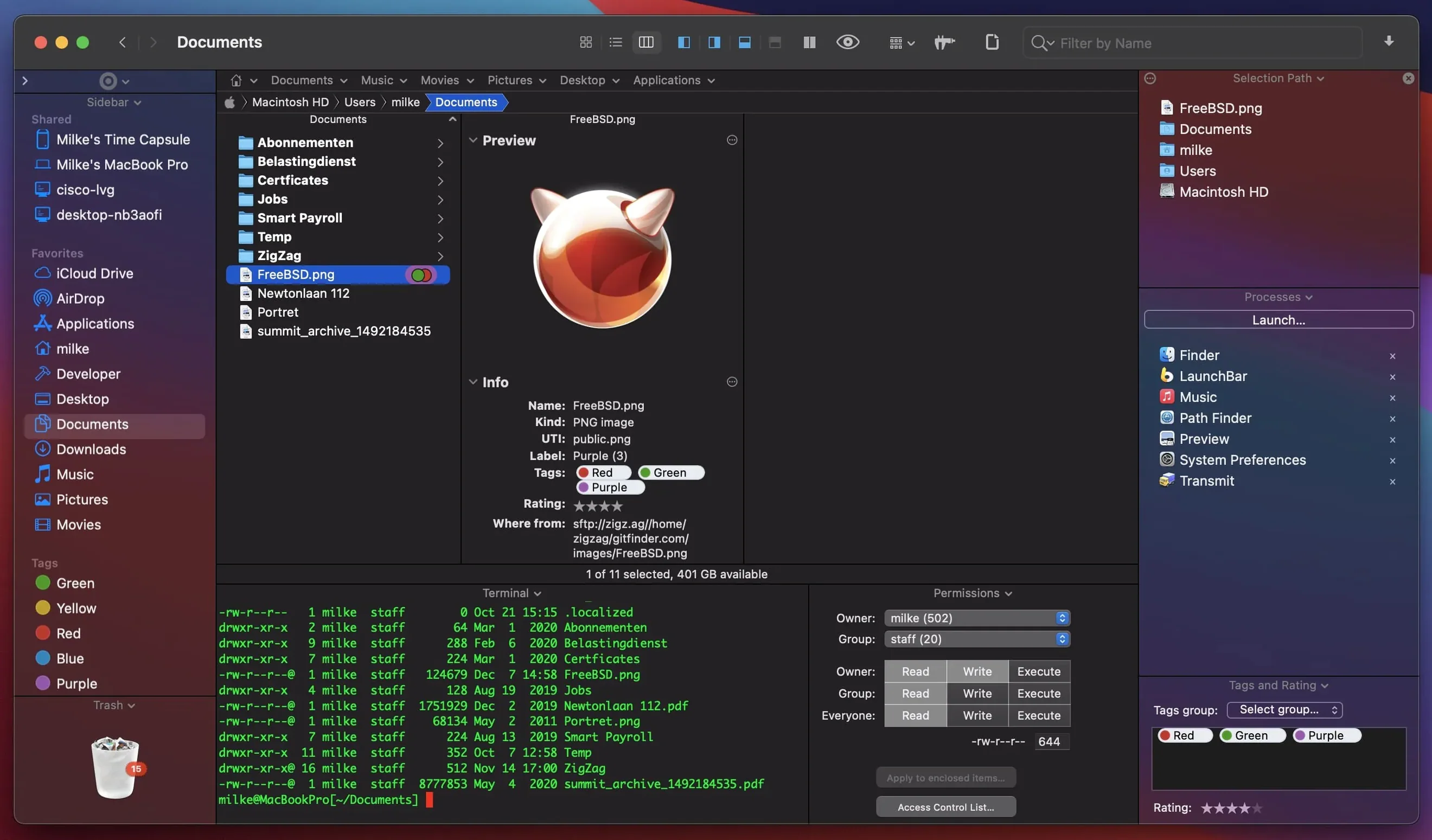
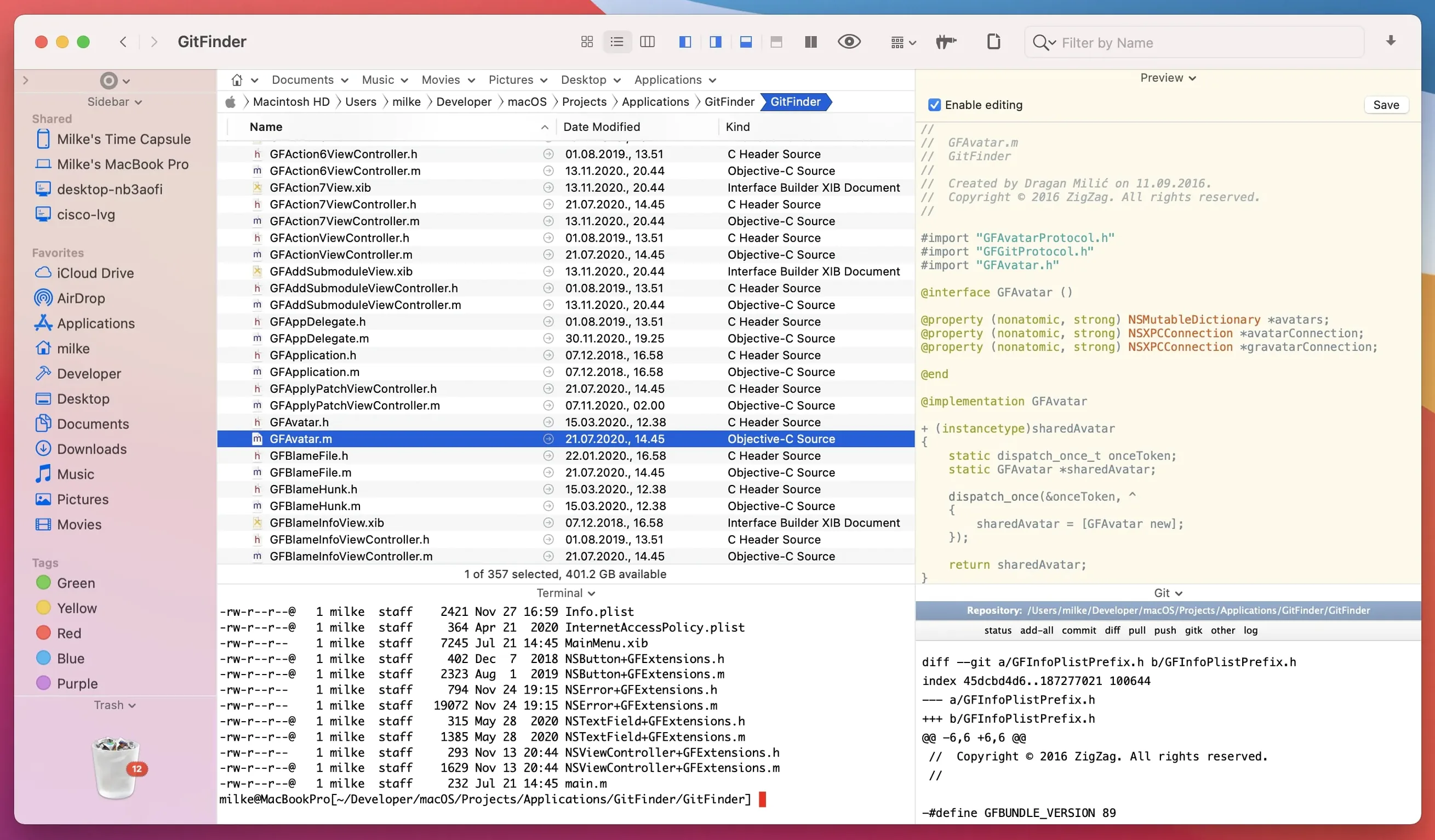
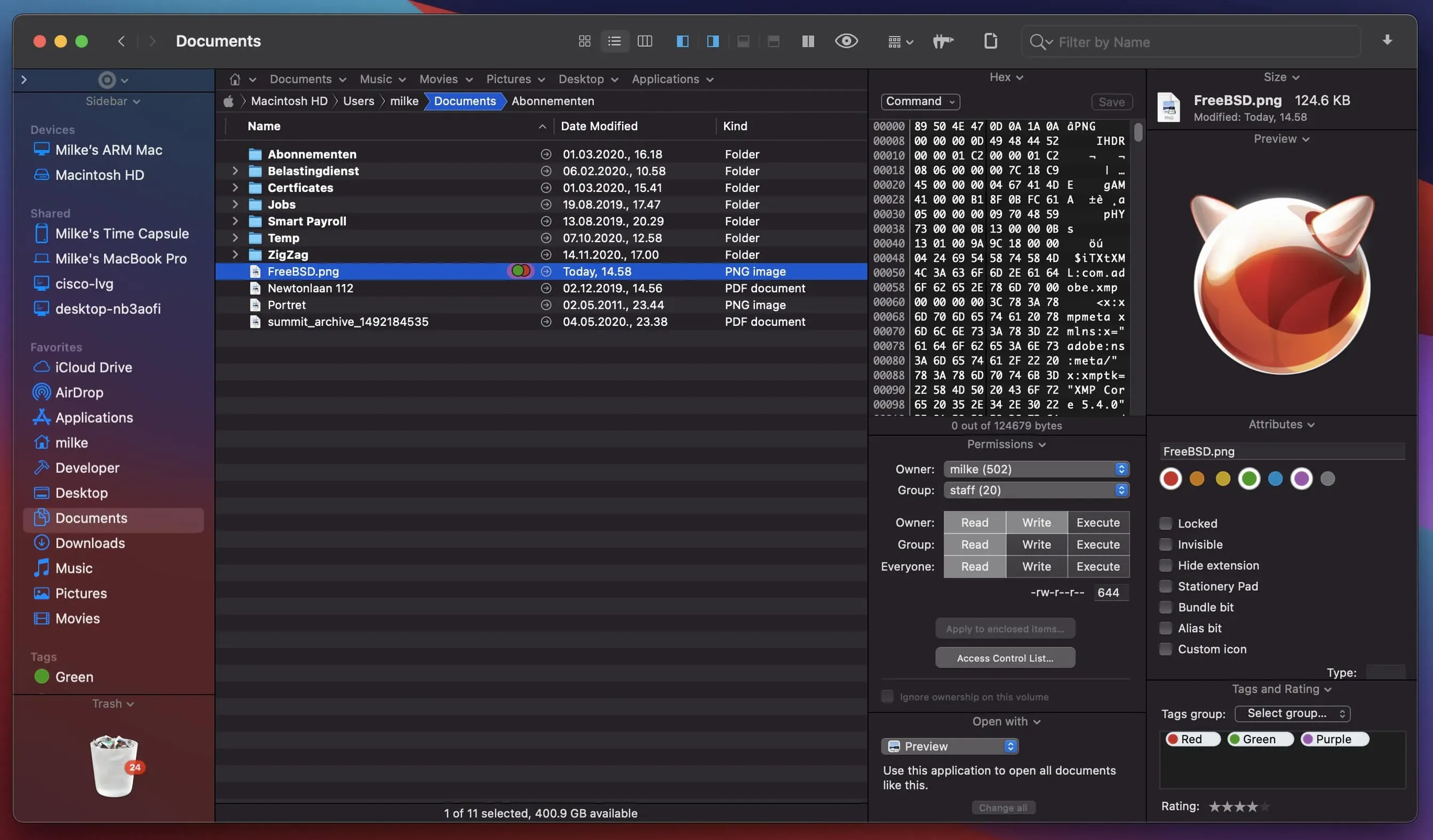
The standard Finder does plenty, but the moment you need to shuffle files between two deep folder structures or manage a remote server, you start juggling windows. Path Finder steps in as a single workspace that feels like the Finder you know, just with extra layers when you need them.
Two folders, one window, no mouse
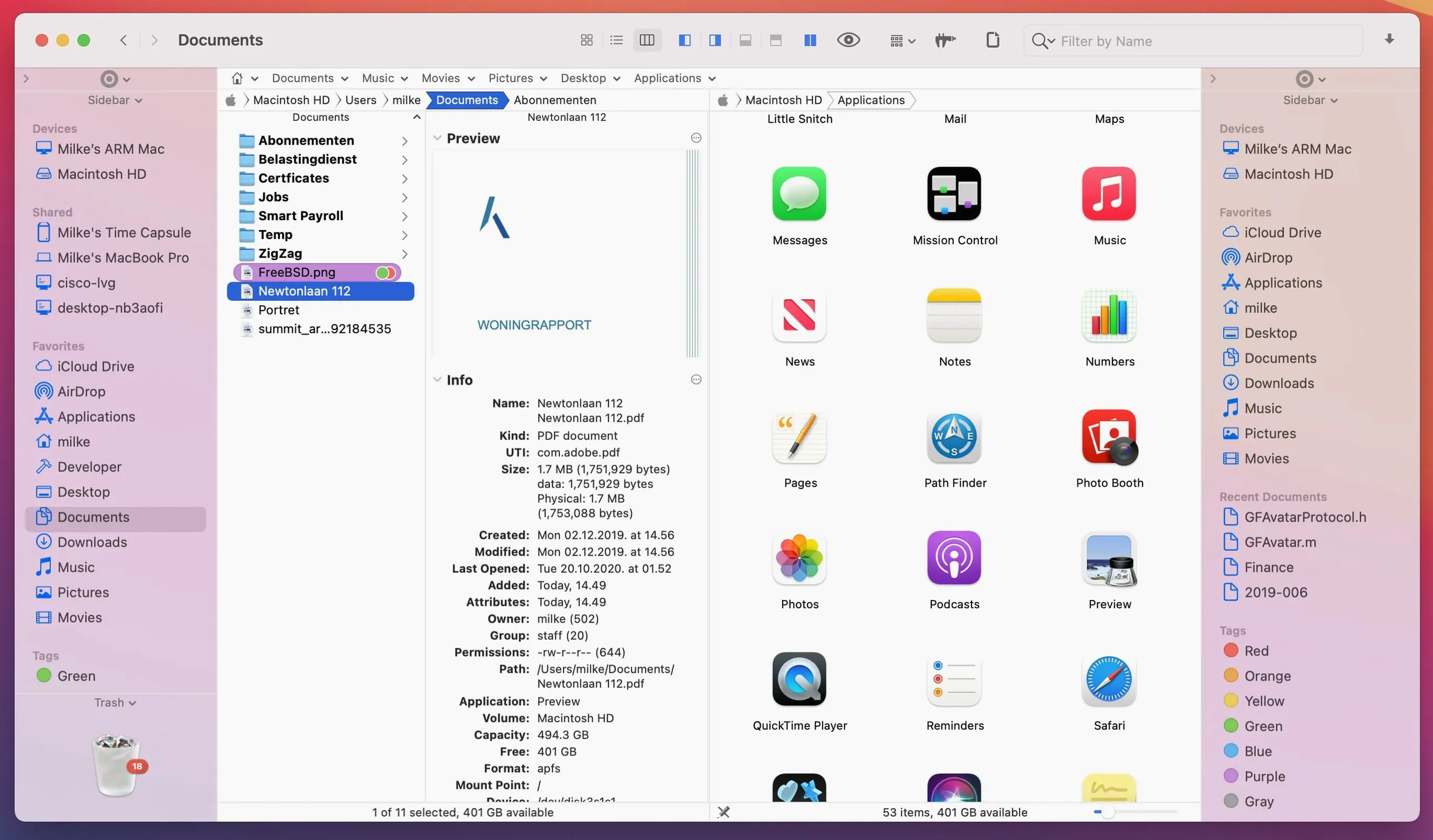
- Working across two folders side by side without opening a second window.
- Keyboard-driven browsing — moving, previewing, and opening files without reaching for the mouse.
- Connecting to an FTP server from the same window you use for local files.
- Searching by file type or extension when Spotlight feels too broad.
- Peeking inside archives and disk images without launching separate utilities.
Finder replacement you commit to
- It replaces the Finder as your default file browser, so you'll want to commit to the switch.
- Dual panes and extra tools add visual weight — simpler than a full Commander clone, busier than the stock Finder.
- Process management and disc image conversion are included, but they overlap with tools your Mac already has.
Show folder sizes in both panes
Out of the box, Path Finder works, but a few tweaks make it feel like yours within ten minutes. I head straight to the View options and set both panes to show folder sizes in list view — it saves a trip to Get Info every time I'm clearing space for new product photos. Then I turn off the shelf if I'm on a smaller screen; it's handy on a desktop display, but on a 13-inch MacBook the extra row of favorites just eats vertical real estate.
Keyboard users should visit the Shortcuts pane immediately. The default bindings are sensible, but remapping Move To and Copy To to something muscle-memory-friendly speeds up bulk file sorting more than any visual feature. I also switch the archive handler to always expand into a subfolder — without that, you get a messy spray of files across the current directory when you double-click a packed folder someone sent you.
One more: under the Browser settings, enable Show hidden files only if you actually need it. Leaving it off keeps the view clean for day-to-day shop work, and you can toggle it with a shortcut when you're digging into something deeper.
Both panes on the same folder
The biggest stumble I see is treating Path Finder like it's just a Finder with a dark toolbar. It's not. People open it, leave both panes pointing at the same folder, and wonder why they're looking at two identical lists. The whole point of the dual-pane setup is to park your source on one side and your destination on the other — downloads on the left, project folder on the right, and you drag between them without a single overlapping window. Once that clicks, you stop going back.
Another common misstep: ignoring the drop stack. Beginners copy a file, navigate somewhere else, paste, navigate back, copy another, repeat. Path Finder lets you drop files onto a floating stack panel mid-navigation, then dump them all at once into the target folder. It's a small thing that saves dozens of trips when you're gathering assets scattered across a drive.
Some folks also jump straight into the built-in text and image editors expecting them to replace dedicated apps. They're fine for quick annotation or cropping a reference shot, but trying to do real layout work inside the image module leads to frustration. Think of them as preview-plus, not Photoshop Lite. And finally, new users sometimes skip setting Path Finder as the default file browser in the preferences, then complain that folders still open in Finder. The toggle is right there in the General pane — flip it early.
FTP sync queue versus local muscle
Path Finder vs. ForkLift. ForkLift feels lighter and leans harder into remote connections — its sync and transfer queue are genuinely clever if you live in FTP and SFTP all day. Path Finder covers FTP too, but where it pulls ahead is in everyday local browsing. The module shelf, the drop stack, and the sheer depth of view customization make it a more complete Finder replacement. ForkLift is the tool I'd recommend to someone whose work is mostly server-side; Path Finder suits someone who wants one app for everything on and off the machine.
Path Finder vs. Commander One. Commander One chases the classic dual-pane Norton-style layout with a steeper learning curve and a more rigid interface. It does cloud storage connections well — Google Drive, Dropbox, the works. Path Finder is softer around the edges, visually closer to the Mac's native look, and it doesn't demand that you learn a new mental model for file management. If you grew up with Total Commander, Commander One might feel like home. If you just want the Finder to grow up a little, Path Finder is the smoother transition.
Path Finder vs. the Finder itself. The Finder is fast, simple, and deeply integrated with iCloud and tags. Path Finder doesn't try to replace that integration — it layers on top of it. What you gain are tabs that remember their own pane layouts, a proper file queue for moving and copying, and the ability to browse archives, convert disc images, and kill hung processes all from one place. The trade-off is a slightly heavier launch and more visual clutter if you leave every panel open. For a shop owner who spends half the day organizing product folders and the other half uploading them to a server, the trade-off tilts firmly in Path Finder's favor.
Tip: if you're coming from another file manager like ForkLift or Commander One, give yourself a week with Path Finder before deciding. The muscle memory shift is real, but the module system often replaces two or three small utilities once you settle in.
Version 26.1.10 is available now with the developer's latest fixes and improvements.
- macOS 13 or later
- Works on both Apple Silicon and Intel 64-bit Macs
Questions from the stall
Can Path Finder replace the standard macOS Finder completely?
Yes, you can set it as the default file browser so that folders and drives open in Path Finder instead of the Finder.
Does it include tools for working with remote servers?
It has a built-in FTP client that lets you browse and transfer files on remote servers right inside the main window.
Notes from other shops 0
Sign in or open a shop account to leave a note.
No notes yet. If you've used this on a shop Mac, tell me how it went.