
Paste is a Mac clipboard history manager that saves every text snippet, image, and link you copy so nothing slips away while you work.
Get to know your pinboards
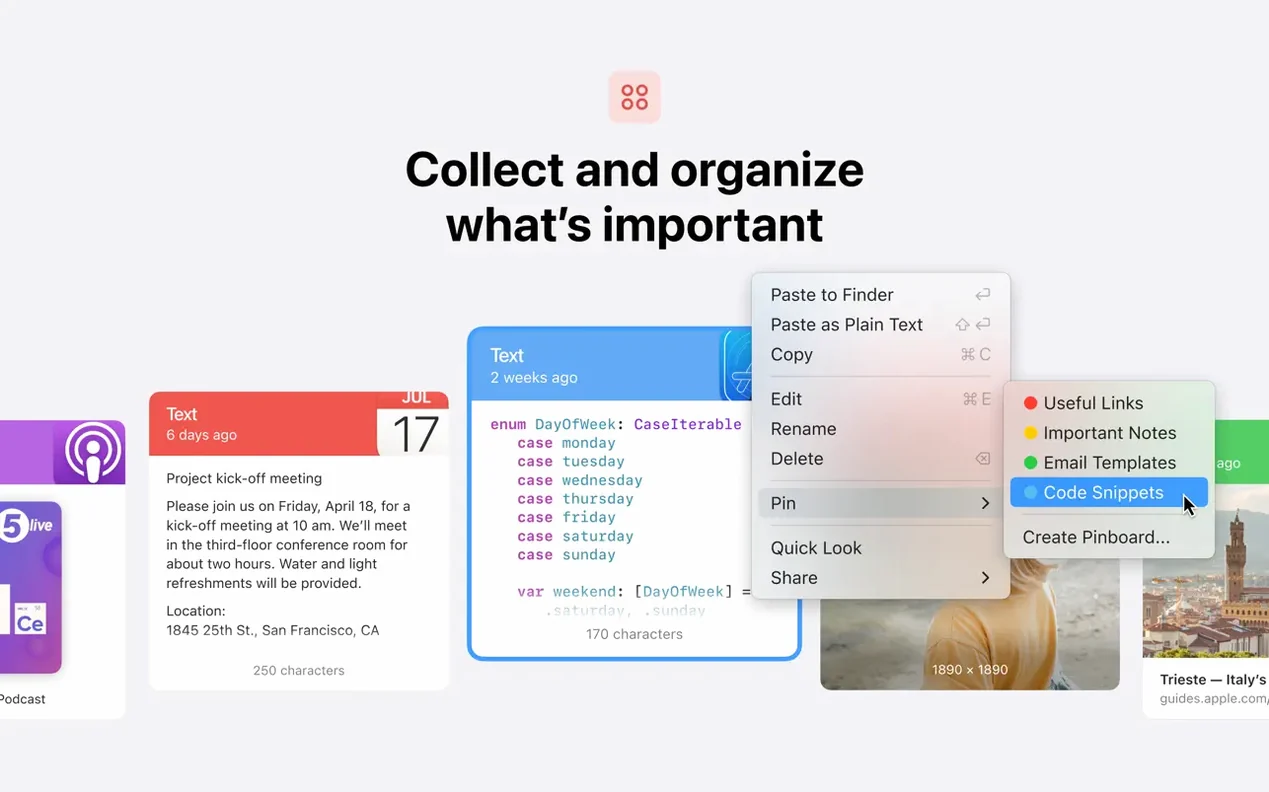
Paste organizes your copied items into unlimited lists called pinboards. Set one up for client project assets, another for code snippets you reuse, and a third for things you need to reply to later — each board holds exactly what belongs there.
Strip formatting with one click
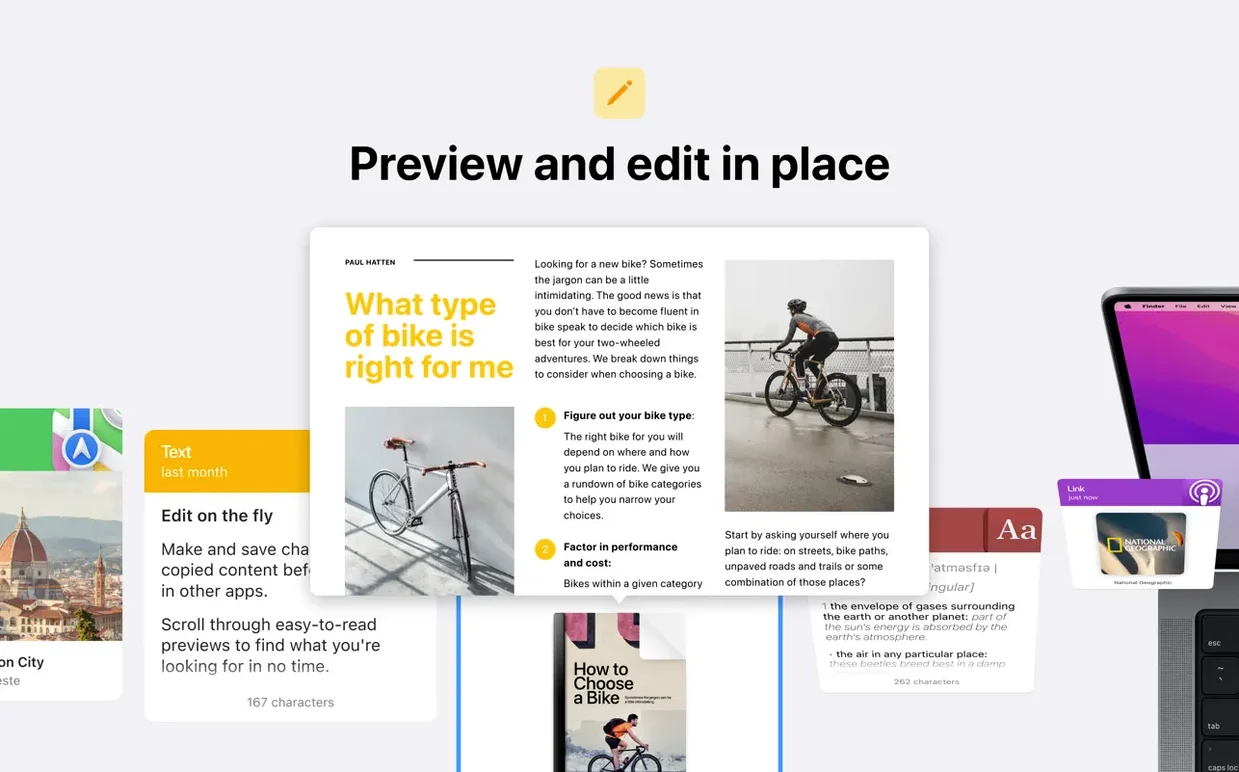
When you copy styled text from a website or a Word document, Paste can show it as plain text instead. It’s a small toggle that saves you from pasting unwanted fonts and colours into an email or a shop listing.
Find anything you copied
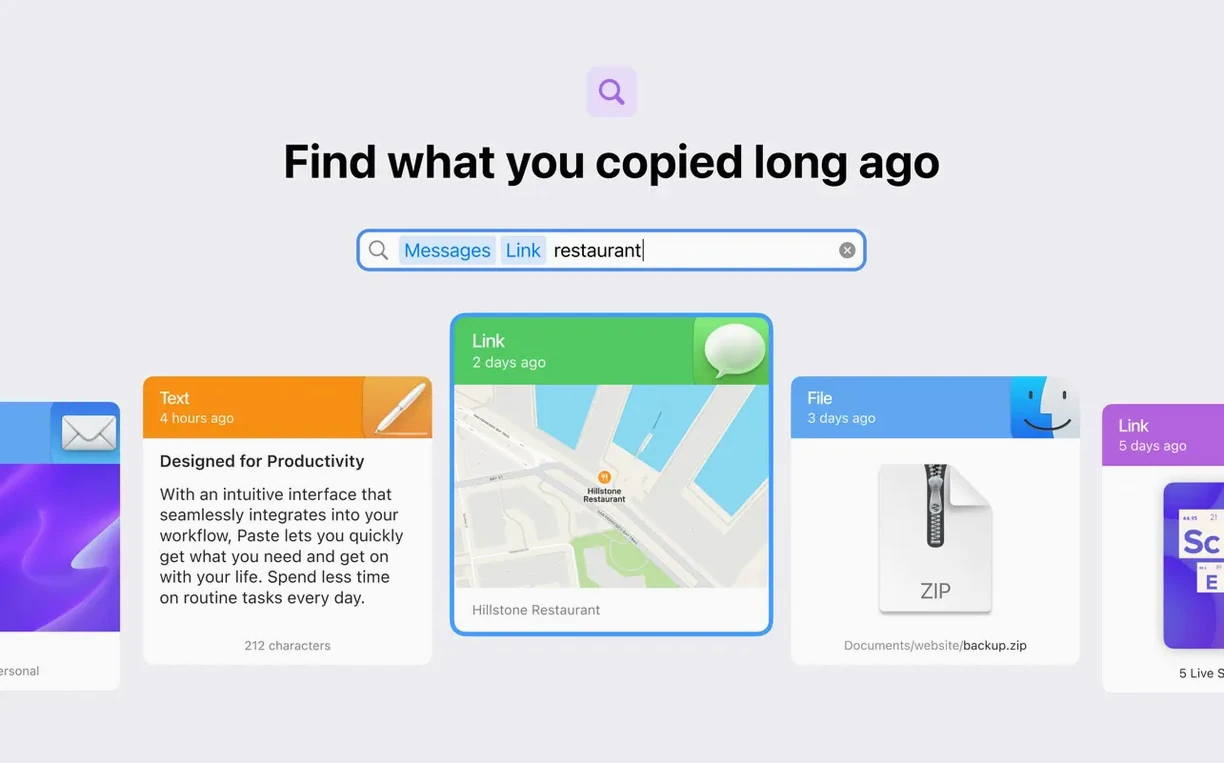
The smart search digs through your entire clipboard history instantly. Type a few words from a note you copied last Tuesday, and Paste pulls it back — no scrolling, no guessing which board it landed in.
How Paste fits into the rest of your Mac
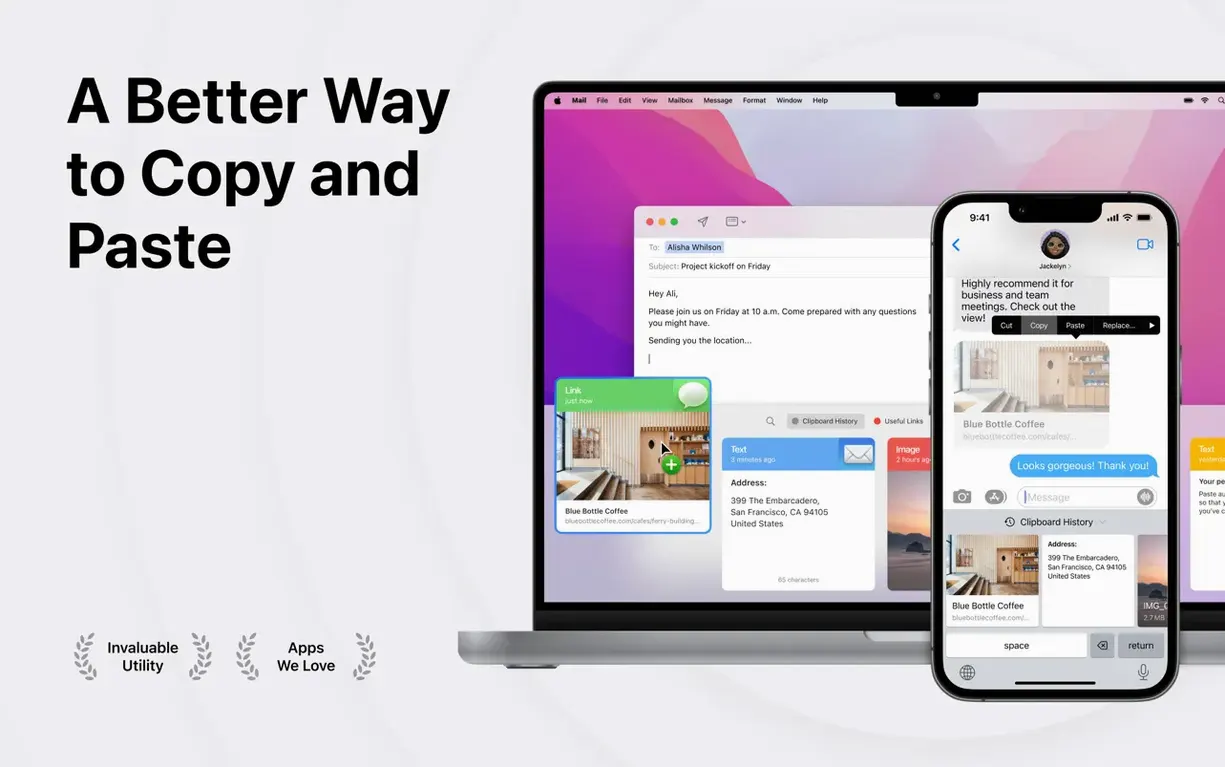
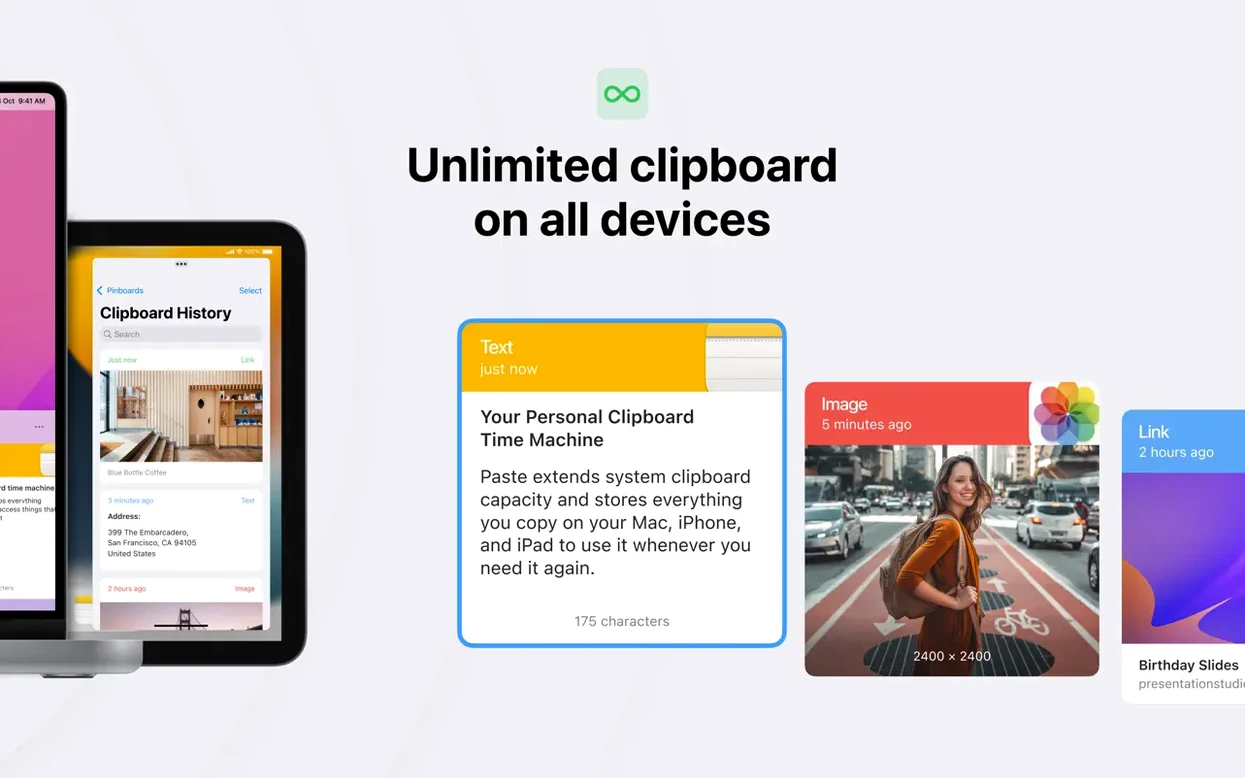
Paste doesn’t sit in a corner on its own — it reaches into the Mac features you already use every day. The iCloud sync ties your clipboard history and pinboards across a Mac, an iPhone, and an iPad without extra steps. Copy a photo on your phone while you’re away from the desk, and it’s waiting on the Mac when you sit down.
AirDrop support gives you a quick way to hand off a single item to another Apple device nearby. You might keep a pinboard of product photos for your shop, then AirDrop one straight to an iPad for a customer to see. Universal Clipboard plays along too: if you copy something on one device and paste it on another the old-fashioned way, Paste still captures it in the history.
On the Mac itself, Paste works with the share sheet built into macOS. Highlight a copied address, hit the share button, and send it to Maps or Messages right from the Paste interface. Custom keyboard shortcuts slot into your existing muscle memory — set one that feels natural next to your usual ⌘C and ⌘V, and the history panel appears without reaching for the mouse.
For shops that live inside a browser, it plays nicely with Safari and Chrome. Copied links keep their URLs intact, and screenshots you grab with the system screenshot tool appear as previews, so you recognize them at a glance.
Search filters results before you finish typing
Version 6.6.2 sharpened a few edges that matter when you’re moving fast. The search got noticeably snappier — type a fragment of a product code or a customer name and results narrow before you finish the word. The pinboard switcher also tightened up, making it easier to flick between boards without the interface hesitating.
Earlier in the 6.x line, the app introduced unlimited pinboards and the ability to share clipboard history with other people. For a small shop, that means you can keep a shared board for order numbers or supplier links that a partner can see on their own Mac. The multi-item copy came into its own too: select several snippets at once and paste them as a batch into an invoice or a packing list.
Plain-text pasting became a one-click toggle, which saves a real step when you pull text from a supplier’s styled PDF and need it clean for your own records. And the iCloud sync got more reliable across devices — fewer moments where a copied item takes an extra beat to appear on the other machine.
Filling a wholesale order by copying between apps
Imagine a morning filling wholesale orders. You open your shop email and start pulling details together.
First, you copy the customer’s address from a message. Paste catches it silently and drops it into the main history. You switch to your “Orders” pinboard — a dedicated list you set up months ago — and drag the address there.
Next, you copy a tracking number from the courier’s website, then a product SKU from your inventory spreadsheet, then a short thank-you note you typed earlier. Each one lands in the history with a timestamp. You open the Paste panel with your keyboard shortcut, select all three items at once, and paste them into a single reply email. No switching windows three times, no clipboard losing the earlier copies.
Later, a supplier sends a formatted spec sheet. You copy a paragraph, toggle it to plain text inside Paste, and drop it clean into your own product notes. Before lunch, you copy a screenshot of a packaging label, and Paste shows the thumbnail right in the history — you spot it immediately and share it via AirDrop to your phone for a quick reference at the post office.
By the end of the session, Paste has held every fragment you touched, organized or not, and you never once opened a sticky note or a scratch document.
Weeks of history without bloating your memory
Paste runs as a lightweight menu bar companion, and on an Apple Silicon Mac it barely registers. Memory use stays modest even with weeks of history — the app keeps a local database that compresses older items without purging them until you choose to. Launching the history panel feels instant with the keyboard shortcut; there’s no beachball, no warm-up delay.
On Intel machines it’s the same story: snappy enough that you forget it’s there until you need it. The search indexes as items arrive, so a clipboard with thousands of entries still returns results in a keystroke or two. I keep mine running from login to shutdown, and it hasn’t caused a single crash or conflict with other menu bar utilities.
One thing to know: if you copy large images or hefty screenshots, the database grows accordingly. You can clear older items manually, and the app respects your storage without nagging. The iCloud sync doesn’t hammer your network either — updates trickle in the background, and you’ll see new items appear on the other device within a few seconds at most.
- macOS 13 or later
- Apple Silicon or Intel 64-bit Mac
Questions from the stall
Can I sync my clipboard history between Macs?
Yes, Paste uses iCloud to sync your full clipboard history and pinboards across your devices.
Does Paste keep the formatting for copied text?
It saves the formatted version by default, but you can switch to plain text view whenever you need clean, unformatted content.
What kind of items does Paste save?
It automatically saves text, images, screenshots, links, and anything else you copy to the clipboard on your Mac.
Notes from other shops 0
Sign in or open a shop account to leave a note.
No notes yet. If you've used this on a shop Mac, tell me how it went.