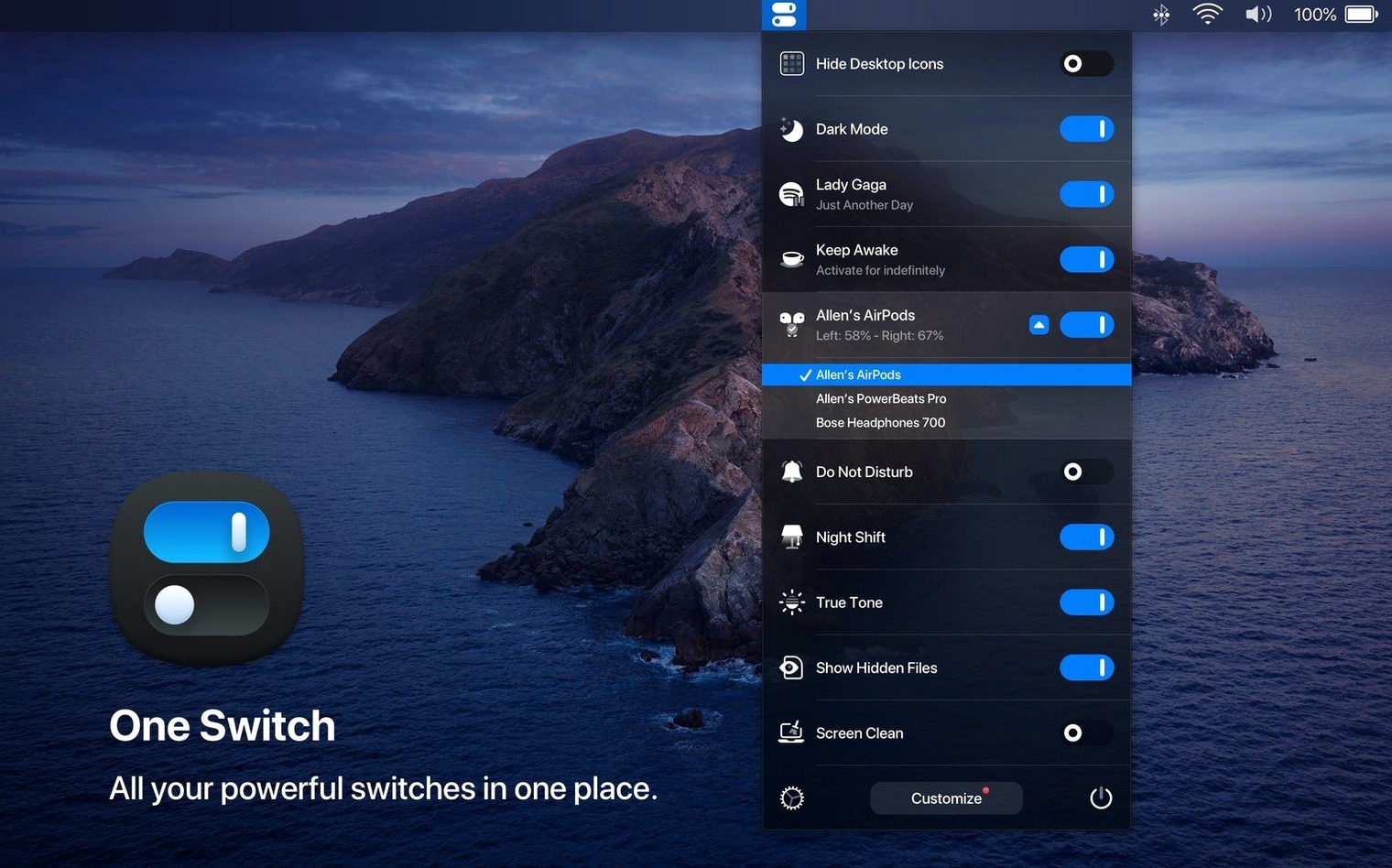
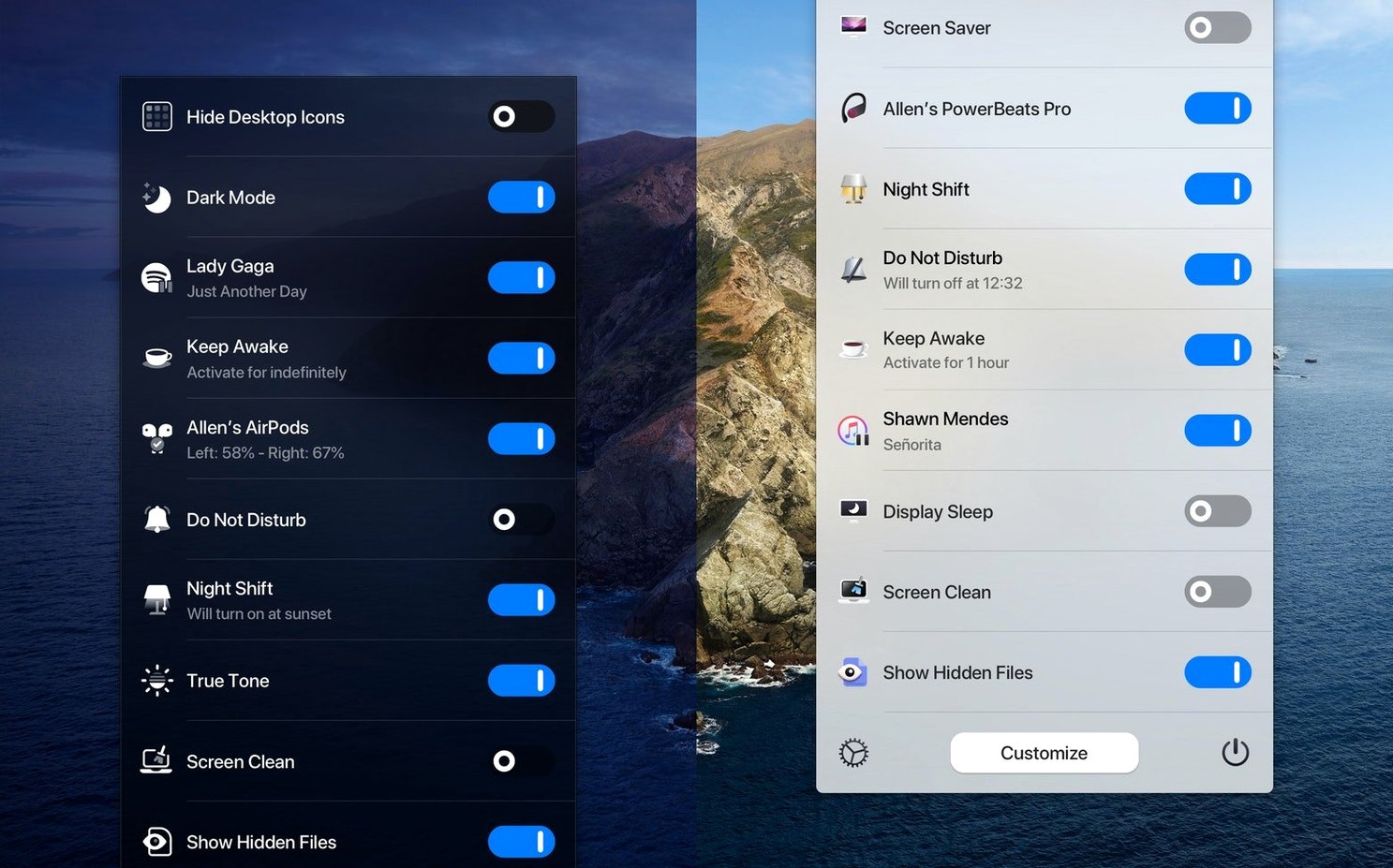
One Switch is a menu bar app that turns common Mac toggles into a single click. It collects things like Dark Mode, desktop icon visibility and AirPods connection into a tidy dropdown, so you reach for System Settings far less often.
Hide your desktop icons in one click before screen sharing
- Clear the workspace. You’re about to share your screen. Click the menu bar icon and flip Hide Desktop Icons — clean desktop, no dragging files into folders first.
- Match the light. Late afternoon sun hits your desk. Toggle Dark Mode on without opening Appearance settings. Your eyes adjust, and so does every app that follows the system theme.
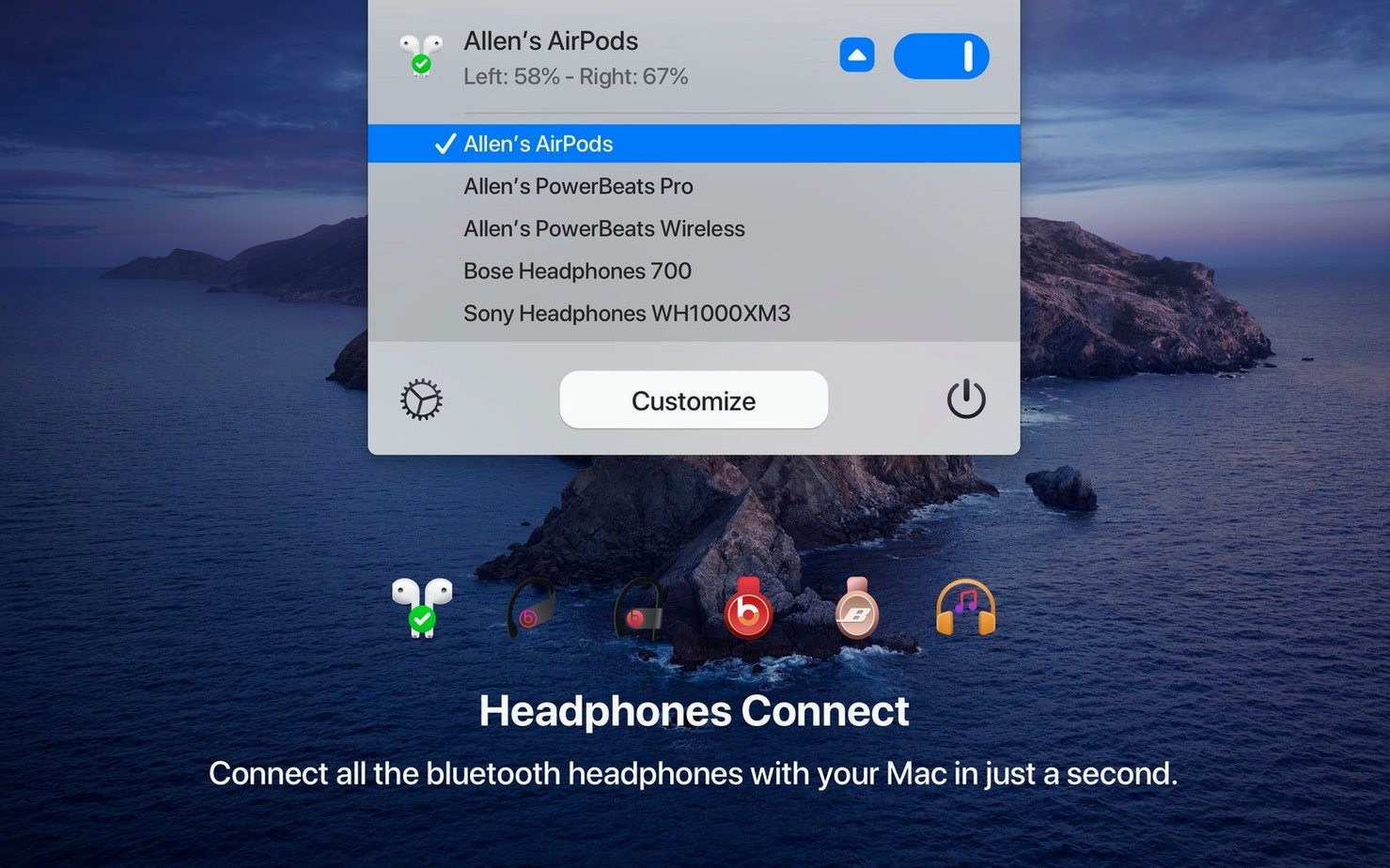
- Connect a headset. You grab your AirPods for a call. The Connect AirPods switch jumps straight to them — no Bluetooth menu hunting.
- Pause notifications. You need focus. One flick quiets notifications temporarily, then you turn them back when the deep work ends.
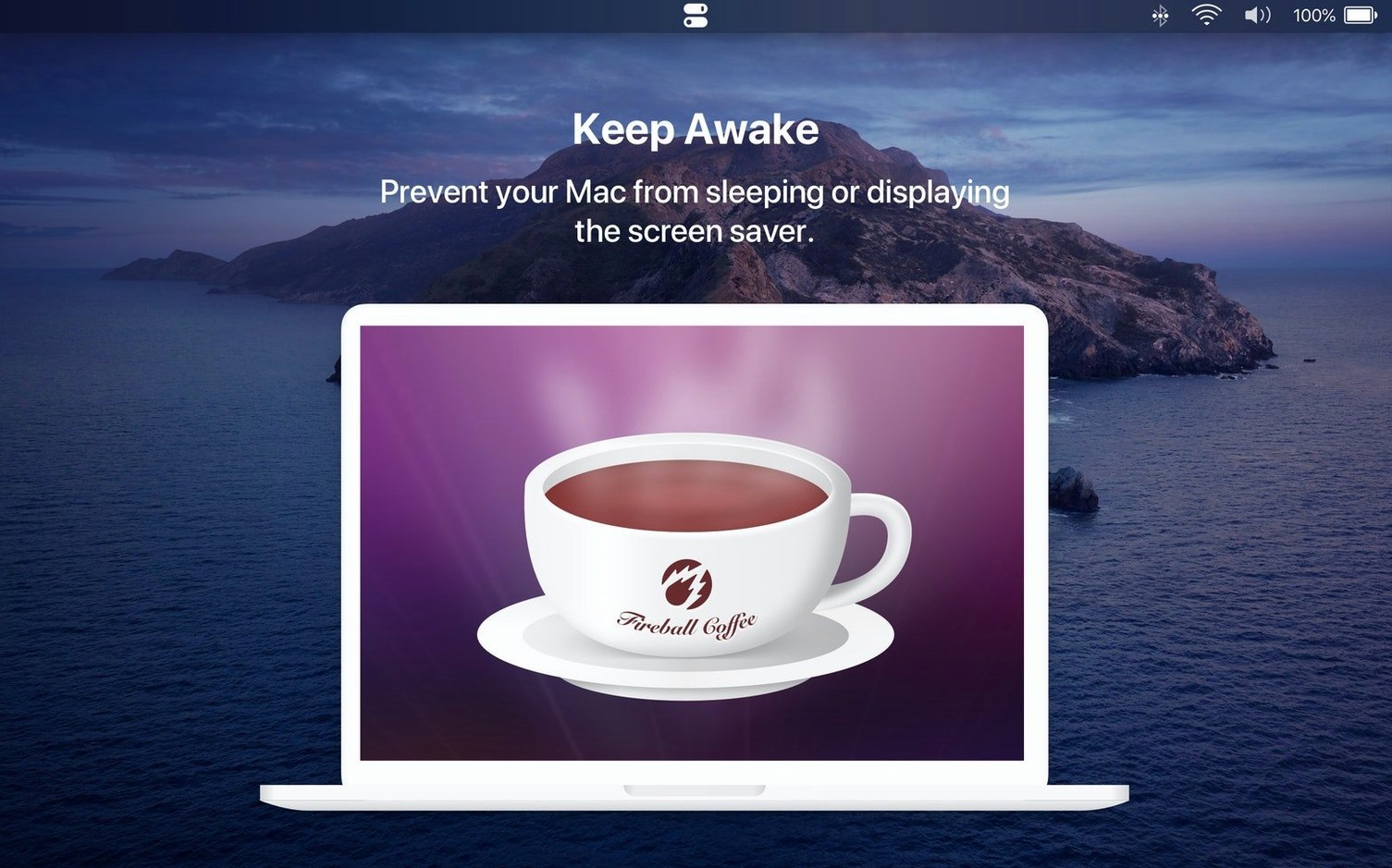
- Step away. Coffee break. Hit the screen saver switch manually, or let the automatic sleep timer you set earlier handle it.
The app holds up to seven switches at once, so you pick the ones your day actually repeats. It runs on Apple Silicon and Intel Macs from macOS Catalina onward, and it stays in the menu bar without crowding the dock.
Where it stands alongside similar Mac apps
One Switch isn’t the only menu bar utility that bundles quick toggles, but it takes a noticeably simpler path. If you’ve tried other options and found them heavy, the difference shows up in the first five minutes of use.
Compared with Bartender. Bartender is about hiding and arranging menu bar icons — a different problem. You use it when your menu bar overflows past the notch. One Switch doesn’t reorganize anything; it adds its own set of switches. The two actually complement each other nicely: Bartender tidies the clutter, One Switch puts frequent actions in reach. But if you only want Dark Mode, sleep and AirPods toggles without icon management, One Switch does it alone.
Compared with Control Center. macOS has its own Control Center, and it covers some of the same ground — Display, Bluetooth, Do Not Disturb. The difference is granularity and persistence. Control Center shows what Apple decides; One Switch lets you build a short list of exactly the toggles you repeat, with extras like desktop icon visibility and screen saver launch that Control Center doesn’t touch.
Compared with Alfred or Raycast power commands. Both launchers can trigger system actions via keywords and scripts. If you already live in a launcher, a one switch download might seem redundant at first. But the menu bar dropdown wins on discoverability — you see the switch, you click it, no remembering a keyword. For people who prefer a visible control panel over a command palette, the app earns its spot.
Trigger its toggles from Shortcuts and Automator
One Switch works best when you treat it as a remote control for things macOS already does. It doesn’t replace system features — it gives them a shortcut that sits closer to your hand.
With Shortcuts and Automator, you can chain what One Switch starts. Set the Mac to sleep from the menu bar, and a logout hook runs a backup script. Trigger the screen saver, and a hot corner lock setting kicks in behind it. The app doesn’t script these connections itself, but it plays well as the initiator.
AirPods and Bluetooth accessories feel more responsive through the switch. The Connect AirPods toggle pulls your headphones back from an iPhone quicker than the Bluetooth menu does, especially when you’ve paired them with multiple devices. That same muscle memory works if you later add another Bluetooth audio device — the switch stays familiar even when the hardware changes.
If you use a 3 phase 3 position rotary switch in a hardware setup — say for audio monitoring or lighting — One Switch mirrors that idea in software. It’s a digital three-position mindset: on, off, or automated. Light and Dark appearance switching follows the same pattern, and the auto-schedule takes it further by flipping based on time of day without a click.
The app also sits comfortably next to Focus modes. You can turn Do Not Disturb on via One Switch, and if a Focus mode shares that DND state, the switch effectively bridges manual and scheduled focus time.
Presenters who share screens daily will rely on this
Not every Mac user needs a dedicated switchboard. But a few groups feel the benefit immediately.
Presenters and screen-sharers. If you hop on calls throughout the day, the desktop icon toggle alone saves the ritual of dragging files into a folder. One click, clean desktop. One click, everything returns. Combine that with Do Not Disturb and you’re ready to share a screen in two seconds.
People who toggle Dark Mode by time of day. Some rooms catch morning light, others face the sunset. The automatic schedule means you set it once and stop thinking about it, but the manual switch stays available for overcast afternoons when auto-mode guesses wrong.
Musicians and audio pros. The AirPods quick-connect switch matters when you move between studio monitors and headphones. Many audio workflows already use a one switch mac app approach for input routing — adding system-level toggles keeps the theme going. It’s not an audio utility, but it removes friction from the moments between sessions.
Minimalists who hate System Settings. Some people just want to set the Mac to sleep, darken the screen, or hide icons without opening a pane. For them, a one switch mac free download path (once available) brought the idea in, and the current version keeps the same spirit: get in, flip a switch, get out. No preferences window, no tabs, no learning curve.
If you find yourself repeating the same three or four system actions every day, One Switch turns them into muscle memory. If your menu bar already feels crowded, it’s worth pairing with a bar organizer. And if you’ve ever wished macOS had a physical switchboard, this is the closest software equivalent.
Version 1.35.4 brings the app to more people. The menu bar controls now speak German, Italian, Japanese, Korean, Portuguese, Russian and Spanish alongside the original English.
- macOS 10.15 or newer
- Apple Silicon or Intel 64-bit Mac
Questions from the stall
Can One Switch manage my Mac's sleep schedule?
Yes, you can set automatic sleep and wake times from the menu bar dropdown, and you can also start the screen saver manually whenever you step away.
Notes from other shops 0
Sign in or open a shop account to leave a note.
No notes yet. If you've used this on a shop Mac, tell me how it went.