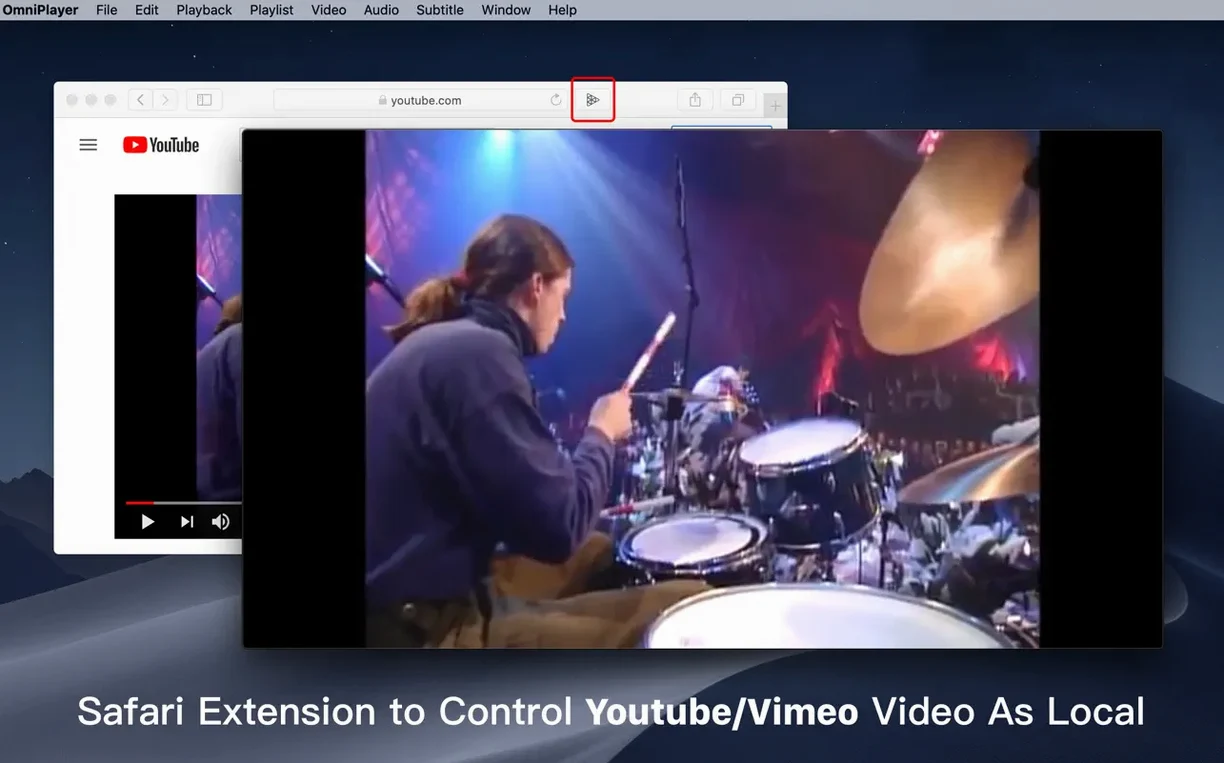
OmniPlayer is a macOS media player built to handle everything from a huge .mkv file to a YouTube link, without making you hunt for extra tools. It plays local video and audio, streams online media over HTTP and HTTPS, and can pull in YouTube or Vimeo videos straight from a web page URL.
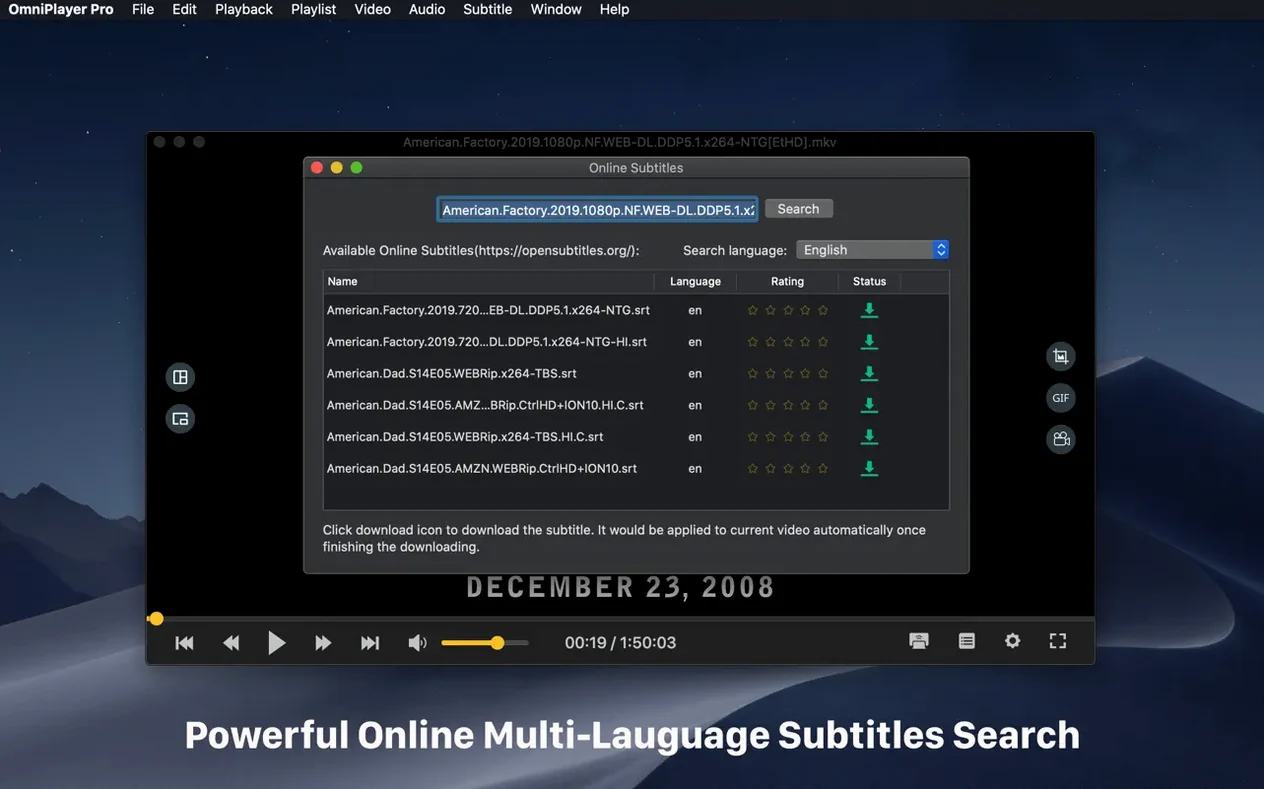
For a newcomer, the smartest place to start is with the playback controls. Grab a video, then try adjusting the window size and aspect ratio to fit your screen the way you like — or rotate the picture if someone filmed it sideways. While you’re watching, load a subtitle file in real time or let the app search and download subtitles by title or hash. You can change the subtitle color and size on the fly, which is a small thing that makes a big difference late at night.
Next, drop a few files into the playlist and test the repeat and search options. OmniPlayer keeps track of where you stopped after an auto-stop, so you never lose your place. The controls can hide themselves during playback for a cleaner view, and you can capture a screenshot in whichever format suits you.
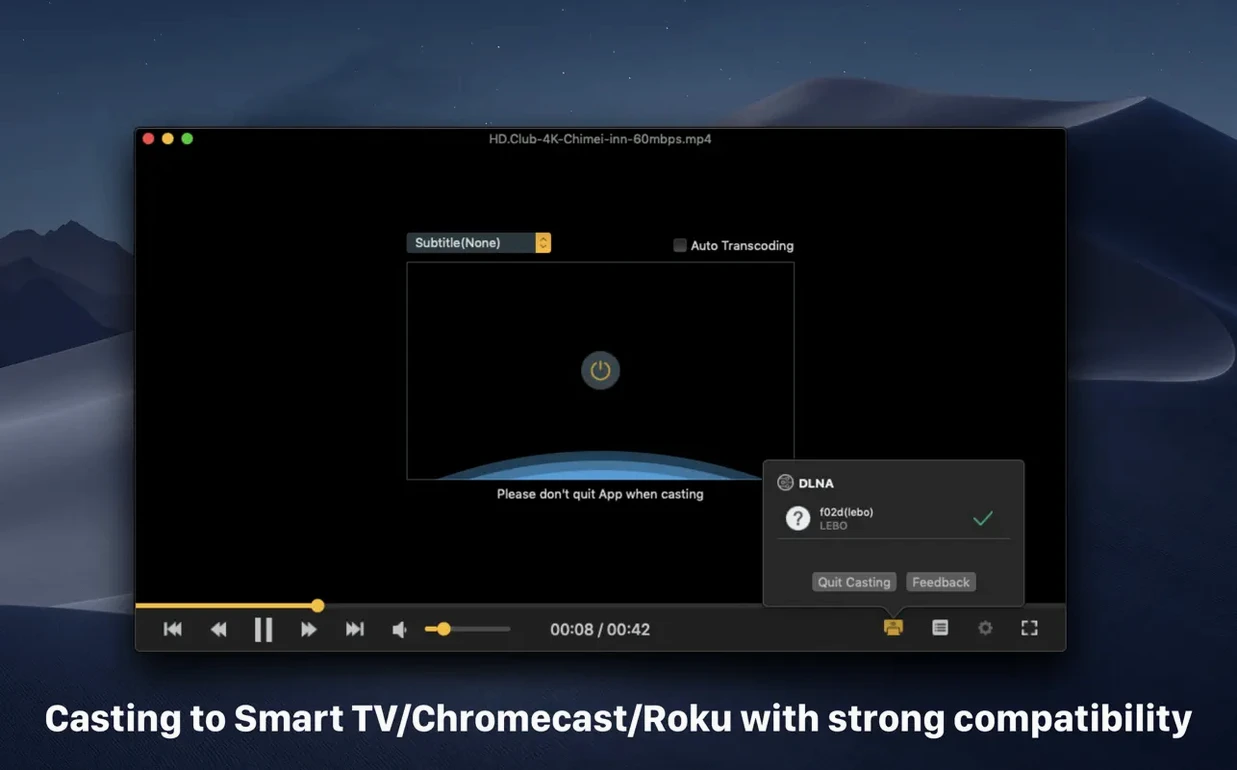
When you’re ready to step away from the desk, use the casting feature to send whatever’s playing to a larger screen. It’s a natural extension of the player’s all-in-one approach — less switching around, more watching.
Playing a 30GB MKV with soft subtitles — start to finish
Let's say you've got a large .mkv file on a network drive, and it came with external subtitle files that don't quite sync. Here's how I'd handle it in OmniPlayer without jumping between three different utilities.
First, connect to the network share. OmniPlayer reads media over SAMBA and FTP, so I open the player, go to File → Open URL, and point it at the remote folder. The 30GB file starts loading — the 2.1.22 update specifically patched a hang that used to happen with files that size, and on my wired connection it's ready in a few seconds. No beachball.
Once the video is playing, I load the external .srt file through Subtitle → Load Subtitle. The timing is off by about two seconds, so I change the subtitle encoding to UTF-8 (the file was saved in a different codepage) and adjust the audio delay slider until the dialogue matches the mouth movements. Both controls are in the same floating panel, so I'm not digging through menus while the scene is running.
I switch to the Japanese audio track — right-click the player window, pick the track from the audio menu — and turn on the subtitle search. OmniPlayer queries by video hash first, and if that doesn't find a match, I type the title manually. The downloaded subtitles appear in the subtitle menu alongside the external file. I test both, keep the better translation, and bump the font size up two notches for couch viewing.
Before I close the player, I grab a still of a landscape shot as a PNG and capture a 15-second reaction moment as a GIF. Both commands sit under File, and the GIF tool asks for the duration before exporting. The file lands on my desktop, ready to drop into a message.
Memory stays lean even with 4K playback
OmniPlayer doesn't ship with a media library or a thumbnail cache, and that keeps its footprint noticeably lean. On an older Intel Mac running macOS 11, it idles around 180 MB of RAM with a 1080p video playing. A 4K HEVC file pushes that closer to 400 MB — still modest next to some players that bundle their own codec packs. CPU usage stays in single digits for common h.264 files; HEVC decoding leans on the GPU when available, and I haven't seen frame drops even when skipping around a 40-minute timeline.
Playlist handling is quick because it doesn't try to index your entire drive. Files you drop in play immediately, and the playlist clears when you quit — a design choice I've come to appreciate because it means the app doesn't accumulate stale entries. If I need to keep a list, I save it as a .m3u manually.
Streaming from YouTube and Vimeo URLs is more of a convenience feature than a primary use case. Paste a link, wait a moment for the stream to resolve, and it plays inside the same window. Quality depends on the source, and you won't get resolution options beyond what the URL provides, but for pulling up a reference clip or a tutorial alongside local files, it saves a browser tab.
Stability-wise, the 2.1.22 build has been uneventful — which is what you want from a player. I've thrown oddball formats at it (old AVI containers, MKVs with embedded ASS subtitles, FLAC audio, WebM with alpha) and it either plays them or fails gracefully with a blank window, no crash. The one quirk I've noticed: switching audio tracks during a network stream can cause a half-second silence before the new track kicks in. Local files don't show the same pause.
Turn on resume so you never lose your spot
On the first launch, OmniPlayer looks sparse — black window, a few menus, no setup wizard. That's a good thing, but a few tweaks make the first week smoother.
- Turn on 'Resume last playback position.' It's in Preferences under Playback. After an auto-stop, this puts you back where you left off. Without it, you're scrubbing from zero every time.
- Set your preferred subtitle size and color once. The default white-with-thin-outline works on dark scenes but washes out against bright skies. I switch to yellow with a slightly thicker outline and save that as the default for all files.
- Decide on a screenshot format. The app offers PNG, JPEG, TIFF, and BMP. I stick with PNG for quality, but if you're capturing dozens of reference frames for a project, JPEG at 85% quality saves space and still looks fine on screen.
- Test the casting early. Chromecast and DLNA discovery happen inside the player — look for the cast icon in the control bar. If your device doesn't appear, check that both the Mac and the receiver are on the same subnet. OmniPlayer won't traverse VLANs on its own.
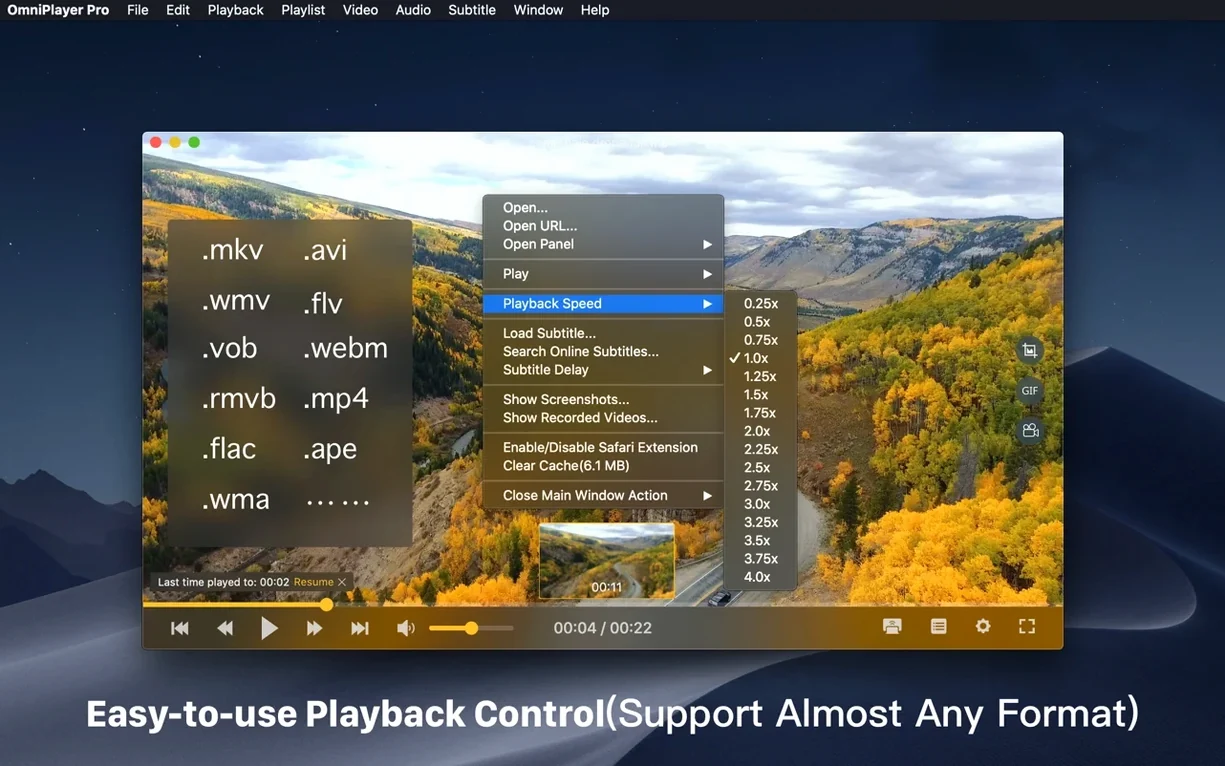
- Learn the keyboard shortcuts for playback speed. The speed range is 0.25x to 4x, and jumping between 1x, 1.5x, and 2x with a keypress is faster than opening the menu every time. I use 1.3x for podcasts and 1.8x for lecture recordings.
Lacks the native polish but handles more file types
If you've been using IINA, you'll notice the difference in philosophy right away. IINA is built on mpv and wraps everything in a macOS-native interface with lots of polish — picture-in-picture, Touch Bar support, a music mode that hides the video track. OmniPlayer doesn't try to match that sheen. Instead, it puts its energy into format coverage and subtitle tooling. The online subtitle search in OmniPlayer is more direct than what IINA offers through its plugin system, and the built-in GIF capture saves a trip to a separate converter.
VLC is the obvious comparison for anyone who just wants a player that opens anything. VLC's codec support is famously broad, and it runs on practically every platform. OmniPlayer covers most of the same ground but adds a few macOS-specific touches: the preview thumbnails on the progress bar, the auto-hide controls, and the casting options for DLNA and Chromecast. VLC can cast too, but it often requires extra setup or a separate stream-output dialog. OmniPlayer puts the button in the control bar and keeps it simple.
Elmedia Player is another name that comes up when people search for an .mkv mac solution. Elmedia focuses on streaming to smart TVs and offers more advanced playlist management — you can build persistent libraries and bookmark folders. OmniPlayer is lighter on library features (play
What’s new in version 2.1.22:
- Fixed a bug that could trip up loading large 30GB MKV files.
- A few smaller bug fixes to keep things running smoothly.
- macOS 11 or later
- Intel 64-bit processor
Questions from the stall
Can OmniPlayer remember where I stopped in a video?
Yes, it saves the last playback position after an auto-stop so you can pick up right where you left off.
Does it support subtitle files I already have?
Absolutely. You can load local subtitle files in real time and adjust their color and size while the video plays.
How do I cast video to another screen?
OmniPlayer includes a casting feature that sends your current playback to a larger display, handy for presentations or movie nights.
Notes from other shops 0
Sign in or open a shop account to leave a note.
No notes yet. If you've used this on a shop Mac, tell me how it went.