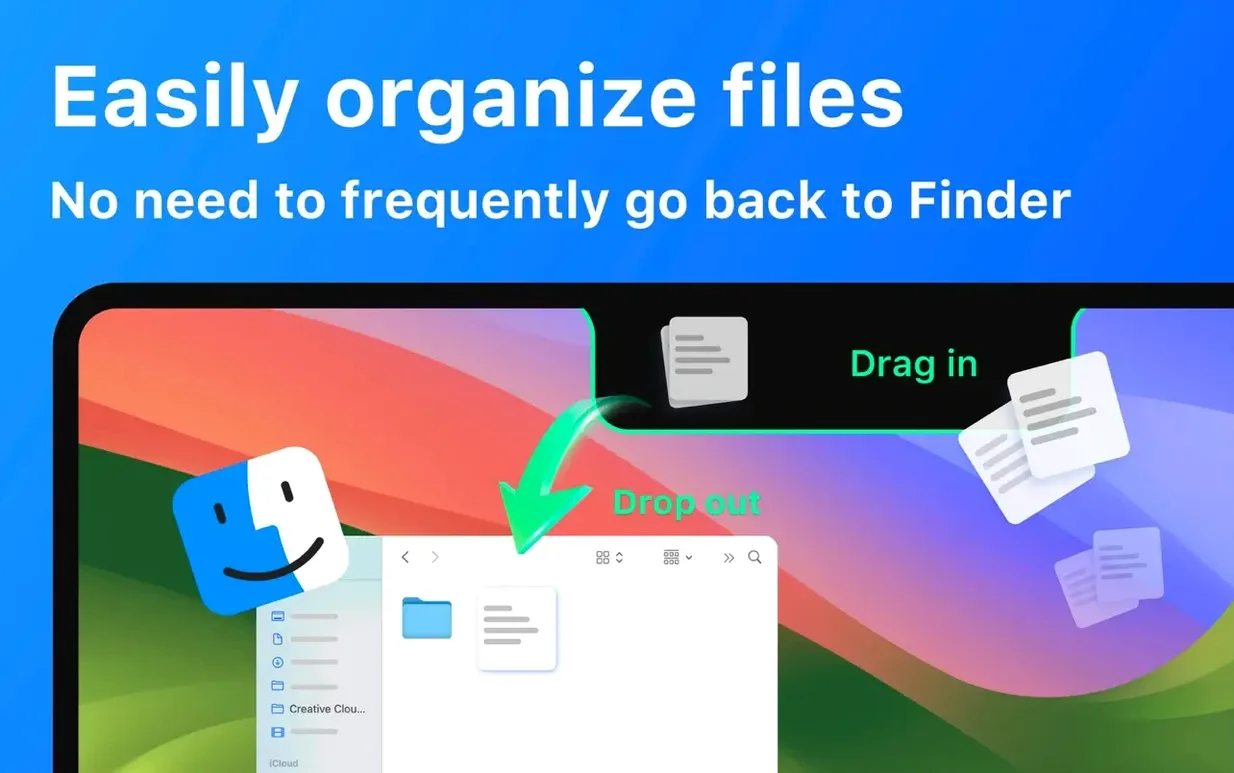

NotchBox is a small utility that turns the Mac notch into a handy, interactive hub for things you reach for often.
Stash a file for a moment
Drag any file onto the notch and NotchBox holds it there as temporary storage. Drag it back out when you need it, or drop it straight onto an AirDrop target.
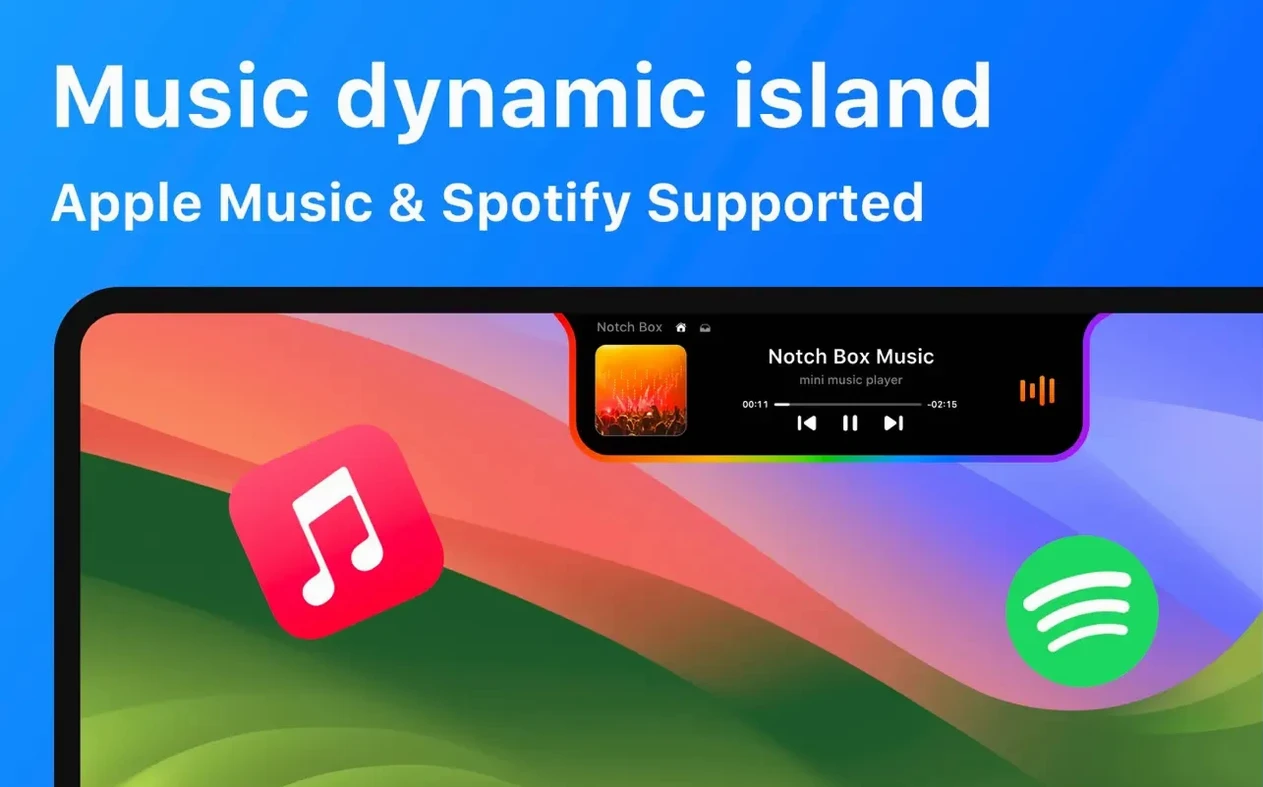
Keep music controls close
Skip tracks, pause, and scrub through Apple Music right from the notch—no need to open the full app or hunt for the mini player.
Check the time or your connection
Drag a screenshot or snippet into the notch
After you download notchbox for mac and get it running, a few small habits make it feel natural fast. Start by dragging a screenshot or a short text clipping into the notch. You’ll see it sit there as a little thumbnail — ready to drop into a message, an email, or onto an AirDrop contact. It’s the kind of thing that feels like a novelty for about ten minutes, then quietly becomes part of how you move things around.
Turn on the calendar integration early. Even if you don’t live in your calendar, having the next meeting visible in the notch saves those “oh, that’s now” moments. The date and time display sounds basic, but combined with the countdown timer it turns the notch into a small productivity corner — set a 25‑minute timer and glance up whenever you wonder how much focus time is left.
If you use Spotify instead of Apple Music, switch the music source in preferences right away. NotchBox needs to know which player you want it to talk to, and it won’t guess. Once that’s set, playback controls appear without fuss.
Your menu bar stays untouched
“Will this interfere with my menu bar apps?” No — NotchBox lives inside the notch area and doesn’t push menu bar items around. On Macs with a notch, the menu bar already wraps around it. NotchBox uses the space that would otherwise sit idle, so your clock, battery indicator, and third‑party menu bar utilities stay exactly where they were.
“Does it slow things down when music is playing?” It’s lightweight. The app polls for track info and keeps a small overlay ready, but it’s not constantly redrawing or eating CPU cycles. On both Apple Silicon and Intel machines, you’re unlikely to notice it in Activity Monitor unless you go looking.
“Can I turn off features I don’t use?” Yes. If you never need the camera mirror or the Wi‑Fi stats, you can disable them in preferences. NotchBox doesn’t force a fixed set of widgets on you. Strip it down to just file drop and a timer, or keep everything active — it adapts to how you work rather than demanding you adapt to it.
Grab tracking numbers from recent copies
- Clipboard history from the notch. Click the clipboard icon and you’ll see recent copies. It’s not a full clipboard manager, but for the last few items you copied — a tracking number, an address, a code snippet — it saves a trip to a separate app.
- Camera mirror for quick checks. Before a video call, tap the camera view to see how you look without opening Photo Booth. It’s a tiny mirror that disappears the moment you click away.
- Wi‑Fi at a glance. Signal strength bars and current network speed sit in one compact indicator. Helpful when you’re troubleshooting a sluggish connection and want to know if it’s you or the network.
- AirDrop by drag and drop. Drop a file onto the AirDrop area in the notch and nearby contacts appear. Pick one, and the file sends without opening a Finder window or the Share menu.
- Countdown timer with no distractions. Set it, minimize everything else, and the remaining time stays visible in the notch. No floating window, no dock icon bouncing — just the numbers counting down where you can’t miss them.
How NotchBox compares with similar Mac apps
If you’ve looked at other notch‑enhancement tools, you’ll recognize the general idea, but NotchBox leans further into the “quick hub” concept than most.
NotchBox vs. Dropover. Dropover is a dedicated file‑shelf app — you shake a file and a floating shelf appears anywhere on screen. It’s excellent for gathering files before moving them. NotchBox doesn’t do the shake gesture, and its shelf lives exclusively in the notch. What you gain is music controls, a timer, calendar events, and clipboard history in the same tiny strip of screen. If you only need a file shelf, Dropover is more focused. If you want one spot that handles files plus a handful of daily utilities, NotchBox covers more ground.
NotchBox vs. MediaMate. MediaMate puts a sleek playback overlay and a volume HUD on your screen. It’s beautiful and does one thing really well: media feedback. NotchBox includes music controls too, but wraps them together with file drop, AirDrop, and productivity widgets. MediaMate feels like a design upgrade for macOS’s built‑in indicators. NotchBox feels like a small command center tucked into the notch.
NotchBox vs. Alcove. Alcove also turns the notch into a utility space, with a similar shelf‑and‑widgets approach. The difference often comes down to which widgets matter to you. NotchBox includes the camera mirror, Wi‑Fi stats, and clipboard access; Alcove takes a slightly different set of tools. If you spend a lot of time on video calls or moving files between AirDrop contacts, NotchBox’s mix tilts in a practical direction. Both are solid — the choice is about which set of glanceable information fits your day.
None of these comparisons are about one app being “better.” They’re about what you need at hand. When you notchbox download mac and try it alongside your current tools, you’ll know within a day or two whether its particular blend of widgets earns a permanent spot in your notch.
Open a small countdown timer when you're working against the clock, or glance at Wi‑Fi speed and signal strength without pulling up a separate menu.
- macOS 13 or newer
- Apple Silicon or Intel 64-bit Mac
Notes from other shops 0
Sign in or open a shop account to leave a note.
No notes yet. If you've used this on a shop Mac, tell me how it went.