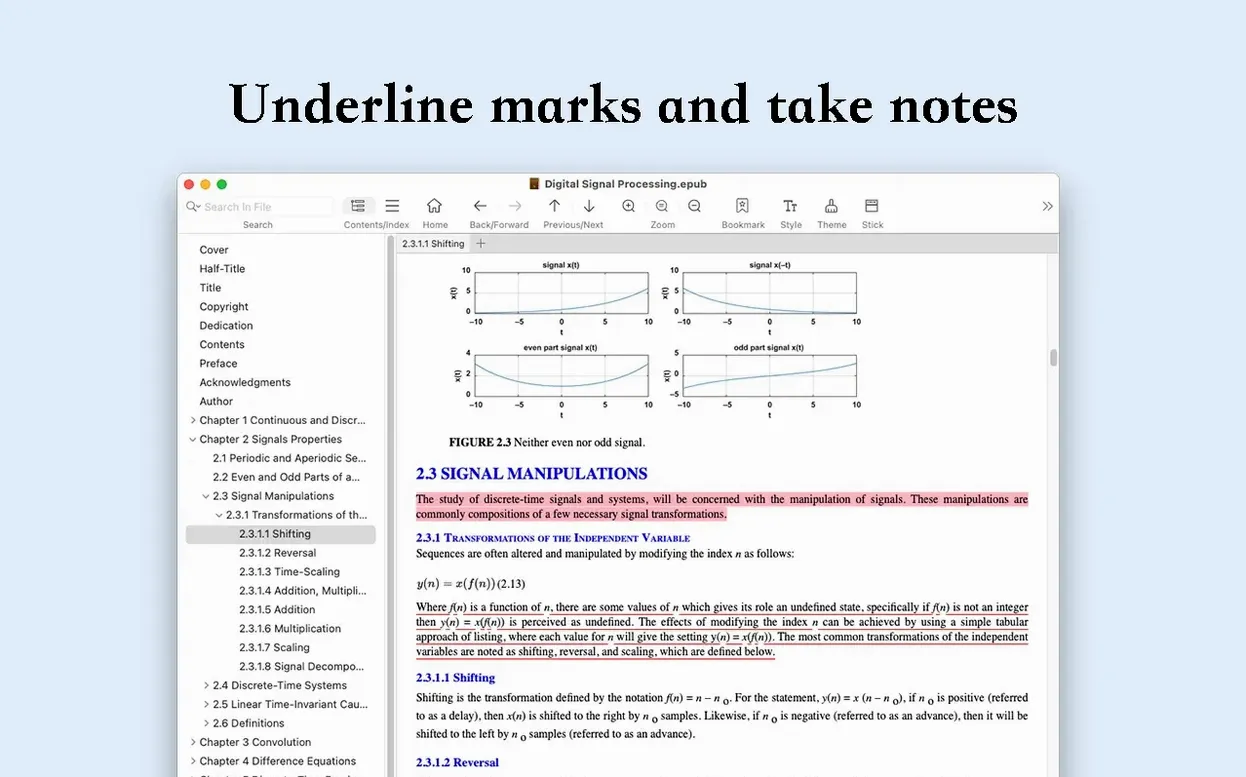
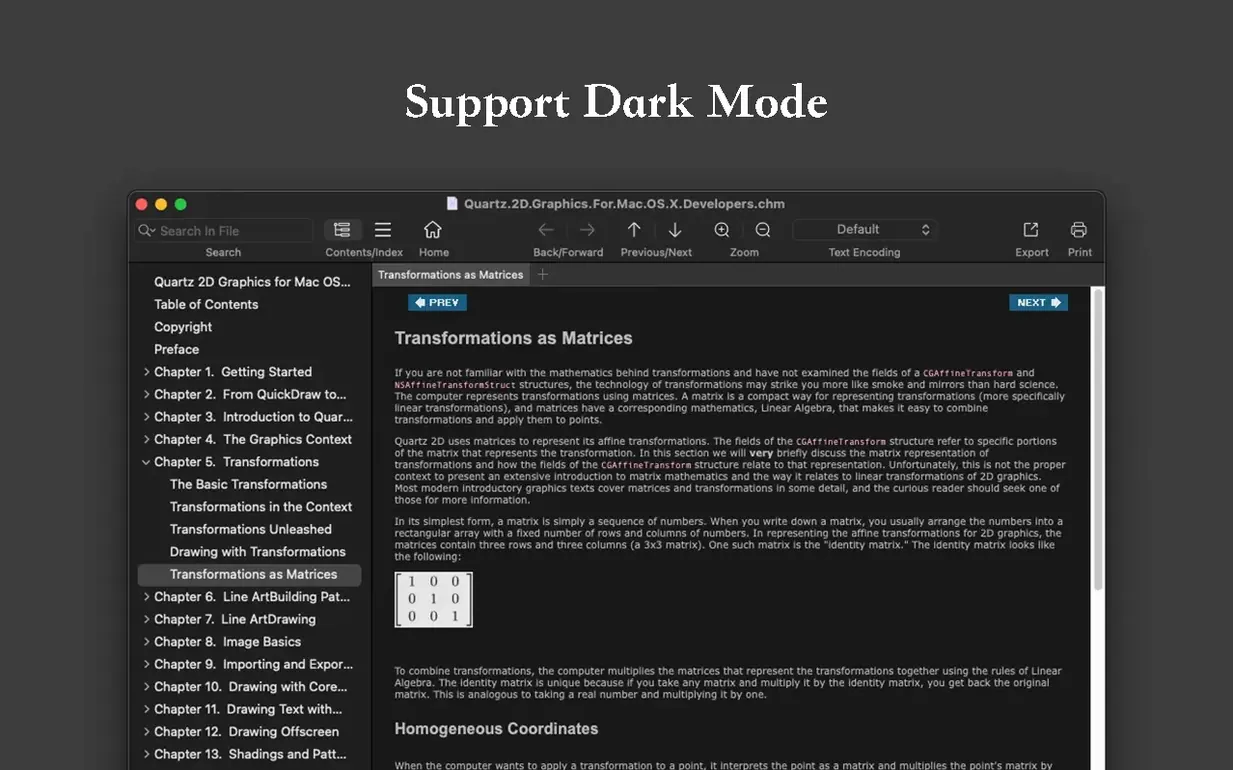
With support for 2 export formats and a memory that tracks where you've been, OmniReader Pro 3.4.4 tackles documents that other readers mangle.
Fixing garbled files and reading marathons
A single place to open stubborn documents, fix the ones with garbled characters through encoding handling, then export a clean copy. The reading history and automatic image resizing make it feel built for long sessions, not just quick peeks.
Exporting books, remembering your place, and printing
- Can I get my books out again? Yes—export to EPUB or PDF.
- Will it remember my place? Forward and back history keeps your path.
- What about physical copies? Full page printing is supported.
- Does it handle messy files? File encoding handling clears up garbled text.
- Can I see file details? Basic file information is always visible.
What daily use actually feels like
I'm not going to pretend it's the lightest reader on the block, but OmniReader Pro earns its keep once a document is open. Scrolling through a 400-page EPUB stays smooth on Apple Silicon, and page turns feel immediate—no stutter, no blank flash while the next chapter loads. On older Intel machines I noticed the fan waking up with very large CHM files packed with images, though regular novels and text-heavy PDFs posed no trouble at all. Memory use sits around 180–220 MB during a typical session, which is reasonable for an app juggling multiple open books and full-text search indexing.
Stability has been a quiet strength. I've left it open across sleep/wake cycles with three books loaded and came back to exactly where I was. The reading history doesn't just track within one file—it remembers your path across documents, so flipping back to a reference you checked an hour ago takes one click instead of a treasure hunt.
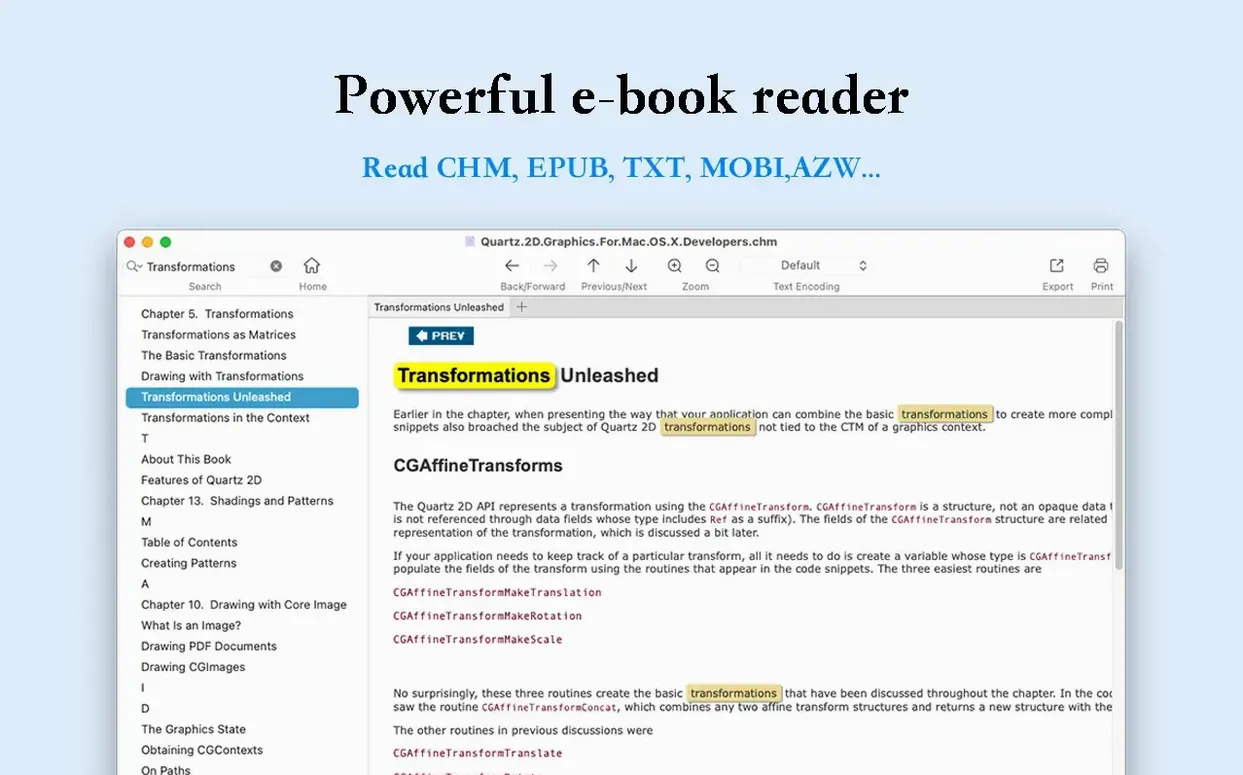
One thing worth knowing: the full-text search builds its index when you first open a book, and on a 600-page technical manual that takes maybe four seconds. After that, results highlight instantly. If you bounce between lots of files in a single sitting, those small indexing pauses add up, but for focused reading they're barely noticeable.
One reader for EPUBs, CHM files, and Kindle books
OmniReader Pro suits people who read across formats and hate switching apps for each one. If your library mixes EPUB novels, CHM programming references, and the occasional Kindle file, you stop juggling three different readers. The encoding handling alone saves anyone working with Chinese, Japanese, or Russian documents—files that show up as gibberish elsewhere often render correctly here on the first try.
Researchers and students get a lot out of the search-and-export combination. Find every mention of a term across a dense textbook, walk through the highlighted results, then export the cleaned-up version as PDF with your notes intact. The image extraction feature is a small gem for designers and writers who need artwork or diagrams from a book without screenshotting every page.
Translators working with bilingual documents benefit from the encoding controls and the collapsible sidebar—keep the source text visible in one panel while the exported copy sits open beside it. It's not a dedicated translation tool, but the workflow fits without extra steps.
Double-click the divider to vanish the sidebar
A few shortcuts and behaviors hide in plain sight. The sidebar collapse isn't just a toggle—double-clicking the divider snaps it completely out of view, giving you a genuinely full-screen reading surface without entering macOS full-screen mode. That matters when you want other apps visible at the edges.
During full-text search, pressing ⌘G jumps to the next result and ⇧⌘G goes back, matching the pattern you already know from Safari and Pages. The highlight color sticks around until you clear the search field, so you can scan all results visually before dismissing them.
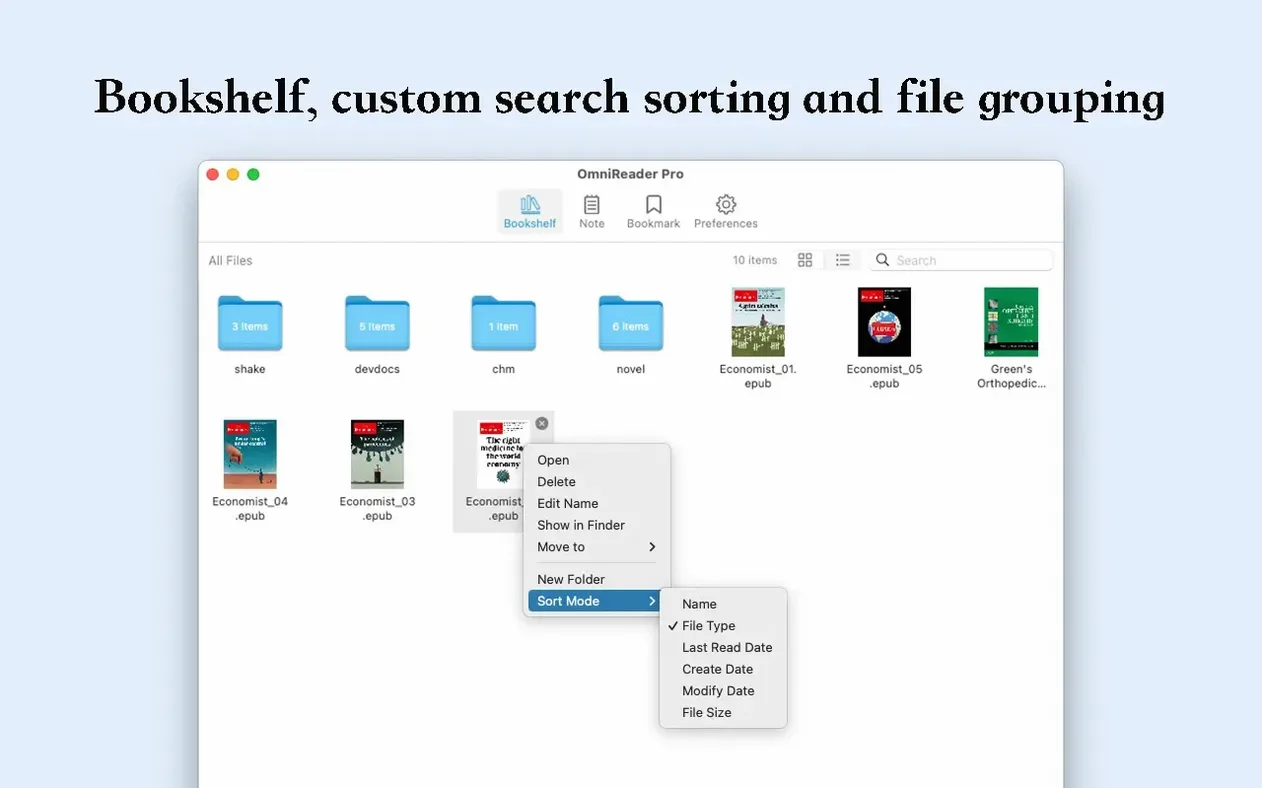
The image extraction feature deserves more attention than it gets. Right-click any book in your library and choose to extract all images—it dumps every illustration, diagram, and cover image into a folder in seconds. For design reference or archiving artwork from illustrated books, this beats manual saving by a mile.
When you're dealing with garbled text, the encoding menu lives under File rather than Preferences—it's set per-document, which makes sense once you realize different books often need different encodings. Switching from the default to UTF-8 or a region-specific encoding usually fixes the problem instantly, and OmniReader remembers your choice for that file next time.
One last convenience: page printing respects the zoom level you're currently using. If you've zoomed in to read small footnotes, the printed page reflects that magnification, so you don't waste paper on tiny text you can't comfortably read offline.
Page turning, zooming, and a collapsible sidebar keep the reading space uncluttered. Automatic image sizing means you rarely need to fiddle with fit.
- macOS 10.13 or later
- Works on Apple Silicon and Intel 64-bit Macs
Questions from the stall
Does OmniReader Pro handle text files that show garbled characters?
Yes, it supports file encoding handling specifically to clear up garbled text in documents.
Notes from other shops 0
Sign in or open a shop account to leave a note.
No notes yet. If you've used this on a shop Mac, tell me how it went.