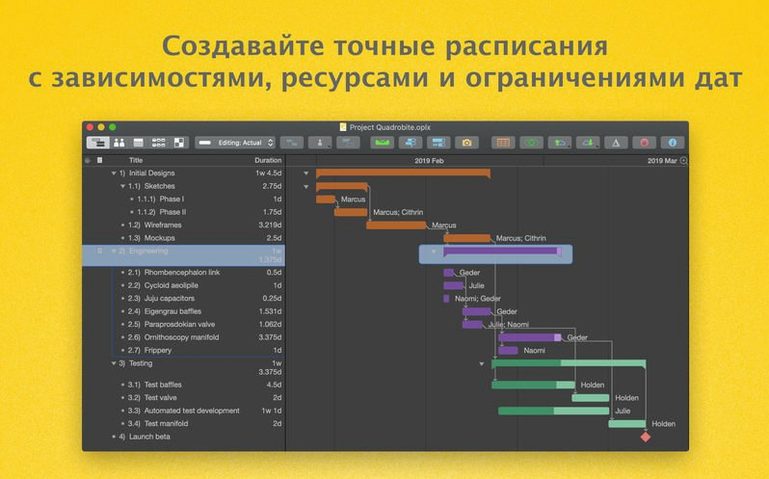
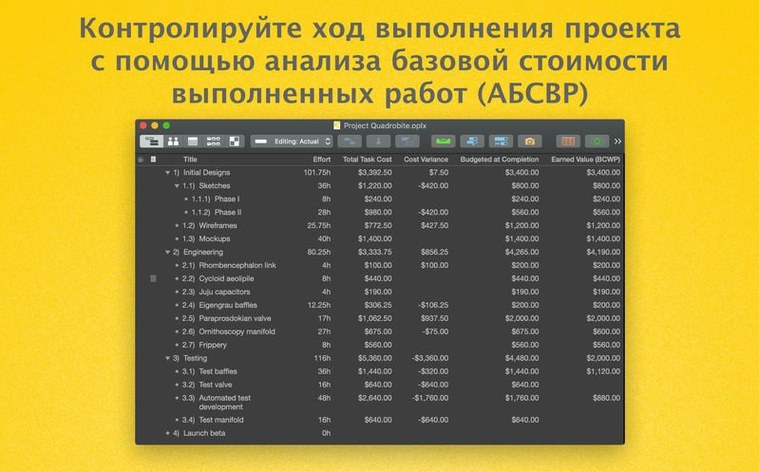
If you’ve ever wrestled with a Gantt chart in a spreadsheet and wished for something more purpose-built, OmniPlan Pro sits at the opposite end of that spectrum. Where a sheet gives you rows and formulas, OmniPlan gives you tasks, dependencies, resource loads, and cost tracking in a native Mac interface. The current version, 4.11.0, focuses on staying smooth on newer macOS releases and handling large assignments without the beachball — a welcome nudge for anyone managing complex projects.
Import MPP files and forecast with Monte Carlo
- Importing and exporting Microsoft Project documents when you work with clients or teams on that format
- Automatic effort estimation and Monte Carlo simulation to forecast finish dates with a bit more honesty
- Splitting work into tasks, assigning resources, and controlling costs from one dashboard
- Publishing and subscribing to shared plans through Omni Sync Server or a WebDAV server
- Exporting to PDF, CSV, OmniOutliner, OmniGraffle, or ICS for reports and calendar feeds
- Adding days of absence to calendars so availability numbers match real life
Requires macOS 12 and deeper support in some languages
- The app requires macOS 12 — older Macs need to stay on a previous release
- The interface language list covers eleven languages, but support depth can vary by region
- Monte Carlo simulation and MPP import/export are Pro-only; the standard edition is simpler
Option-drag to duplicate a task instantly
Some of the best things in OmniPlan Pro are the ones you stumble into after a week or two. They don't headline the feature list, but they smooth out daily work.
- Hold Option while dragging a task to duplicate it instantly — useful when you're building a repeating phase and don't want to re-enter resource assignments.
- Right-click any Gantt bar and choose Add to Calendar to push a milestone or task into your Mac's calendar. Paired with ICS export, this keeps deadlines visible outside the app.
- Press Command-Return on a selected task to edit its title in place. No double-clicking, no inspector panel — just type and move on.
- Use the filter bar (View > Show Filter Bar) to isolate tasks by resource, completion status, or custom keywords. It's faster than scrolling a 200-line project outline.
- Drag a task onto another task in the outline to create a dependency in one motion. The app draws the connector on the Gantt chart for you.
- Type durations in shorthand: "3d 4h" for three days and four hours, or "2w" for two weeks. No need to fiddle with dropdowns.
Multi-project dashboard clicks for earned value managers
OmniPlan Pro isn't trying to please everyone, and it's better for it. A few groups settle into it faster than others.
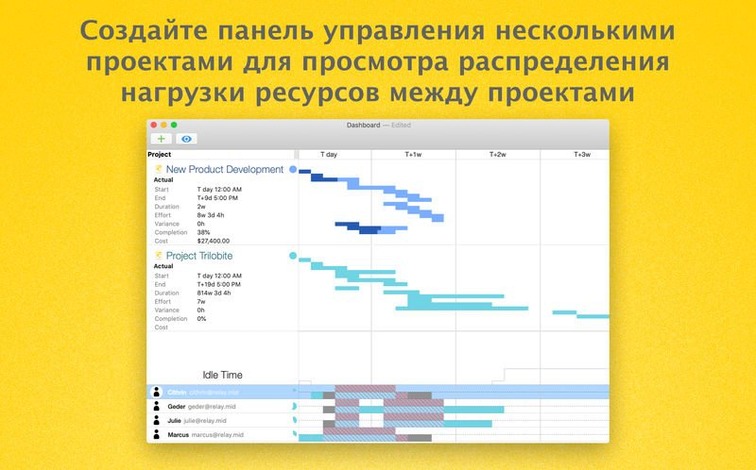
Project managers juggling multiple workstreams get the most from the multi-project dashboard and earned value analysis. Seeing cost and schedule variance across projects in one view beats switching between files.
Team leads who share plans with stakeholders on Microsoft Project use the MPP import and export regularly. Sending a round-trip file without rebuilding the plan is the kind of quiet win that saves an afternoon.
Freelancers and small studio owners tend to lean on the effort estimation and Monte Carlo simulation. When you're pricing fixed-bid work, a forecast that accounts for uncertainty is more useful than a single finish date.
Anyone who already lives in OmniOutliner or OmniGraffle will appreciate how exports carry structure across apps. An outline of deliverables can become a project skeleton without re-typing a thing.
First few days: a practical path
OmniPlan rewards a little setup early on. Here's what makes the first week smoother.
- Set your working calendar first. Go to Project > Calendar and add your actual holidays and days of absence before you assign a single resource. Changing the calendar later can shift dates in ways that are hard to untangle.
- Start with the outline, not the Gantt chart. Type your task list, group them, set milestones, then switch to Gantt view to see the timeline. Building the structure without staring at bars keeps you focused on what needs doing rather than how it fits.
- Let automatic leveling wait. Assign resources manually for the first few tasks before turning on automatic leveling. You'll understand what the algorithm is doing once you've felt the constraints by hand.
- Create a baseline early. Once your plan looks reasonable, set a baseline from the Project menu. Comparing actual progress against that snapshot is the simplest way to spot drift before it gets expensive.
- Check change tracking. If you're sharing a plan through Omni Sync Server, turn on change tracking so you can accept or reject updates individually. It's especially handy when multiple people adjust dates in the same week.
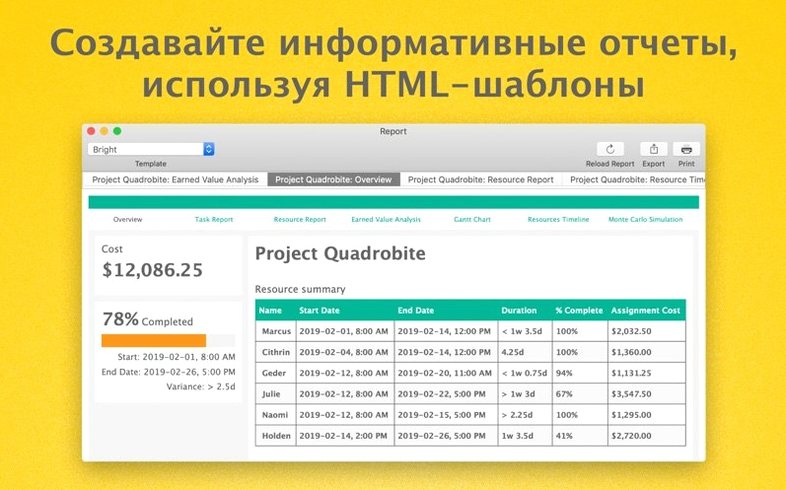
- Test one export right away. Run a PDF or HTML report on a partial plan so you know what your stakeholders will see. Tweaking report templates early saves the last-minute scramble before a review meeting.
Tip: The search phrase omniplan torrent sometimes surfaces older cracked builds. Those rarely include the performance fixes in 4.11.0, and they break on newer macOS versions — stick with a build that matches your system.
The 4.11.0 update is a maintenance release with two real quality-of-life improvements:
- Better compatibility with newer versions of macOS
- Smoother editing when a task has many assigned resources
- macOS 12 or later
- Runs natively on both Intel and Apple Silicon Macs
Questions from the stall
Does OmniPlan Pro open Microsoft Project files?
Yes, the Pro version can import and export Microsoft Project documents, so you can exchange plans with MPP users.
Notes from other shops 0
Sign in or open a shop account to leave a note.
No notes yet. If you've used this on a shop Mac, tell me how it went.