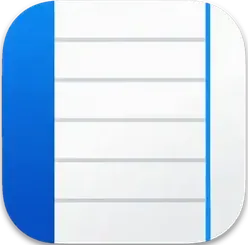
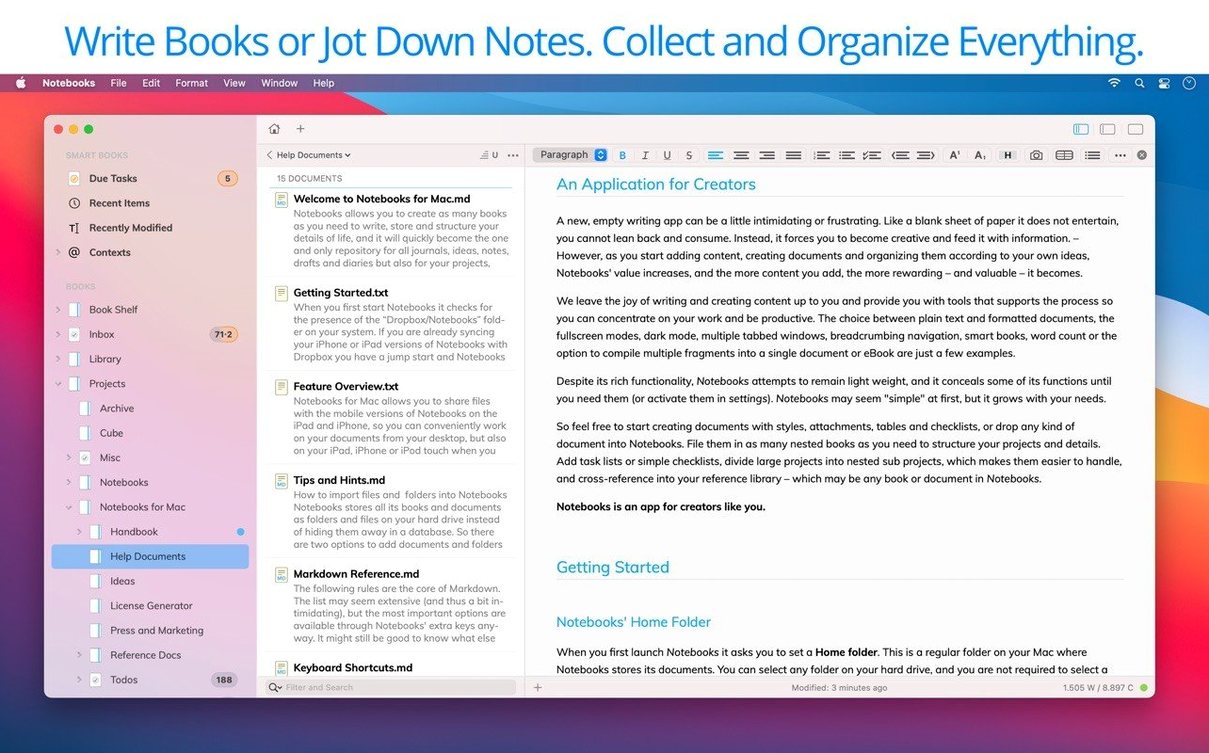
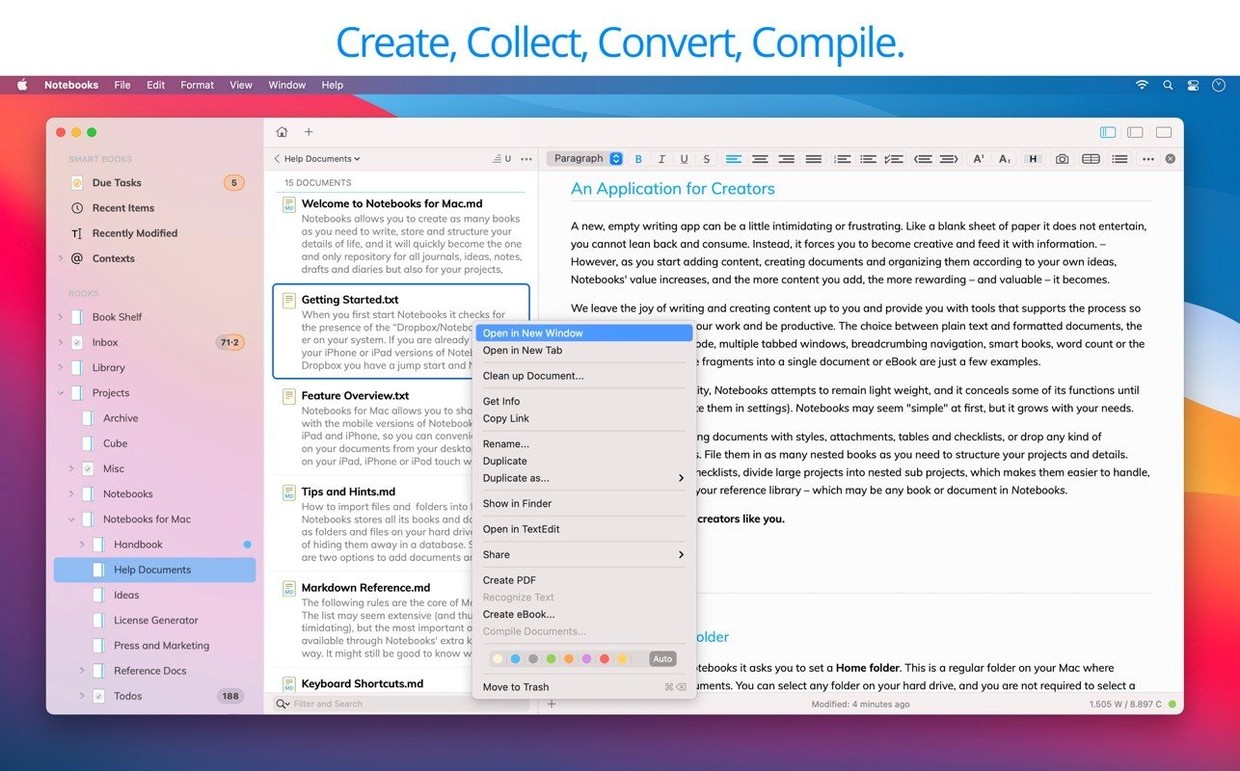
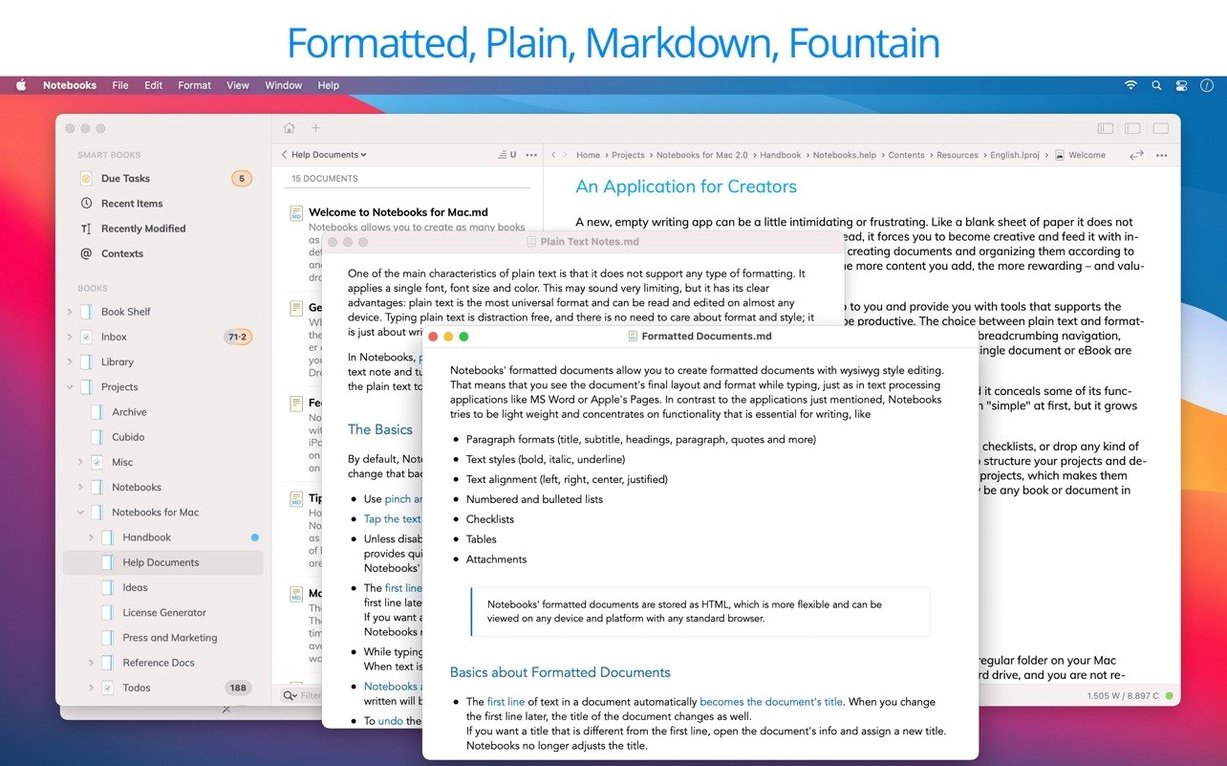
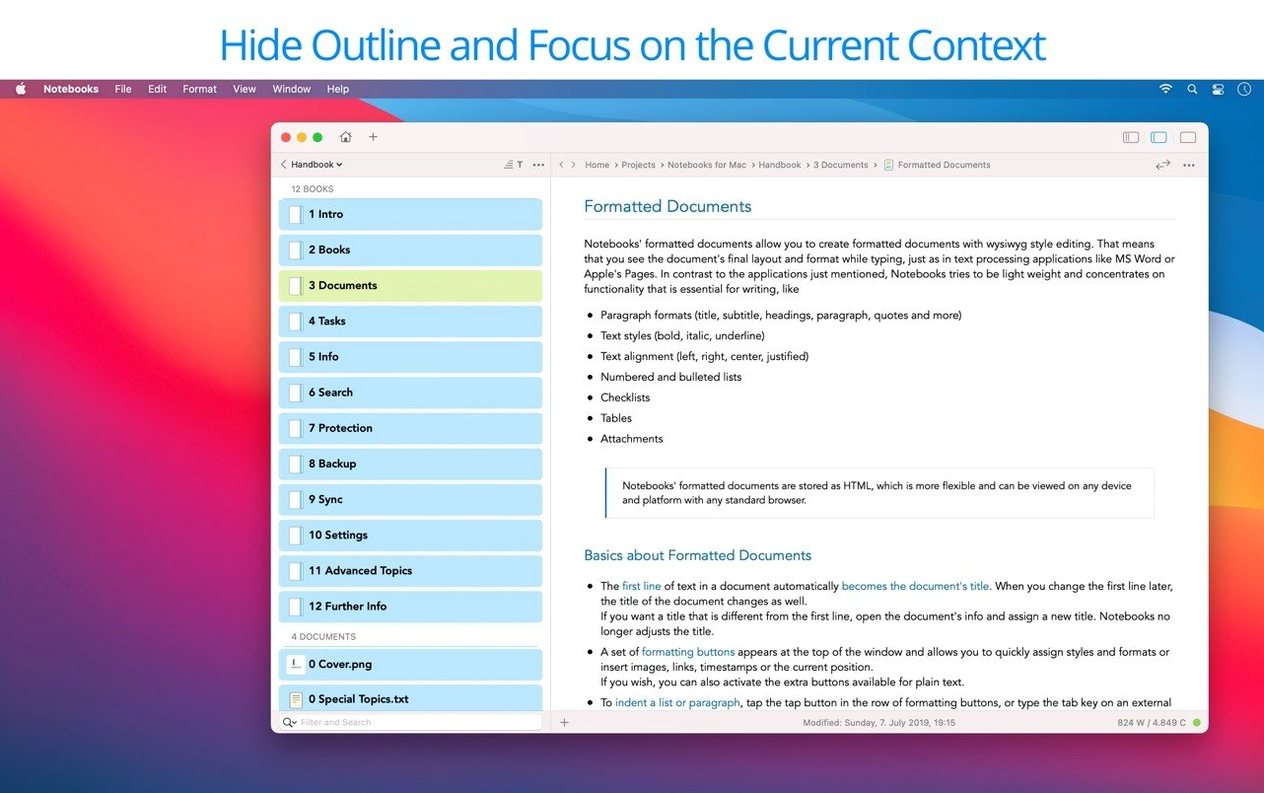
Version 4.0 is a steadying release. Rather than bolt on new features, Alfons Schmid focused on smoothing out the parts you touch every day. Typing feels quicker, the outline and document list behave more predictably, and a handful of interface inconsistencies got cleaned up. Task extraction is more consistent now, and working with PDFs is just a little more convenient — the kind of small relief that adds up across a morning of admin. There’s a new app icon, too, and better Liquid Glass support for anyone who likes that look.
Your journals, drafts, PDFs, and task lists sharing one shelf
- Keeping journals, drafts, stories, and project notes in one place without hunting through folders
- Storing mixed media — plain text, PDFs, Office documents, photos, video, and web pages all sit together
- Pulling tasks out of your writing so action items don’t get buried in paragraphs
- Creating PDFs and eBooks directly from what you’ve already written
- Handoffs between the Mac, iPad, and iPhone versions when you use Dropbox
Spotlight needs a nod and SIP steps aside for install
- Version 4.0.0 needs macOS 10.11 or later and runs on both Intel and Apple Silicon Macs
- Spotlight search should be enabled on the drive holding your documents for the best experience
- SIP must be disabled during installation
Plain text keystrokes land instantly again
Version 4.0.0 doesn't demand you relearn anything. The differences show up as fewer small annoyances. Editing plain text and Markdown feels lighter — keystrokes land without that fractional pause some earlier builds had on longer documents. Task extraction, which used to miss an item here and there when you mixed checkboxes with headings, now catches them more reliably. The document list and outline panes scroll and select the way you expect, especially when you're hopping between nested folders and a flat list of recent notes. PDF handling got quieter improvements: page rendering is snappier, and annotations stick without the occasional flicker that would make you redo a highlight. The icon refresh and Liquid Glass polish are visual changes, sure, but the interface consistency work means fewer moments where a toolbar button looks one way in the editor and slightly different in the file browser. Those tiny mismatches eat at concentration over time.
Point it at Dropbox before you start moving files
A few minutes after launching Notebooks for Mac, point it at a folder inside Dropbox if you plan to share with an iPad or iPhone. The sync setup is straightforward, but doing it early keeps you from having to move books later. Next, enable Spotlight on the drive where your documents live — the app leans on it for quick search, and without it, finding a half-remembered note from three months ago turns sluggish. If you're coming from another notes app, drag a small test project in first rather than your whole archive. That way you learn how Notebooks treats imported folders (as books, with the structure preserved) before committing to a full migration. Finally, spend ten minutes with the task extraction behavior: write a sample note with a few checkboxes and watch how the app surfaces them in the task view. You'll develop a feel for how granular to make your action items.
That client newsletter book reopens right where you left off
You open Notebooks and land on the book you left open last night — maybe a project folder for a client newsletter. The outline on the left shows your sections: research notes, a draft in Markdown, a PDF style guide, and a small task list. You click into the draft and start typing. The editor responds immediately, no lag, and you drop in a few checkboxes as you think of follow-up items. A glance at the task view confirms Notebooks pulled all three into a clean list, each tagged with its source document. Mid-morning, you receive a supplier PDF. You drag it from the Finder straight into the book; it opens in the built-in viewer, and you highlight two paragraphs and add a quick note in the margin. Before lunch, you select the draft and a cover image and export an eBook preview to send to a colleague. Nothing felt heavy. The app stayed out of the way and let the content lead.
Notebooks 4.0 is about polish and predictability:
- Refined everyday editing and improved typing performance
- More consistent task extraction from your notes
- Outline and document list behave more predictably
- More convenient PDF handling
- Enhanced Liquid Glass support
- Resolved interface inconsistencies
- New app icon
- macOS 10.11 or later
- Intel or Apple Silicon Mac (ARM and x86 64-bit)
- Spotlight search enabled on the drive holding your documents
- SIP disabled for installation
Questions from the stall
What can I store in Notebooks?
You can keep plain text, markdown notes, PDFs, web pages, Microsoft Office documents, photos, video, music, task lists, and more — all organized in one place on your Mac.
Notes from other shops 0
Sign in or open a shop account to leave a note.
No notes yet. If you've used this on a shop Mac, tell me how it went.