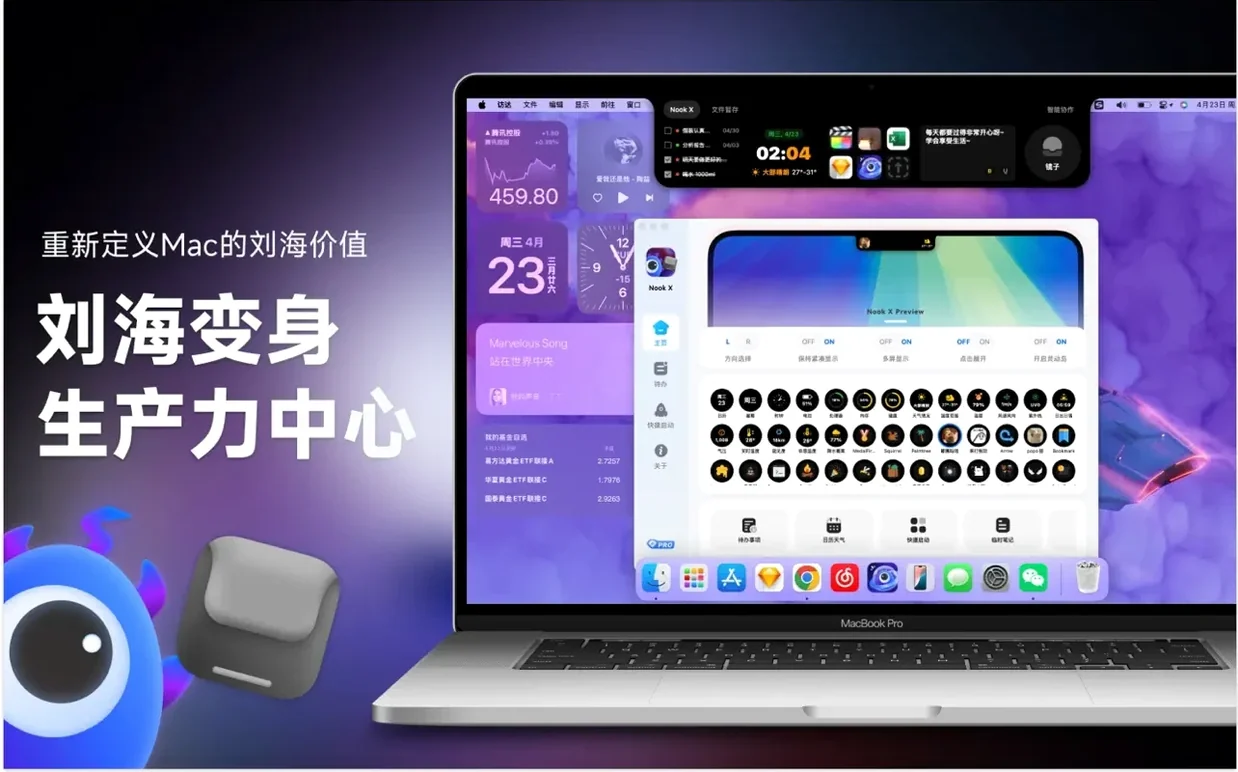

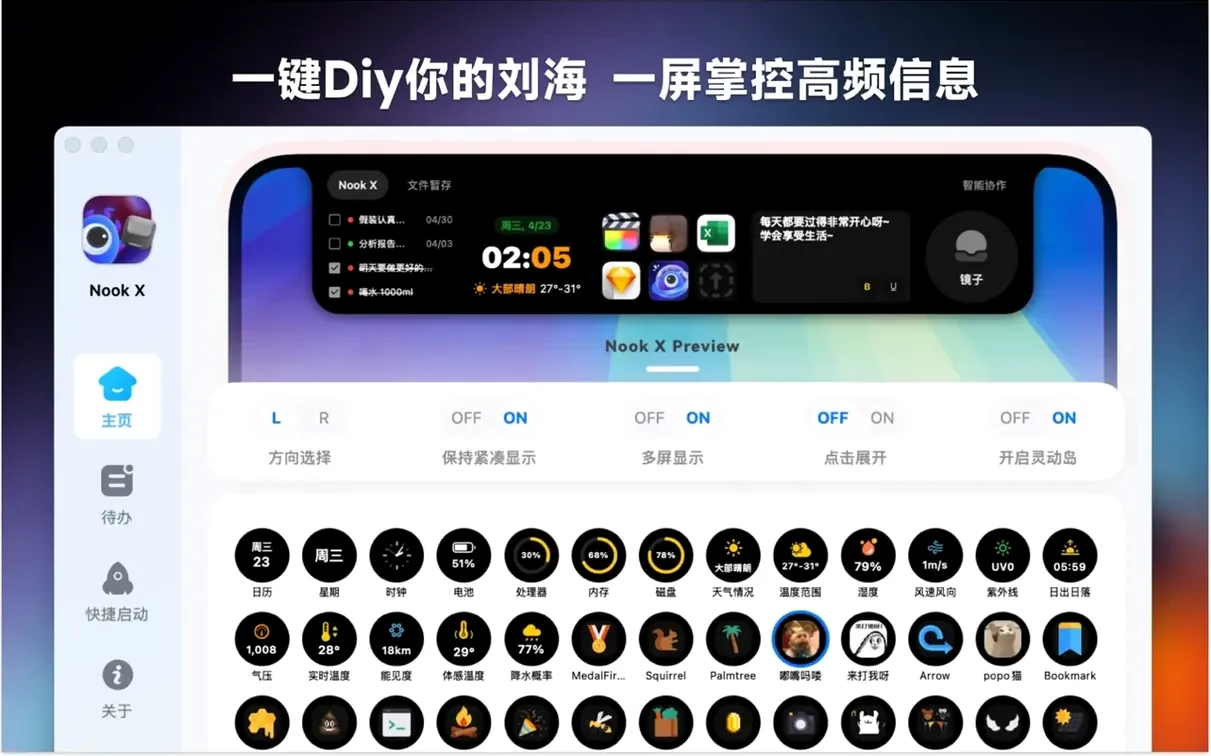
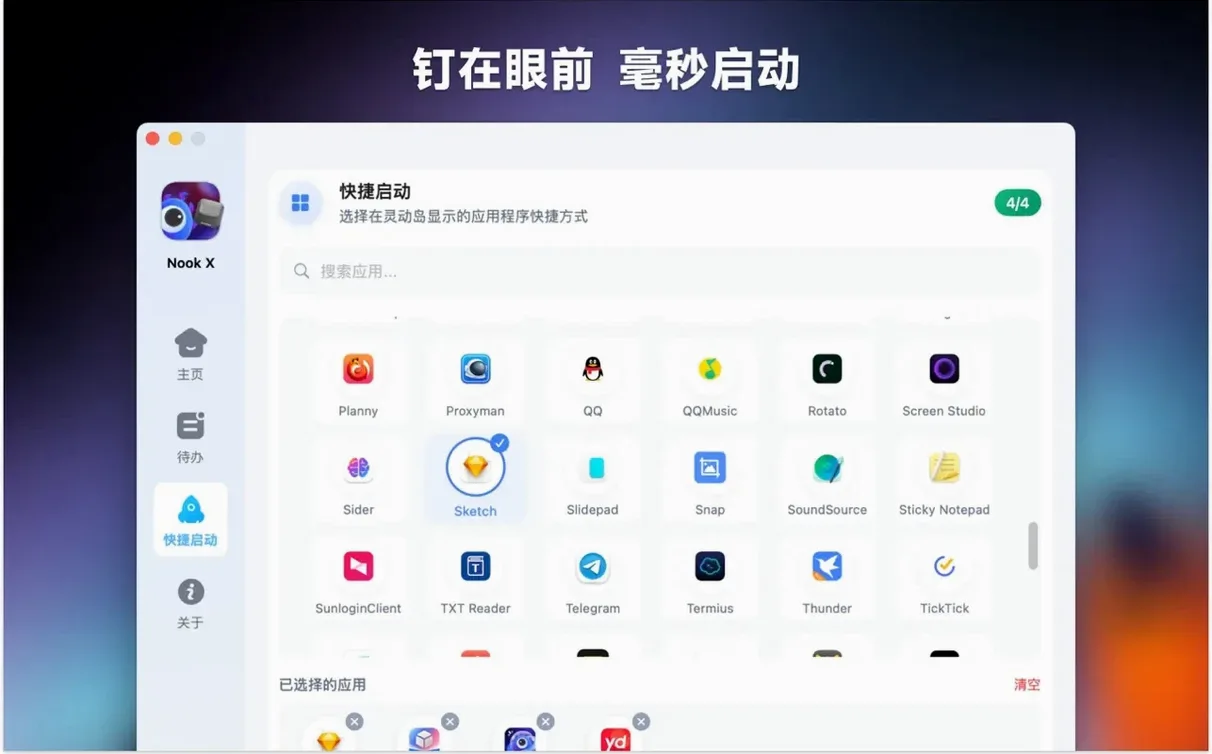
You've got a Mac with a notch and you're wondering if that little strip of screen can do more than just sit there. Nook X is a utility that turns the notch into a small command center for a few distinct tasks.
Menu bar player, lyrics, and AI ready in a click
- Getting quick access to a music player that handles common audio formats right from the menu bar area.
- Displaying song lyrics so you can follow along without switching windows.
- Keeping an AI assistant within easy reach for answering questions, translating text, or generating ideas.
- Running on nearly any modern Mac, since it supports both Apple Silicon and Intel 64-bit machines.
Needs a notch and macOS 13 or newer
- It requires macOS 13 or later, so older Macs stuck on macOS 12 won't run it.
- The set of tools is tied to the notch area, which means the experience is designed for Macs that actually have one.
Tucked-away voice controls you might miss
Most people open the app and head straight for the obvious bits — the to-do list or the AI chat. A few things hide just below the surface and tend to stay there until you accidentally click them.
- Voice input in any language. You don't need to type everything. The AI assistant accepts voice input across all fourteen interface languages, not just English. If you're dictating a quick task or a question while your hands are busy, it picks up short phrases well — no punctuation finesse, but good enough to get the thought down.
- Lyric search works backward. You can search for a song by typing a fragment of a lyric you remember, and Nook X will dig through its lyric database to find a match. It's not Shazam — it won't listen to audio — but if you've got a line stuck in your head, it's a faster route than a web search.
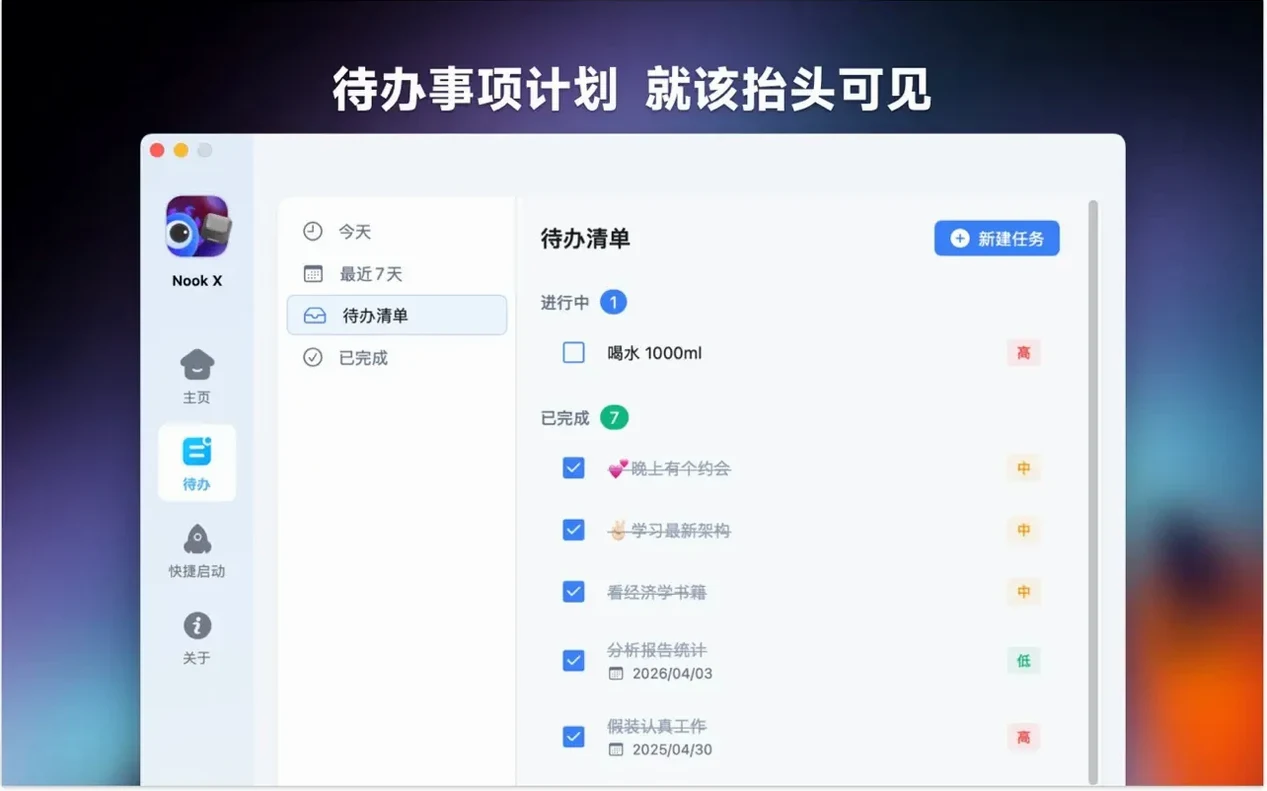
- Priority tagging on tasks. The to-do list isn't just a flat checklist. You can assign priorities, and the list orders itself accordingly. It's a small thing, but if you create tasks from chat while you're brainstorming, the ones marked urgent don't get buried.
- Keyboard shortcuts for the notch panel. A single global shortcut brings the nook x panel into view, and a second one dismisses it. You don't need to click the menu bar icon at all if you'd rather keep your hands on the keyboard.
How a lyric-first listener might use it
Imagine someone who learns languages through music — say, a Spanish learner who likes indie pop and wants to follow the words as they're sung. They don't need a full desktop music library manager. They mostly play loose files, downloaded tracks, or audio their teacher shared.
They open the nookx mac panel, load a track, and the karaoke-style lyrics appear automatically. The line being sung highlights in time, so they can read along without pausing. When a phrase doesn't make sense, they highlight the lyric, tap the AI assistant, and ask for a translation or a plain-language explanation — all inside the same small panel. No browser tabs, no separate dictionary app. A few lines later, they think of a task: "review subjunctive phrases tonight." Voice input catches it, the assistant turns it into a task with a priority flag, and it lands in their to-do list before the song ends. That flow — listen, read, understand, capture — stays inside one notch-sized workspace.
How a late-afternoon session unfolds in the panel
Here's how nook x on a Mac tends to fit into a late-afternoon stretch of work.
- Open the panel. You use the keyboard shortcut or click the menu bar icon. The notch area expands downward into a compact floating panel with your last-used module showing.
- Start some music. You drag an audio file into the player or pick one you played before. The lyrics pane populates within a couple of seconds for most well-known tracks. If it's an instrumental or an obscure file, it stays blank without complaining.
- Add tasks as they occur to you. While music plays, you remember two things you need to handle by evening. You type them into the task module. One gets a high priority, the other stays neutral. Both appear in the list, ordered by importance.
- Ask the AI a quick question. A phrase in the lyrics catches your attention — something idiomatic. You switch to the chat module, type "What does this expression mean in everyday conversation?" and paste the line. The assistant gives you a short, practical explanation without leaving the panel.
- Create a task from the chat. The assistant suggests you could practice similar phrases. You decide that's worth doing tomorrow. You tap the option to turn the suggestion into a task, and it appears in your task list with a reminder flag. No copying and pasting required.
- Close and carry on. You hit the dismiss shortcut. The panel retracts. The music keeps playing; the tasks stay stored. You return to your main work with a cleaner head.
Language switching no longer trips up voice input
The 2026.09.15 release tightened a few things that used to feel a bit loose. The voice input module now responds more reliably when you switch interface languages mid-session — earlier versions sometimes stuck on the first language you used after launch. For people who toggle between two or three languages in a day, that's a real friction removed.
Lyric matching got a quiet but meaningful update. Tracks with non-standard metadata no longer sit in silence as often; the app tries harder to match a song by its audio fingerprint before giving up and showing an empty lyrics pane. It's not perfect, but the improvement over older builds is noticeable if you play a lot of live recordings or bootlegs.
Task creation from chat also became a one-tap action instead of a two-step confirmation. It sounds minor, but in practice it means the thought doesn't evaporate while you confirm a dialog. The priority you set in the task module now transfers cleanly when the task originates in chat, which wasn't always the case in earlier builds.
Under the hood, the package runs natively on both Apple Silicon and Intel 64-bit Macs without Rosetta translation, so the panel's responsiveness is consistent across hardware — no lag when switching modules, no delay when the lyrics highlighter kicks in. That was true before, but the latest build kept that promise while adding the features above, which isn't always the case with small utility apps that grow feature sets quickly.
- macOS 13 or later
- Works on both Apple Silicon and Intel Macs
Questions from the stall
Does Nook X work on Intel Macs?
Yes, it supports both Apple Silicon and Intel 64-bit Macs as long as they run macOS 13 or later.
What can the built-in AI assistant do?
You can use it to answer questions, translate text, and generate ideas right from the notch area.
Which languages does Nook X support?
The interface comes in Russian, English, German, Vietnamese, Indonesian, Spanish, Italian, Traditional Chinese, Simplified Chinese, Korean, Portuguese, Thai, French, and Japanese.
Notes from other shops 0
Sign in or open a shop account to leave a note.
No notes yet. If you've used this on a shop Mac, tell me how it went.