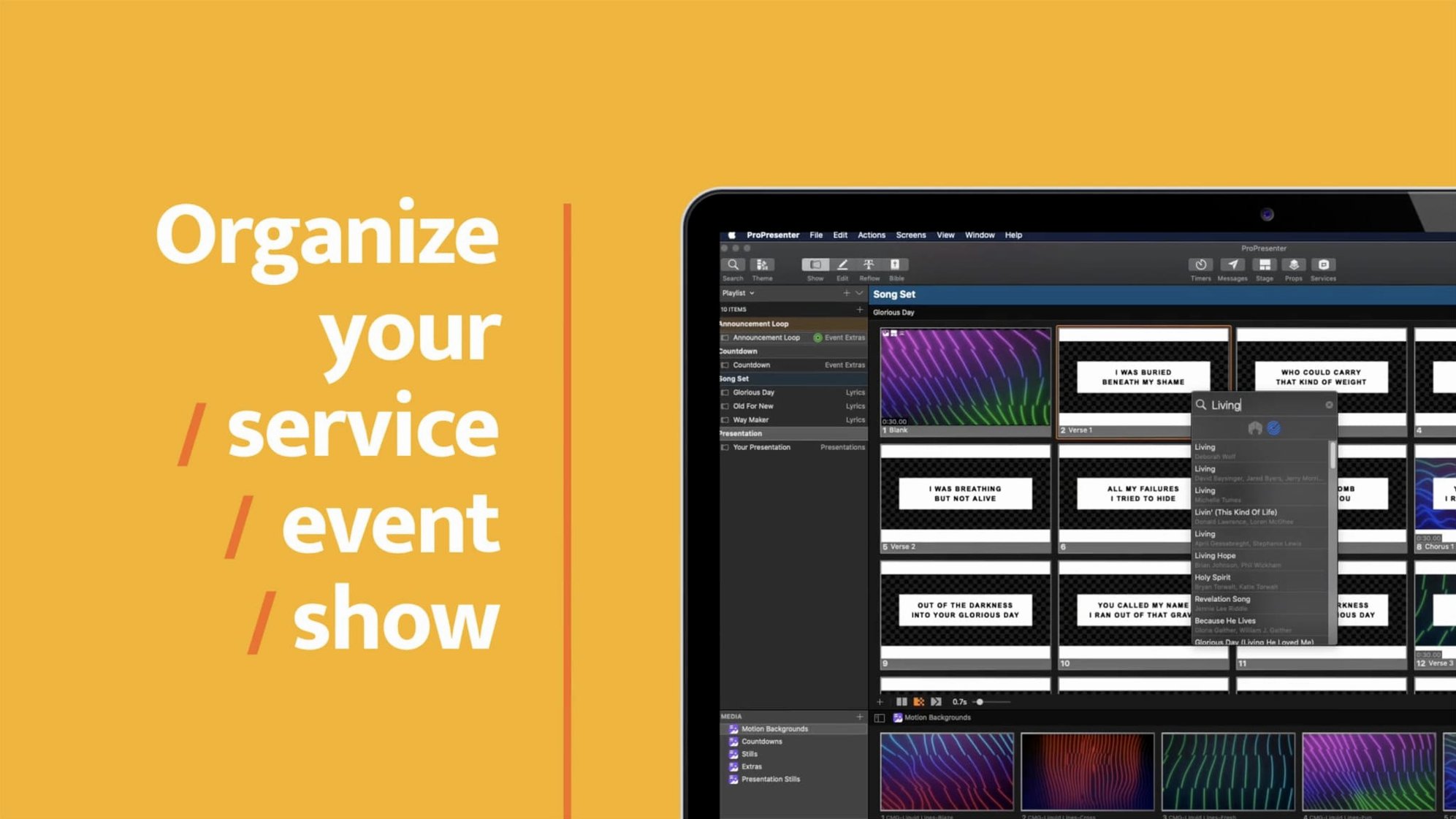
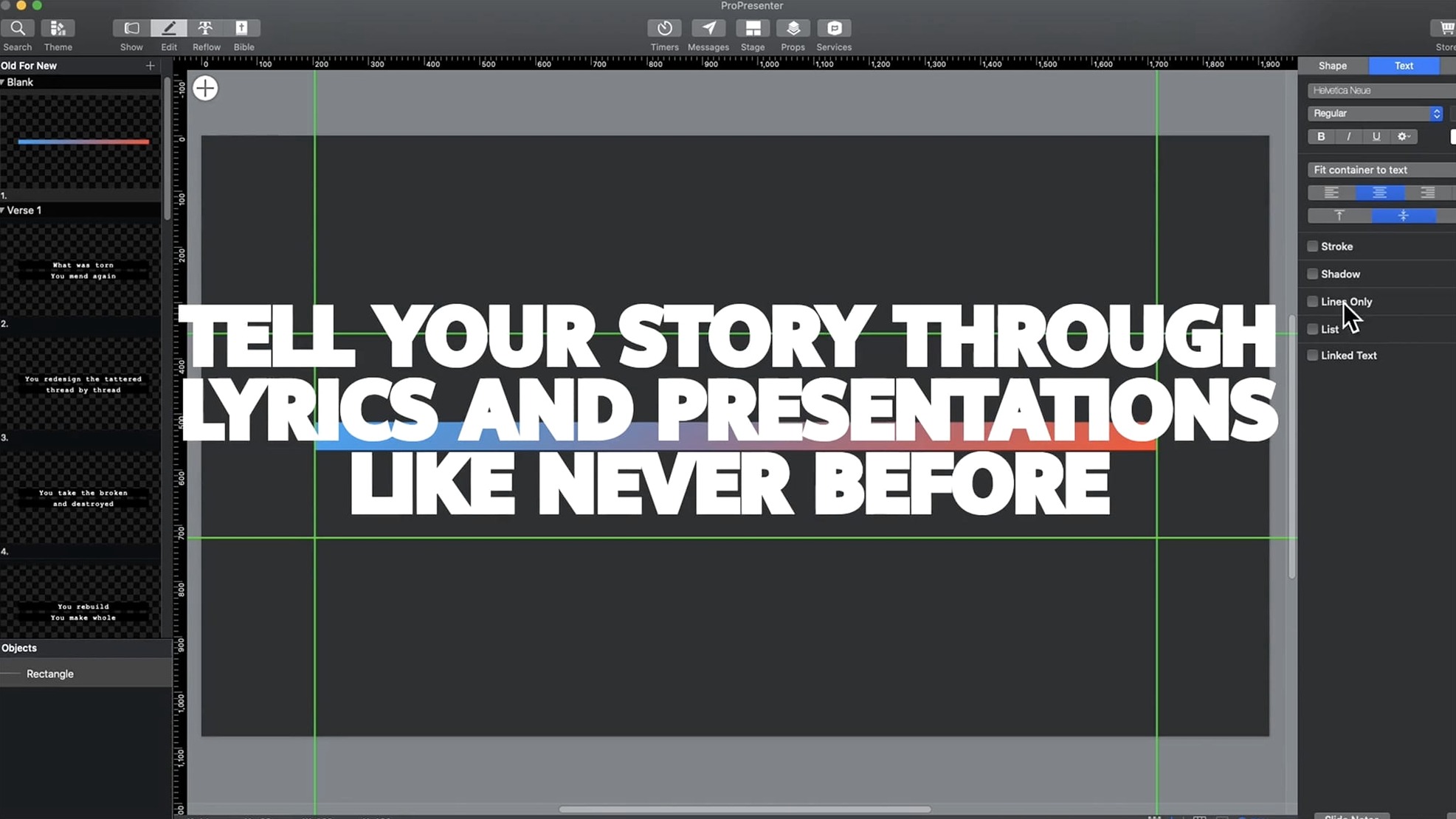
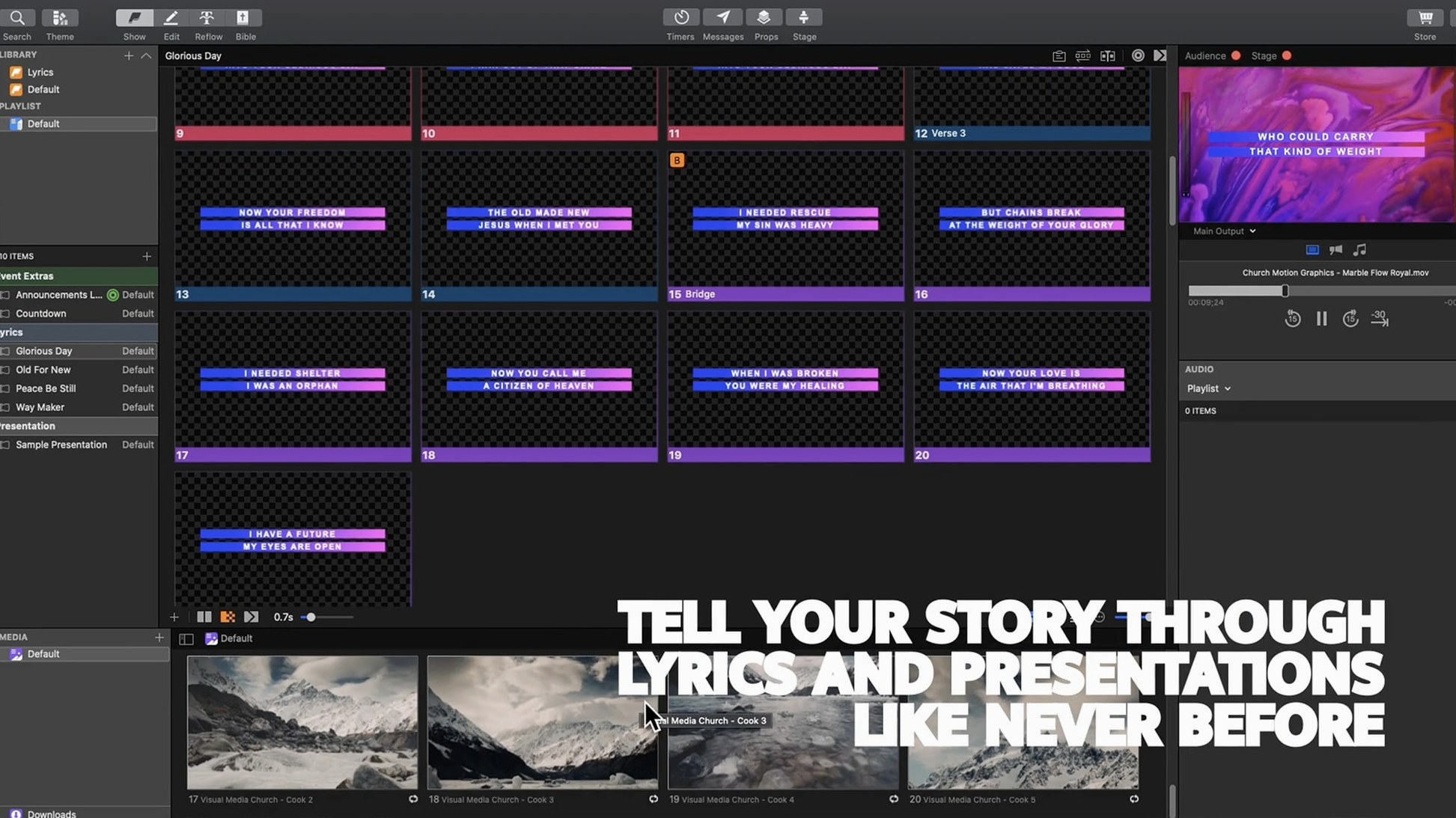
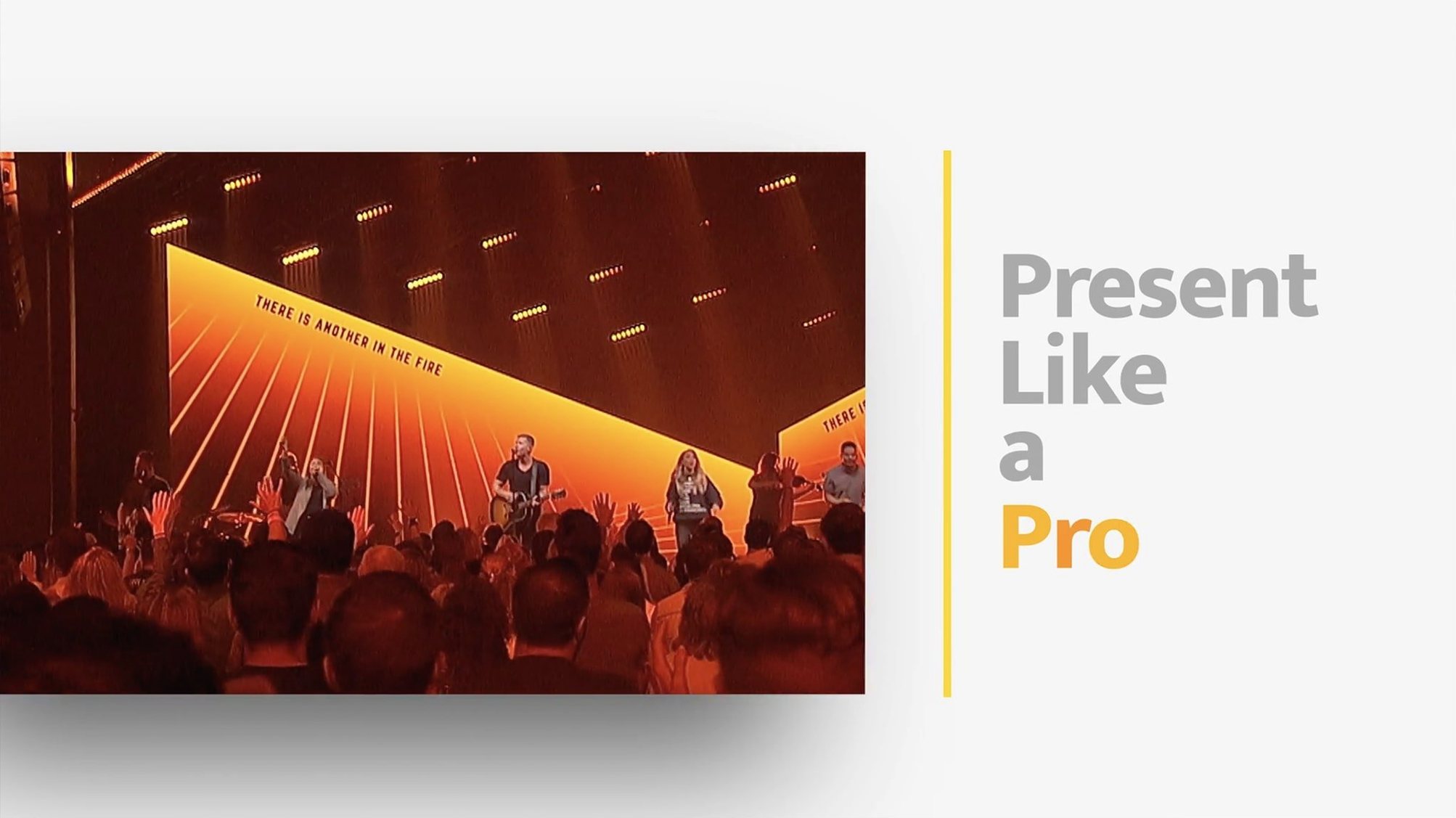
Audience routing starts to feel like a mixing desk once you get into the stage, lobby, overflow and streaming outputs. ProPresenter on Mac lets you send completely different looks to each screen from one machine — lyrics over here, a confidence monitor over there, and a clean feed to your online broadcast. The slide editor supports eight layers of content, so you can stack video, text, live camera feeds, and graphics without flattening anything. Prearranging slide and soundtrack sequences turns complex service or event moments into a single click instead of a frantic backstage scramble. For broadcast tying, the app shares its output with other compatible Mac applications, which keeps your video switcher or streaming setup fed without extra converters. It was originally built for houses of worship, but you'll spot it in corporate ballrooms and broadcast control rooms where reliable, layered presentation matters.
Does it really need that much space and a dedicated GPU?
Most people downloading ProPresenter on a Mac ask the same handful of questions once they see the file size and realize this isn't a lightweight slide viewer. Here's what tends to come up, answered plainly.
Does it really need that much disk space? The app itself is fairly lean, but once you start building a media library with HD video backgrounds, multi-track audio, and high-resolution stills, your library folder can grow quickly. External storage works fine for archived shows and media — just point the media bin to an external SSD and keep your active playlist assets local if you need snappy cue-to-cue transitions.
Will my existing PowerPoint or Keynote files work? You can import them, but expect to do some cleanup. ProPresenter treats slides differently than a linear deck — it builds each slide as a layered composition. Imported files often come in with text boxes that need repositioning, and transitions won't carry over. The smoothest path is rebuilding key slides inside the editor and using the import only for reference.
Can I run it on the same Mac I use for streaming? On Apple Silicon machines, yes — with headroom to spare in most setups. On older Intel Macs, running ProPresenter alongside an encoder like OBS or a video switcher will push you toward the limits. A dedicated machine for presentation is still the cleaner approach for high-stakes live work, but a single M-series MacBook Pro handles both roles surprisingly well for smaller events.
What happens if it crashes mid-service? The automatic save has your back. ProPresenter snapshots your open documents frequently, and after a crash, it will offer to restore everything exactly where you left it — playlist position included. That said, I'd still keep a printed run-of-show nearby. No software is immune to the occasional live-production hiccup.
First few days: setup moves that save you later
You can open the app, drop in a few slides, and project something in ten minutes. But spending your first afternoon on a handful of housekeeping tasks will pay off every time you run a live event.
Start with the stage display layouts. Go into the stage editor and build templates for the people actually on stage — a confidence monitor with large countdown timers and next-slide previews, a separate layout for musicians that shows only lyrics and chord cues, and a clean clock-only view for the green room. Name them clearly. During a live event, you can swap these with two clicks instead of fiddling with arrangement.
Next, organize the media bin with folders that mirror how you actually think during a show. "Sermon backgrounds," "Welcome loops," "Song-specific," and "Emergency hold slides" are more useful than folders named after file types. Tag everything. The search bar will become your fastest cue-finding tool once a few hundred assets pile up.
Set up a blank black slide with a subtle "We'll be right back" message and keep it in your quick-access playlist. When something goes sideways — a presenter skips ahead, a video won't play, or you need to kill the screen instantly — hitting that slide is faster than fumbling for a fade-to-black button. Practice clearing to it until it's muscle memory.
If you're using the moderated Twitter feed feature, test it with a dummy account during a rehearsal. Moderation works well, but the refresh timing and font rendering on your particular screen setup can surprise you. Better to adjust padding and speed on a Tuesday than during the welcome announcements.
Cues fire instantly once your playlist is loaded
On recent hardware, ProPresenter feels quick. Opening a large playlist with dozens of high-resolution slides and embedded video clips takes a couple of seconds, but once loaded, advancing between cues is immediate — no visible rendering lag on an M1 or M2 MacBook Pro with 16 GB of RAM. The slide editor stays responsive even with all eight layers loaded, and scrubbing through video backgrounds is smooth enough to cue precisely without watching a stuttering preview.
Memory usage sits between 1.5 and 3 GB during a typical service with moderate media, which leaves breathing room for streaming software on the same machine. CPU load spikes briefly when it's decoding complex video files or applying real-time text transformations, then settles back down. On Intel Macs from the 2018–2019 era, you'll notice the fans during video-heavy sections — nothing alarming, but present enough that you'll want the laptop away from live microphones.
Stability in version 7.16.3 is solid for daily use. Over several consecutive events, I haven't seen an unexpected quit during a show. The occasional beachball can appear when importing an unusually large ProPresenter 6 library, but the import process handles it without data loss — just patience. The app recovers gracefully from display disconnects, too. If someone trips over a cable and your external screen vanishes, reconnecting brings everything back without restarting the presentation.
Stage display no longer drops out mid-service
The jump through the 7.16 releases brought a handful of quality-of-life improvements that make a difference during actual live work, not just in the changelog.
Stage display reliability improved. Earlier 7.x releases could drop the stage display feed when switching between complex arrangements. In 7.16.3, stage outputs stay locked — confidence monitors and lobby screens hold steady even when you're rapidly clicking through cues or swapping output destinations mid-event.
Multi-camera streaming tightened up. The built-in multi-camera recording and streaming tools got more predictable frame sync, especially when mixing camera sources with slide overlays. For smaller venues running a simple two-camera setup directly from the Mac, this means fewer desync headaches during long recordings.
Video playback within slides is smoother. Older builds would occasionally glitch when a background video looped while layered text updated. The current version handles that handoff cleanly — text transitions now happen without a visible video stutter, which keeps things polished on the big screen.
Import from older ProPresenter libraries got smarter. If you're moving from version 6, the migration tool now preserves more of your stage layout settings and media bindings. You'll still want to spot-check every slide, but the amount of manual re-linking is noticeably smaller than it was in early 7.x builds.
The Remote app connection also stabilized. Earlier drops between the Mac and an iPad running ProPresenter Remote were common enough to require a backup plan; in daily use now, the connection stays live through an entire morning without needing a re-pair.
- macOS 10.15 or newer
- Runs on Intel and Apple Silicon Macs
Questions from the stall
Can ProPresenter manage multiple screens differently?
Yes, it can set up separate feeds for stage displays, lobby screens, overflow rooms, and an online broadcast simultaneously.
How many content layers does the slide editor support?
The advanced slide editor supports up to eight layers of content, letting you combine video, text, graphics, and live inputs independently.
What do broadcast companies use ProPresenter for?
They rely on it for its HD video playback, multi-output routing, and the ability to share presentation output with other compatible Mac applications for tying into a broadcast chain.
Notes from other shops 0
Sign in or open a shop account to leave a note.
No notes yet. If you've used this on a shop Mac, tell me how it went.