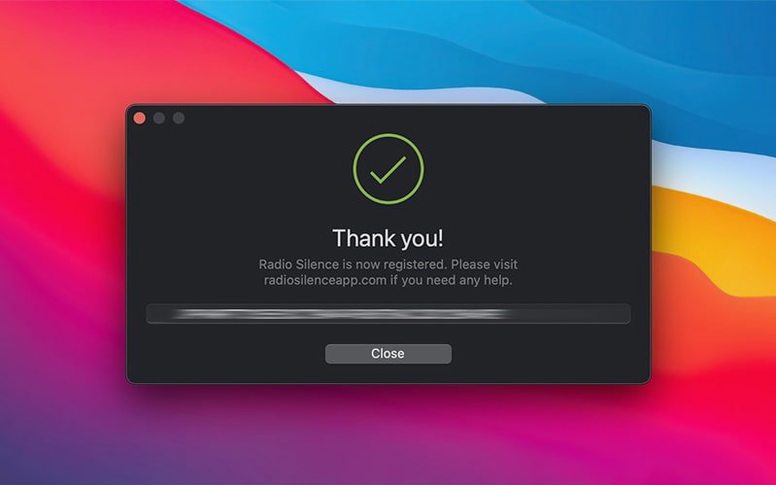
You install a utility, open it, and immediately notice it's reaching out to a tracking service you never agreed to. That moment of “wait, why does this need the internet?” is exactly where Radio Silence fits. You open it, spot the connection in the live list, and hit the block button. Done. That app is now offline for good.
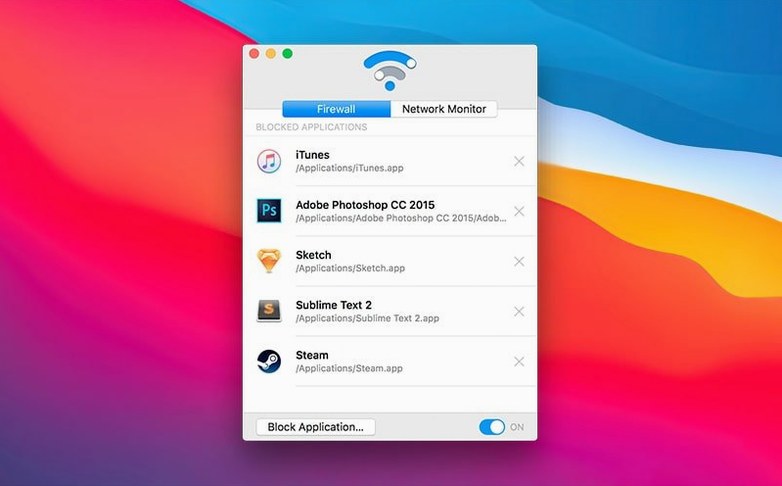
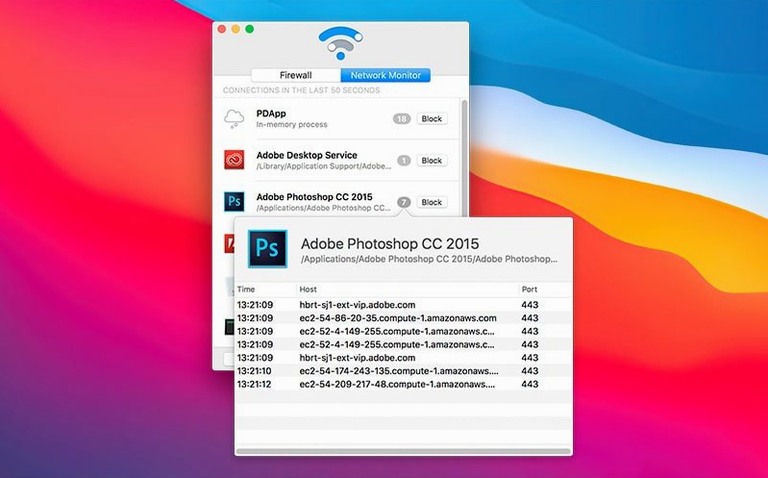
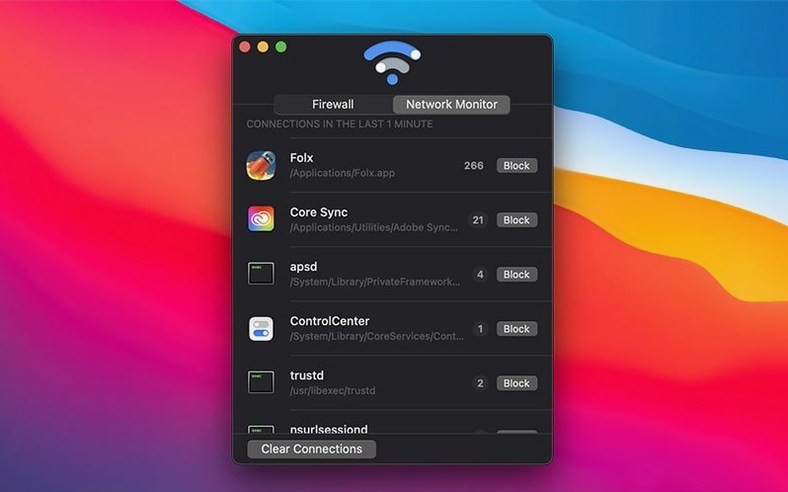
The main window shows network connections as they happen, so you’re not guessing which apps are active. Next to each entry is a Block Application button. Click it, and the app is added to a simple block list. Removing an app later is just as straightforward — find it in the list and take it off. No complicated rules, no profiles to manage.
A common question is whether it plays nice with modern Macs. Radio Silence 3.4 runs on both Intel and Apple Silicon machines, and requires macOS 10.15 or later. The interface is English only, but it’s light enough that language isn’t a barrier — most of the work happens in a handful of buttons and a clean list.
Another thing people ask about is installation hiccups. Version 3.4 addresses that directly with clearer guidance for macOS Tahoe, smarter handling of missing permissions, and a help view that appears if the app has trouble launching. It feels like the developer has been listening to the kinds of questions that pop up right after someone downloads a firewall for the first time.
Installation now walks you through Tahoe's permissions
Version 3.4 doesn't add flashy features — it smooths out the rough edges that trip people up during those first five minutes. The most practical change is the installation guidance for macOS Tahoe. If you've ever stared at a permissions prompt wondering whether to click "Allow" or "Deny," that guidance now makes the call clearer.
The app also got smarter about handling installation errors and missing permissions. Earlier versions sometimes failed silently, leaving you to guess what went wrong. Now it tells you. And if Radio Silence can't launch at all, a help view pops up with troubleshooting information instead of just… nothing. For a small utility that sits quietly in the background, these are the kinds of fixes that make the difference between keeping it and deleting it.
You block apps here, not ports or addresses
The biggest mistake I see is treating Radio Silence like a traditional firewall. You don't set rules for ports or IP addresses here. The app works at the application level — you block an app, not a destination. Someone opens it expecting to configure inbound traffic rules and gets confused when they see only a list of active connections instead.
Another common slip: blocking the wrong process. An app might spawn a helper tool with an unfamiliar name, and the connection you see in the list belongs to that helper, not the parent app. Block the helper, and the main app still reaches the internet through a different path. The fix is to watch the connection list while launching the app you're suspicious about — the timing usually reveals which process to block.
Finally, people forget the firewall can be paused. You don't need to unblock an app just to let it update once. Pause, do what you need, unpause. That temporary switch saves you from rebuilding your block list every time a one-off connection is actually legitimate.
Spot a new tool phoning home in seconds
Let's say you just downloaded a new screen recording tool. Before you even open it, you launch Radio Silence. The live connection list is empty at first — no surprise there. You start the screen recorder, and within seconds a few entries appear. One is clearly the app itself, phoning home to a analytics service. Another looks like a crash reporter.
You click Block Application on the analytics entry first. The app's name moves to the Firewall tab, and that connection is dead. You do the same for the crash reporter. Now the screen recorder works locally — it records, saves files, does everything you actually need — but its quiet background chatter is gone. You switch to the Firewall tab and see both entries sitting in the block list. Satisfyingly simple.
Later, you need the recorder to check for an update. Instead of removing it from the block list, you pause the firewall for a minute, check for updates, then unpause. The block list stays intact. You close Radio Silence and forget it's there — there's no menu bar icon nagging you. It keeps working in the background, and the apps you blocked stay blocked.
That's the whole workflow. No scheduling, no scripting, no staring at logs. Open it when you want to inspect or block something. Close it when you're done. The blocks persist regardless, which is exactly what a small firewall should do.
Tip: If you're troubleshooting a block, check the help view that 3.4 added. It covers the most common permission-related failures that prevent the firewall from doing its job.
Version 3.4 brings a few practical fixes that make the first-run experience smoother:
- Installation guidance for macOS Tahoe, so you’re not left guessing at setup steps.
- Better handling of installation errors and missing permissions — fewer cryptic failures.
- A new help view with troubleshooting info if the app fails to launch, which saves a trip to the support site.
- macOS 10.15 or later
- Intel or Apple Silicon Mac
- Interface: English
Questions from the stall
Does Radio Silence work on Apple Silicon Macs?
Yes, it runs natively on both ARM and x86 64-bit Macs, so it works on Intel machines and Apple Silicon models without any extra configuration.
Notes from other shops 0
Sign in or open a shop account to leave a note.
No notes yet. If you've used this on a shop Mac, tell me how it went.