
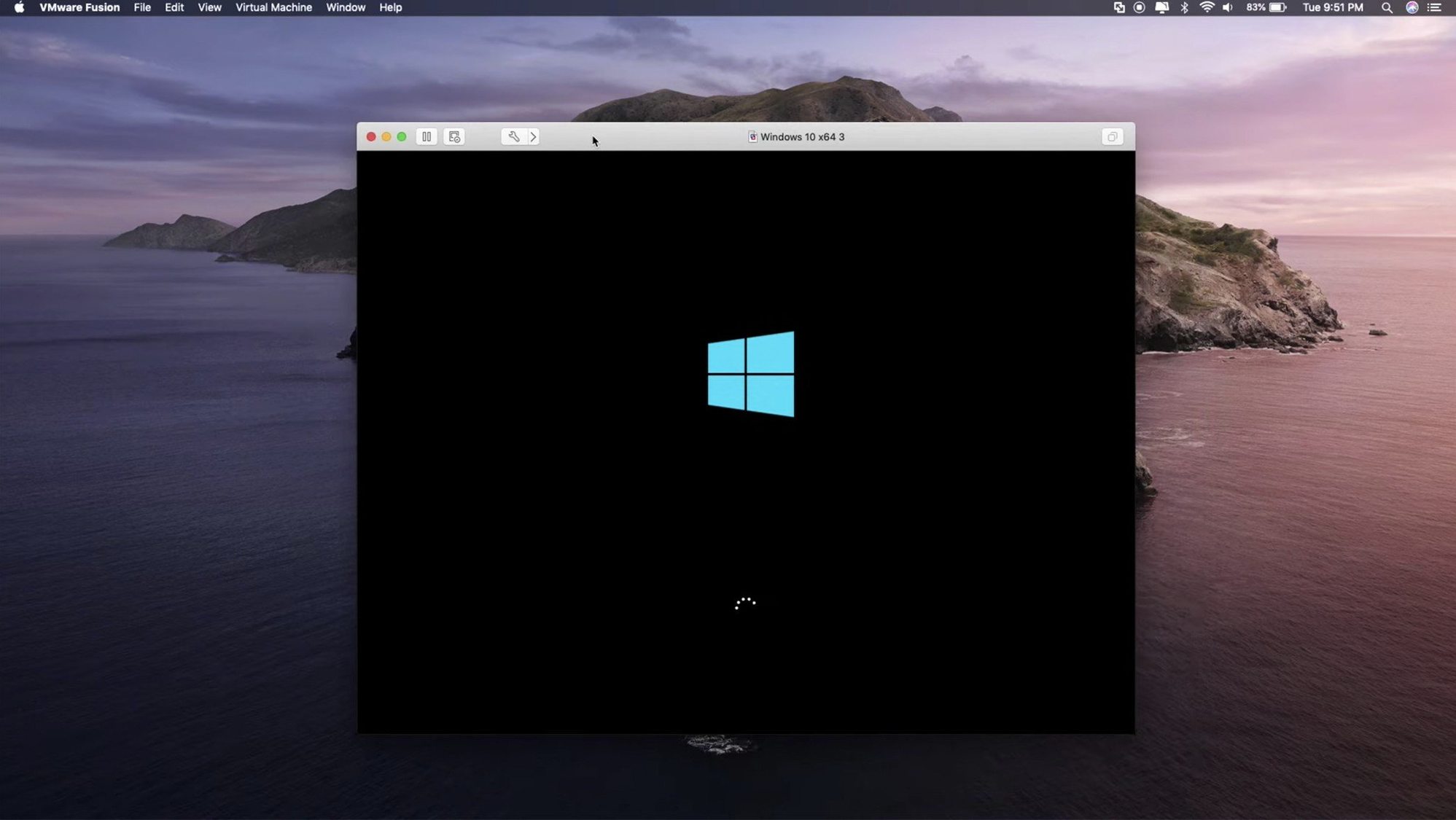
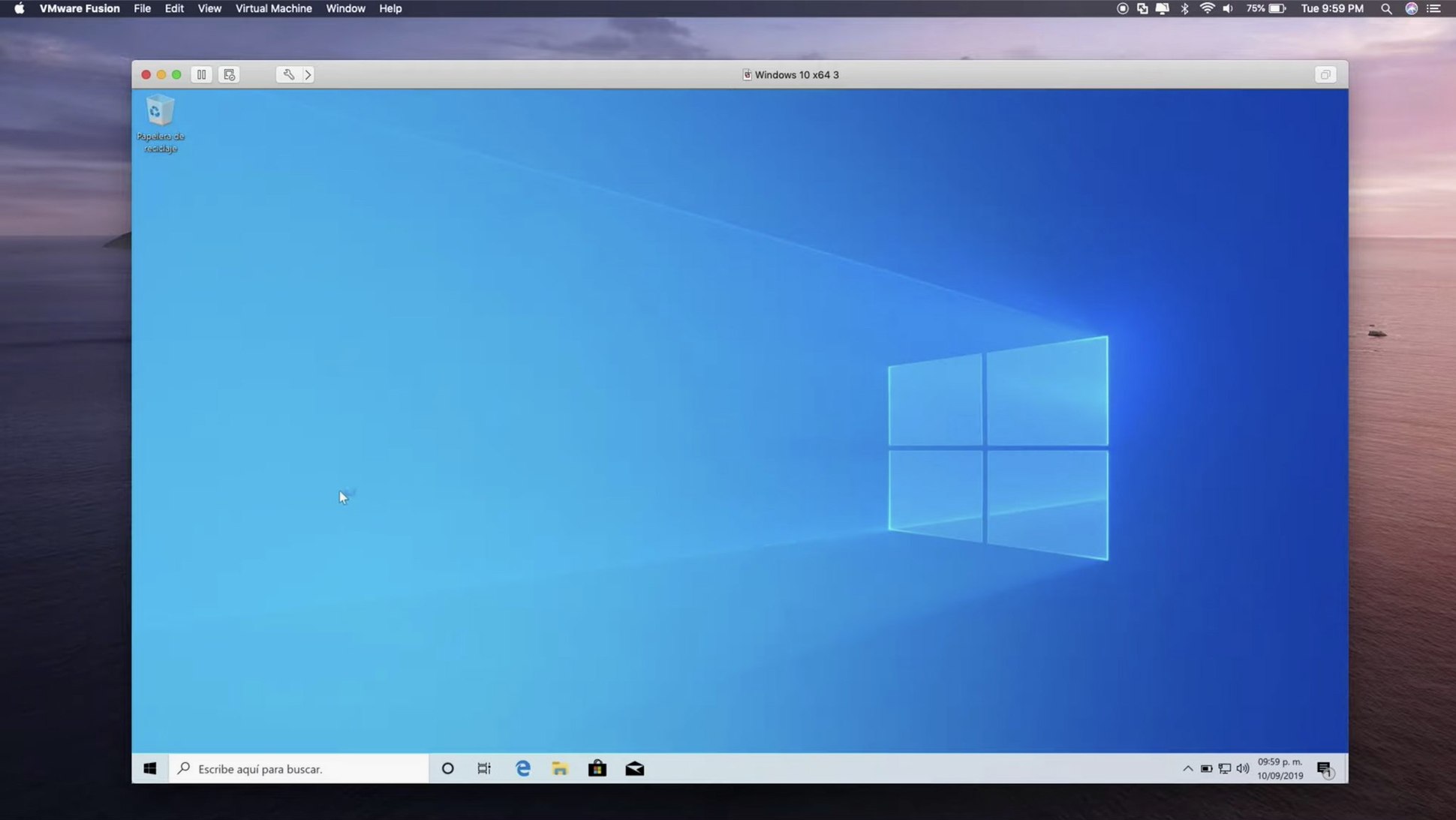
You’re at your desk with a client’s Windows-only estimating tool open on the left and your Mac invoicing app on the right. No second computer, no rebooting — just two operating systems sharing the same screen. That’s the everyday reality VMware Fusion Pro is built for.
What VMware Fusion Pro actually does
VMware Fusion Pro lets you run a full copy of Windows, Linux, or another operating system inside a window on your Mac. It’s not a dual-boot setup — you don’t restart your machine. The guest OS thinks it has its own hardware, but it’s all software-defined. You can drag files between the two systems, use USB 3.1 devices on either side, and even run local Kubernetes clusters for testing. The current release supports macOS 13 and later, on both Intel and Apple Silicon Macs, and adds remote connections to ARM-based ESX hosts — handy if your shop ever grows into its own server closet.
Who it makes sense for
This is professional-grade software, and the people who get the most from it tend to have specific needs. A bookkeeper who relies on a Windows-only accounting package. A web developer testing sites against old versions of Internet Explorer. A maker running CAD software that never got a Mac port. If you just want to open the occasional Windows document, there are lighter options. But when the tool you depend on has no Mac equivalent, Fusion Pro removes the friction of keeping a separate PC on the desk.
Fitting Fusion into your actual workflow
Fusion Pro gets more practical when you stop treating the virtual machine as a separate island and start weaving it into the Mac side of things. Shared folders are the obvious starting point — pick a folder on your Mac, and it shows up as a network drive inside Windows. I keep my shop’s product photos in a folder called _shared, and every virtual machine sees it. No duplicates, no emailing files to myself.
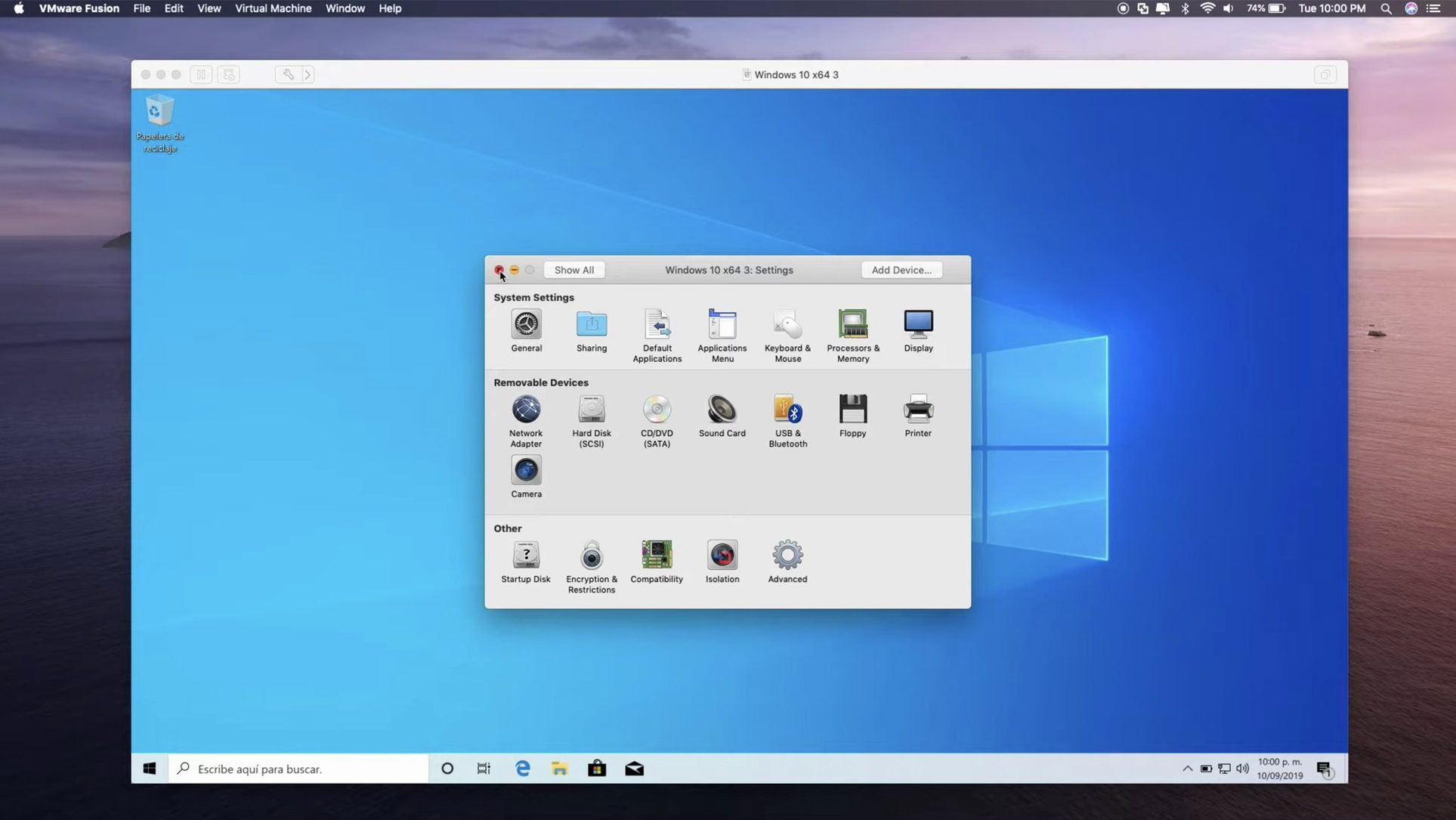
Clipboard sharing works both directions by default, but the setting hides inside Virtual Machine > Settings > Isolation. Copy a SKU from your Mac inventory sheet, paste it into the Windows label-printing app. The text moves as if it’s one computer. You can turn it off per-VM if you handle sensitive data you don’t want crossing the boundary.
Drag-and-drop between guest and host is another thing that just works until you realize you haven’t thought about it in weeks. A PDF from the Mac Finder lands on the Windows desktop. A zip file from a Linux VM lands in your Mac’s Downloads folder. The only time it stumbles is with very large files or deeply nested folders — then I use a shared folder instead.
On the macOS integration side, Fusion plays nice with Mission Control. I run my Windows VM fullscreen in its own Space and three-finger swipe between it and my Mac desktop. It feels like switching monitors, not switching computers. If you use an eGPU — Fusion supports those too — the guest can borrow that extra graphics horsepower for DirectX 11 workloads in Windows 10. Not every app needs it, but CAD and 3D tools definitely notice.
What version 26H1 quietly improved
The 26H1 release didn’t overhaul the interface, but it added small things that change how you keep track of your setup. The biggest quality-of-life change: virtual machine creation and last power-on timestamps are now visible right in the library. Before, you had to remember whether that test Ubuntu box was from last week or last spring. Now the date sits there next to the VM name. For a shop owner juggling a few machines — a Windows 11 daily driver, a Linux sandbox for experimenting with OCI containers, maybe a FreeBSD 15.0 VM for a client’s legacy web server — that timestamp alone saves guesswork.
Remote connections to ARM-based ESX hosts are new too. If you’re not running an ESX server, this one passes you by. But if you’ve got even a modest home lab or a colocated box, being able to reach ARM hosts from your desk Mac matters more than it used to. Apple Silicon Macs are everywhere now, and having the management path match the hardware makes sense.
The guest OS support list grew in practical ways. Ubuntu 26.04 LTS, Fedora 43 and 44, SUSE Linux Enterprise 16, openSUSE 16.0, and FreeBSD 15.0 are all officially recognized now. That means the installer picks the right virtual hardware profile, VMware Tools installs cleanly, and shared folders behave. No more telling Fusion “it’s Ubuntu, trust me” and hoping the network driver loads.
Overlooked touches that simplify daily VM use
Some features sit in plain sight but people miss them for months — I know I did.
- Suspend, don’t shut down. Closing the VM window suspends it by default, which writes the current state to disk. Next time you open it, you’re back exactly where you were in about fifteen seconds. Far faster than a full boot cycle. You can change this behavior in the General settings if you prefer a clean shutdown each time.
- The virtual machine library’s right-click menu. Right-click any VM and you can open its folder in Finder, duplicate it for a quick clone, or create a shortcut that launches that specific VM directly. I keep a Windows shortcut on my desktop during tax season and delete it when April’s over.
- Custom keyboard profiles. Under Preferences > Keyboard & Mouse, you can map Mac key combinations to their Windows equivalents. If you’re tired of muscle-memory misfires between Command and Control, set up a profile once and it applies to every VM.
- OCI containers via the command line. Fusion includes a CLI tool for pulling and running OCI container images directly, without Docker Desktop. It’s tucked away and not something you’ll stumble onto through the GUI, but if you’re testing containerized apps locally, it’s there waiting.
- USB 3.1 passthrough isn’t automatic. Plug in a device and Fusion asks which system should claim it. The prompt is easy to dismiss accidentally. If you miss it, go to Virtual Machine > USB & Bluetooth and connect manually. Label printers, barcode scanners, CNC controllers — they all behave better when the guest takes direct control instead of sharing through the host.
Pre-installation concerns about silicon, snapshots, and licenses
Does this work on an M1 or M2 Mac?
Yes — Fusion Pro runs on Apple Silicon Macs natively. The guest operating system also needs to be ARM-compatible, though. Windows 11 for ARM is the path for Windows; most modern Linux distributions have ARM builds. An old x86-only Windows XP ISO won’t boot here. On Intel Macs, you get the full range of 64-bit x86 guests just as you always have.
How much RAM should I give a virtual machine?
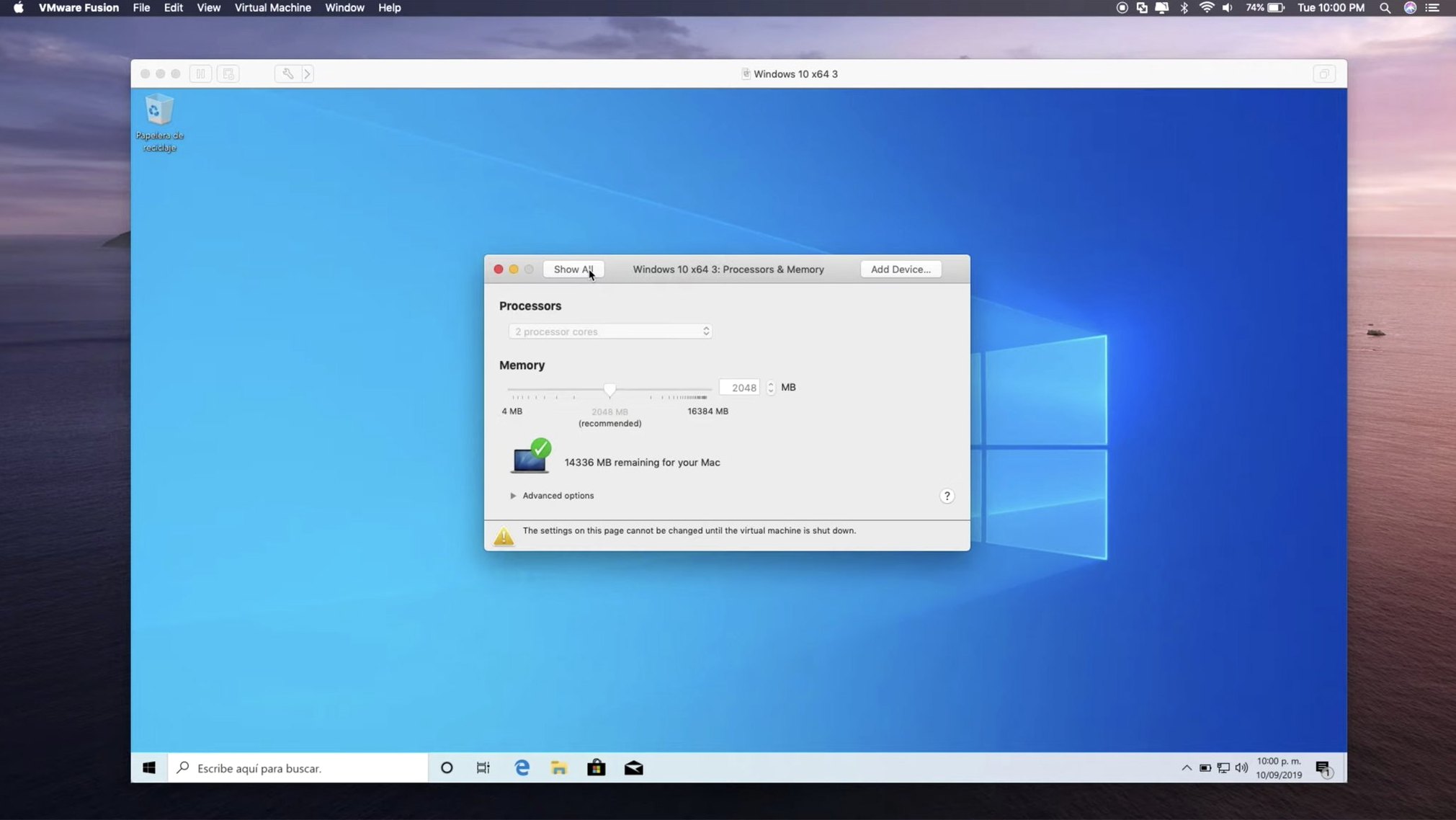
It depends on what you’re running, but a safe floor for Windows 11 is 4 GB — and that’s tight if you’re opening anything heavier than Notepad. I assign 8 GB to my accounting VM and leave my Mac 8 GB for itself on a 16 GB machine. Fusion’s memory warning in the settings panel will stop you from overallocating to the point of swapping yourself into a crawl.
Can I move an old Parallels or VirtualBox VM into Fusion?
Usually, yes. Fusion can import Parallels and VirtualBox virtual machines. The import tool handles the disk format conversion, but you’ll want to uninstall the old guest tools and install VMware Tools afterward. Network settings sometimes need a recheck — the adapter name changes, and static IPs won’t follow.
What’s the best way to get a vmware fusion download onto a clean Mac?
A straightforward installer package covers the whole setup. If you’re searching for a vmware fusion torrent or a vmware mac torrent because your internet is slow or capped, the same build is available through shared channels. Some folks specifically look for a vmware fusion 12 mac download for older hardware — just know that version 12 tops out before the Apple Silicon era and lacks the ARM ESX remote connections and the latest guest OS profiles that 26H1 brings. The current build handles both architectures in one package, so there’s less to keep track of.
The 26H1 update brings a handful of practical additions:
- Timestamps now show when a virtual machine was created and last powered on — useful for tracking test environments.
- Remote connections to ARM-based ESX hosts are now supported.
- Guest OS support added for Ubuntu 26.04 LTS, Fedora 43, Fedora 44, SUSE Linux Enterprise 16, openSUSE 16.0, and FreeBSD 15.0.
- macOS 13 or later
- Works on Intel and Apple Silicon Macs
Notes from other shops 0
Sign in or open a shop account to leave a note.
No notes yet. If you've used this on a shop Mac, tell me how it went.