
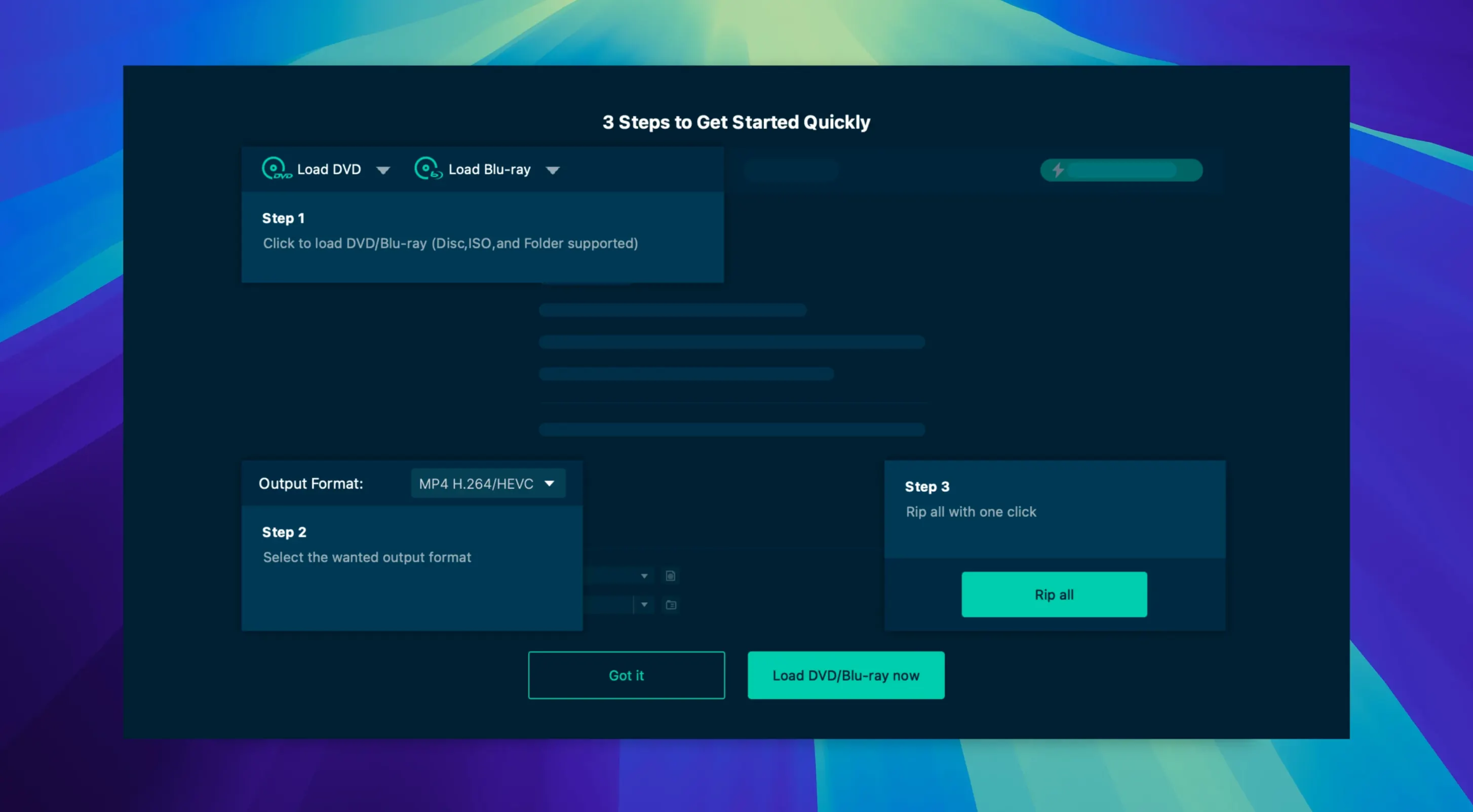
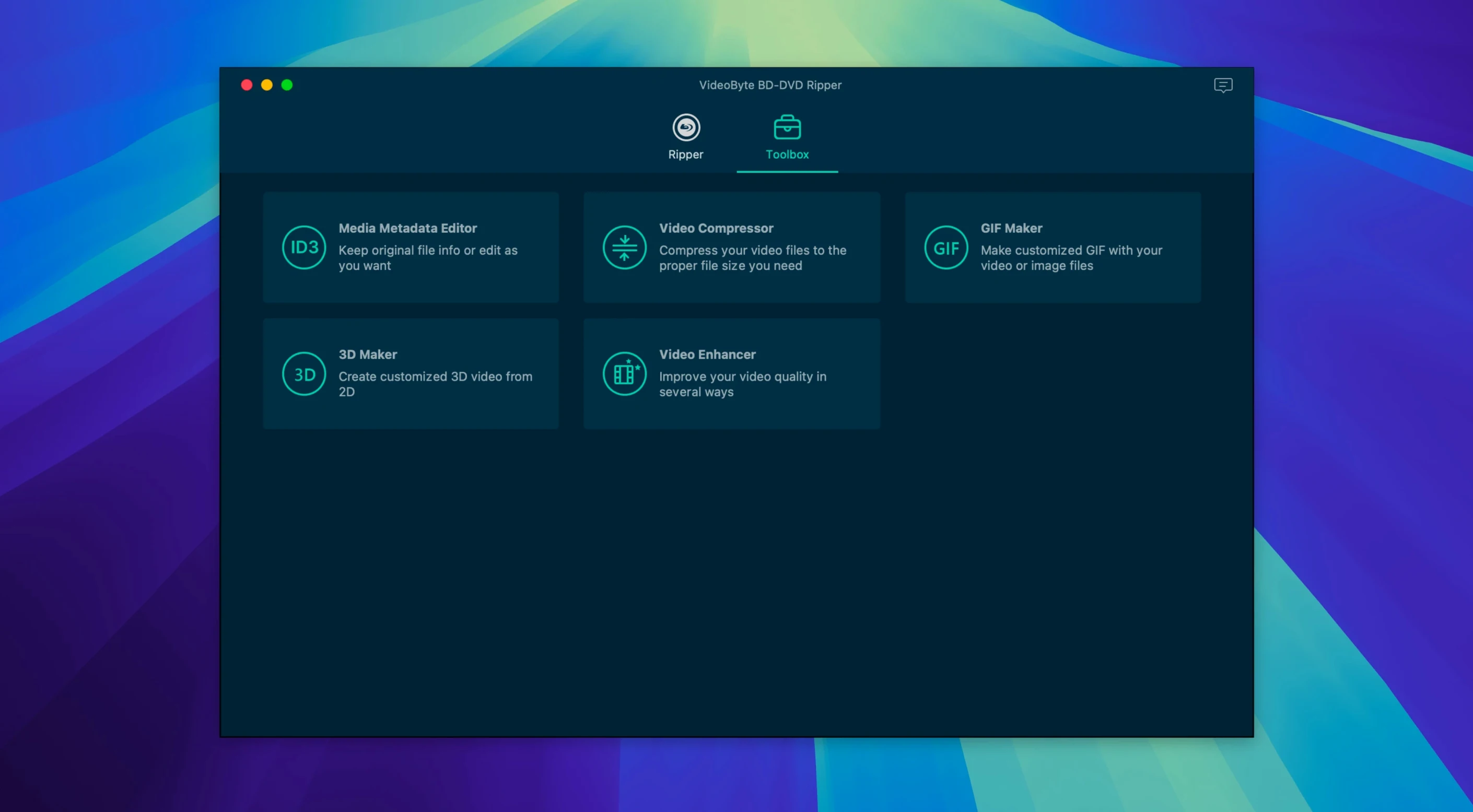
Home media collectors and anyone with a shelf of old discs still reach for a ripper when they want to watch a favorite film on a phone, tablet, or media server. VideoByte BD-DVD Ripper is built for that exact job — pulling video from Blu-ray and DVD discs and handing it back as a standard digital file.
The current version 2.1.6 holds steady with the same toolset long-time users already know: more than 300 output formats and a set of ready-made presets for Apple, Samsung, and Sony gear. You pick the device you plan to watch on, and the app lines up the right container and codec without extra fiddling. It runs on Intel Macs back to OS X 10.10, with the developer page confirming support through macOS 15.x.
VideoByte keeps this app in a larger disc-tool lineup that includes dedicated DVD-only ripping, copying, and playback utilities. That means BD-DVD Ripper stays focused on the one task instead of growing into an everything box. The interface ships in English, German, French, and Japanese — practical for a small shop or a household with mixed-language machines.
No new features landed in this release. What you get is the familiar ripping engine, the same preset library, and the same system footprint as before. If that already fit your workflow, version 2.1.6 keeps things moving without surprises.
When a disc refuses to read
Even a straightforward ripper can throw a curveball now and then. Here are a few issues I see mentioned most often, and what usually sorts them out.
Disc won't read at all. Start with the obvious: a smudged or scratched disc. Wipe it clean with a microfiber cloth, working from the center outward. If the disc is pristine and the Mac still ignores it, pop it into a different external drive if you have one. Some older DVD drives struggle with certain Blu-ray pressings, and swapping the hardware is often the fastest fix. Also check that macOS itself sees the disc in Finder before you launch the ripper — if the system doesn't mount it, the app can't either.
Rip stops partway through. A disc that spins down mid-rip usually points to a dirty spot the laser can't read, or a protection layer the decryption module needs a moment to parse. Pause the job, eject and reinsert the disc, then try again. If it keeps hanging at the same chapter, open the title list and skip that section manually — sometimes a single damaged cell is all that stands between you and the rest of the film.
Audio out of sync after conversion. This crops up most with high-bitrate source discs and older Intel Macs that are multitasking hard during the rip. Close browsers, file sync tools, and anything else eating CPU cycles before you start the job. If the sync drift is mild, the built-in trimming tool can sometimes nudge things back into alignment by cutting a fraction of a second from the start. For persistent cases, rip to a high-quality MKV first, then run that file back through the converter with audio passthrough turned on — re-encoding the video without touching the audio track usually cleans it up.
Ripping every checkbox you see
Most of these aren't about the software itself — they're about assumptions people bring from other tools.
Ripping the entire disc by default. The app grabs the main title automatically, but first-timers sometimes tick every checkbox they see and end up with a folder full of trailers, menus, and FBI warnings. Unless you genuinely want the bonus features, stick with the longest title on the list. That's almost always the feature film.
Picking a preset without checking the resolution. Device presets are handy, but they sometimes default to 720p or a lower bitrate than the source. If you plan to watch on a 4K television or archive the file for later, take an extra ten seconds to open the settings panel and confirm the output size and quality slider. A disc ripped at DVD resolution won't suddenly gain detail, but you don't want to lose what's there.
Ignoring subtitle handling. The app preserves subtitles well, but the default behavior varies by preset. Some device profiles burn subtitles into the picture; others embed them as a switchable track. Decide before you rip whether you want them always-on or optional, and pick the right mode in the subtitle dropdown. Re-ripping a disc because the subtitles are baked in gets old fast.
Running the ripper from the disk image. After installation, a few people leave the app sitting in the mounted DMG and launch it from there each time. That works until it doesn't — macOS eventually unmounts the image, and suddenly the app is "missing." Drag it to the Applications folder once and launch it from there. It's a one-time step that prevents a minor headache later.
Slotting it into your Mac workflow
BD-DVD Ripper isn't a media library or a player, so it works best as the first link in a chain. Here's how I'd slot it into a typical Mac setup.
Media servers and library apps. Rip to MP4 or MKV, drop the files into a watched folder, and let something like Plex or Infuse pick them up. Both formats carry the metadata the app preserves — chapter markers, audio track labels, subtitle streams — so your library looks tidy without extra tagging. For Apple users who rely on the TV app, the Apple device preset produces files that import cleanly and show up with artwork intact most of the time.
Editing and clipping tools. The trimming and cropping features inside the ripper handle quick cuts, but for anything fancier I'd rip a full-quality MKV and open it in a dedicated editor. Lossless or near-lossless output from the ripper gives an editing app more data to work with, and keeping the original audio track intact means you're not re-compressing something already compressed.
macOS continuity features. Ripped files behave like any other media file once they land on your drive. AirDrop them to an iPad, sync them through iCloud Drive, or add them to a shared folder that family members pull from. The files the app produces are standard H.264 or H.265 in standard containers — no proprietary wrapper that locks you into one ecosystem.
External drives and archiving. If you're working through a stack of discs, an external SSD makes a good staging area. Rip everything to the external drive first, then do any format conversion or trimming in a second pass. That keeps the internal drive free and lets the optical drive run at its own pace without waiting on the converter. For long-term storage, MKV with passthrough audio preserves the source quality, and the file sizes are predictable enough to plan drive space around.
- macOS 10.10 through 15.x
- Intel 64-bit processor
Questions from the stall
What disc types can VideoByte BD-DVD Ripper handle?
It rips both Blu-ray and DVD discs. The developer also offers a separate DVD-only ripper for people who don't need Blu-ray support.
Notes from other shops 0
Sign in or open a shop account to leave a note.
No notes yet. If you've used this on a shop Mac, tell me how it went.