
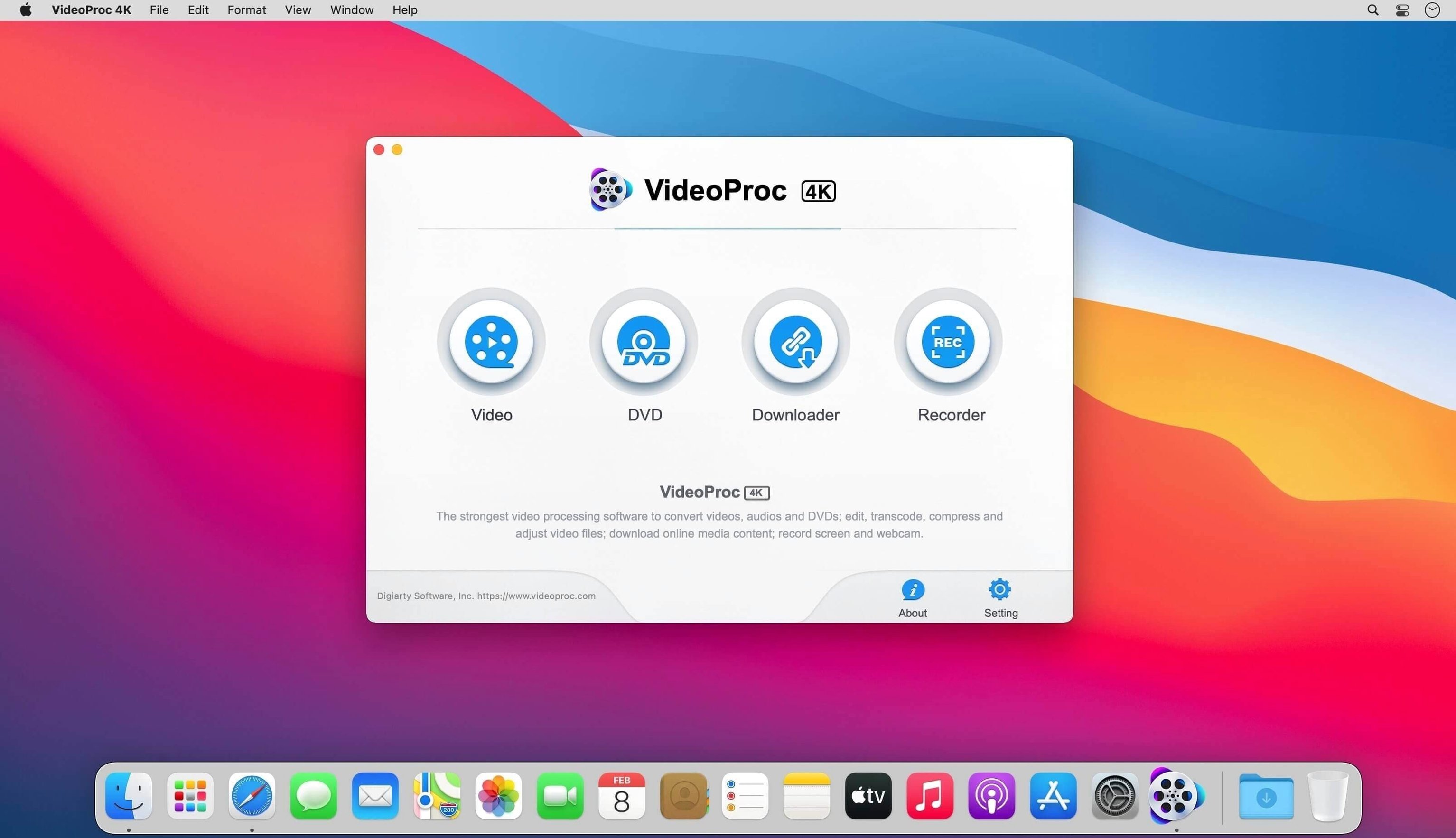
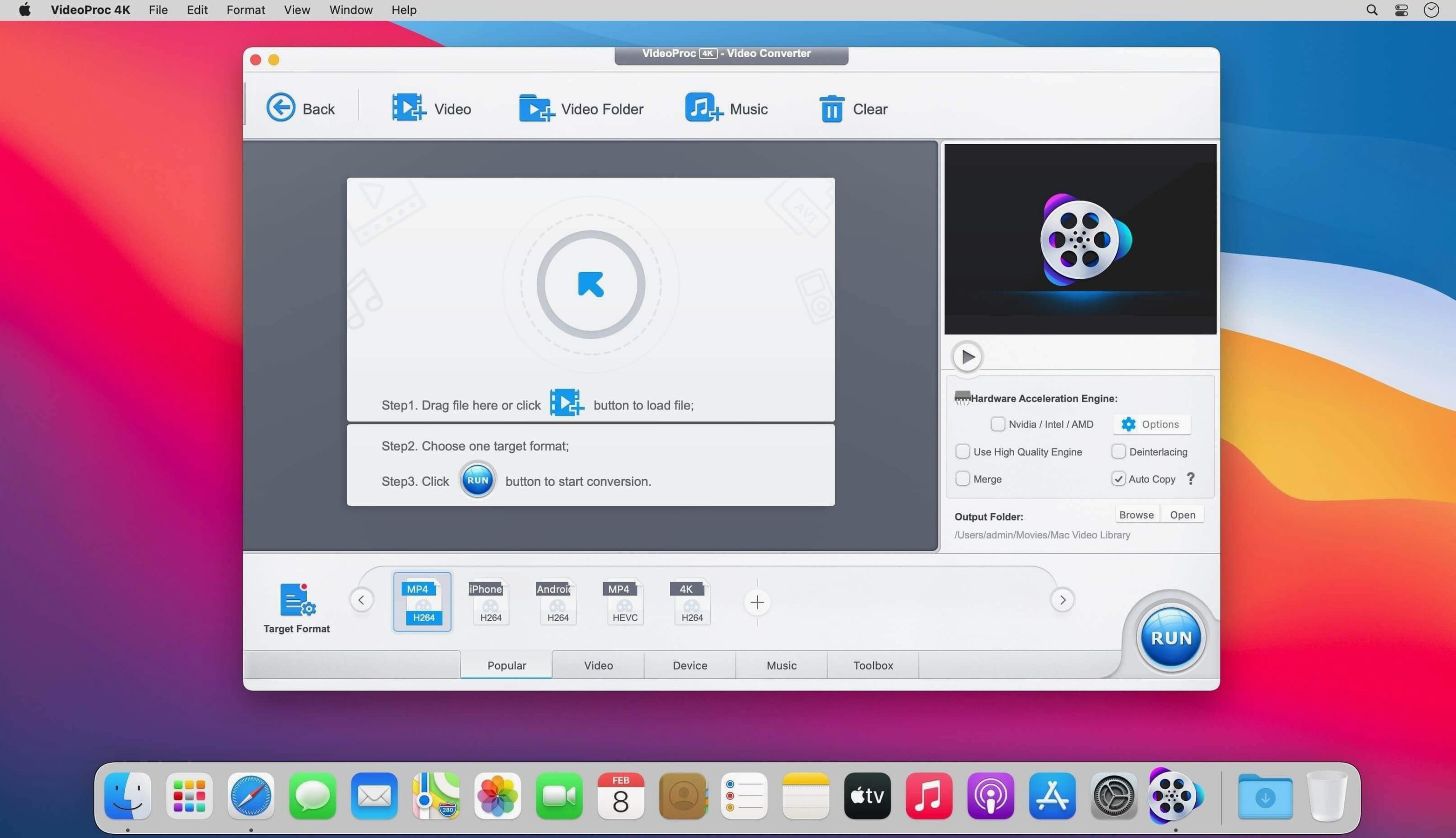
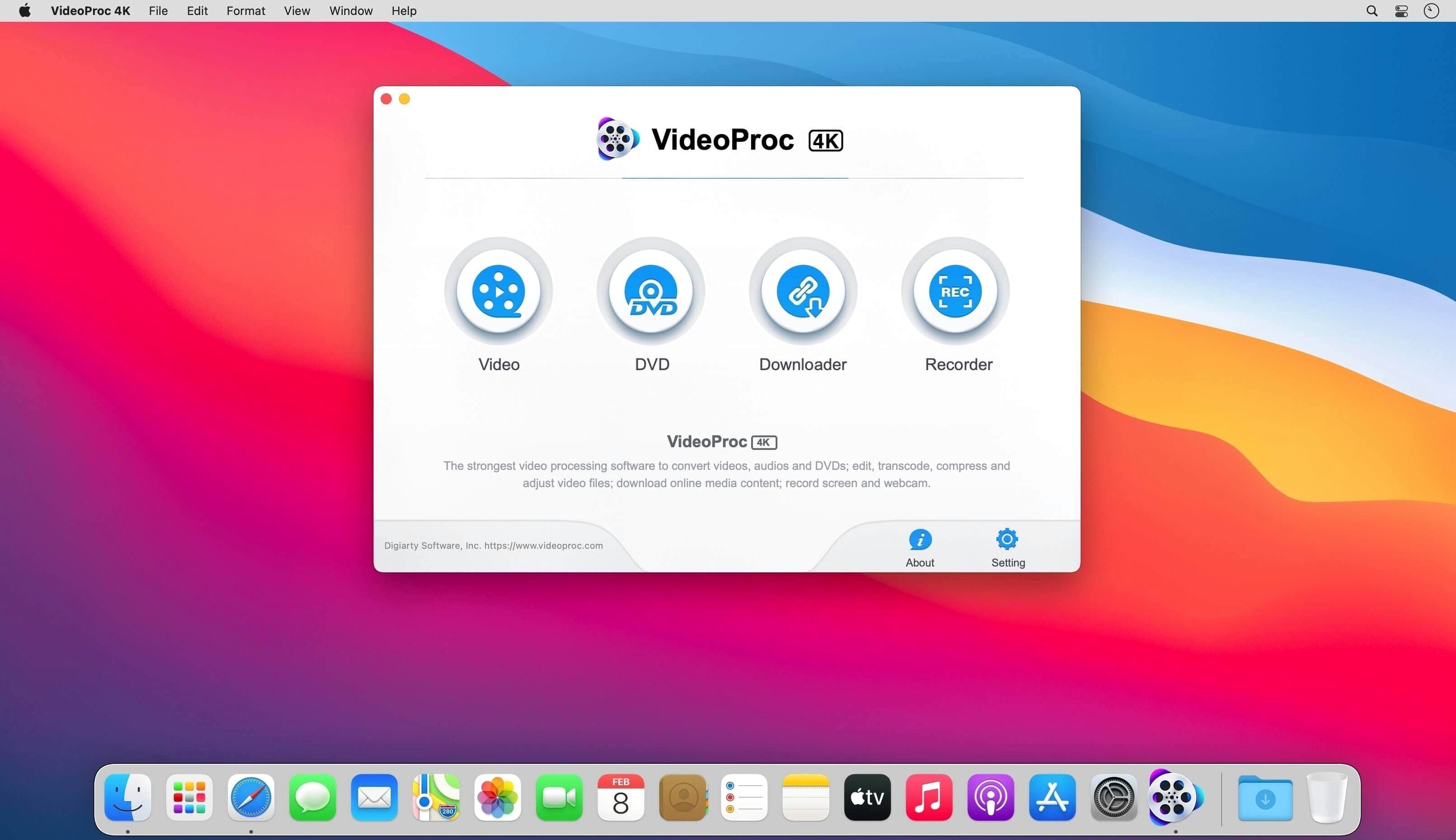
VideoProc Converter is a desktop video toolbox that handles conversion, compression, basic editing, and downloading in one window. You bring in footage from an iPhone, a GoPro, a drone, or an old camera—the app sorts out the format so it plays where you need it.
Batch-convert mixed clips, compress 4K, or grab full playlists
- Batch converting a folder of mixed video clips into a single, edit-friendly format
- Compressing large 4K files down to a manageable size without losing the shot
- Downloading UHD and HD video, audio, and whole playlists in one go
- Quick trims and cuts before sending something to a client or posting online
- Upscaling older footage with the Video Super Resolution AI module (needs macOS 10.15 or later)
Requires Intel 64-bit Mac; AI tools need Catalina or later
- The Mac build is 64-bit Intel, so you need a machine that supports that architecture
- AI features like Frame Interpolation and the Image AI module require macOS 10.15 or later
- The app runs on macOS 10.10 and up, but older systems won't get the AI tools
- It supports 370 codecs, which covers most sources, but always check a sample clip first
Leaving hardware acceleration off slows your encodes to a crawl
Most of these are easy to fix once you notice them. The first one is leaving hardware acceleration turned off. VideoProc Converter leans on your GPU for encoding and decoding, and if the toggle is off in preferences, a ten-minute conversion suddenly takes half an hour. Beginners sometimes install the app, jump straight into a batch job, and wonder why it's slow. Check the acceleration setting first.
The second mistake is picking the wrong output format for the job. When people want to send a clip to a client for review, they occasionally choose a production codec like ProRes instead of a lighter H.264 file. The result is a perfectly crisp video that's three gigabytes and annoys everyone's inbox. The app gives you a list of ready-made profiles—General Video, iPhone, YouTube, and so on—and those are a safer starting point than the full codec list until you know what you need.
Another one: running a batch download without first checking where the files land. The default output folder isn't always obvious, and I've watched someone download a full playlist only to spend ten minutes hunting through Finder. Pick a folder you recognize before you hit go.
Last thing worth mentioning is skipping the preview before a long conversion. A five-second preview render can catch bad cuts, wrong aspect ratios, or a subtitle track you forgot to disable. It's a small habit that saves time later.
Version 6.6 made large batch queues feel snappier
Version 6.6 brought a quieter set of improvements rather than a splashy overhaul. The most noticeable change for daily work is smoother handling of large batch queues. Earlier builds could get sluggish when you lined up dozens of clips with different source formats; the current version keeps the interface responsive while processing, which matters when you set a queue to run overnight and want to check progress in the morning.
On the AI side, the Video Super Resolution module got better at preserving texture in low-light footage. If you upscale old family videos or evening drone shots, the output is less likely to look waxy. Frame Interpolation also feels more consistent: fast pans that used to stutter now fill in the intermediate frames with fewer artifacts.
For videoproc converter mac users who record or download a lot of web-based content, the built-in downloader improved its playlist parsing. It handles long video series with fewer skipped items, which was a frustration point before. The app still asks for macOS 10.15 or later for AI tools, so that line in the sand hasn't moved.
A prep tool that cleans footage before Final Cut Pro
VideoProc Converter sits somewhere between a QuickTime export and a full timeline editor. I treat it as a prep tool: clean up the footage, trim the fat, convert to something consistent, then hand it off to Final Cut Pro or DaVinci Resolve for the real edit. Because the app preserves color profiles and doesn't strip metadata from drone or GoPro files, your editor sees the same information the camera wrote.
Finder integration is straightforward. You can drag clips straight from a folder or an external drive into the main window, and the output folder shows up as a standard Mac destination that Spotlight indexes. If you use Quick Look to preview files in Finder before importing, the app respects that workflow—drop a clip, hit spacebar, confirm it's the right take, then drag it in.
The downloader module plays nicely with Safari and other browsers. You copy a URL, switch to VideoProc Converter, and the app parses it automatically. Downloaded files are standard MP4 or audio formats, so anything that reads those—VLC, Music, QuickTime Player—opens them without extra steps.
On the hardware side, the GPU acceleration taps into the same Metal framework that Apple's own apps use. That means a videoproc converter session running in the background won't fight Final Cut Pro for resources in a way that feels different from any other Metal-aware app. Activity Monitor shows the GPU workload, and it scales back when the app is idle.
Flip on GPU encoding and pick a fast default output folder
Open the preferences panel before your first real job. The hardware acceleration toggle lives under the General tab, and it should be on. While you're there, set your default output folder to something you can find quickly—I keep mine on the desktop inside a folder called "Converted," which I archive once a week.
Next, look at the output profile defaults. The app remembers your last-used format, but you can pin a favorite under the video settings panel. I recommend setting H.264 with a quality slider around 80% as a general-purpose starting point; it's a safe middle ground between file size and visual clarity for client previews or social media.
If you plan to use the AI modules, check that the app recognizes your GPU under the hardware info section of preferences. Some Macs with Intel integrated graphics won't accelerate AI tasks the same way a discrete GPU or an M-series chip will, and knowing that upfront helps you set realistic expectations for upscaling speed.
Tip: turn on "Open output folder after conversion" in the advanced settings. It's a small checkbox, but it saves the file-hunting step I mentioned earlier, especially when you run multiple jobs back to back.
- macOS 10.10 or later
- 64-bit Intel processor
- macOS 10.15 or later for AI capabilities
Questions from the stall
What video sources can I bring into VideoProc Converter?
It handles footage from iPhones, Android phones, cameras, drones, and GoPro devices, plus downloaded UHD and HD video, audio, and playlists.
Which macOS versions support the AI features?
AI tools like Video Super Resolution, Frame Interpolation, and the Image AI module need macOS 10.15 or later.
How many codecs does the Mac version work with?
The app supports up to 370 codecs, covering most common video and audio formats you are likely to encounter.
Notes from other shops 0
Sign in or open a shop account to leave a note.
No notes yet. If you've used this on a shop Mac, tell me how it went.