
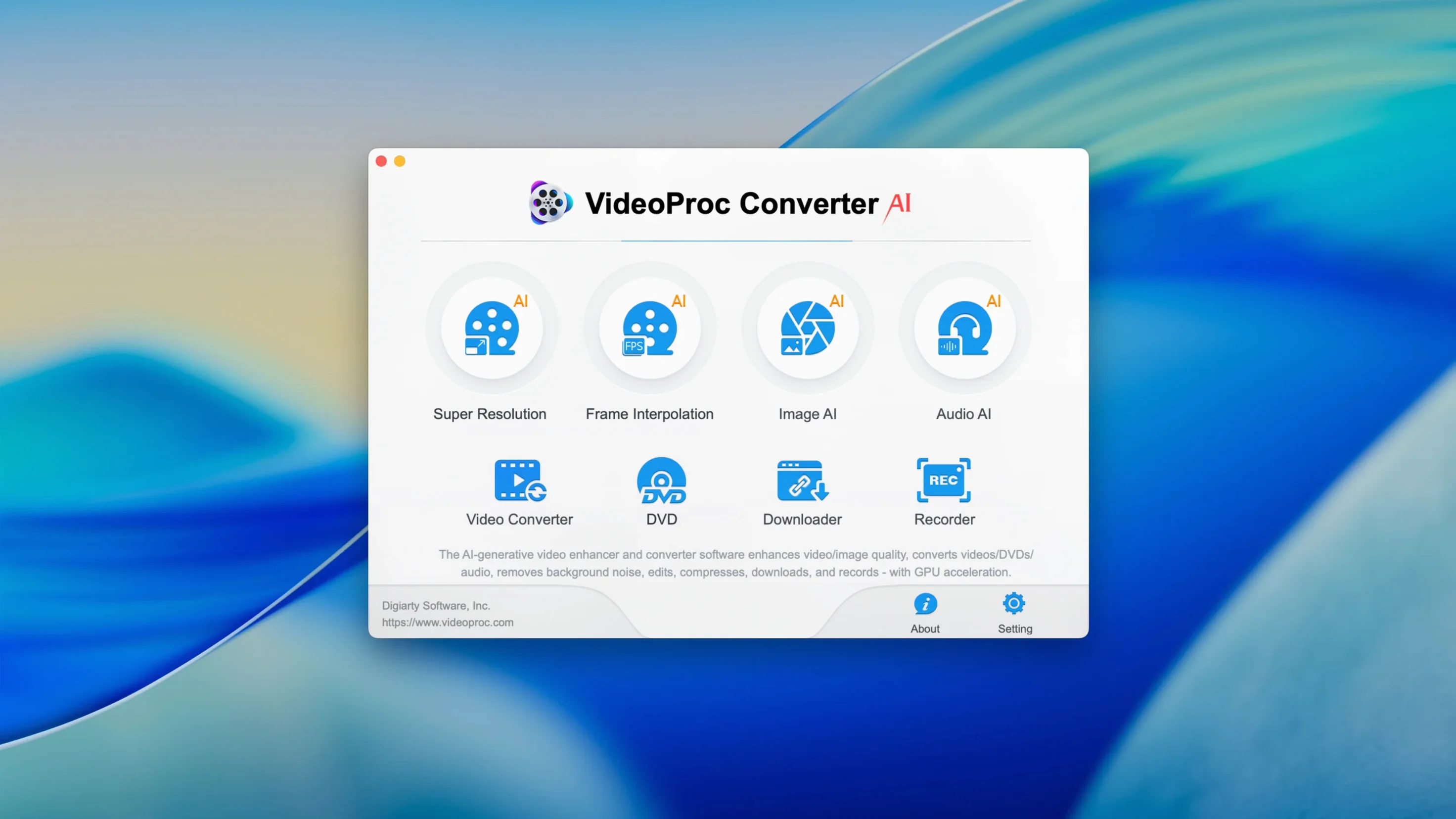
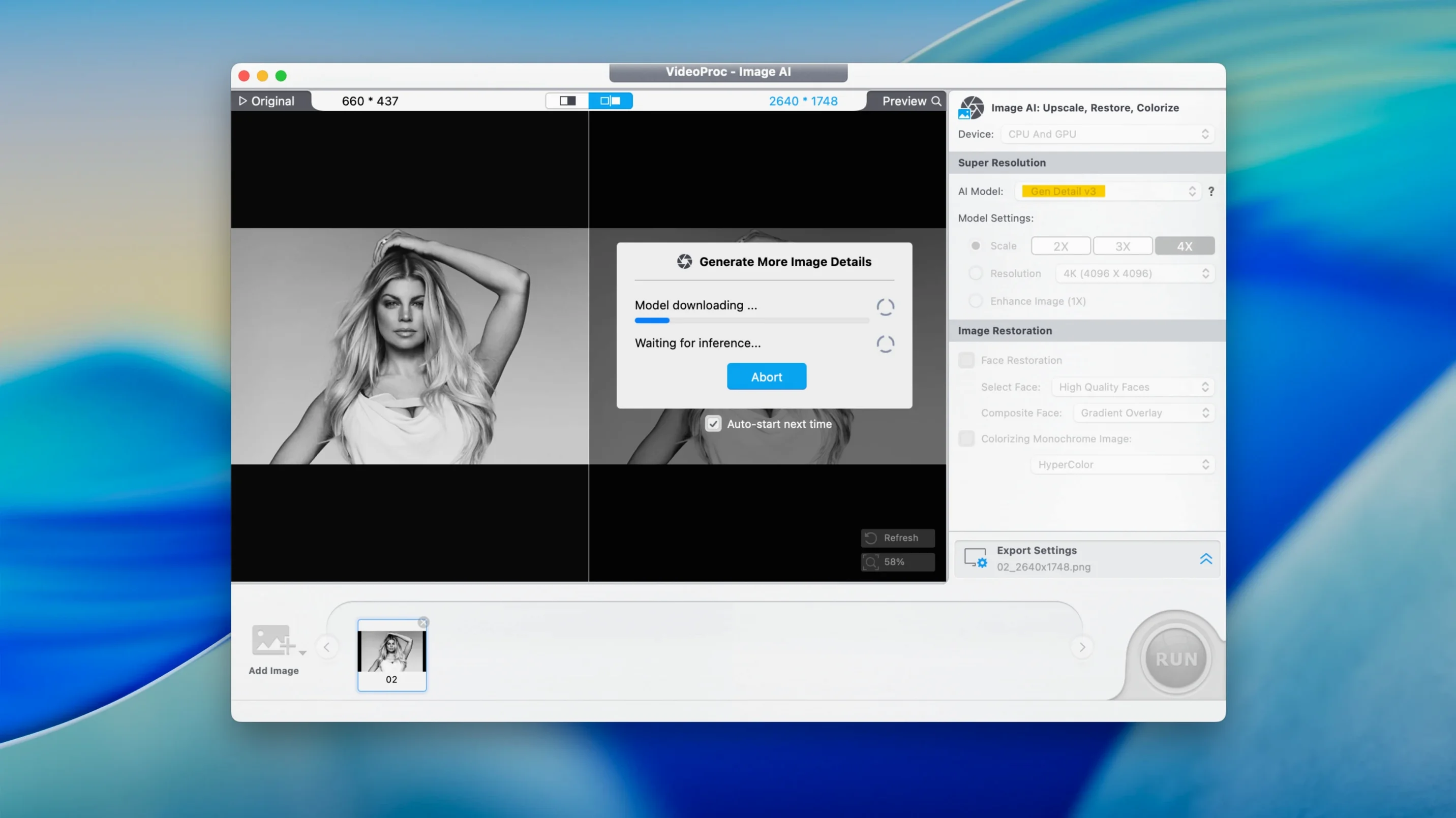
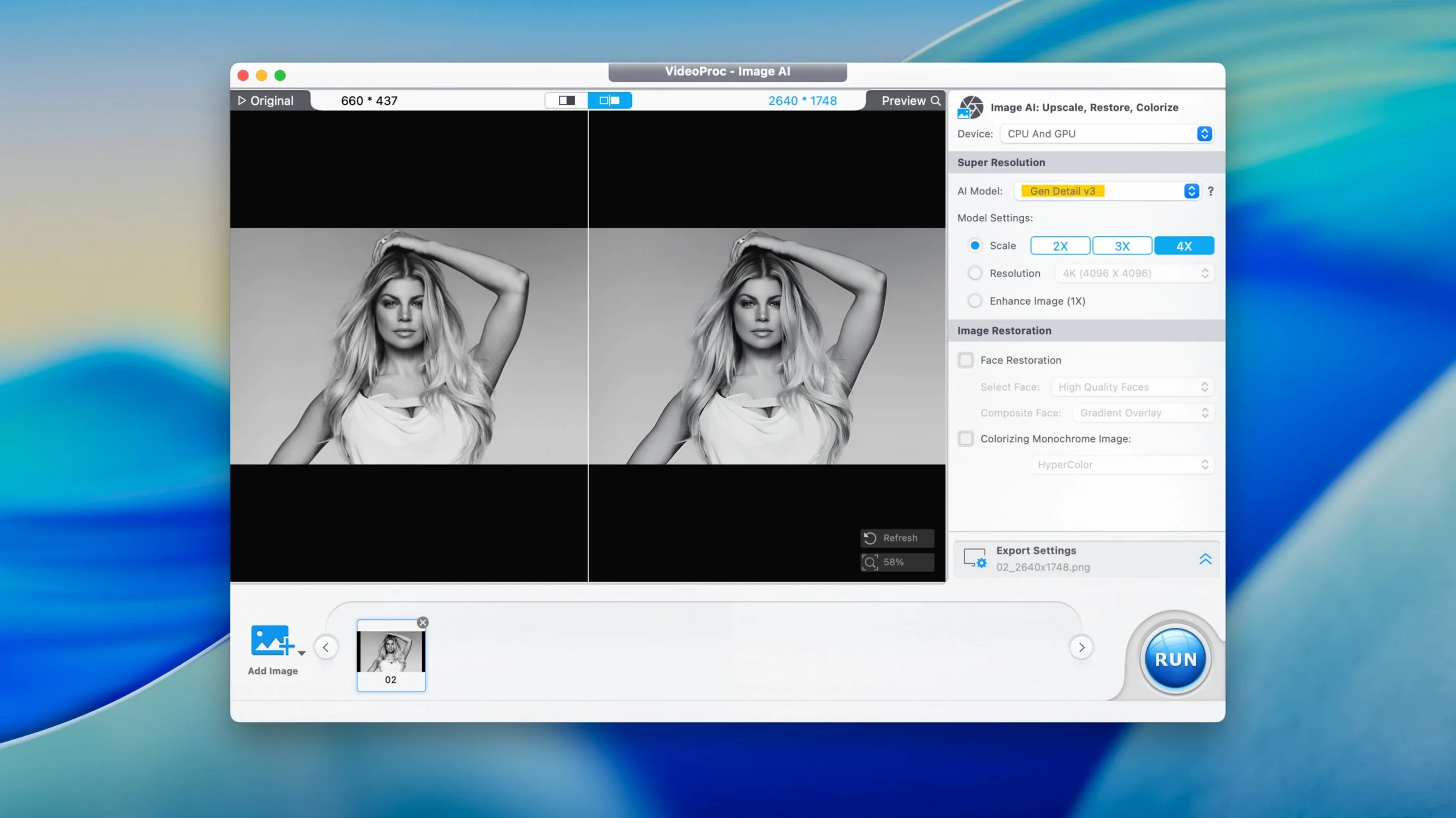
VideoProc Converter AI runs on any Mac with macOS 10.15 or later, including the latest models with Apple silicon. It bundles video conversion, downloading, compression, screen recording, and a set of AI-powered enhancement tools into one app. Instead of listing every button, let’s walk through one realistic task: taking a noisy, shaky clip from an old camera and turning it into a clean, stabilized short ready to share.
- Drop the source file into the app. It handles practically any format you throw at it without complaining.
- Apply the AI denoising filter to clean up sensor noise and compression artifacts. The preview updates quickly so you can check the difference before committing.
- Turn on video stabilization to smooth out handheld wobble. The result stays sharp, not cropped into oblivion.
- Trim the start and end, then use the speed control to slow a brief moment to 0.5x for emphasis without introducing stutter.
- Add a simple text watermark and a faded-in title using the built-in effects panel. No need to jump to another app.
- Choose an output format for the web and let the hardware-accelerated encoder handle the heavy lifting.
What I like about this workflow is that it stays inside one window. You’re not bouncing between a converter, an editor, and a separate downloader. The AI tools feel practical rather than gimmicky — denoising and stabilization solve real problems for anyone working with footage from older cameras or screen recordings.
Prep tool that sits before Final Cut or Resolve
VideoProc Converter AI doesn’t try to replace Final Cut Pro, DaVinci Resolve, or a full-blown editor. It earns its spot as the prep tool that sits in front of those heavier apps. I’ll drop a batch of mismatched clips in first — maybe a mix of screen recordings, downloaded footage, and phone videos — convert them all to ProRes or a clean HEVC baseline, and then import the tidy set into my editor. No more hunting for codecs or discovering halfway through an edit that one file stutters because it’s in some obscure camera wrapper.
It also plays nicely with macOS’s built-in features. The hardware acceleration taps into Metal and the Apple silicon media engines automatically, so exports barely warm up the fans. Files that land in the output folder show up in Finder’s recent items and Spotlight right away. You can trigger simple conversion presets through Quick Actions if you’ve set up an Automator workflow that points to the app, which is handy for batch-resizing product photos alongside video work.
The screen recorder integrates cleanly too. When I capture a QuickTime window or a portion of the screen with voice commentary, the resulting file drops straight back into VideoProc’s main interface ready for trimming, compression, or format tweaking. It’s a tighter loop than recording in QuickTime Player and then opening something else to trim the silence off the end.
Drag-and-drop presets in the batch queue
A few conveniences took me a while to notice, and they’ve quietly changed how I batch-process media:
- Drag-and-drop presets: You can drag any preset from the output panel onto a file in the queue instead of selecting it from a dropdown. Saves a surprising number of clicks when you’re working through twenty clips that need different output formats.
- Audio-only extraction: Right-click a video in the timeline, choose “Audio” and you get a clean MP3 or AAC file without touching the video. Useful for pulling narration off a screen recording to repurpose as a voiceover snippet.
- Subtitle burn-in preview: When you add an SRT file, the preview window shows exactly how the text sits over the frame before you encode. No guesswork about font size or positioning.
- Tooltip shortcuts: Hovering over most sliders — bitrate, speed, volume — reveals the keyboard shortcut for fine-tuning with the arrow keys. I’d missed that for months.
- Downloader’s format picker: When you paste a YouTube or Vimeo link, the downloader lists every available stream separately: 4K video-only, 1080p with audio, audio-only in various bitrates. You pick exactly what you need instead of downloading a huge file and extracting later.
AI upscaling runs locally, no internet needed
People usually ask a few things before they grab videoproc converter ai for mac and give it a spin. Here’s what I’d want to know:
Does the AI upscaling need an internet connection? No, the AI models run locally on your Mac. The processing uses the Neural Engine on Apple silicon or the GPU on Intel machines. That means your footage stays on your drive and the speed depends on your hardware, not a server queue.
Will it bog down my older Intel Mac? The app runs on macOS 10.15 and later, and the hardware acceleration covers Intel Quick Sync as well as Apple’s media engines. On an older Intel machine, 4K exports take longer than on an M-series Mac, but the app doesn’t freeze or beachball — you can keep working in the queue while an export runs in the background.
What’s the difference between this and VideoProc Converter AI 7.6? Version 8 introduced the unified AI toolkit (upscaling, denoising, stabilization) in a single panel rather than scattered across modules. If you’ve seen screenshots of videoproc converter ai 7.6 and wondered what changed, the cleaner layout and the improved Downloader performance in the current build are the biggest practical differences.
Does it handle 8K HEVC without choking? Yes, provided your Mac has hardware decode for HEVC. The app leans on Metal and the built-in media engines, so scrubbing through 8K footage in the trimmer stays responsive. The final encode speed comes down to your chip, but the app itself handles the container and codec without fuss.
Every now and then someone searches for videoproc converter ai torrent or videoproc torrent trying to test it out. I’ll just say that the app exists in a space where keeping the tool updated matters — new formats, device profiles for the latest iPhones, and macOS compatibility fixes arrive in point releases. The current build’s reduced installer size and iPhone 18 support are good examples of why staying current helps if you’re converting media for new hardware.
- macOS 10.15 (Catalina) or later
- Apple Silicon or Intel 64‑bit Mac
Questions from the stall
Can VideoProc Converter AI download videos from streaming sites?
Yes, the built-in downloader supports grabbing video and audio from YouTube, Vimeo, TikTok, Facebook, and other popular platforms.
Does the app let me extract audio from a video file?
Absolutely. You can pull out the audio track and save it as a standalone file, with control over format, bitrate, and sampling rate.
Notes from other shops 0
Sign in or open a shop account to leave a note.
No notes yet. If you've used this on a shop Mac, tell me how it went.