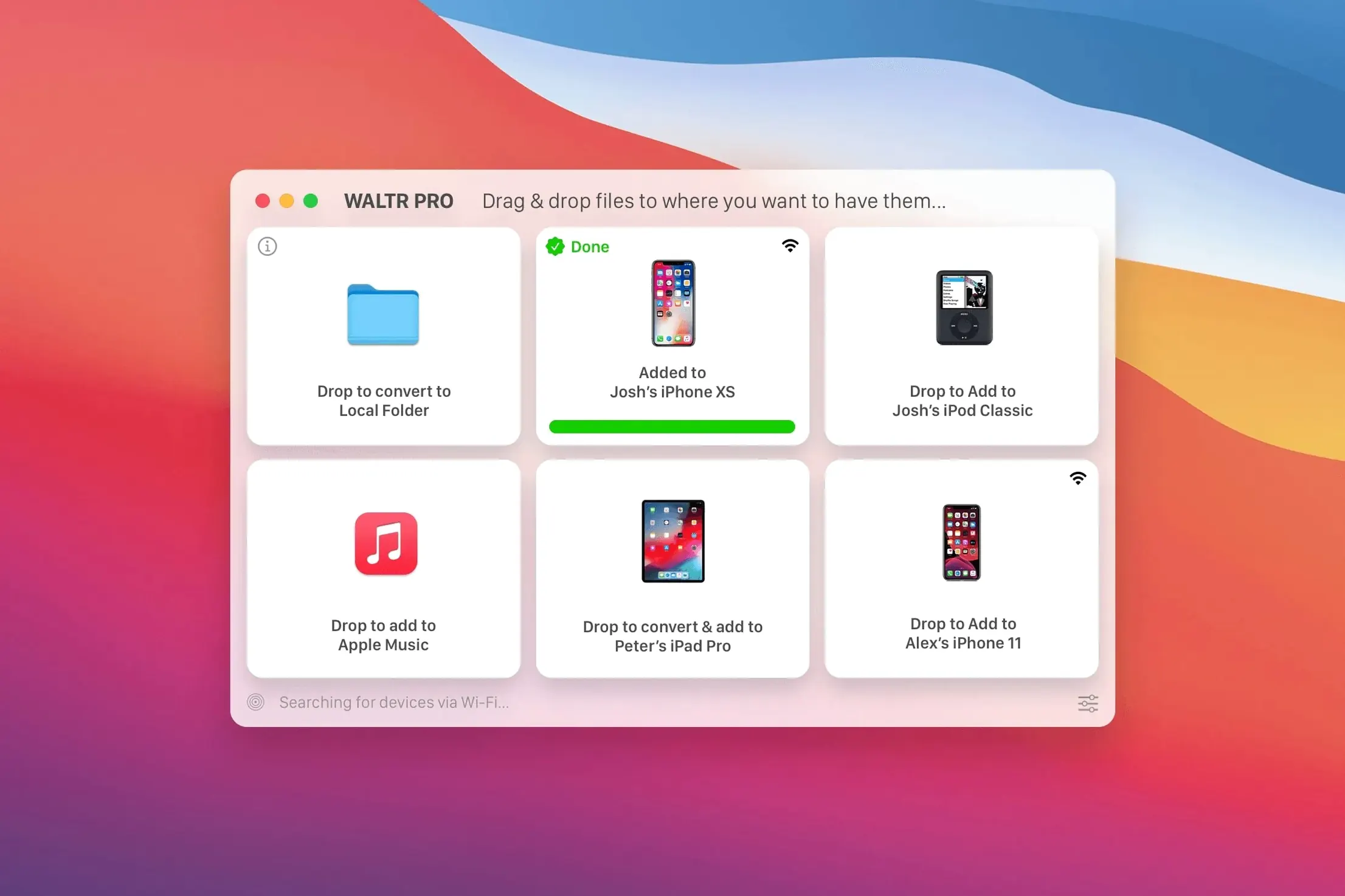
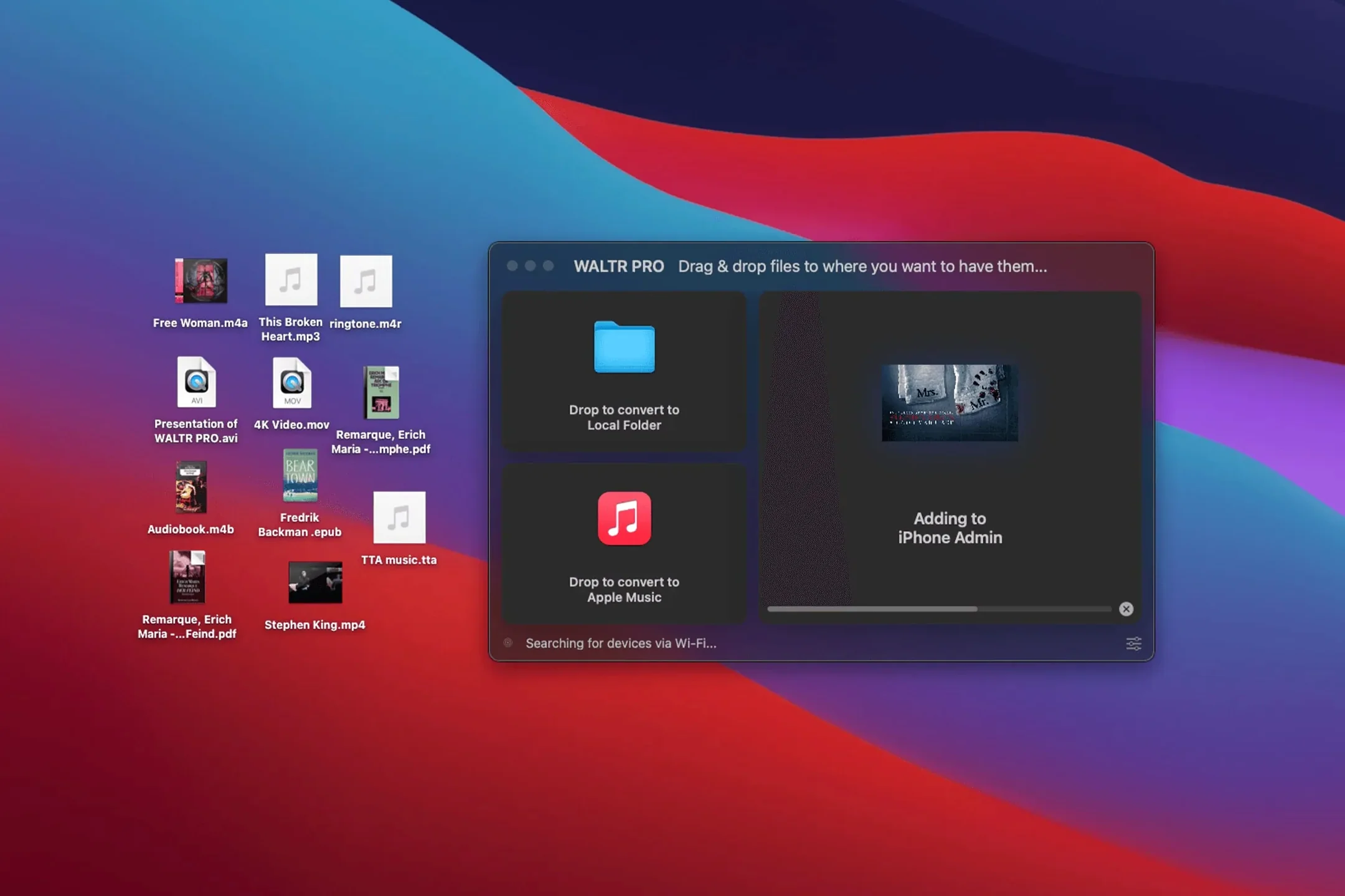
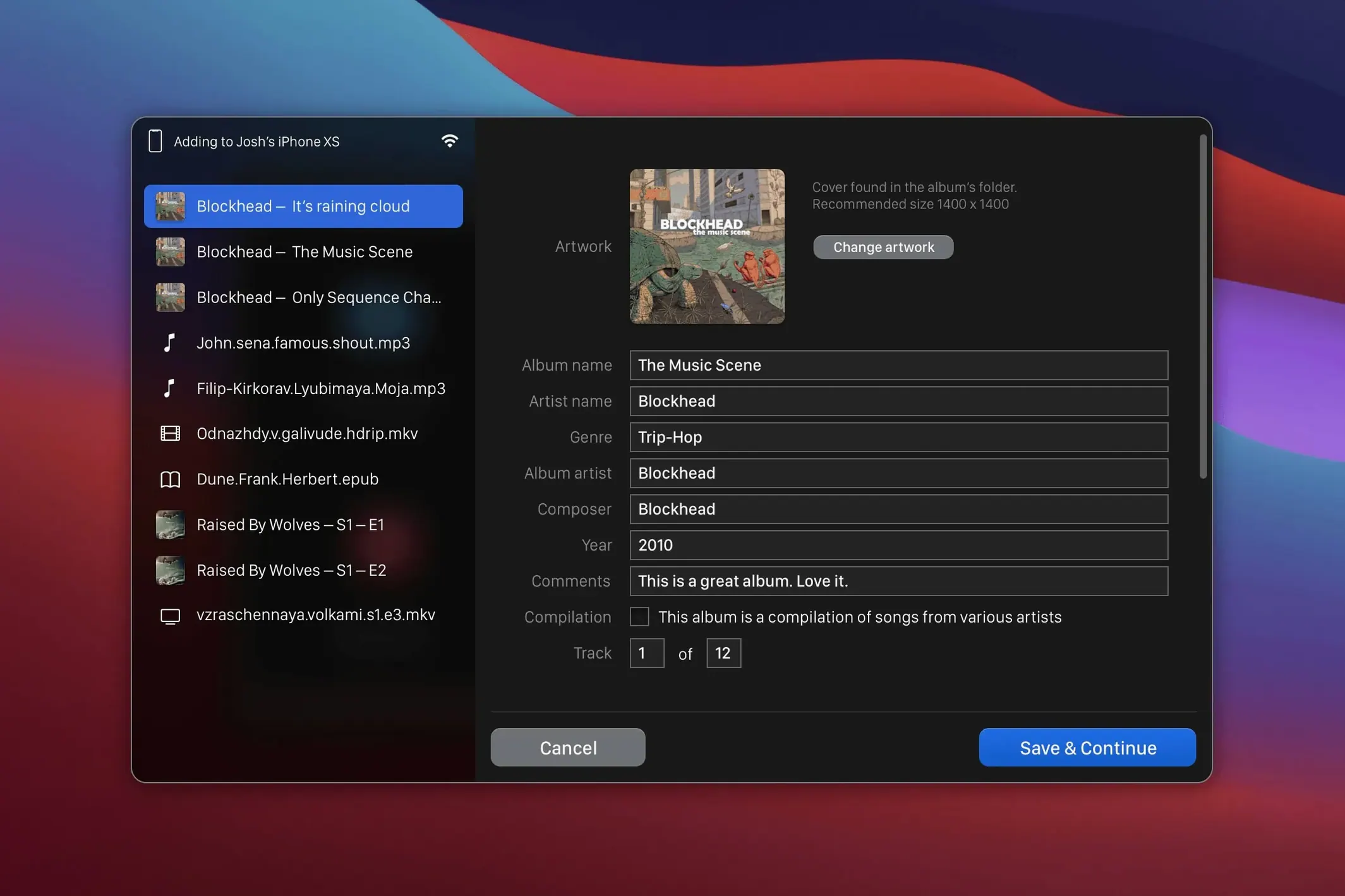
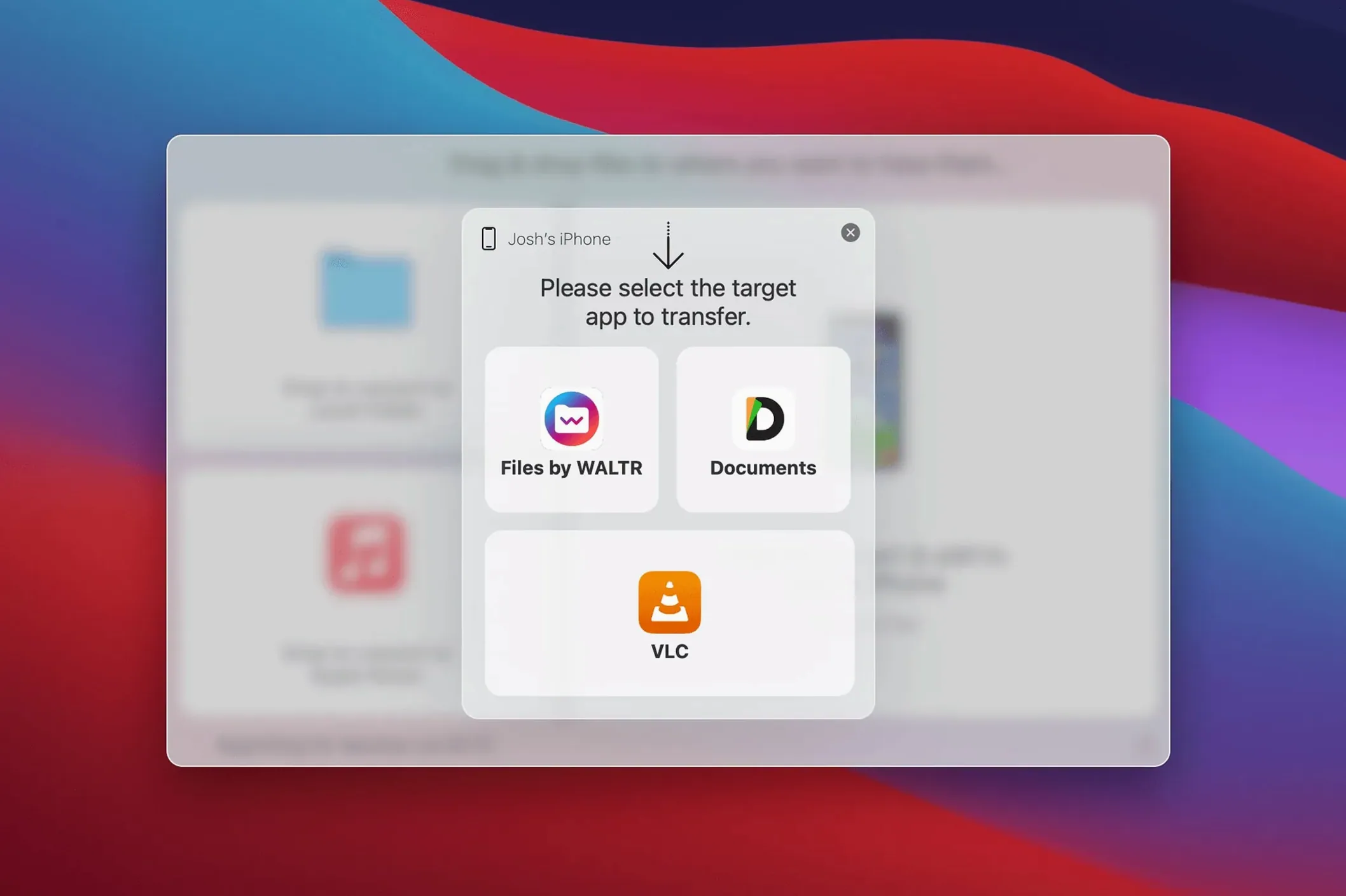
Version 4.0.122 keeps WALTR PRO in its familiar role: a quiet helper that sits next to your media player and Finder. It doesn't try to replace the apps you already use for playback or library management. Instead, it fills the gap when you double-click an MKV or FLAC file and your Mac has no easy way to put it on an iPhone.
Bridging Finder’s format gaps with drag-and-drop
You likely already have a music player, a video player, and Finder for manual file management. WALTR PRO slots in as the bridge when Finder refuses a file format. Drag an AVI, CUE, or WMA onto the app window, and it lands in the Apple TV or Music app on your connected device—no format conversion step on your end. It also handles the formats Finder already accepts, like MP3 and M4V, so you can use a single drop zone for everything. Support for the original iPod Classic means it even covers older hardware that some modern syncing tools have left behind.
Wi‑Fi transfer without extra setup
Once you've dropped a file, WALTR PRO uses your local Wi‑Fi to send it across. There's no cable to find and no cloud service to log into. The app recognizes iPhones, iPads, and iPods automatically when they're on the same network. If you already rely on AirDrop for quick photo sharing, this fills a similar role for media files that AirDrop won't send to their proper app libraries.
It handles transfer and conversion without replacing your library
One of the first things people ask is whether WALTR PRO replaces the Music app or Finder syncing. It doesn't. You keep your existing library intact. The app handles the transfer and, when needed, the conversion, then steps out of the way. Once a file lands on your iPhone or iPad, it lives in the stock Music or TV app, exactly where you'd expect to find it.
Another common question is about format support on older devices. If you're still using an iPod Classic, the app recognizes it and converts files to a compatible format without you having to look up what that model can play. The same applies to newer iPads that might reject an older AVI file—WALTR PRO sorts out the mismatch before sending.
People also worry about Wi‑Fi reliability. The transfer uses your local network, not a cloud relay. Your Mac and iOS device just need to be on the same network. No accounts, no sign‑ins. If your router is stable, the transfer is stable. A large MKV file might take a minute or two, but there's a progress bar that actually reflects what's happening.
Tuning the output quality slider for your ears and storage
The app works right after you drag it to Applications, but a couple of tweaks make it feel more your own. Open preferences and look for the output quality slider. By default it balances file size and quality, but if you're sending a movie to an iPad with a great display, bump it up. The difference in a dimly lit scene is noticeable.
Next, check the Wi‑Fi transfer speed setting. It defaults to a middle ground, but if your router can handle it and you're impatient, the high‑speed option shaves noticeable time off larger video files. On a congested network, dropping it down prevents the transfer from stalling while someone else is streaming.
Tip: toggle on the automatic device discovery notification. Without it, the app stays silent when your iPhone appears on the network. With it on, you get a small, quiet alert, so you're never left wondering if the connection is live.
Wirelessly sending FLAC and MKV straight to your iPad
Imagine you've just downloaded an album in FLAC and a movie in MKV—two formats the Finder won't touch for iOS. You open WALTR PRO; it's already showing your iPad in the device list because both are on the same Wi‑Fi. You grab the album folder from your desktop and drop it onto the app window. A thin progress ring circles for maybe ten seconds, then the album appears in the Music app on your iPad, complete with artwork.
Next, you drag the MKV file onto the same window. The app shows a slightly longer progress bar—this one needs conversion. About a minute later, it finishes. You open the TV app on your iPad, and the movie is sitting in the library, ready to play. No cables were plugged in, no format options were chosen by hand, and nothing extra sits in your Downloads folder as a leftover converted file.
That's the rhythm: find a file, drop it, play it. For a small shop owner who spends all day in other software, that kind of friction‑free step matters. It means a new album for the workshop speaker isn't a project—it's just a thing that happens between tasks.
- macOS 10.13 or later
- Intel and Apple Silicon Macs
Notes from other shops 0
Sign in or open a shop account to leave a note.
No notes yet. If you've used this on a shop Mac, tell me how it went.