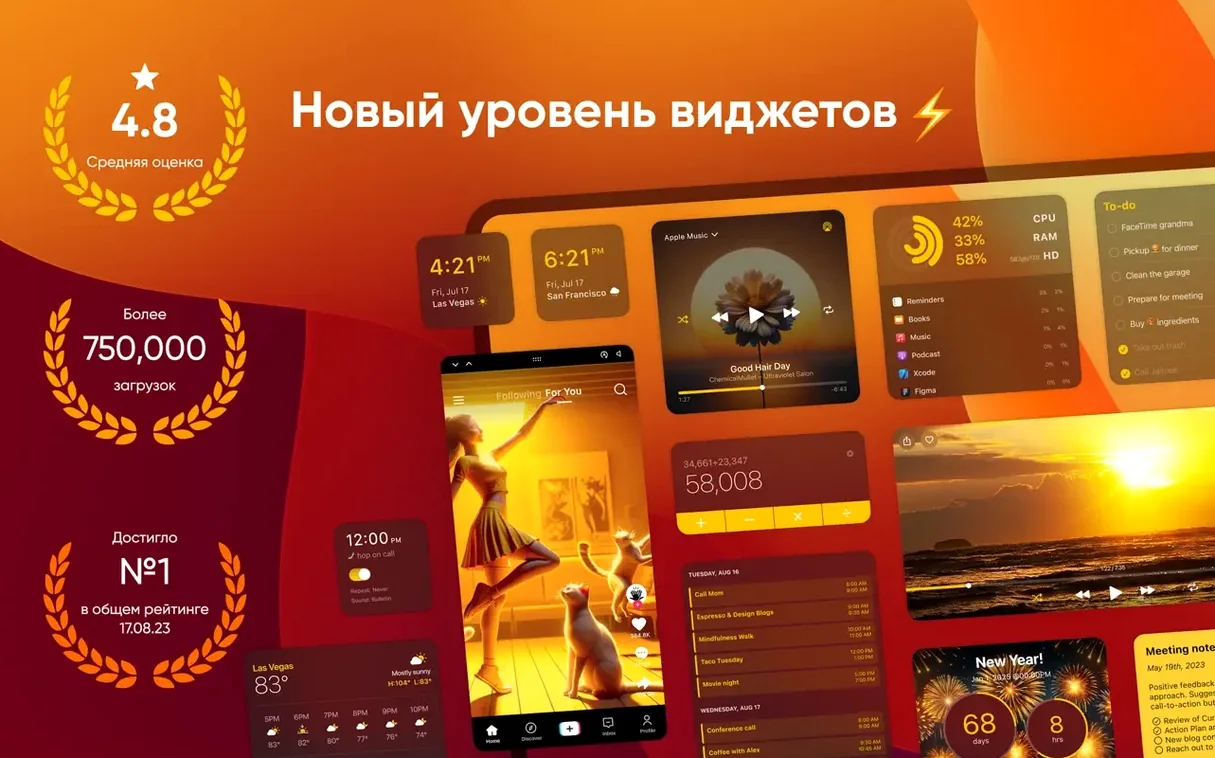
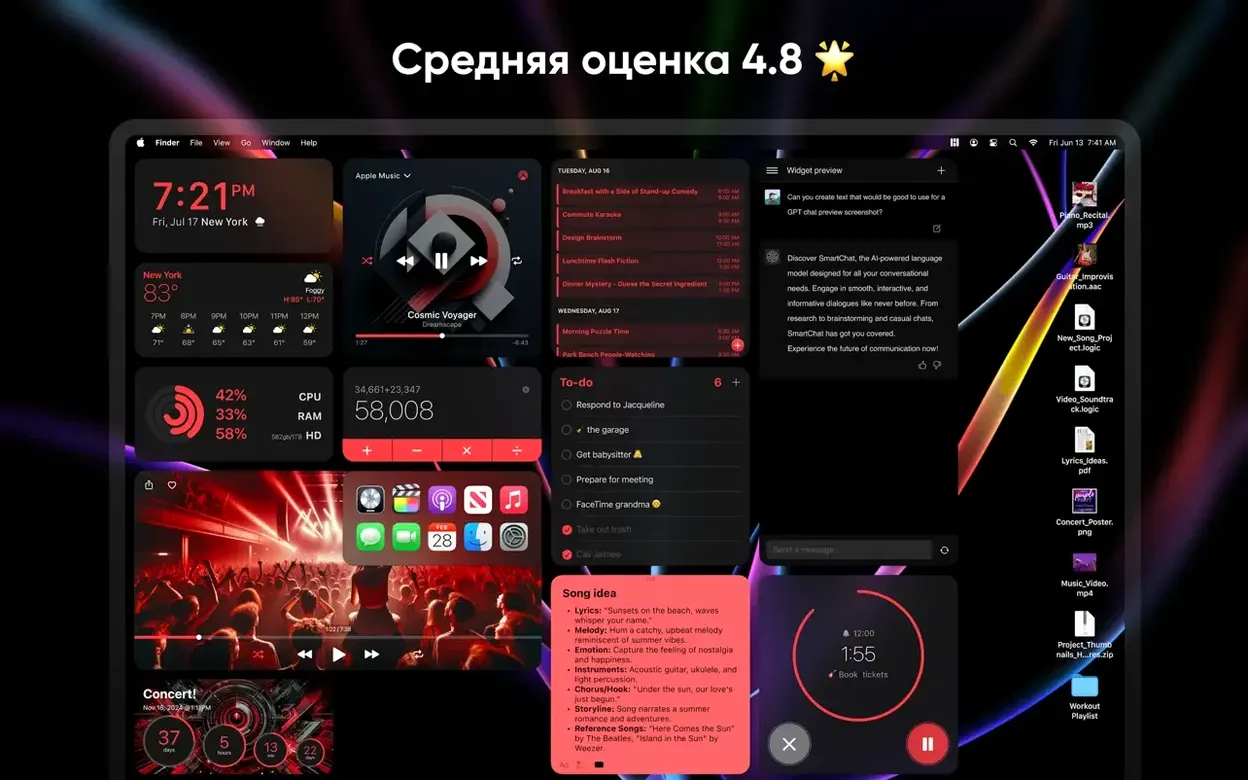
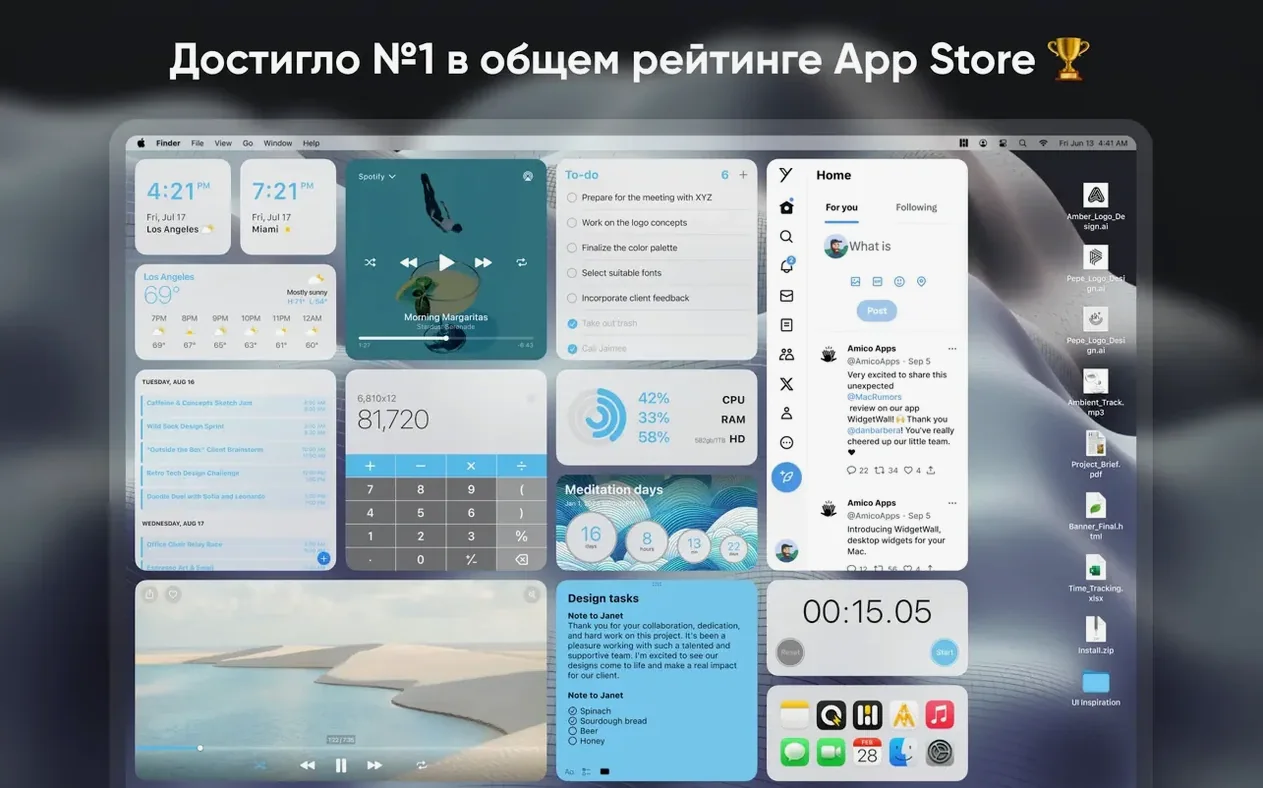
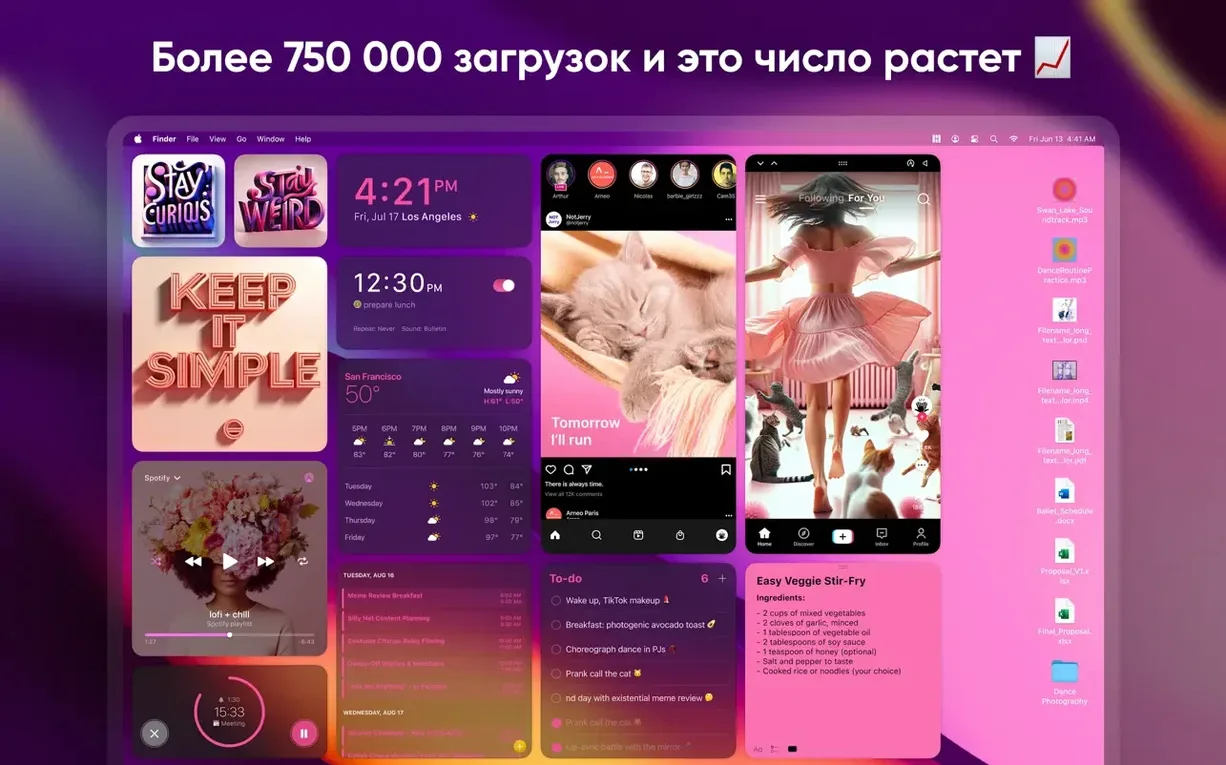
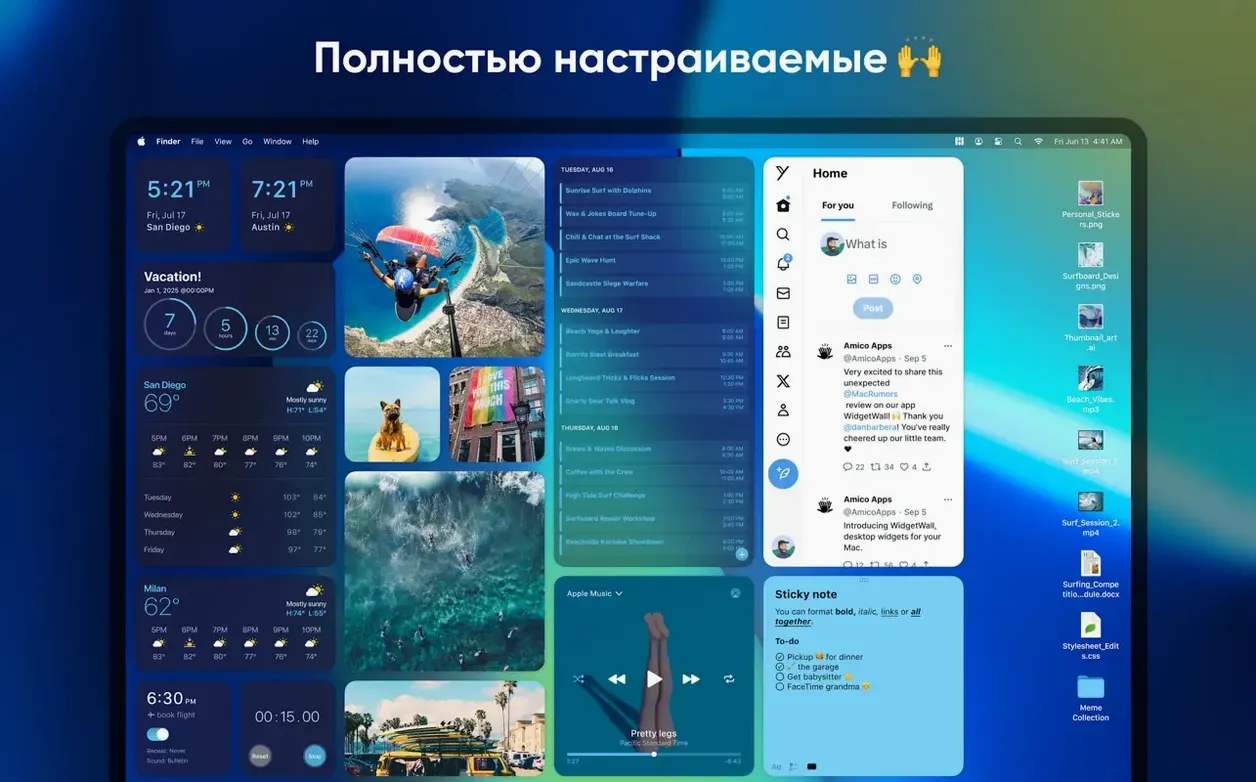
Your Mac's desktop sits there all day doing nothing but holding files. WidgetWall puts that space to work.
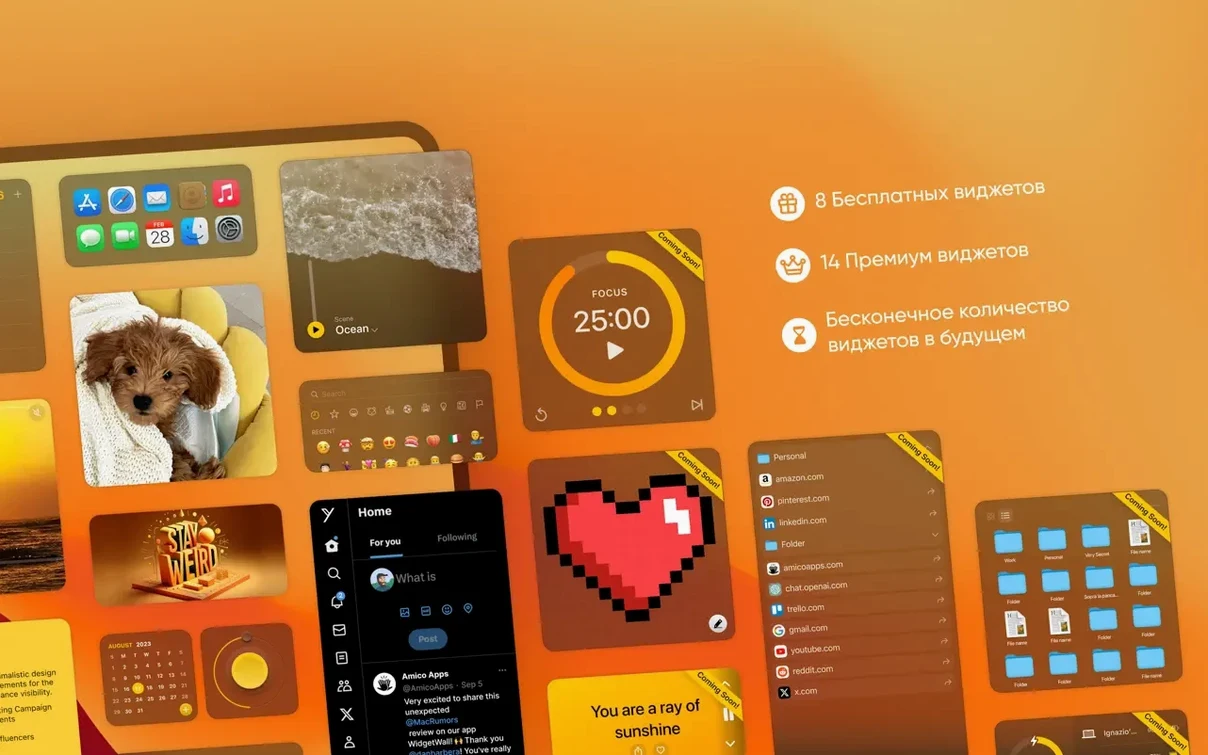
Widgets — small, medium or large panels you place anywhere on the desktop. A clock, a calendar, sticky notes, system monitors. Each one does one job and stays visible behind your windows.
Stickers — decorative elements that break up the grid. Use them to label projects, mark a zone for today's tasks or just add some personality to the workspace.
Three sizes per widget — the same clock can be a tiny corner reminder or a large focal point. Pick the size that matches how often you glance at it.
Auto-setup — several widgets appear right after install, so you're not staring at a blank canvas wondering where to start.
First days with WidgetWall — what helps
After the auto-setup runs, the desktop can look a little busy. I'd resist the urge to delete everything at once. Instead, give it a few hours of normal work. You'll notice which widgets you actually glance at and which ones just sit there looking decorative but adding noise.
Some things I'd do right away:
- Move the clock somewhere you already look. Lower-right corner near the Dock works for me — it replaces the menu bar glance without adding a second place to check.
- Set the calculator to medium and park it near the right edge. A quick numbers spot you don't have to launch anything for. Small is too cramped for actual use; large eats too much space unless you're doing calculations all day.
- Turn off any widget you didn't notice in the first two hours. No guilt — desktop real estate matters more than an unused timer.
- Pick one sticker as a visual anchor for your most-used widget cluster. It sounds silly, but a small visual marker helps your eyes find the right spot faster when you switch back to the desktop.
One thing that surprised me: the Pomodoro timer widget doesn't need to be large to be useful. Medium size gives you the countdown digits and a quick reset tap. Large adds controls you rarely touch mid-session. I keep mine medium, tucked beside the notes widget so I see both during focus blocks.
Sits around 200 MB of memory on Apple Silicon
Memory use sits around 180 to 220 MB with six or seven active widgets on an Apple Silicon Mac. That's light enough to forget it's running. On an older Intel machine, expect something closer to 250 MB — still modest for what's essentially a layer of mini-apps living on the desktop.
Launch time is near-instant. The app appears in the menu bar within a second of opening, and widgets repaint quickly after a reboot or display wake. I haven't seen the kind of multi-second delay that some desktop overlay tools suffer from.
Stability has been uneventful in a good way. Across a week of daily use with the calendar, weather, notes and clock widgets active, I didn't hit a single crash or widget freeze. The stopwatch ran accurately alongside the system clock; the Pomodoro timer kept counting through sleep/wake cycles. That's the kind of boring reliability you want from something that sits on your desktop all day.
Battery impact is low. WidgetWall doesn't register as a significant energy user in Activity Monitor, even with the weather widget set to refresh regularly. If you're running a dozen animated widgets, you'll see a small bump, but the defaults are well-behaved.
Turn off “Show on all spaces” for sticky-type widgets
The preferences pane is small — which I appreciate. A few tweaks make the daily experience smoother:
- Disable "Show on all spaces" for sticky-type widgets. Notes and reminders feel more natural when they live on one desktop, not chasing you across every Space. The clock and weather, though? Let those follow you.
- Adjust the widget opacity slider. Default is fully opaque. Dropping it to about 90% makes widgets sit on the wallpaper rather than shouting over it. Subtle, but it changes the whole feel.
- Turn off auto-start if you're testing. WidgetWall adds itself to login items by default. That's fine once you've settled on your setup, but during the first days of tweaking, I'd rather launch it manually until I know exactly what'll greet me at login.
- Check the weather widget's location permission. It defaults to auto-detect, which is usually right. If it's not, the manual city search works quickly and the widget updates without fuss.
Interface now speaks Russian, Traditional Chinese and French
Version 3.15 brought broader language support — Russian, Traditional Chinese and French joined English and Spanish. For anyone working in those languages, the interface switches cleanly and widget labels follow the system language without awkward truncation.
Earlier in the 3.x cycle, the App Shortcuts widget got more flexible. You can now point it at specific files or folders, not just apps, which turns it into a quick-launch panel for project folders. That's a genuine workflow improvement if your dock is already crowded.
The TikTok widget arrived in a recent update too. It's a niche addition, but if you keep up with short-form video feeds during breaks, having it on the desktop saves pulling out a phone. The widget runs in its own sandboxed view, so it doesn't clutter your browser tabs.
Performance refinements across the 3.14 and 3.15 releases tightened up memory handling when widgets are hidden behind full-screen apps. Previously, hidden widgets kept rendering at full refresh rate; now they throttle back, which helps battery life during long full-screen work sessions.
- macOS 12 or later
- Works on Intel and Apple Silicon Macs
Notes from other shops 0
Sign in or open a shop account to leave a note.
No notes yet. If you've used this on a shop Mac, tell me how it went.