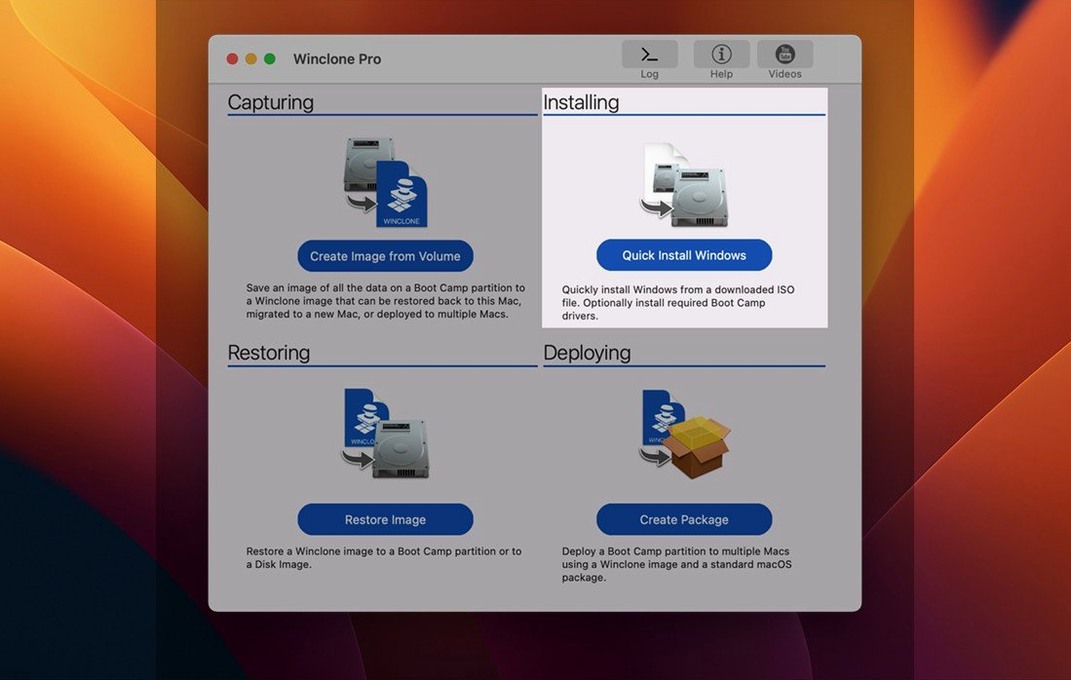
Winclone Pro 10.5 runs on Intel Macs with macOS Catalina (10.15) or newer. It's built for anyone who still relies on a Boot Camp Windows installation and wants a straightforward way to back it up, move it to a bigger drive, or recover it when something goes sideways. Cloning a Boot Camp partition isn't something Disk Utility handles, and that's exactly the gap this app fills.
The core cloning tools haven't changed
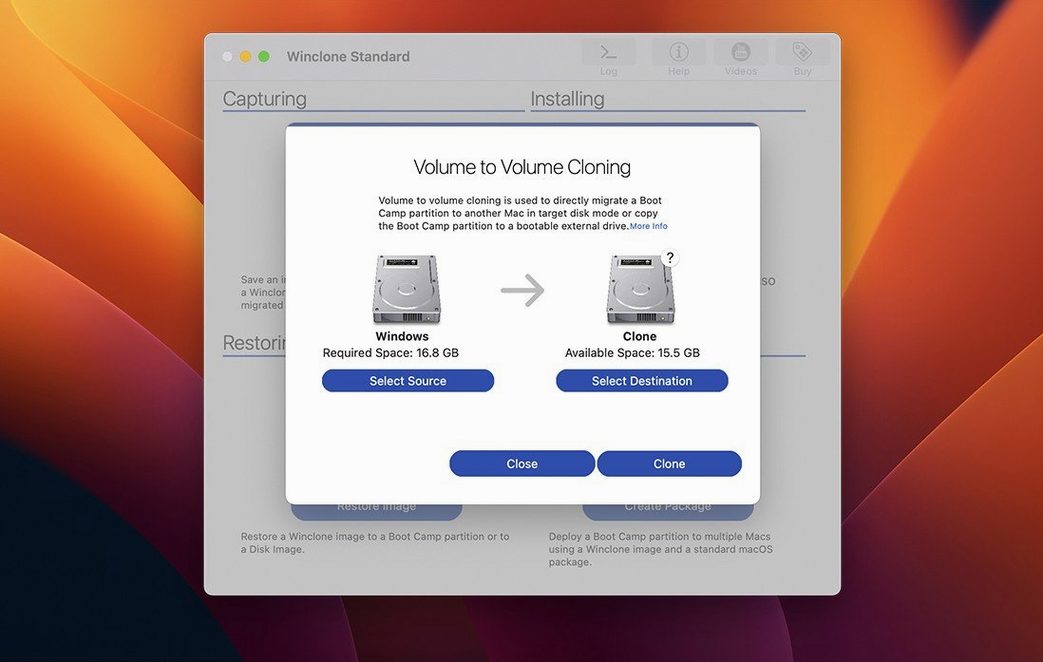
You still get the same cloning and restoration engine that's been the heart of Winclone for years. It creates sector-based images of Boot Camp partitions and can restore them to DOS-FAT32, ExFAT, or NTFS volumes. Incremental imaging means you don't have to clone the whole partition every time — just the changes since the last snapshot. Images save to external drives or network storage, and you can restore them right from the app with a progress bar and completion percentage displayed. A system sound plays when the job finishes or fails, so I can wander off and come back when I hear the chime.
Staying current with macOS Tahoe
This release is a maintenance update that refreshes the OS requirements and adds verified compatibility with macOS Tahoe. The interface got a visual polish in the 10.x cycle, but functionally, 10.5 is about staying current rather than adding new features. The bootable-installation options for legacy and EFI Windows setups are still there, and it still works with basic storage volumes. If you're running a newer macOS on Intel hardware and your Boot Camp partition matters to you, this version keeps everything running without surprises.
When boot records don't match
A few things trip people up regularly, and they're usually fixable without starting over. The big one is inconsistent GPT and MBR boot records — Winclone Pro detects these and reports them, but understanding what it means saves headaches. If you've resized your Boot Camp partition through Disk Utility or a third-party tool, the partition table can drift out of sync. The fix is usually straightforward: boot into Windows, run chkdsk on the Boot Camp volume, then shut down cleanly (not a restart) before cloning again. Windows sometimes leaves the file system in a dirty state that confuses the imaging process.
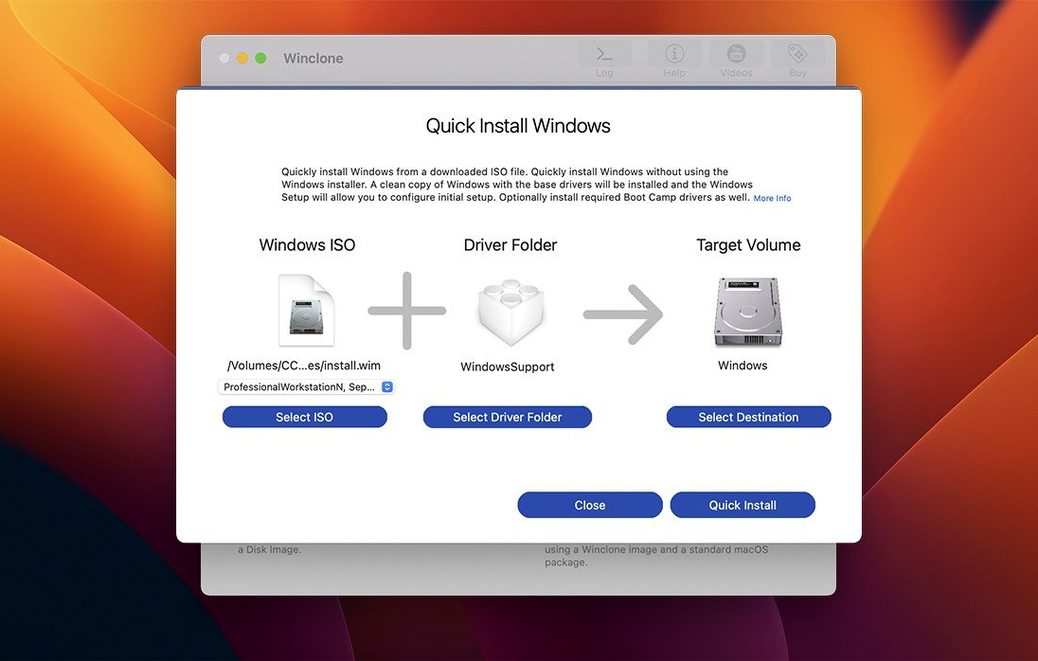
Another frequent hiccup: restoring to an attached volume and finding it won't boot. This often comes down to the difference between legacy BIOS and EFI booting. Winclone Pro gives you options for both, but you need to match the image type to the target machine's firmware. Macs from 2012–2014-ish could go either way depending on how Windows was originally installed. If a restored volume sits there unbootable, check whether the original installation was EFI or legacy and flip the option before restoring again. Also worth knowing: Windows 10 and 11 handle EFI booting differently from Windows 7, and the app's EFI options reflect that.
Tip: when an incremental image refuses to build, run a full clone once. Incrementals depend on a clean base image, and if that base was created under a different version of Winclone or while Windows was hibernating, the delta won't take. A fresh full clone resets the chain.
Moving a CNC shop's Boot Camp to a bigger drive
Picture a small fabrication shop with one Intel iMac from 2019. It runs Boot Camp Windows 10 for the CNC software and a few legacy inventory tools the owner can't replace. The internal SSD is filling up, so they pick up a faster external Thunderbolt enclosure and want to move the Windows install off the internal drive entirely. Winclone Pro handles this in one afternoon. First, a full image of the Boot Camp partition gets saved to a network share — the incremental option gets turned off for the base copy. Then that image gets restored to the new external SSD, with the file system expanded to use all the available space. The owner ticks the EFI bootable option because the iMac is a 2019 model, lets it run, and by dinner the CNC machine is back online from the external drive. No reinstalling Windows, no hunting down obscure drivers, no reactivation drama with the CNC software's licensing dongle.
If the shop owner ever needs to move back, the image is still on the NAS. That's the practical value here: one good clone and you've got options for years.
It'll use all the CPU and disk bandwidth it needs
Winclone Pro isn't lightweight — it's moving gigabytes of raw partition data, and it'll use the CPU and disk bandwidth it needs. On an older Intel Mac with a spinning drive, a full clone of a 60 GB Boot Camp partition can take 40 minutes or more. On an SSD-to-SSD copy over Thunderbolt, the same job might finish in under 15 minutes. Incremental updates are much faster, usually a few minutes, because only changed sectors get written. The app stays responsive during imaging and the progress bar is genuinely useful, updating every few seconds.
Memory usage is modest for what it does — typically under 300 MB during a clone. It's not a background utility you'd leave running, and it doesn't install daemons or launch agents that sip resources when you're not using it. Stability has been solid through the 10.x releases; I haven't seen it crash mid-clone, and the verification step after writing catches most problems before you trust the image. The sound notification on completion is a small thing that makes a difference when you've stepped away from the desk.
On macOS Tahoe, the 10.5 build runs without issues — the verified compatibility in this release was clearly about testing against the new OS, not patching last-minute bugs. If you're still on Catalina or Big Sur, performance is the same; there's no penalty for running an older macOS as long as it meets the minimum. People searching for a winclone download or a winclone torrent are often after exactly this: a stable version that doesn't break when Apple updates the OS. And while some look for winclone cracked or a winclone 10 license key to avoid paying, the TNT release floating around is a winclone crack that sidesteps activation entirely — just check that your firewall rules block the app's outgoing connections so it runs smoothly when the next macOS arrives.
Winclone 10.5 is a compatibility release with two main changes:
- Updated OS requirements for current macOS versions.
- Verified compatibility with macOS Tahoe.
- macOS 10.15 Catalina or later
- Intel-based Mac
Questions from the stall
Can Winclone restore a Boot Camp image to a different drive?
Yes, it can restore Winclone images to DOS-FAT32, ExFAT, and NTFS volumes on another drive.
Notes from other shops 0
Sign in or open a shop account to leave a note.
No notes yet. If you've used this on a shop Mac, tell me how it went.