You have three apps open, a deadline approaching, and you're dragging window edges to get them side by side. Wins is the utility that makes that moment faster.
Window manager — A tool that resizes, splits, and arranges app windows so you don't have to drag them by hand. Think of it as shortcuts for your screen layout.
Snap Island — A quick-split helper that appears when you move a window. Drag toward it and the window snaps into a half, quarter, or custom zone.
Custom hotkeys — You set the key combos. One keystroke can send a window to the left half of the screen, another to a second display. Muscle memory takes over fast.
Dock Lock — When the Dock sits at the bottom of the screen, this pins it to one display. Handy if you run multiple monitors and the Dock keeps jumping to the wrong one.
Move to display — Send any window to another screen without dragging it across the desktop. Quick for laptop-and-monitor setups.
Flip launch-at-login right after installing
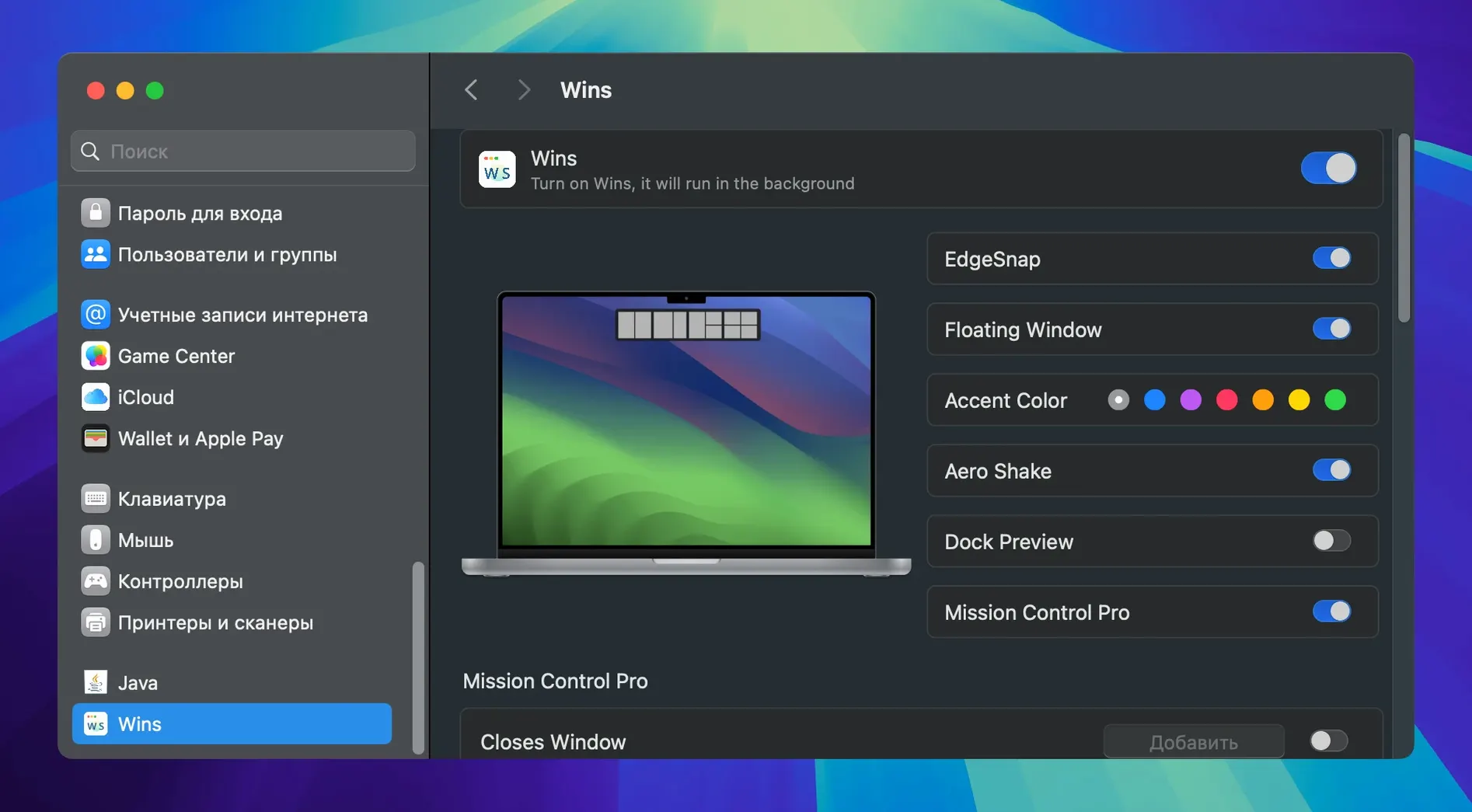
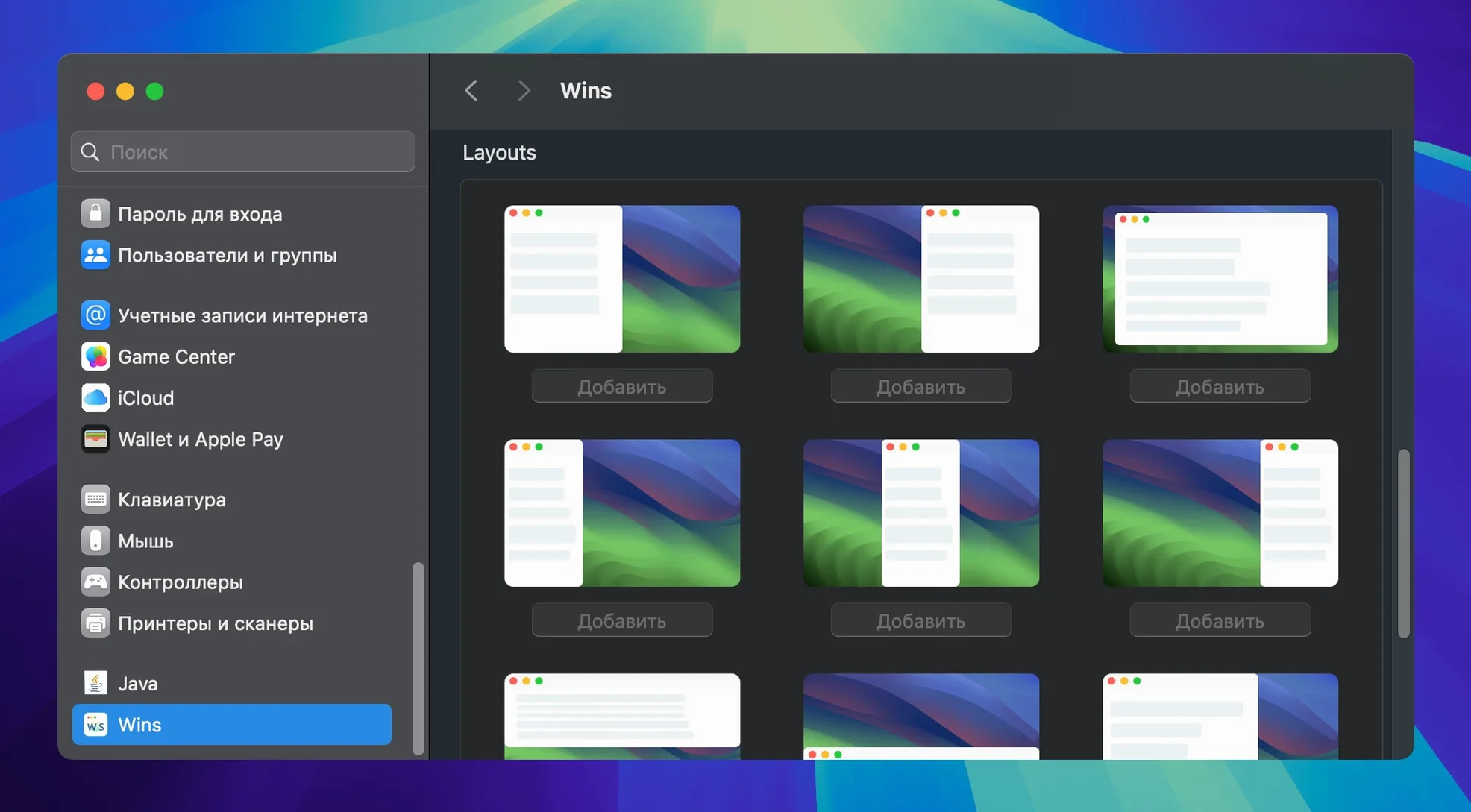
Wins drops its controls into System Settings, not a separate preferences window. Open System Settings and scroll down to find the Wins pane. A few toggles I'd flip right after installing:
- Launch at login — Turn it on. A window manager only earns its keep if it’s always there.
- Snap Island — Enabled by default, but you can adjust how quickly it appears. I prefer the “fast” trigger so I barely notice the pause before the zones show up.
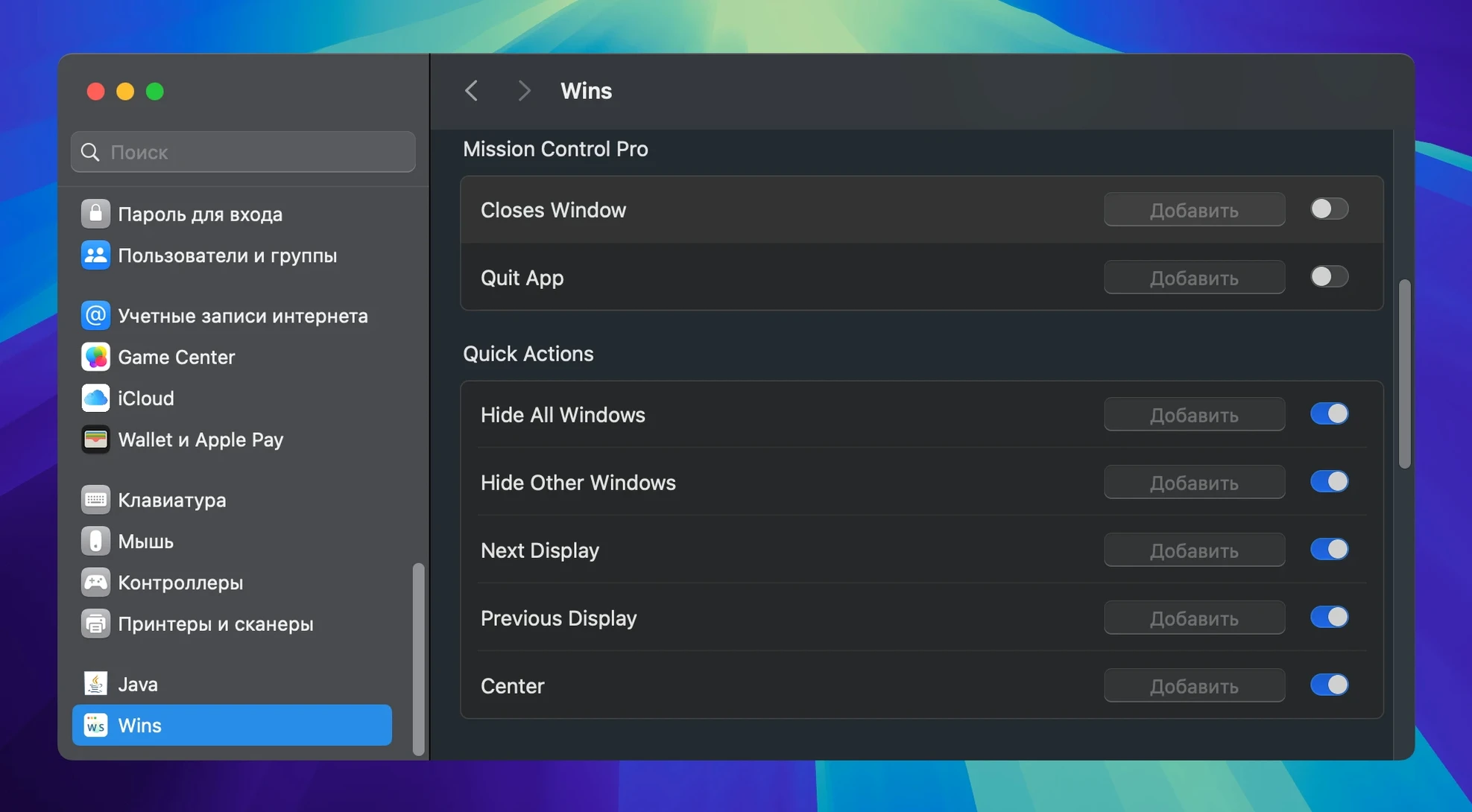
- Mission Control Pro — This is the one that lets you use
⌘+Wand⌘+Qright from Mission Control. Switch it on and closing stray windows becomes a one-handed move. - Shake to hide others — Off by default. If you like a clean workspace, turn it on. Grab a window, give it a quick wiggle, and everything else fades out.
For hotkeys, I map the left-half and right-half splits to ⌃+⌥+← and ⌃+⌥+→. It’s a small reach from the home row and doesn’t collide with anything else I use.
Dragging Safari to the left edge snaps it
Here’s how a morning lands when Wins is running:
- I open Safari, Notes, and a Finder window for a project folder. Three windows scattered across the screen.
- I grab Safari, drag it toward the left edge. Snap Island pops up. I drop it into the left-half zone.
- Notes goes to the right half with the same motion. Now I have reference material on the left, my writing space on the right.
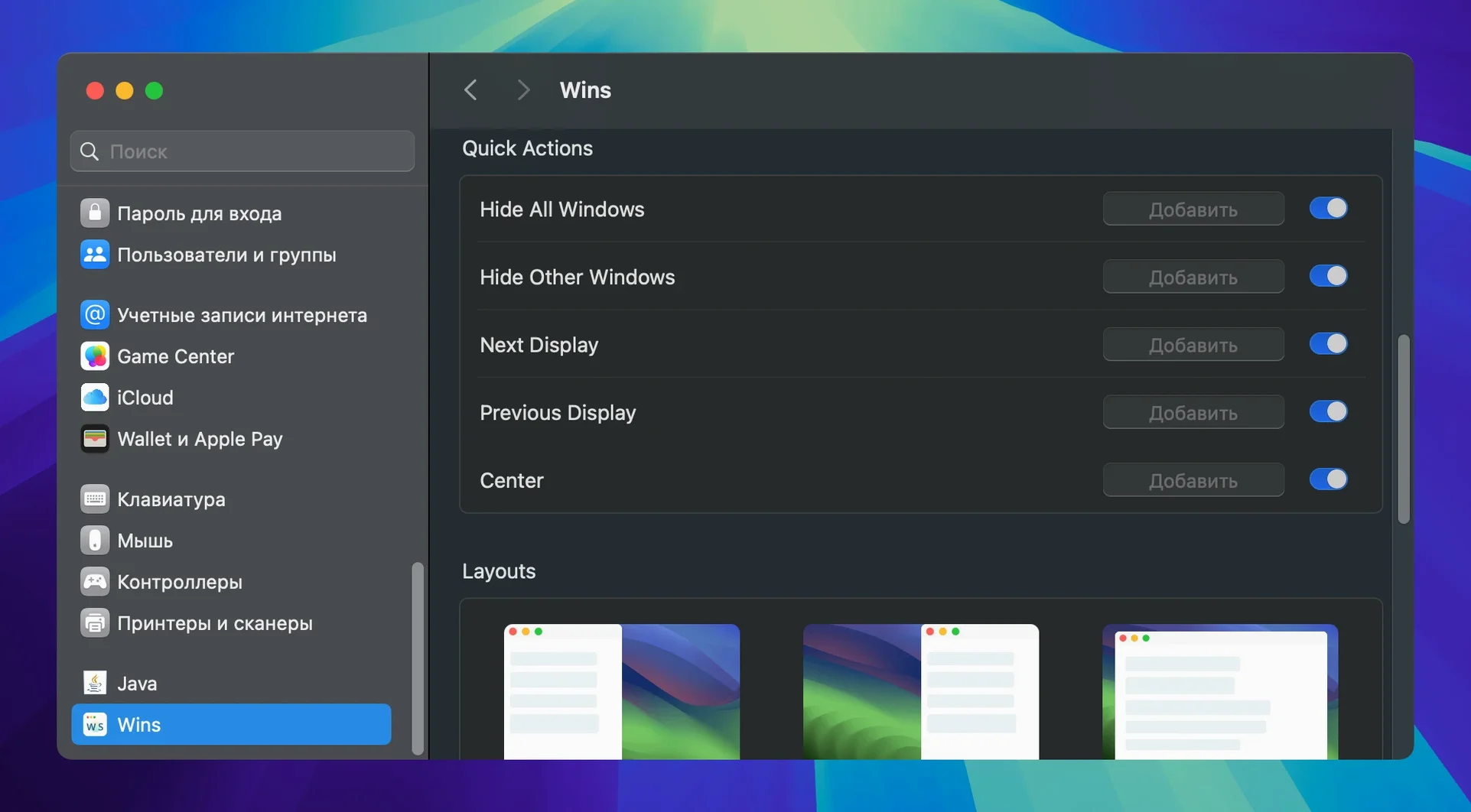
- I need the Finder window only occasionally, so I tap a hotkey to hide all other windows and bring it forward. When I’m done, the same hotkey restores the split layout.
- A notification chimes on my second display. I use Move to display to send Safari over there without touching the mouse.
- Later, I save the whole arrangement as a layout. Tomorrow I’ll restore it with one shortcut instead of rebuilding it.
The rhythm changes from “arrange, then work” to “work, with arrangement happening in the background.”
How Wins fits with other apps and macOS
Wins doesn’t replace Stage Manager or Spaces — it layers on top of them. I keep Stage Manager off because Snap Island gives me faster splits, but if you like Stage Manager’s side stack, the two coexist fine. Wins controls individual window placement; Stage Manager handles app grouping. They pull in the same direction.
With Mission Control Pro, the app extends a built-in macOS feature rather than sidestepping it. You get the same bird’s-eye view of your windows, but now you can close and quit from that view. It’s a small addition, yet it saves the trip back to each app just to hit ⌘+Q.
The Dock previews tie in nicely too. Hover over a Dock icon and Wins shows a thumbnail of the actual window, not just the app icon. When you have three Safari windows open, seeing which one holds the page you need keeps you from cycling through them blind.
Dock Lock solves a multi-display annoyance that macOS itself hasn’t addressed. If you keep the Dock at the bottom of your main screen, it stays there even when your cursor drifts to a secondary monitor. Small touch, but it removes a flicker of friction that adds up over a day.
Combined with the low resource footprint, Wins slots into a setup with design tools, code editors, or office apps without competing for CPU cycles. It’s the kind of utility you forget is running — until you sit at a Mac without it and wonder why every window feels heavy.
The app runs natively on both Apple Silicon and Intel Macs and uses under 30 MB of memory, so it stays out of the way.
- macOS 12 (Monterey) or newer
- Works natively on both Apple Silicon and Intel Macs
Questions from the stall
Does Wins work on older versions of macOS?
Wins requires macOS 12 or later. It supports both Apple Silicon and 64-bit Intel Macs.
What languages does the app support?
The interface is available in English, German, French, Traditional Chinese, and Simplified Chinese.
How much memory does Wins use?
The developer states memory usage is under 30 MB, so it has a light footprint during typical use.
Notes from other shops 0
Sign in or open a shop account to leave a note.
No notes yet. If you've used this on a shop Mac, tell me how it went.