
A researcher pastes a messy integral into a blank notebook, presses Shift+Enter, and watches the exact symbolic answer appear. That immediate feedback loop between asking a question and getting a precise, typeset result is what makes Mathematica worth opening for the first time. My advice is to ignore the documentation for your first hour and just type in math you already know—arithmetic, an equation from a textbook, a function you faintly remember. The system parses it naturally.
Symbolic and visual playground
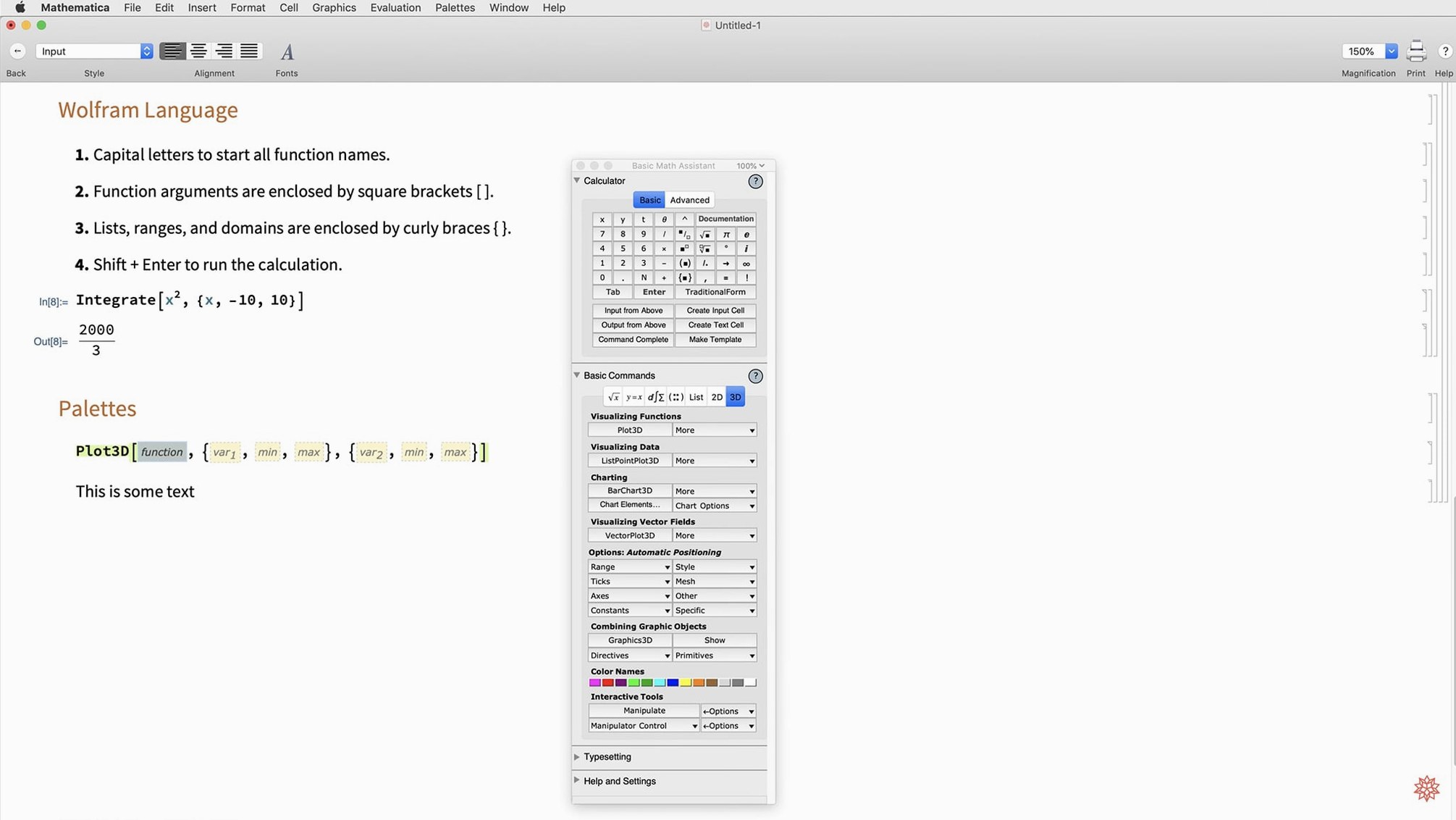
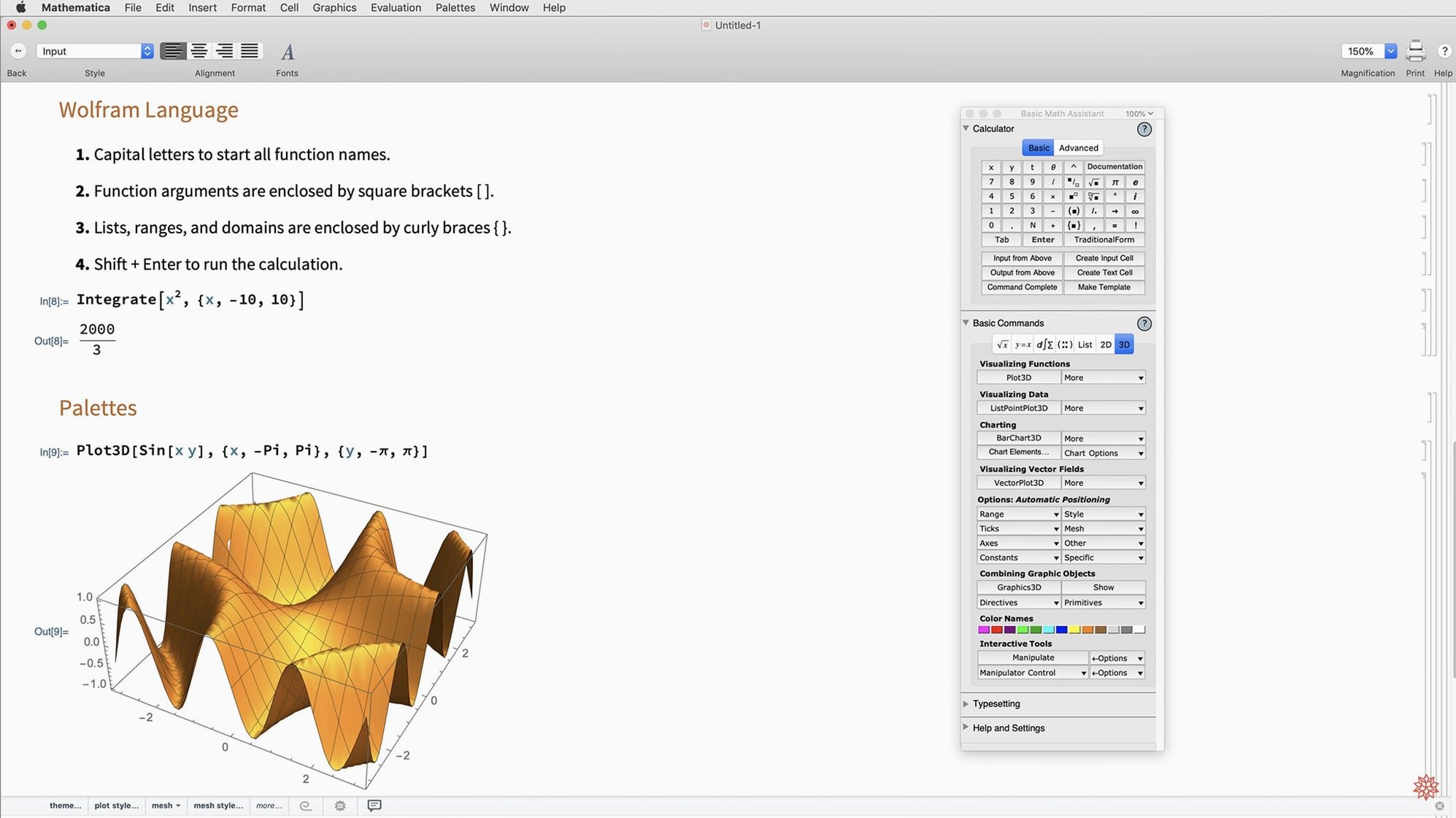
The first things a newcomer should try sit at the intersection of symbolic math and visualization. Type a simple command like Plot3D[Sin[x + Cos[y]], {x, -5, 5}, {y, -5, 5}] and you get an interactive 3D surface you can rotate immediately. Version 14.3's dark mode makes these graphics pop on screen, and the new standard colors keep plots readable whether you work late at night or in a bright office. From there, try replacing Sin with a special function—the newly added Lommel or Hilbert transforms give you a reason to explore deeper mathematics without leaving the notebook.
Real data, real results
Once you have a feel for the syntax, pull in some actual data. Mathematica can import spreadsheets, connect to APIs, or grab curated datasets from the Wolfram cloud right inside a browser. Slice it, fit it with ListFitPlot, and export the result as Markdown for a report. The desktop app runs natively on Apple Silicon and Intel Macs, so even heavy matrix decompositions complete quickly on modern hardware. The goal for a newcomer isn't mastery—it's discovering that your own questions, from linear algebra to geodesic distances, can be answered in a single line of code.
If you spend your first week only using the File menu to open and save notebooks, you’re working harder than you need to. A few tiny habits will cut the friction between having a question and seeing a result.
Collapse cell groups with a right-edge bracket click
Double-click a bracket on the right edge of a notebook to collapse a whole cell group—handy when a long computation is hogging screen space but you still want it nearby. For quick edits, Ctrl+Shift+Up and Ctrl+Shift+Down let you add a new input cell above or below the current one without reaching for the mouse. If you find yourself repeating a long function name, start typing the first few letters and press Cmd+Shift+K to auto-complete from the Wolfram Language vocabulary.
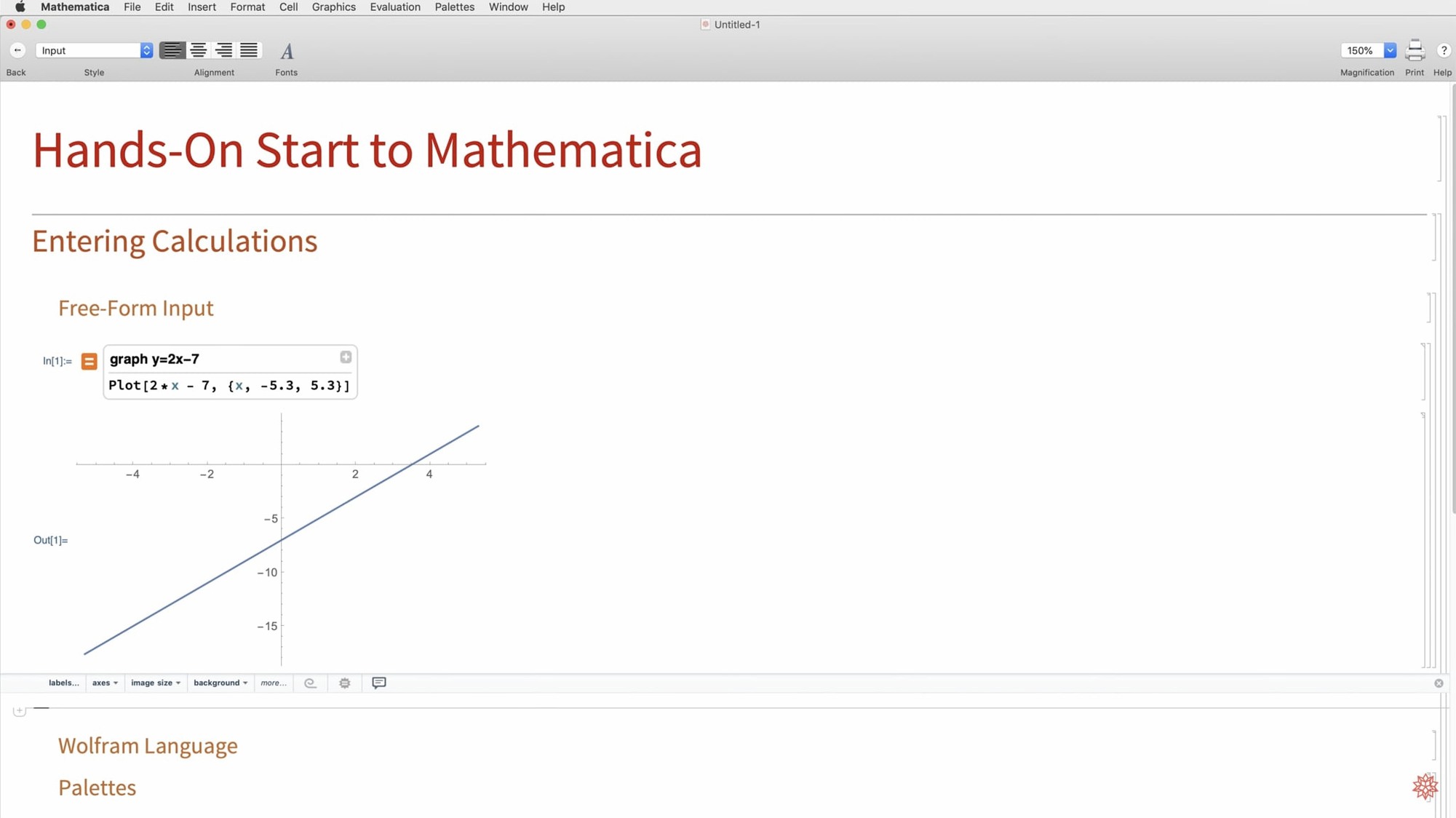
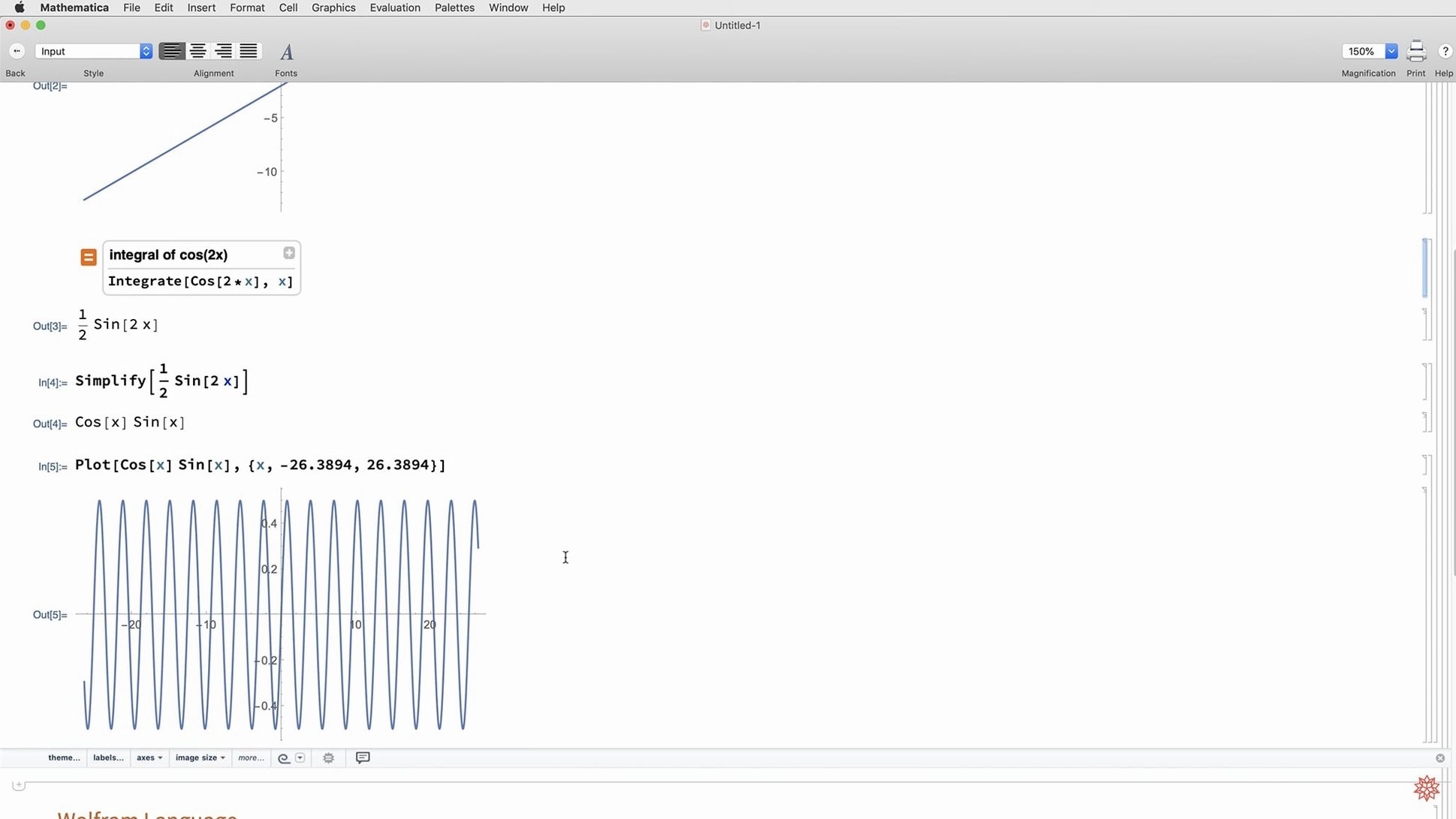
A hidden gem for messy work: type == at the start of a line to get free-form natural language input without opening a separate dialog. Write plot the last result with a logarithmic y axis and Mathematica interprets it. It’s not perfect, but it saves trips to the documentation when you can’t recall the exact option name.
- Press
Cmd+7to toggle a cell into a Wolfram|Alpha-style free-form input cell, then type plain English. - Use
Cmd+,after a function name to insert a template with placeholders for every argument. Great for commands likeListFitPlotthat you’re just learning. - Hold
Optionand drag vertically in any graphic to zoom the plot range interactively, no code needed.
Match dark mode to macOS in Preferences
Open Preferences and head straight to the Interface tab. Turn on Match system appearance if you want version 14.3’s dark mode to follow your macOS setting automatically—otherwise the new light and dark color palettes won’t switch with the rest of your desktop. Next, under Appearance > Formatting, set the default output font size to something slightly larger than the factory setting. Mathematica’s typeset fractions and integrals start dense, and a point or two up makes proofreading far more comfortable.
If you work with external data often, enable Automatically detect file encoding under the Advanced tab. Without it, a CSV exported from some tools may quietly drop accented characters. And if you ever plan to share notebooks with colleagues who use older versions, set the default save format to Compatible notebook in the Save preferences—otherwise they’ll see a wall of “created in a newer version” warnings.
Single equals assigns, double equals tests equality
The most common stumble is forgetting that Mathematica uses single equals for assignment (=) and double equals for equations (==). Mixing them up inside Solve or Reduce gives a quiet, confusing result that looks almost right. Another: pasting raw LaTeX into a cell and wondering why nothing evaluates. Use ToExpression["\\sin(x)", TeXForm] instead, or better yet, let the free-form input handle the conversion.
Beginners also tend to ignore the Clear function entirely. When a variable name sticks around from an earlier cell, it can poison a later calculation with old values. Get in the habit of starting a fresh notebook section with Clear["Global`*"] or at least Clear[x, y] before reusing common variable names. It’s an extra line that prevents the kind of head-scratching bug where the math is correct but the answer is wrong because x still equals 7 from three cells up.
Wolfram Mathematica 15.0 is out with fixes and improvements detailed by the developer — check the official release notes for the full list.
- macOS 12 or later
- Works on both Apple Silicon and Intel 64‑bit Macs
Questions from the stall
Does Mathematica work on newer Macs with Apple Silicon?
Yes, the current version runs natively on both Apple Silicon and Intel 64-bit Macs, with full support for macOS 12 and later.
Can I access my work outside the desktop app?
Definitely. Wolfram supports cloud access through a web browser, so you can work on notebooks and deploy results from anywhere you have an internet connection.
Notes from other shops 0
Sign in or open a shop account to leave a note.
No notes yet. If you've used this on a shop Mac, tell me how it went.