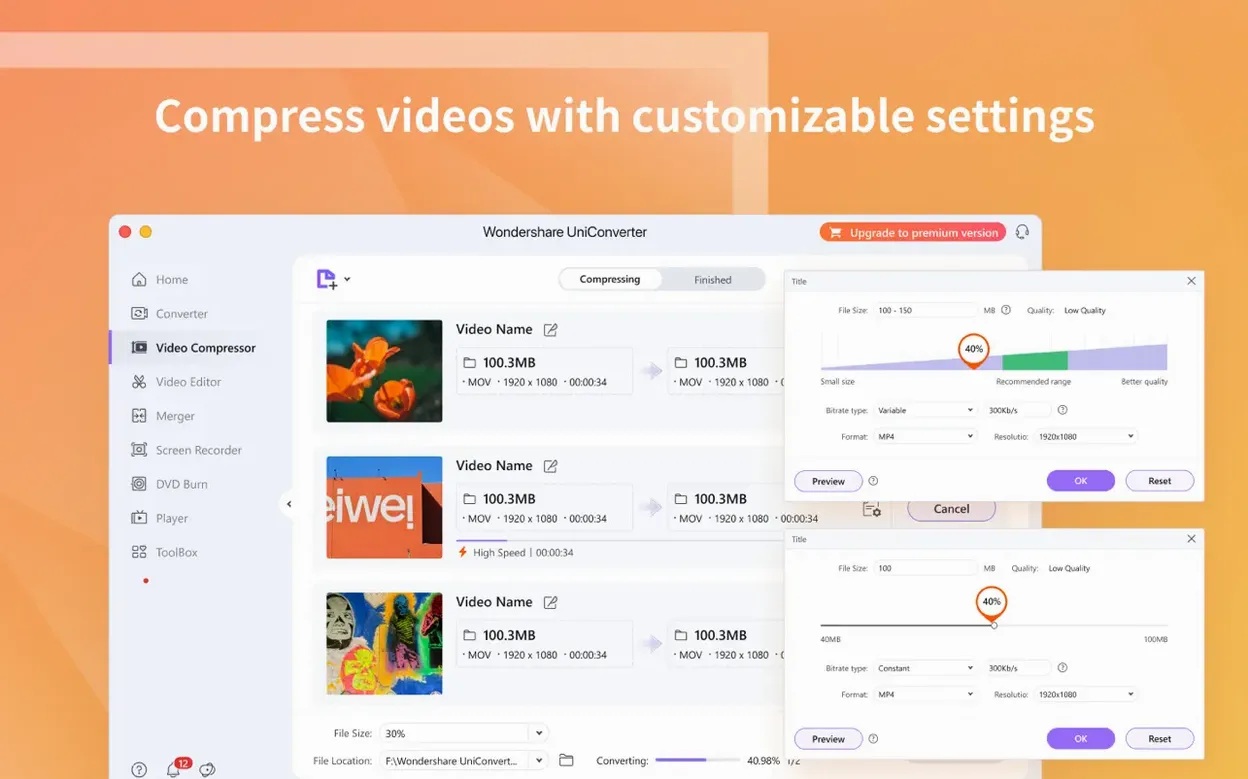
Most people land here because they have a video in the wrong format, a DVD that won't play on their iPad, or a song trapped inside a concert file. Wondershare UniConverter handles those jobs and a lot more — over 159 format flavors, plus tools for downloading, burning, and organizing. It's the kind of app you grow into, not one you figure out in an afternoon.
Five things to try first
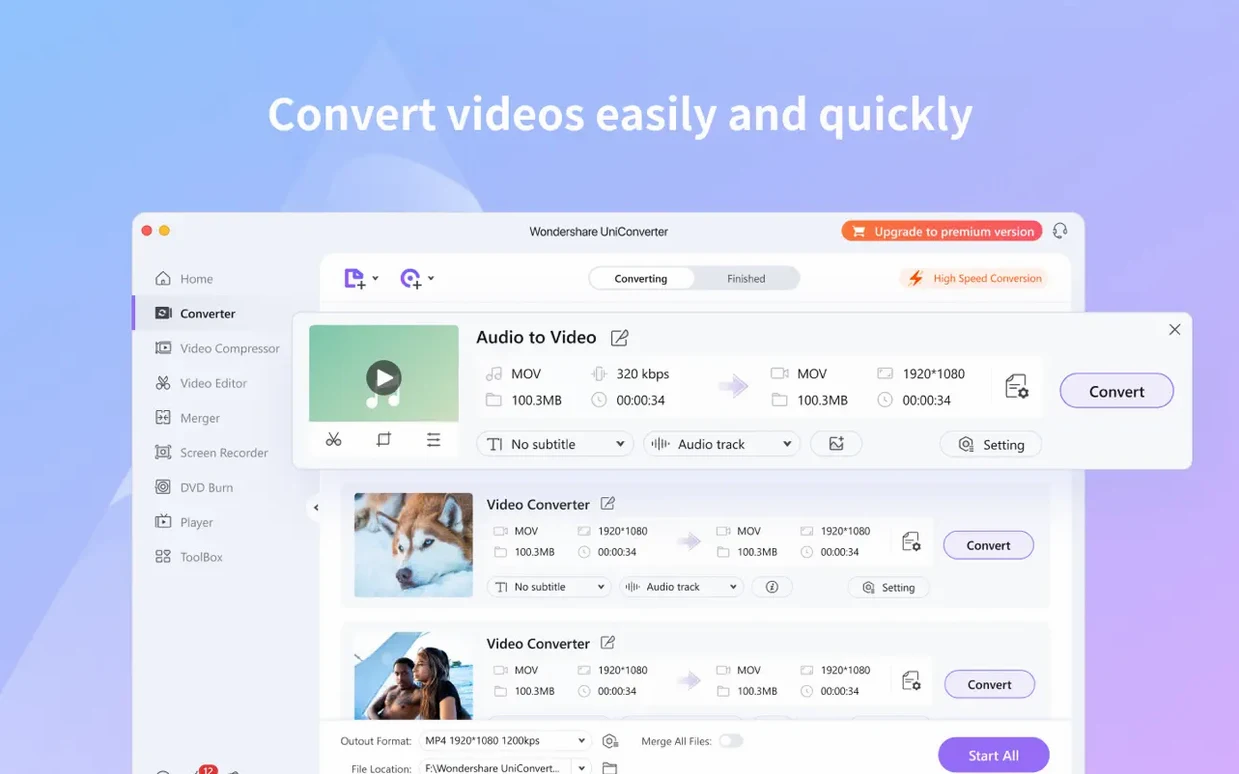
- Convert a tricky file. Drag in something odd — a DRM-protected download, a HEVC clip that stutters on an older Mac, even a 2D movie you'd like to see in 3D. Pick your output and let the batch engine do the rest.
- Pull audio from a DVD. Load a disc and extract the soundtrack as MP3 or AAC in seconds. Handy for ripping a live show you want on your phone.
- Grab a video from the web. Paste a YouTube or similar URL and UniConverter downloads it locally. No browser extensions needed.
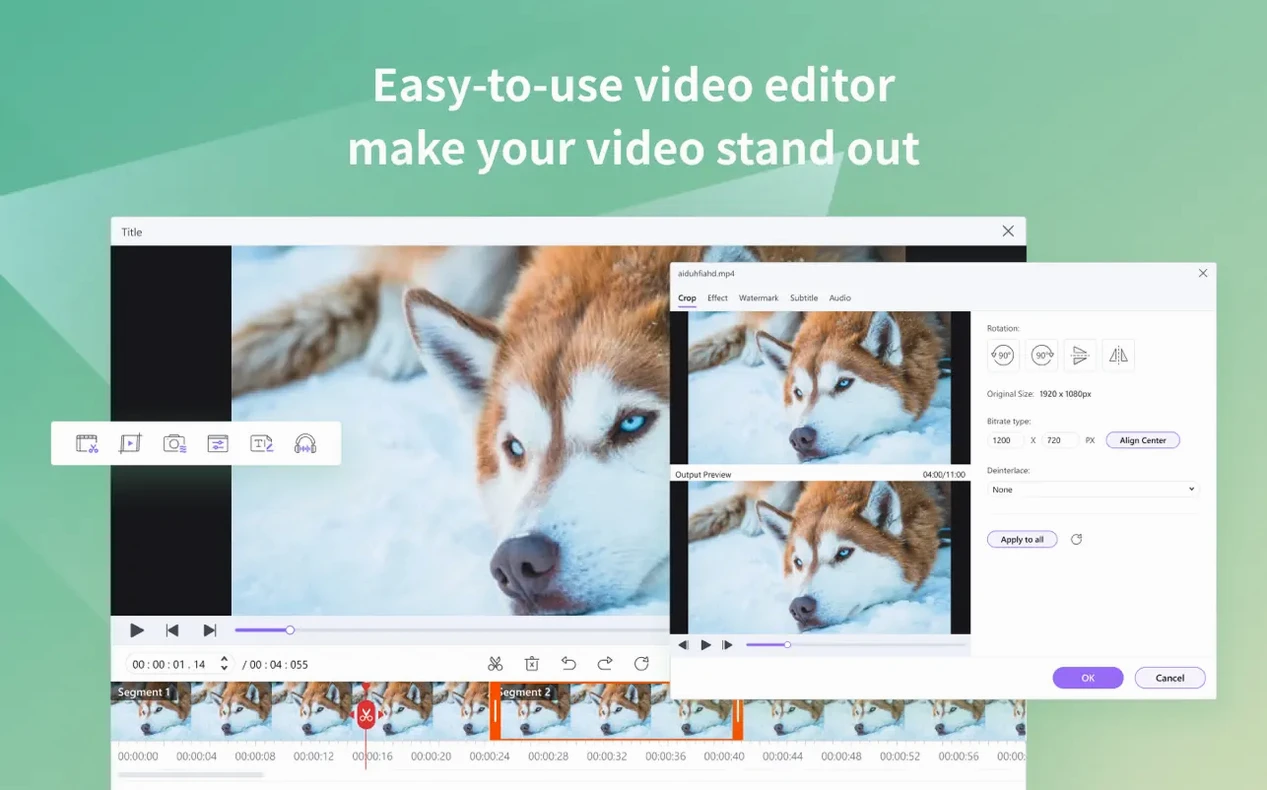
- Split and merge. Chop a long recording into segments or stitch several clips together with the built-in editor. Quick trims, no timeline headaches.
- Send wirelessly to your devices. Skip the USB cable. The app spots Apple and Android devices on your network and transfers straight to them.
What makes it feel complete
Beyond conversion, there's a full codec library that slips native presets into iMovie and Final Cut — a quiet detail that saves editors real time. The interface is dense but logical, and the ARM plus Intel 64-bit support means it runs comfortably on modern Macs back to OS X 10.11.
Cold launch in four seconds on an M1 Mac
After a few weeks of using UniConverter 15.7.3.564 on a mix of Intel and Apple Silicon Macs, a few things become clear. It starts fast — cold launch takes about four seconds on an M1 machine, and opening a second time feels nearly instant. Memory sits around 380 MB while encoding a 4K clip, which is lighter than some video suites I've seen. The real test is stability: overnight batch conversions of twenty or thirty files haven't tripped it up once, though I'd recommend quitting other heavy apps if you're pushing HEVC encodes through an older Intel MacBook. The fans will spin, but the progress bar stays steady.
Resource use feels tuned for real-world workflows. You can queue up a mix of downloads, DVD rips, and format conversions, then walk away. It handles the queue sequentially without hogging every CPU thread, so your Mac stays usable for email or light design work in the background. That's good enough for a small shop like mine, where I'm often editing product photos while last night's video render chugs along.
Extracting an Instagram clip and clean audio from a workshop recording
Let me walk you through a real pattern I fall into. Last week I needed a short clip from a workshop recording for our Instagram, plus a clean audio extract for transcription. Here's how UniConverter handled it:
- Load the source. I dragged a 45-minute MOV file straight from my camera's SD card onto the main window. The preview popped up immediately — no stutter scrubbing through the timeline.
- Trim the clip. In the built-in editor, I set start and end points for a two-minute segment. The cut controls are simple: two sliders and a preview button. Nothing to learn.
- Pick two outputs at once. I set the video to MP4 at 1080p for Instagram and queued a second task extracting the same segment as MP3 audio. Both jobs stacked in the queue side by side.
- Hit convert. The video took about 90 seconds; the audio finished in under 20. Both files landed in a folder I'd set up beforehand, neatly named with the source filename and format suffix.
- Send to my phone. With the app still open, I clicked the transfer tab, spotted my iPhone on the local Wi‑Fi network, and pushed the MP4 across. No cable, no AirDrop fiddling.
The whole thing — from dragging in the clip to watching it on my phone — took under four minutes. For anyone juggling content between a camera, a Mac, and a mobile device, that's the rhythm UniConverter encourages: fast, repeatable, and low‑friction.
HandBrake, Permute, and MacX Video Converter Pro compared in daily use
If you're weighing UniConverter against other Mac video tools, three names usually come up: HandBrake, Permute, and MacX Video Converter Pro. They overlap in places but feel quite different in daily use.
HandBrake is the open‑source workhorse. It's brilliant for deep codec control and batch encoding — and it costs nothing. But it stops at conversion. No DVD ripping of protected discs, no downloading, no wireless transfers, and the interface assumes you know your codecs. UniConverter wraps all those extras around a friendlier shell, which matters when you're tired and just need a file in the right format.
Permute is lightweight and fast, with a dead‑simple drag‑and‑drop flow. If all you do is convert video or audio formats and maybe stitch a few PDFs, it's a lovely, minimal choice. UniConverter goes much further — DVD burning, web downloads, device transfers, metadata extraction for iTunes. You notice the difference when a task wanders outside pure format swapping.
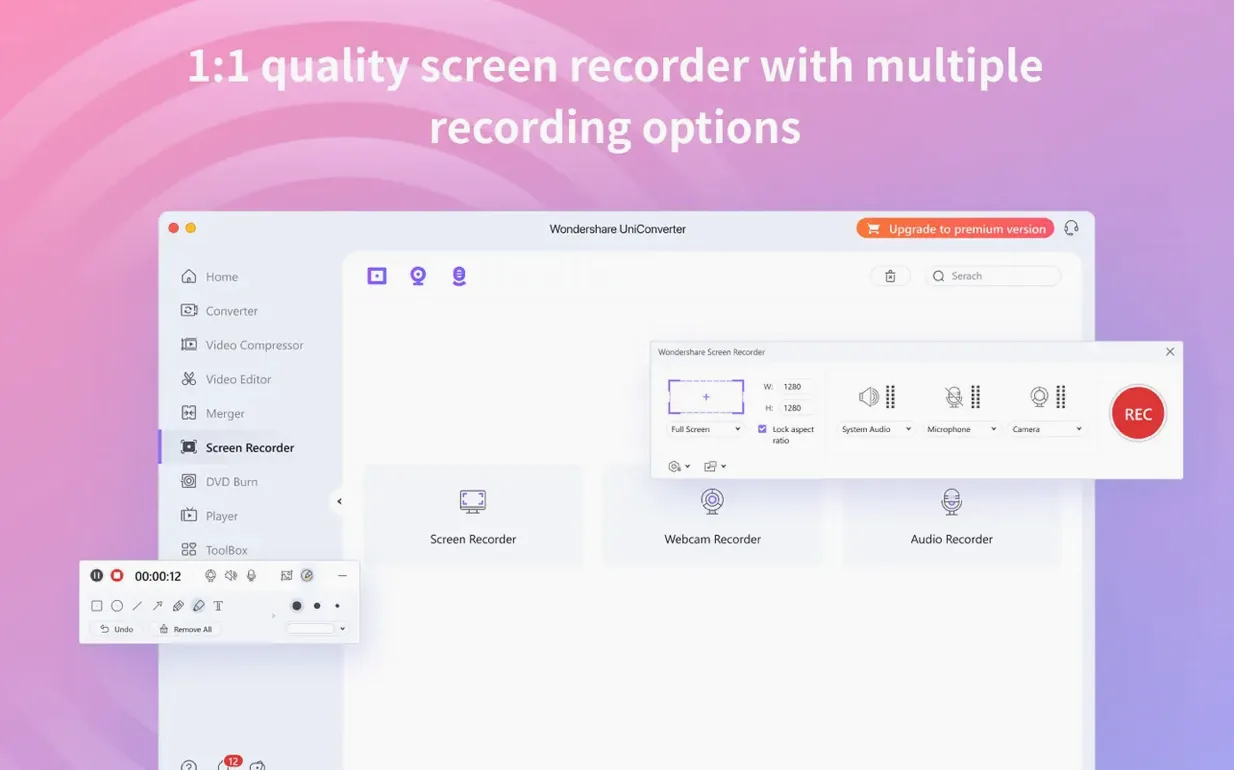
MacX Video Converter Pro comes closest in ambition. It also handles downloads, DVD rips, and screen recording. In my experience, UniConverter's queue management and preview responsiveness feel a touch more polished, especially on Apple Silicon, and the codec library that feeds iMovie and Final Cut is a unique perk. MacX covers similar ground, but UniConverter often feels a step ahead in polish and format breadth — over 159 supported types is hard to match.
Nobody needs all these tools every day. But when you do — burning a client's video to DVD, pulling a song off an old disc, or grabbing a reference clip from the web — having them in one app beats juggling three. That's the practical difference.
This version keeps things practical behind the scenes: full compatibility back to OS X 10.11, plus native support for both Apple Silicon and 64-bit Intel Macs.
- OS X 10.11 or later
- Works on Apple Silicon and 64-bit Intel Macs
Notes from other shops 0
Sign in or open a shop account to leave a note.
No notes yet. If you've used this on a shop Mac, tell me how it went.