
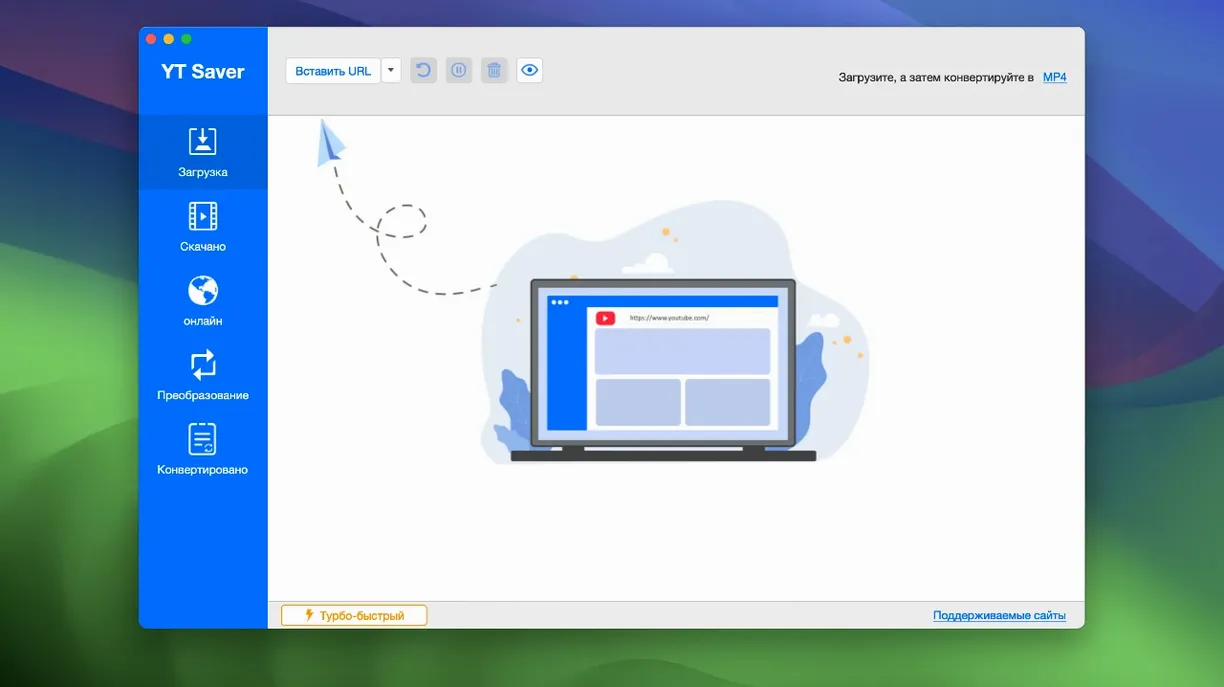
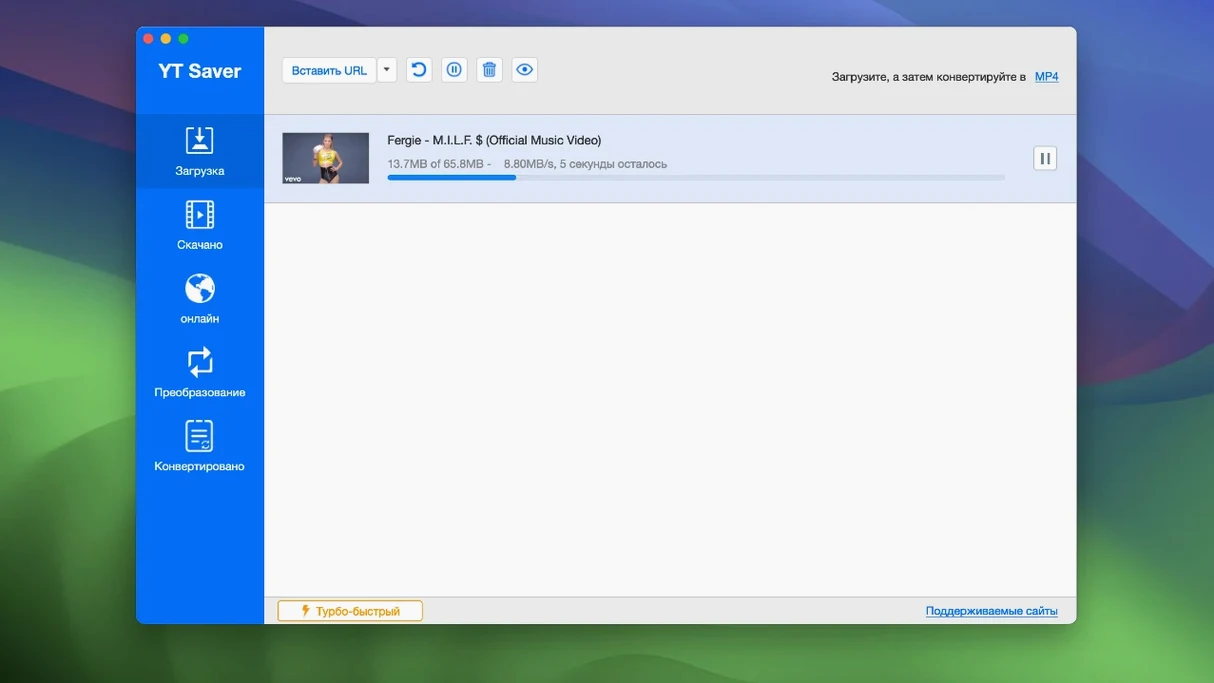
Right-clicking a link in its built-in browser bypasses the whole copy-and-paste routine. That little quality-of-life detail sets the tone for how YT Saver handles fetching media from the web. It’s not just a link parser; it’s a full download workspace that supports grabbing video, audio, and entire playlists from more than 10,000 websites.
How does the built-in browser change the workflow?
You browse directly inside the app, and any downloadable media queues up without you juggling browser tabs. It’s a cleaner path from finding a clip to hitting download, especially when you’re pulling multiple items from a playlist.
What format flexibility does it really offer?
Input is wide open—it reads everything from MP4 and MKV to FLV, WMV, and TS. On the export side, you can convert and save as MP4, MOV, AVI, HEVC MP4, or device-ready presets for iPhone, iPad, and Android phones or tablets.
Does it handle audio differently than video?
Yes, you can extract and save just the sound in formats like M4A, FLAC, AAC, OGG, WAV, and even M4R ringtones. It reads audio-specific containers such as MKA and OPUS, so you aren’t stuck converting from a video file first.
When downloads stall at zero percent
Most hiccups with YT Saver come down to three things: the site you’re grabbing from, the format you’re asking for, and how macOS handles unsigned apps.
Download sits at zero percent. This usually means the built-in browser needs a refresh. Click the small refresh icon or close and reopen the in-app browser tab. If it still hangs, try copying the link from your regular browser and pasting it into YT Saver’s address bar instead — sometimes a site’s session token gets stale inside the embedded view.
“Can’t parse this link” on a site you know should work. Some platforms rotate their media delivery patterns frequently. When that happens, switch the user-agent in the built-in browser (look under the app’s Preferences). Picking a mobile user-agent often gets around the detection scripts that block desktop-style requests.
Private mode folder won’t unlock. The password for the private folder is set the first time you enable it under YT Saver > Preferences > Private Mode. If you’ve forgotten it, there isn’t a built-in reset — you’ll need to disable private mode, which will not delete already-downloaded files, then re-enable it with a new password. Your existing downloads stay put in the regular output folder.
Audio export comes out silent or garbled. Check that you’ve selected an actual audio format (like M4A or AAC) and not a video-only preset. Also, a few sites serve audio and video as separate streams; if the app grabs only the video stream, switch the download quality to a lower-resolution option that bundles both tracks together, then convert to audio-only afterward.
Pulling clips you can actually edit with
YT Saver clicks hardest for people who treat media as material, not just something to watch once. I’m thinking of small-shop owners who pull product demo clips and need them in a format their editing software actually likes, or language tutors who save short videos for offline classroom playback on an older projector that only accepts MP4.
Playlist hoarders fit here too. If you follow a tutorial series or a conference playlist and want it all locally for a long flight, the multi-video queuing saves you from babysitting each link. The device presets — iPhone, iPad, Android tablet — mean you don’t need to guess at resolution or codec compatibility later.
Musicians and sound designers tend to lean on the audio extraction side. Pulling a live performance off a streaming site and saving it straight to FLAC or WAV skips the step of downloading a giant video file just to strip the sound in another app. The M4R ringtone output is a niche touch, but if you’ve ever wanted a custom alert from a song snippet, it’s surprisingly handy.
Grabbing a whole workshop series as MP4s
Say you’ve found a four-part workshop series on a video platform and you want all episodes as MP4 files you can trim later in QuickTime or iMovie.
- Open YT Saver and paste the playlist URL into the built-in browser’s address bar. Let the page load fully — the app needs to see the full playlist index, not just the first video.
- Once the list appears, YT Saver will detect the individual clips and offer to queue them. Tick the ones you want (or hit Select All if you’re taking the whole series).
- In the format dropdown, choose MP4 and pick a quality that balances size and clarity — 720p is usually the sweet spot for editing without choking a modest Mac.
- Set your output folder. If these are for a client project, I’d point it to a dedicated project folder rather than the default Downloads stack.
- Start the queue and let it run. With simultaneous downloads enabled, all four videos will pull at once instead of lining up single-file. You can keep working in other apps; YT Saver stays out of the way.
- When the queue finishes, open the folder. Rename the files sensibly — “workshop-pt1.mp4” and so on — and you’re ready to drag them into your editor.
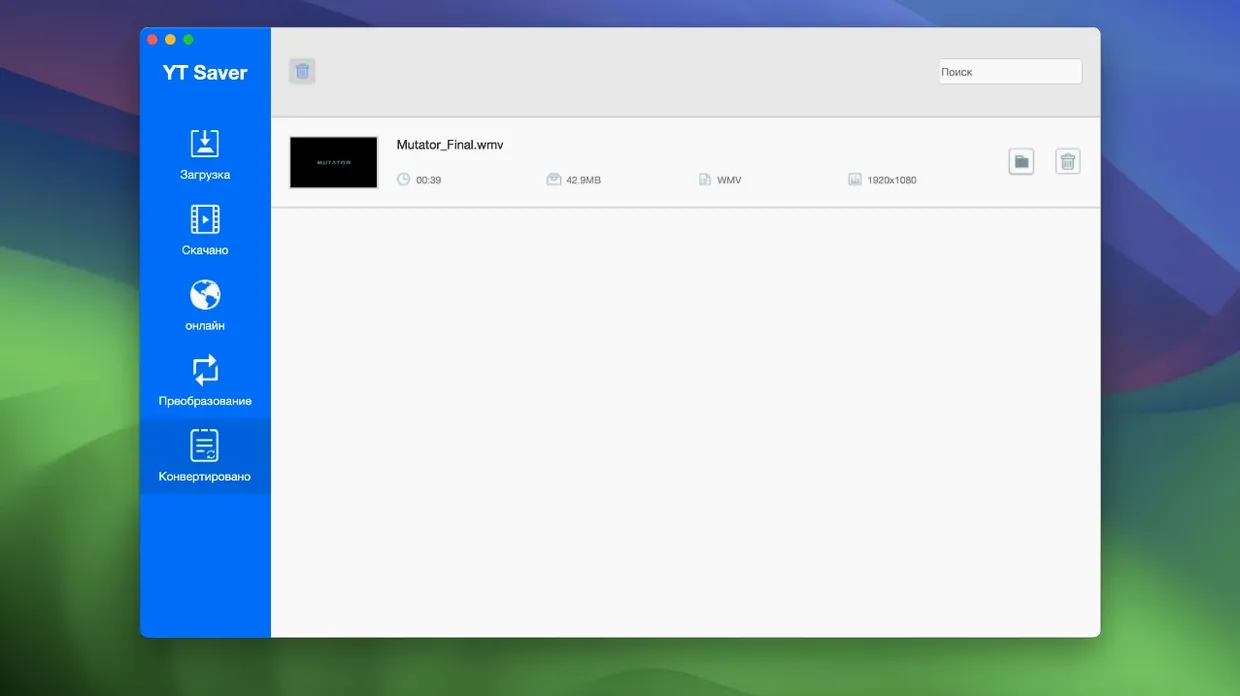
If you later decide you only need the audio from part three, drop that MP4 back into YT Saver’s converter, set the output to M4A, and run it again. No need to re-download anything.
- macOS 10.10 or later
- Intel 64-bit processor
Questions from the stall
Which Mac systems can run YT Saver?
It works on Intel-based Macs running OS X 10.10 or later, and the interface is translated into twelve languages including English, Spanish, French, German, Japanese, and Korean.
Notes from other shops 0
Sign in or open a shop account to leave a note.
No notes yet. If you've used this on a shop Mac, tell me how it went.