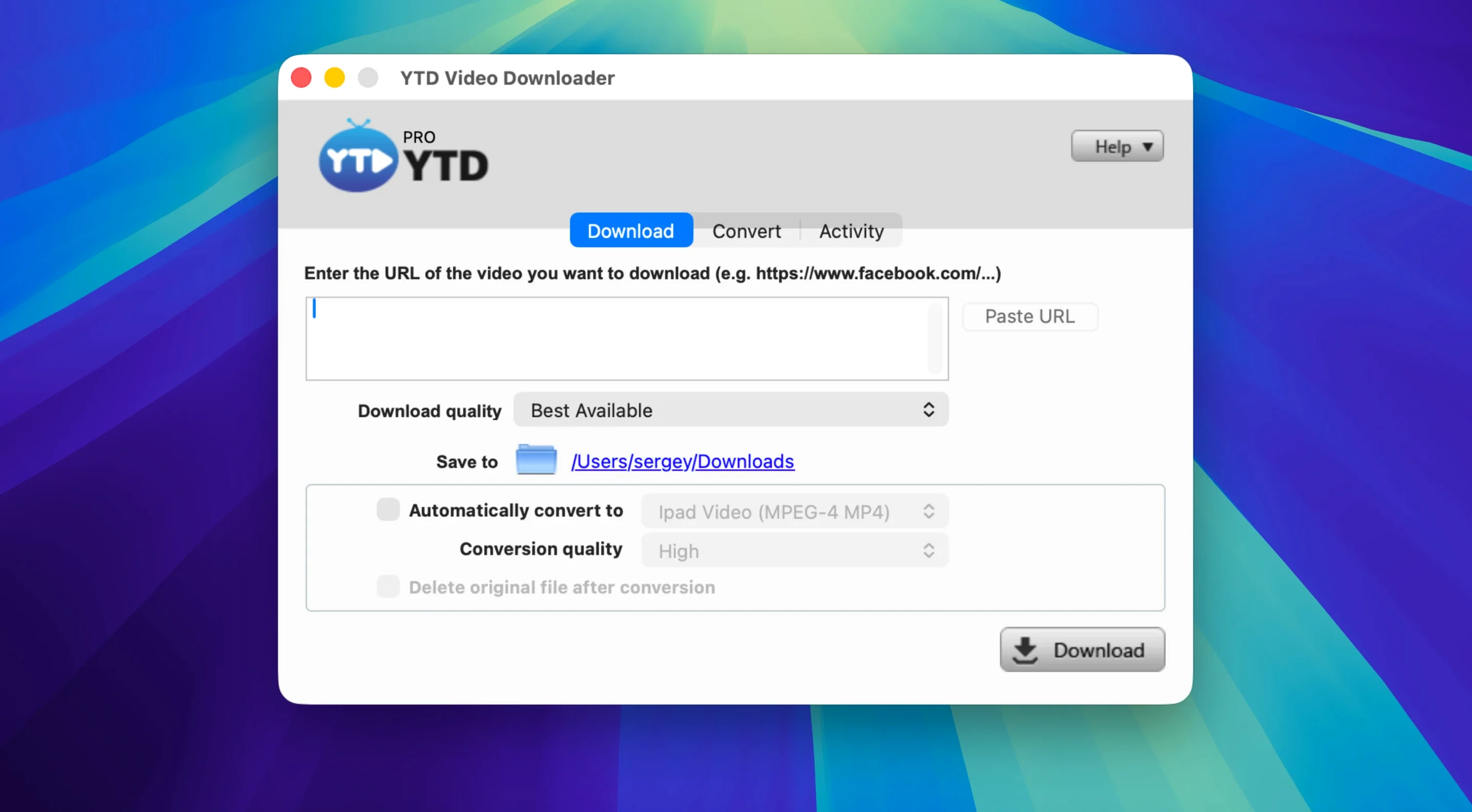
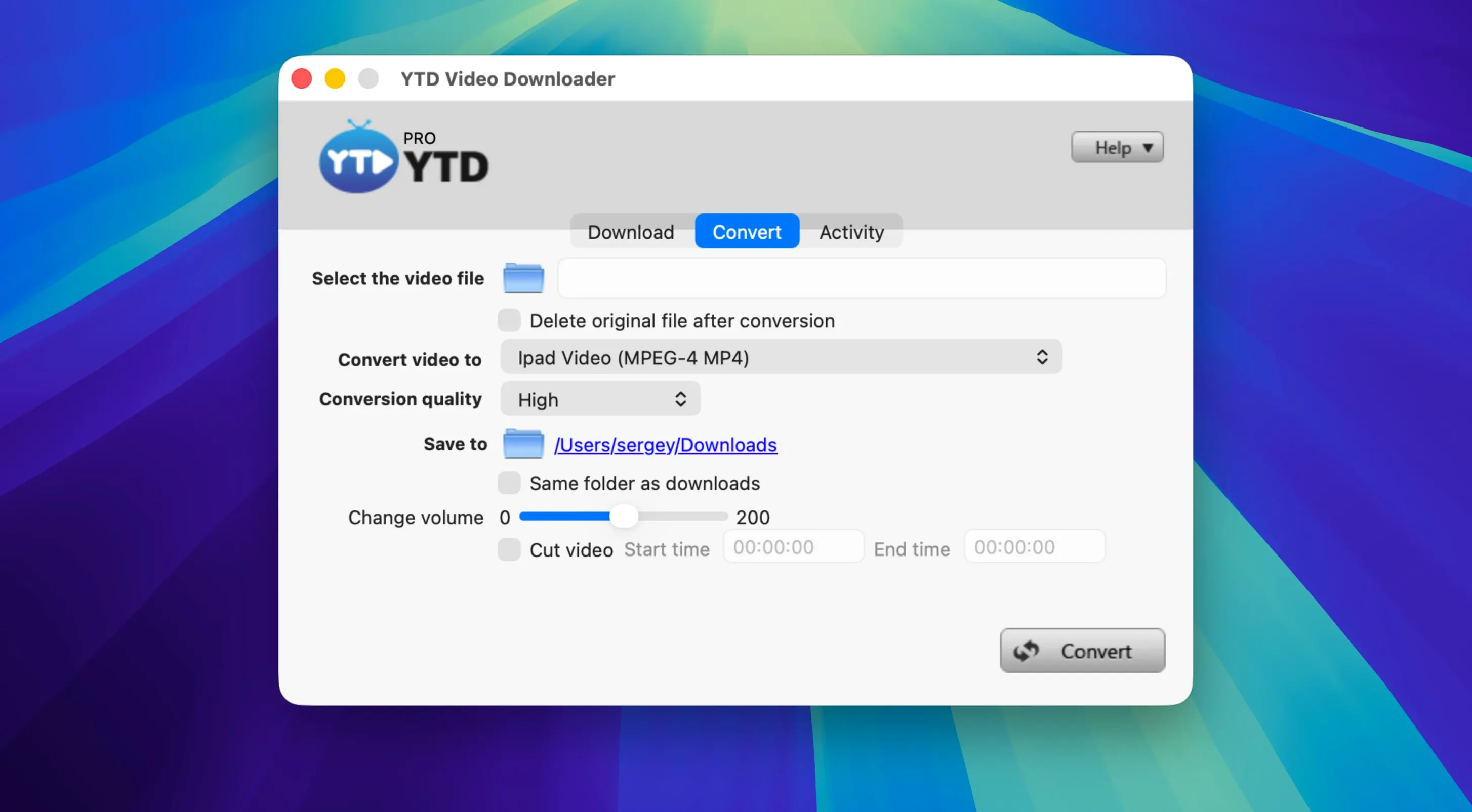
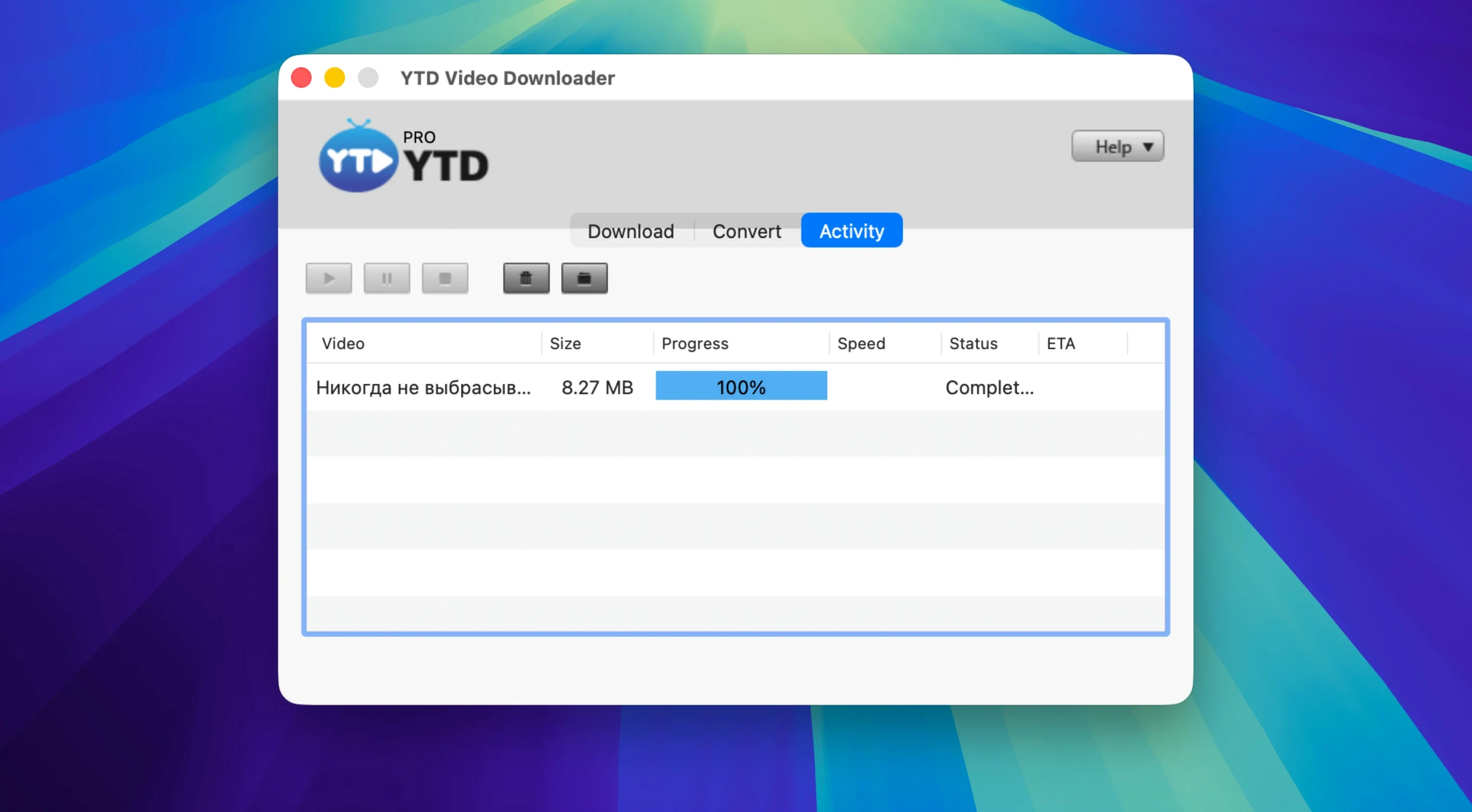
YTD Video Downloader PRO is built for people who want to keep a copy of a tutorial series, a music playlist, or a clip they need offline. If you just installed it, here’s the quickest way to get something useful done.
- Grab a playlist in one go. Copy a playlist link from your browser. YTD detects it from the clipboard automatically, so you don’t have to paste anything. It pulls every video in the list and queues them up as a batch. Good for catching up on a course or saving a full album without clicking each track.
- Convert to the format you actually need. Once the download finishes, use the built-in converter. You can turn video into .mp4, .mov, .avi, or just pull the audio as .mp3 or AAC. I’d use the audio-only option for a long talk or a playlist I only plan to listen to — it saves space and skips the extra step of a separate converter.
- Let it handle spotty connections. If your internet drops mid-download, the app retries on its own. You don’t have to restart the queue or keep an eye on it. Start a big playlist, walk away, and come back to finished files.
Everything runs locally on your Mac — no web service in the middle. The interface is plain and all in English, and the workflow is essentially copy, detect, download, convert. For a first session, that’s enough to build a small library of offline videos or audio without reading a manual.
Built for regulars, not one-off downloads
YTD Video Downloader PRO makes the most sense when you have a recurring need for offline video, not just a one-off curiosity. Here’s where it fits well.
- People who learn from video. If you work through tutorials, language lessons, or recorded lectures, saving a playlist beats streaming it repeatedly. You keep the exact pace you want, scrub back and forth without buffering, and never lose access when a video gets taken down or moved.
- Small-shop owners who reuse clips. I wouldn’t rely on downloads as a raw-material pipeline for client work, but for reference footage, mood boards, or competitor research you want to keep locally, this kind of tool is handy. You drag the file where you need it and move on.
- Commuters and frequent travelers. An hour of downloaded video on a train or a plane is an hour that doesn’t depend on wifi. If you regularly queue up a few talks or a documentary before a trip, the batch and playlist support is where the app earns its keep.
- Anyone running an older or secondary Mac. Because it works on machines going back to OS X 10.10 and runs on Intel architecture, it’s a reasonable pick for a hand-me-down laptop that you’ve relegated to the kitchen or workshop. You can still grab a ytd for mac download on that machine and let it chug away without tying up your main computer.
If none of those describe you, the app still works — it just won’t feel like a daily driver.
Turning a lecture playlist into audio-only files
Here’s a start-to-finish job I’d actually run, step by step.
- Find the playlist. Open the lecture series in your browser and copy the playlist URL. Don’t bother switching to YTD yet — the clipboard detection picks it up when you do.
- Review the queue. Switch to YTD. The full list of videos should already be queued. Skim it and remove the intro or recap videos you don’t need. A five-second cleanup here saves conversion time later.
- Set the format before the download. Choose MP3 or AAC as the output. If you’re saving the whole series for listening, this is the moment that matters — audio files are smaller, and you avoid converting twice.
- Start the batch and let it run. Begin the download. If your connection stumbles, the app retries on its own. That’s the feature I’d lean on for a long series; a 20-video playlist on patchy wifi is exactly when manual restarts get tedious.
- Check the folder. When it finishes, open the destination folder and confirm the files are named clearly. If the series is long, prefix the folder with the course name before you import it into your player of choice.
Tip: if you’re converting a video you already have, skip the download step entirely and drop the file straight into the converter.
No download history kept inside the app
Does it keep a record of what I download? No. The app doesn’t log your activity or download history. That’s a detail I appreciate in a downloader — the list lives in your head and your Finder, not in a local database you have to clean out later.
Will it work on my Mac? If you’re on OS X 10.10 or newer with an Intel Mac, yes. The system requirements are modest, which is why it shows up on a lot of secondary machines. The interface is English only, so keep that in mind if you’re helping a non-English speaker set it up.
What if I only want the audio? You can convert video or an entire playlist to MP3 or AAC after downloading. For long talks or music playlists, that’s the route I’d choose. The built-in converter also handles .mp4, .mov, .wmv, .avi, .3gp, and .flv, so you’re not locked into one format.
Does it work with my usual sites? It supports more than 50 platforms, including YouTube, Vimeo, Dailymotion, Youku, Yahoo Video, plus TikTok, Instagram, Facebook, Twitter/X, and LinkedIn. If you mostly pull from one or two of those, you’re covered. Some people search for a ytd torrent or ytd video downloader torrent to get the app itself, but the downloader’s real job is fetching the videos you point it at, not serving as a file-sharing tool.
Is it complicated? Not really. Copy a link, let the app detect it, download, convert. Everything happens locally. If you can drag a file into a folder, you can run this.
- macOS 10.10 or later
- Intel-based Mac
Notes from other shops 0
Sign in or open a shop account to leave a note.
No notes yet. If you've used this on a shop Mac, tell me how it went.