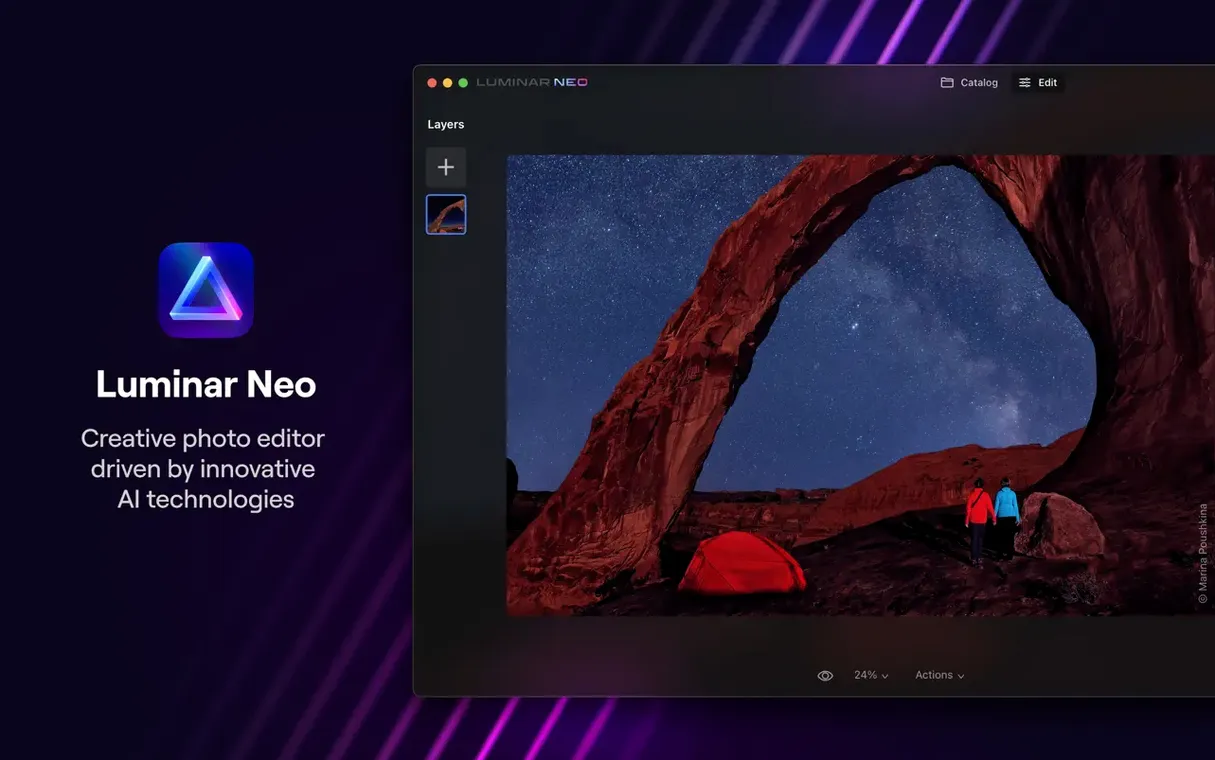
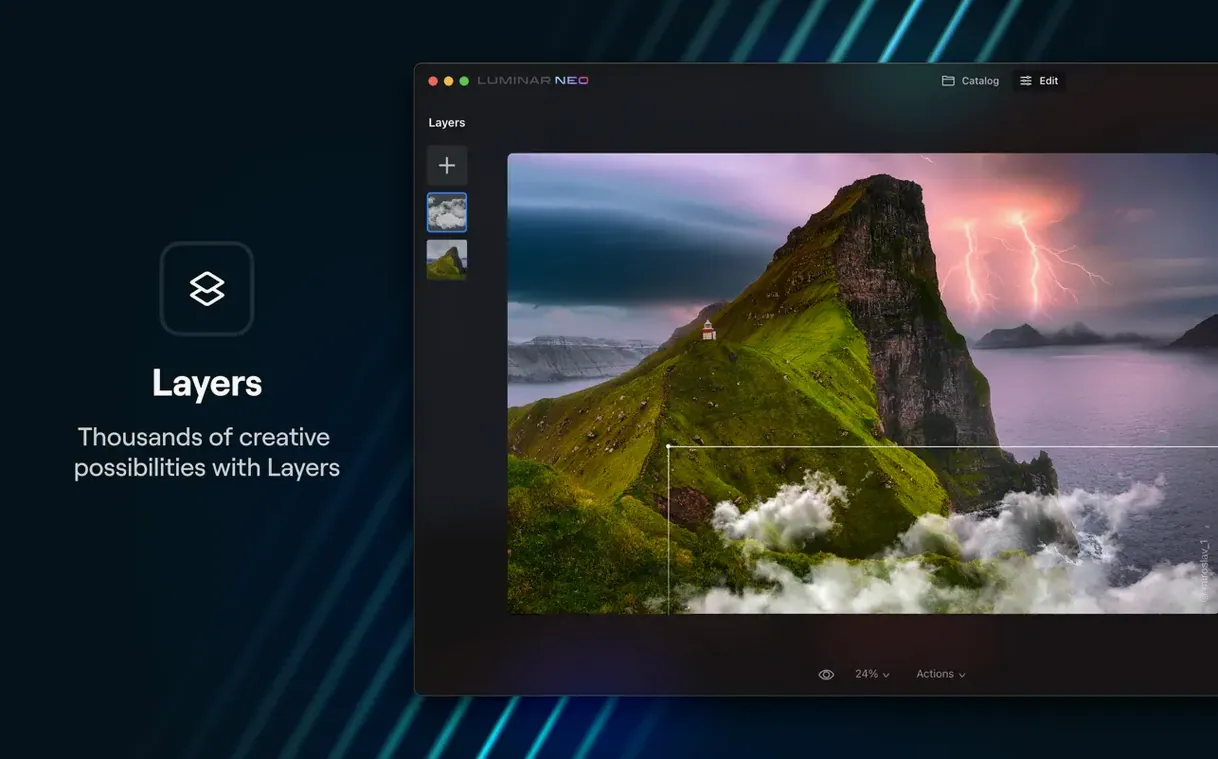
You come back from a shoot with a raw file that is almost right—just a little flat and the background is distracting. Luminar Neo is the kind of tool you reach for to fix those things without spending an hour on masks and layers.
What it is — A creative image editor for macOS that leans heavily on artificial intelligence for its core tasks.
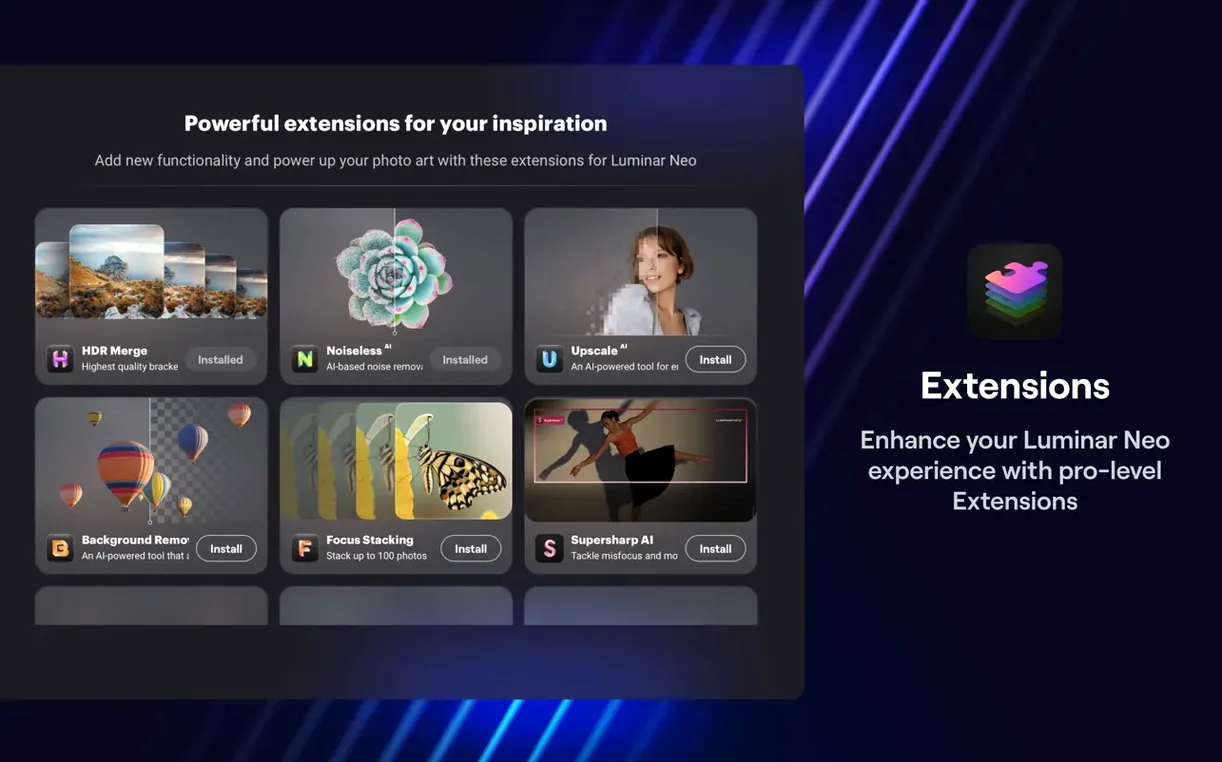
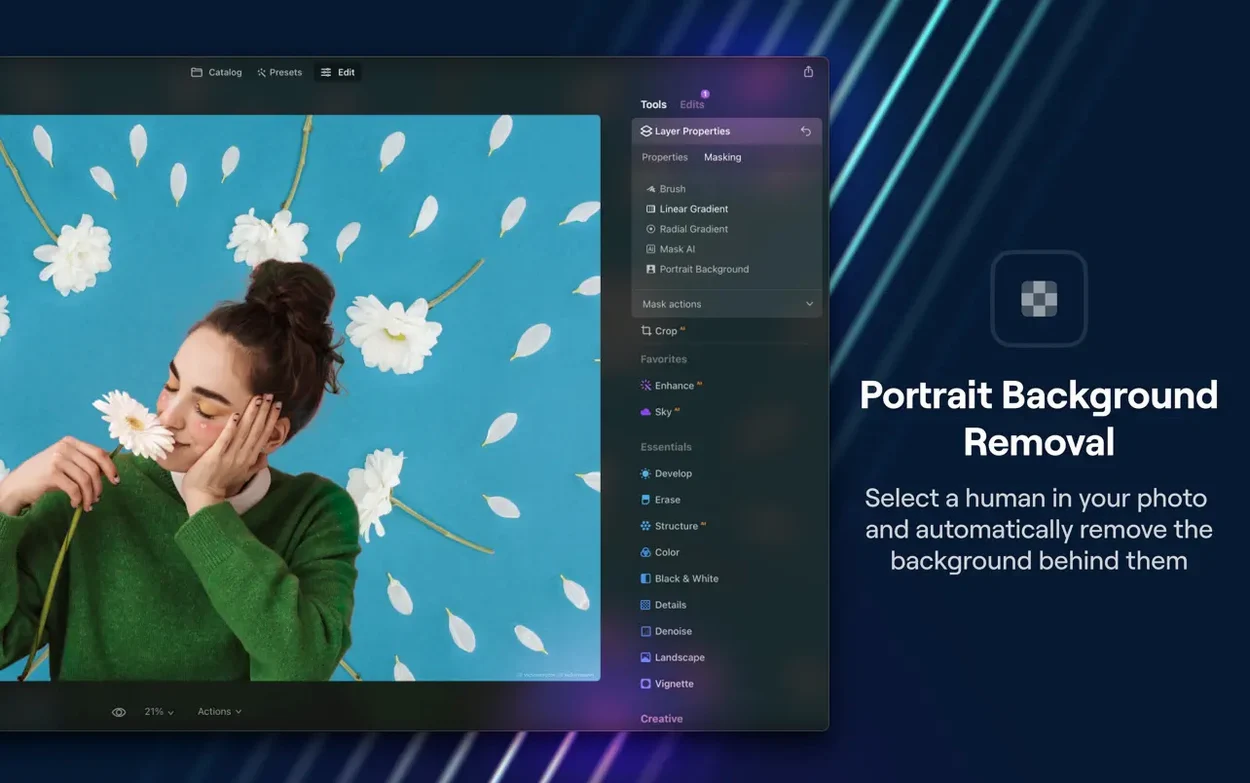
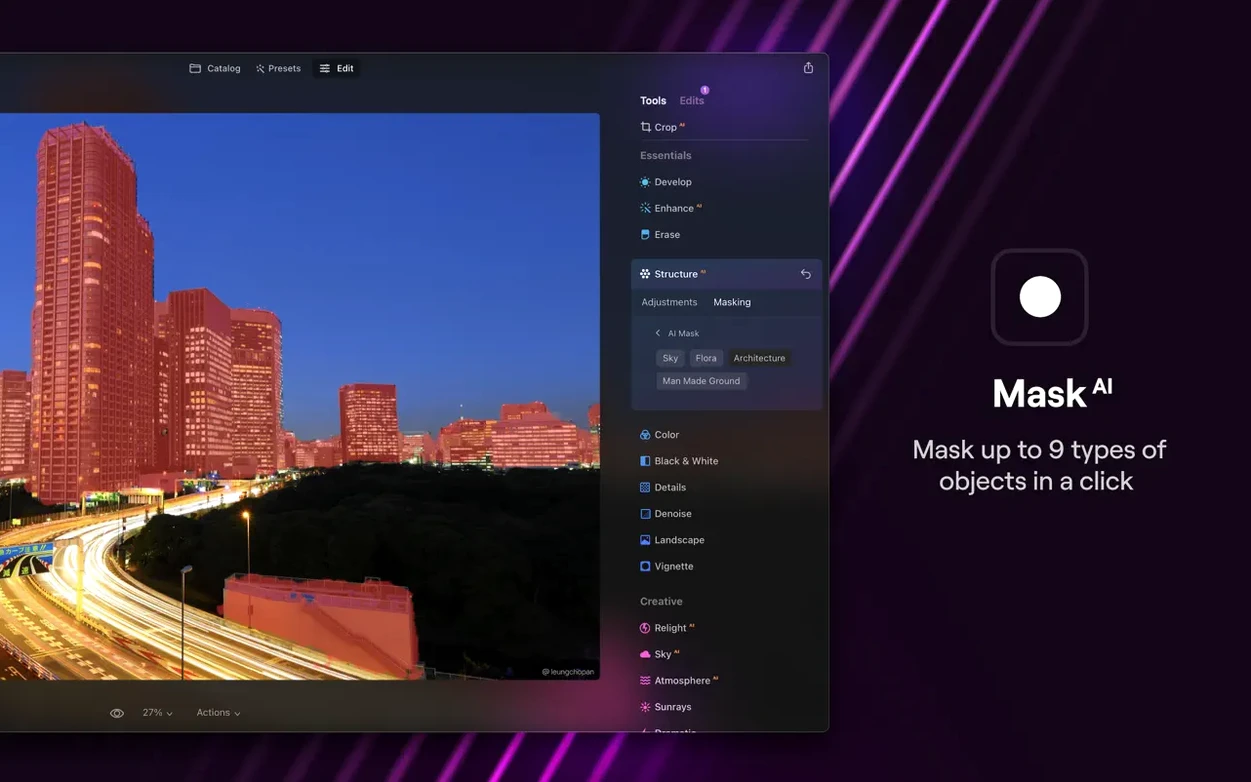
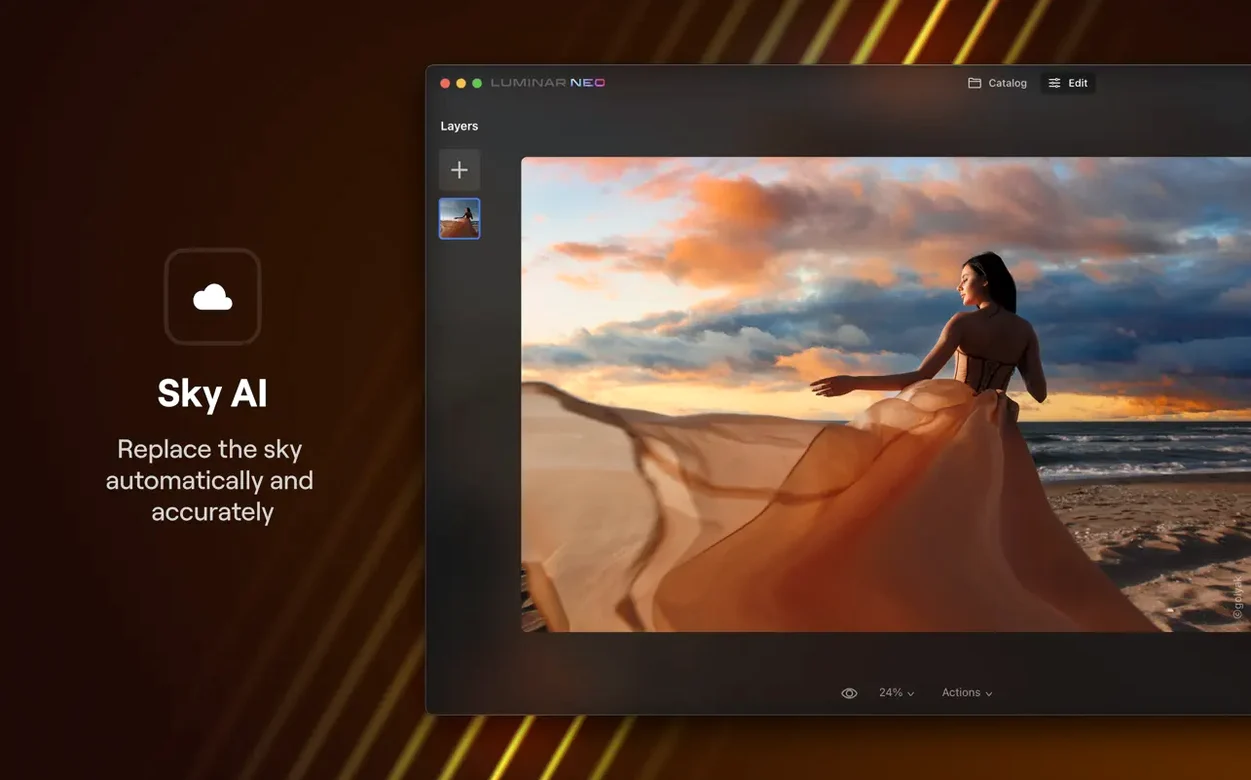
AI-powered editing — Rather than giving you every slider in the world, the app suggests adjustments and handles tricky jobs like relighting a scene or swapping out a background with a few clicks.
Targeted cleanup — It includes practical tools for common annoyances, such as dust spot removal, which is a real time-saver for anyone scanning film or shooting in dusty conditions.
Who it suits — A shop owner making product photos, a portrait photographer who wants faster retouching, or anyone who finds traditional layer-based editors overkill for the results they need.
Warm barn light, dark faces, and a phone-flash rescue
Imagine a wedding photographer who shot a late-afternoon ceremony in a barn. The light was warm but uneven — some faces are in shadow, the background hay bales fight for attention, and a guest’s phone flash left a bright distraction in the corner of an otherwise lovely group shot. This isn’t the work you send to a retoucher; it’s the batch you edit yourself before lunch.
She opens Luminar Neo, drops in the group shot, and lets the AI Assistant read the scene. It lifts the shadows under the bride’s veil, cools the phone-flash hotspot, and suggests a preset that evens out the barn’s mixed light. She switches to the Edit tab, brushes a little extra clarity onto the faces, and uses the Relight AI slider to pull the subjects forward while pushing the busy background back. The dust removal tool catches a sensor spot she hadn’t even noticed in the rafters. Twenty minutes later, the whole set is client-ready, and she hasn’t touched a single layer mask by hand.
Menu photos without the makeshift studio
Not every Mac user needs Luminar Neo, but a few groups settle into it quickly. Small-business owners who make their own product or menu photos get the most practical mileage. The background replacement tool alone saves them from building makeshift studios in the stockroom, and the relighting options make a Tuesday-morning snapshot look deliberate. Portrait and event photographers appreciate the speed — the app’s scene analysis handles the grunt work of exposure and color balancing across a gallery, leaving them free to finesse the hero shots. Film scanners and archivists lean on the dust removal more than most, especially when working through old negatives where spotting by hand would eat an afternoon. And creatives who bounce between Macs — an iMac at the desk and a MacBook on location — benefit from the universal binary that runs natively on both Intel and Apple Silicon machines without a hiccup.
People who live inside traditional layer-based workflows (think deep compositing or precision retouching with dozens of adjustment layers) may find it more of a companion than a replacement. It’s strongest when you want the machine to take the first few steps.
Before you download
Round-tripping a quick sky swap from your main editor
Luminar Neo runs as a standalone editor. You open it like any Mac app, drag in a raw or JPEG file, and start working. Many photographers keep it alongside their main editor and round-trip images when they want a quick creative pass before fine-tuning elsewhere.
What’s actually happening with the AI Assistant?
The Assistant reads the image — exposure, color cast, depth, and subject placement — and recommends a set of adjustments. It’s not a one-button miracle, but it gives you a solid starting point. In version 1.26.0, the Assistant works inside both the Presets tab (where it suggests a look) and the Edit tab (where it sets individual slider values). You can accept the suggestion or tweak from there.
Will it run smoothly on an older Mac?
The current version requires macOS 12 Monterey or later, with 8 GB of RAM as the stated minimum. On machines with 8 GB, expect slower previews with large raw files — 16 GB is the recommended sweet spot. A note from the developer says the next release will drop Monterey support and move the floor to macOS 13 Ventura, so if you’re still on Monterey, this version is the one that fits.
Editing in a studio with no Wi-Fi
Yes. Once installed, the app runs without an internet connection. The AI models are stored locally, so you can edit on location or in a studio with no Wi-Fi.
Catalog-first or click-and-edit
When people look for a luminar neo mac option, they’re usually weighing it against a few familiar names. Here’s how the differences shake out in daily use.
Versus Adobe Lightroom Classic. Lightroom is a catalog-first application built around importing, organizing, and non-destructive raw processing. Luminar Neo skips the catalog entirely — you open a file from the Finder, edit, and export. That makes Neo feel lighter and faster for one-off edits, while Lightroom pulls ahead for anyone managing tens of thousands of images. Neo’s AI-driven relighting and background replacement have no direct equivalent in Lightroom, where you’d assemble those effects from graduated filters and brush masks.
Versus Pixelmator Pro. Pixelmator Pro is a layer-based editor with a strong design streak — it handles vector shapes, text, and illustration tools that Neo doesn’t touch. Both apps use machine learning for color matching and subject selection, but Neo’s AI goes further into photographic corrections like dust removal and scene relighting. A shop owner might reach for Pixelmator Pro when building a flyer with text and graphics; they’d switch to Neo when a product shot needs a background swap and a quick light adjustment before it goes into that flyer.
Versus ON1 Photo RAW. ON1 shares Neo’s standalone, browse-and-edit philosophy and includes its own AI masking and noise reduction. The difference is in approach: ON1 gives you more manual control panels and feels like a digital darkroom, while Neo pushes the AI suggestions earlier in the workflow. ON1’s effects stack is deeper for people who enjoy building complex looks from filters; Neo’s Presets tab with the AI Assistant is built for photographers who want a strong starting point in a couple of clicks. If you prefer to build everything from scratch, ON1 rewards that patience more. If you want the software to read the image and offer a direction before you touch a slider, Neo fits that rhythm better.
Tip: If you’re trying a Luminar Neo Mac torrent or a Luminar torrent to test the waters, make sure the version matches macOS 12.0 or later and includes the 1.26.0 AI Assistant — earlier builds won’t have the Presets-tab integration.
Version 1.26.0 pushes the AI Assistant further—you can now reach it from the Presets and Edit tabs, not just a single spot. The goal is faster, smarter editing that stays out of your way when you just want a good result quickly.
- macOS 12.0 or newer
- Runs on Intel and Apple Silicon Macs
- 8 GB RAM minimum, 16 GB recommended
Questions from the stall
Does Luminar Neo work on Apple Silicon Macs?
Yes, Luminar Neo runs natively on both Intel and Apple Silicon Macs.
What macOS version do I need?
You need macOS 12.0 or later, with 8 GB of RAM at a minimum and 16 GB recommended for smoother performance.
What kind of AI tools are in Luminar Neo?
It includes AI-powered relighting, background replacement, dust removal, and an AI Assistant available in the Presets and Edit tabs.
Notes from other shops 0
Sign in or open a shop account to leave a note.
No notes yet. If you've used this on a shop Mac, tell me how it went.