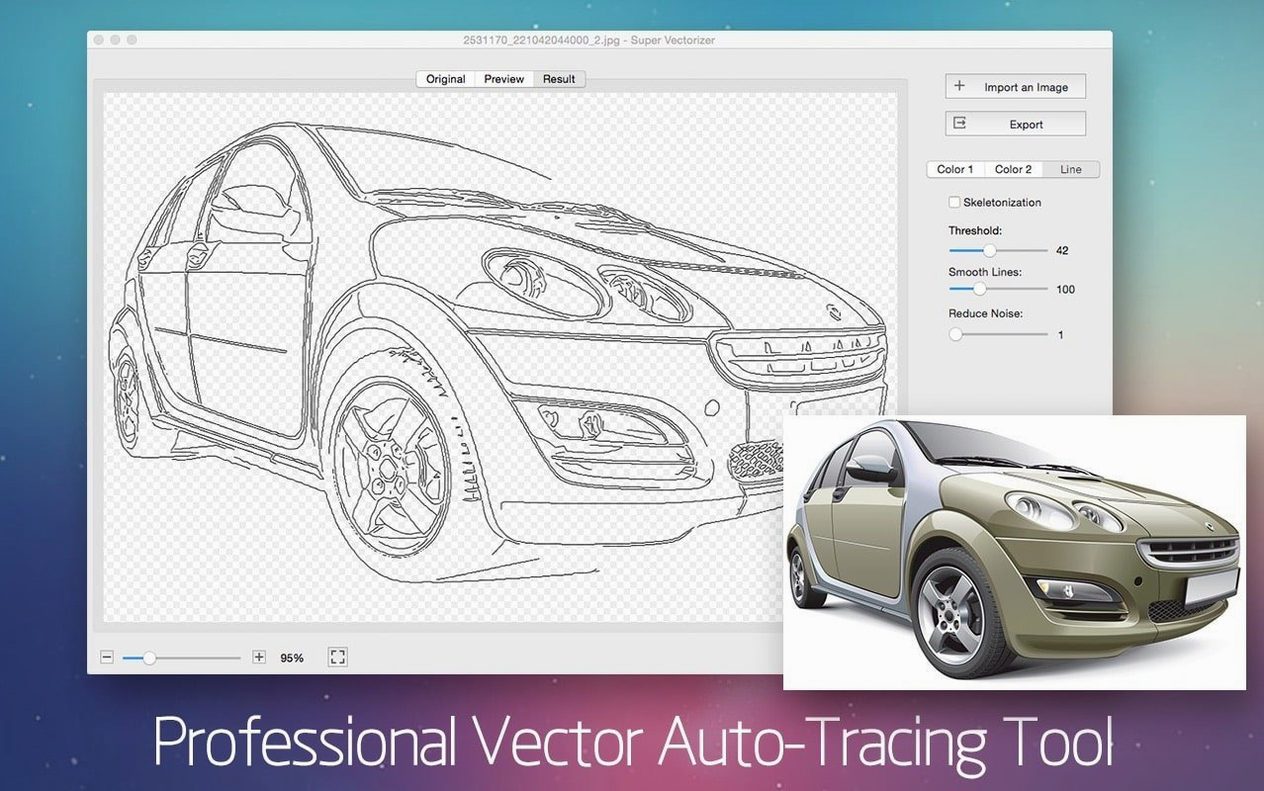
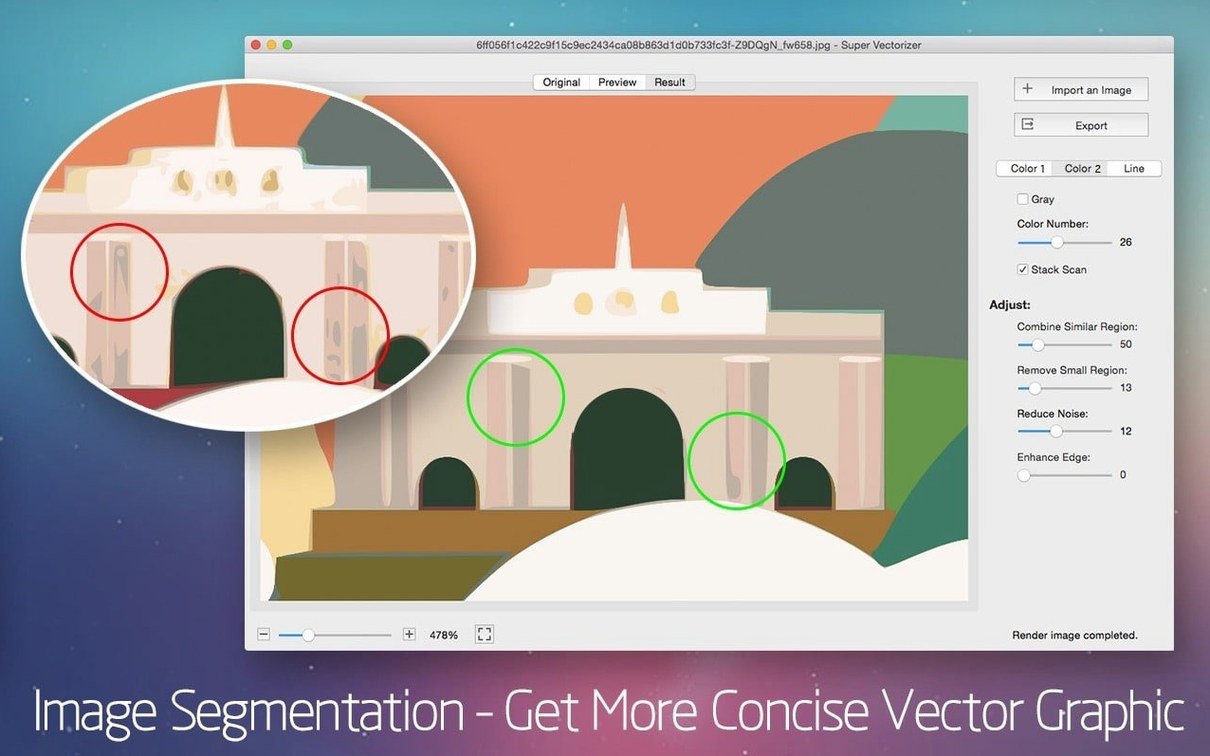
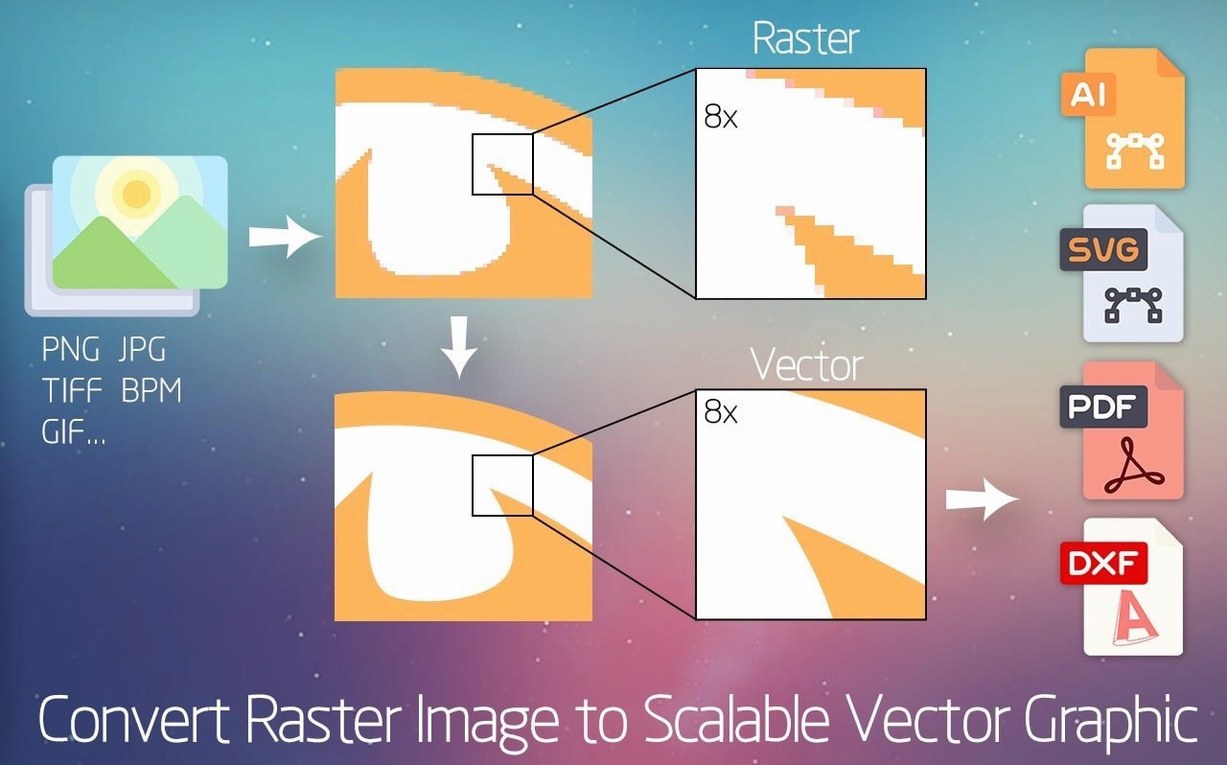
The tracing engine handles everything from a quick photo trace to a detailed technical drawing. You can watch the vectorization effect update in real time as you adjust the settings, which takes a lot of the guesswork out of finding the right number of colors or the best corner detection. For logo work, the ability to output with a transparent background is a genuine time-saver.
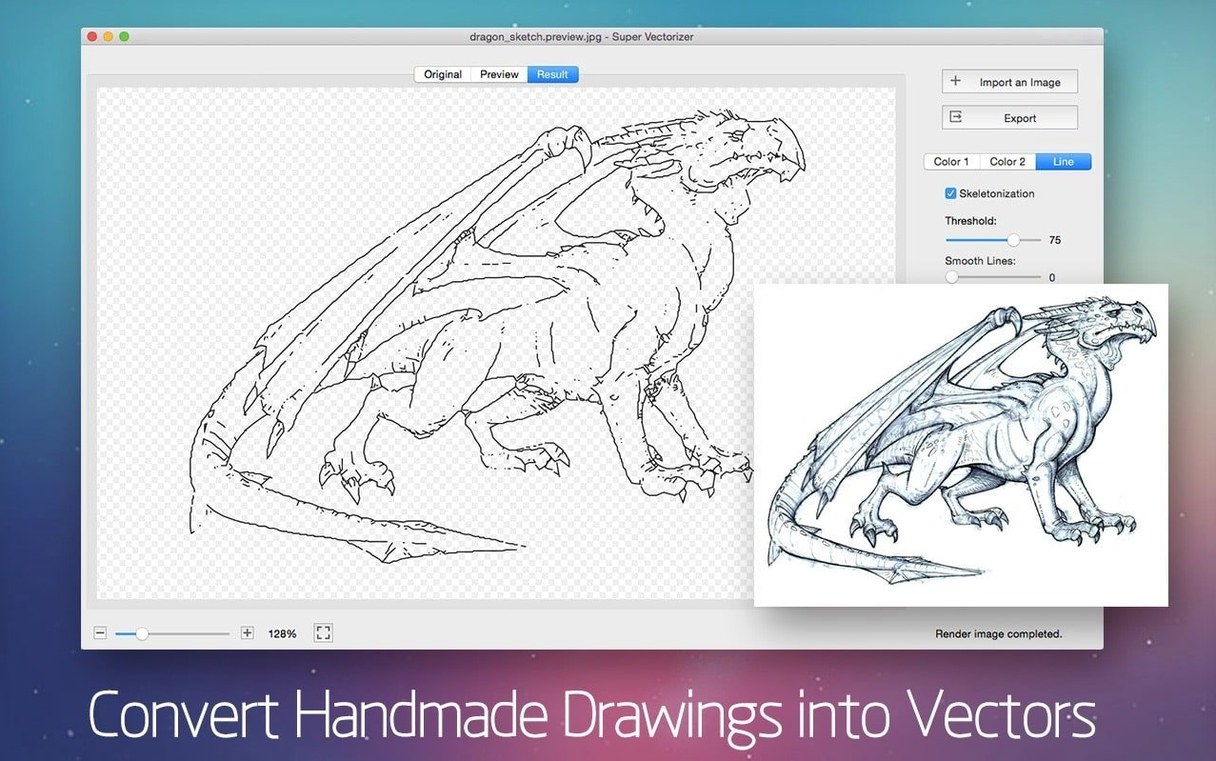
It opens more than 70 image formats, so there is rarely a need for a separate conversion step. Once you have a vector, the result fits naturally into Illustrator, Corel, or whichever vector editor you keep on your dock. The skeletonization function is useful for line art and sketches, giving you a single-pixel centerline rather than a filled outline.
This is a focused utility for anyone who needs to rescue a low-resolution logo, digitize a hand-drawn sketch, or turn a flat image into something editable. It doesn't try to be a full illustration suite, and that's exactly the point.
Preview lag drops away on large files
The tracing preview window got a lot more responsive in recent updates. Where earlier builds would stutter on larger source files, version 2.3.3 handles a 4000-pixel bitmap without that half-second lag between adjusting a slider and seeing the result. It sounds small, but when you are dialing in a 16-color trace of a watercolor scan, those tiny delays add up to real frustration. Now it feels immediate.
Skeletonization also tightened up. The centerline extraction used to get confused on drawings with variable stroke width — pencil sketches where the artist pressed harder on certain lines. The current version is noticeably better at guessing a plausible single-pixel path through a thick/thin line without fragmenting into little disconnected segments. For anyone doing the ink drawing to clean SVG workflow, that change alone is worth the update.
The export panel now remembers your last-used format and color depth between sessions. Previously it always defaulted to AI with four colors, and if you do mostly 32-color SVG work, you retrained yourself to change those dropdowns every time. A small kindness, but it removes a repetitive click.
Dial in a tighter trace from the start
Right out of the box, Super Vectorizer Pro goes for a middle-of-the-road trace: 8 colors, medium corner smoothing, no skeletonization. That works fine for a photograph of a landscape, but most people are not tracing landscapes. Here is what I would adjust first.
Drop the color count early. If you are doing logo work, set the palette to 4 or 6 colors and switch on Transparent Background in the output options. The default 8-color trace will find every shadow and gradient fringe in what was supposed to be a flat design, and you will spend more time deleting stray paths than you saved by tracing automatically. A tight palette forces the engine to decide what matters.
Switch on skeletonization for line drawings. It is off by default, so a scanned ink sketch comes out as a filled blob tracing. Tick the Skeletonization checkbox and watch the preview shift from outlines to centerlines. From there, export to SVG and open it in any vector editor — you get actual editable strokes, not filled shapes that look like strokes.
Adjust corner detection before you trace, not after. The slider runs from smooth to sharp. For a hand-drawn script, push it toward sharp or the curves will round over the natural flick of a pen. For a geometric logo, pull it back toward smooth to avoid jaggies on angled edges. The live preview makes this easy to test without committing.
Check the DPI assumption. The app reads the embedded resolution of the source file, and if there is none — common with phone screenshots or web downloads — it guesses 72 DPI. A low guessed DPI makes curves look chunky. If your result looks blockier than expected, try manually setting the input resolution higher before tracing again.
Memory use with a 12 MP JPEG open
On an Apple Silicon Mac, the app launches in under two seconds and idles at about 120 MB of memory with no file open. Loading a 12-megapixel JPEG pushes that to around 380 MB, and the actual trace calculations spike one or two performance cores briefly — usually under three seconds for a 16-color trace. Intel machines run a little warmer and a little slower, but nothing that feels out of line for a raster-to-vector engine.
Stability is solid in version 2.3.3. I have thrown 70-megapixel scans at it, oddball formats like old SGI images, and files with no embedded color profile, and it has not crashed once during tracing. The only soft spot is the batch-processing queue — if you stack more than twenty large files, the progress bar can freeze while the work continues in the background. It sorts itself out, but it looks worrying the first time.
Disk writes are modest. A traced SVG of a complex photograph runs a few hundred kilobytes; the same trace as a PDF with embedded preview images lands closer to 2 MB. If you are tight on space and working with many files, sticking to SVG keeps things lean. The app does not leave temporary files behind when you close it.
For everyday use, the real metric is how little you think about the tool itself. Drag an image in, tweak two sliders, export, move on. It stays out of the way, and on current macOS versions from Yosemite forward, it integrates without requiring any special permissions or background daemons. That low overhead is exactly what you want from a utility that often sits unused for a week and then gets asked to process forty scans on a deadline.
- macOS 10.10 or later
- Apple Silicon and Intel 64-bit
Questions from the stall
Can I remove the background when tracing a logo?
Yes, Super Vectorizer Pro supports transparent background output, which is handy for logos and icons that need to sit on different colors.
What is the skeletonization function used for?
It creates a thin centerline trace from thicker lines, which works well for scanned line art, signatures, or technical drawings.
Notes from other shops 0
Sign in or open a shop account to leave a note.
No notes yet. If you've used this on a shop Mac, tell me how it went.