RightFont needs macOS 11 or newer and works on both Intel and Apple Silicon Macs. There is no Windows version — it is built exclusively for macOS. If your Mac runs Big Sur or later, you are set.
A menu bar font manager that skips system installs
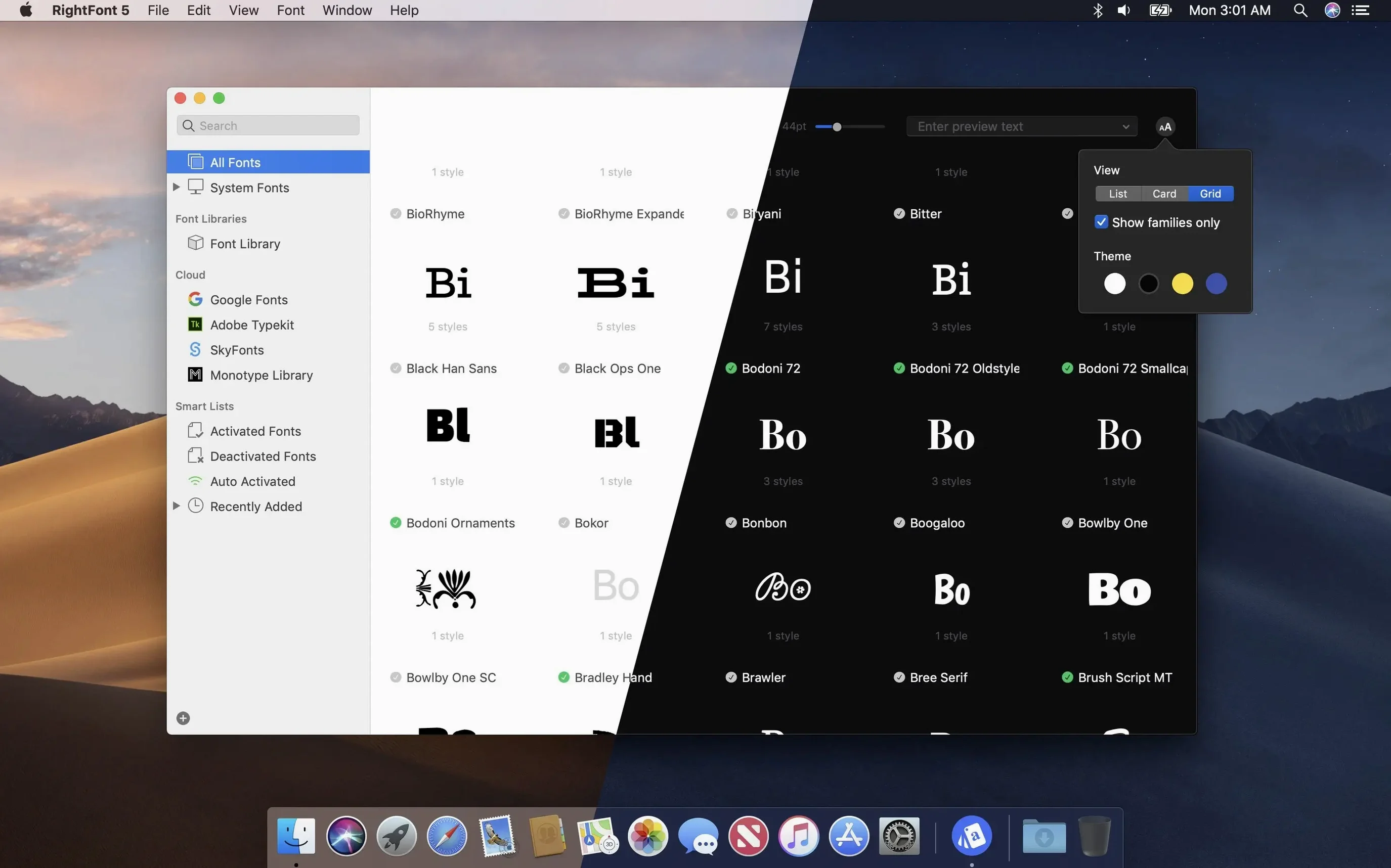
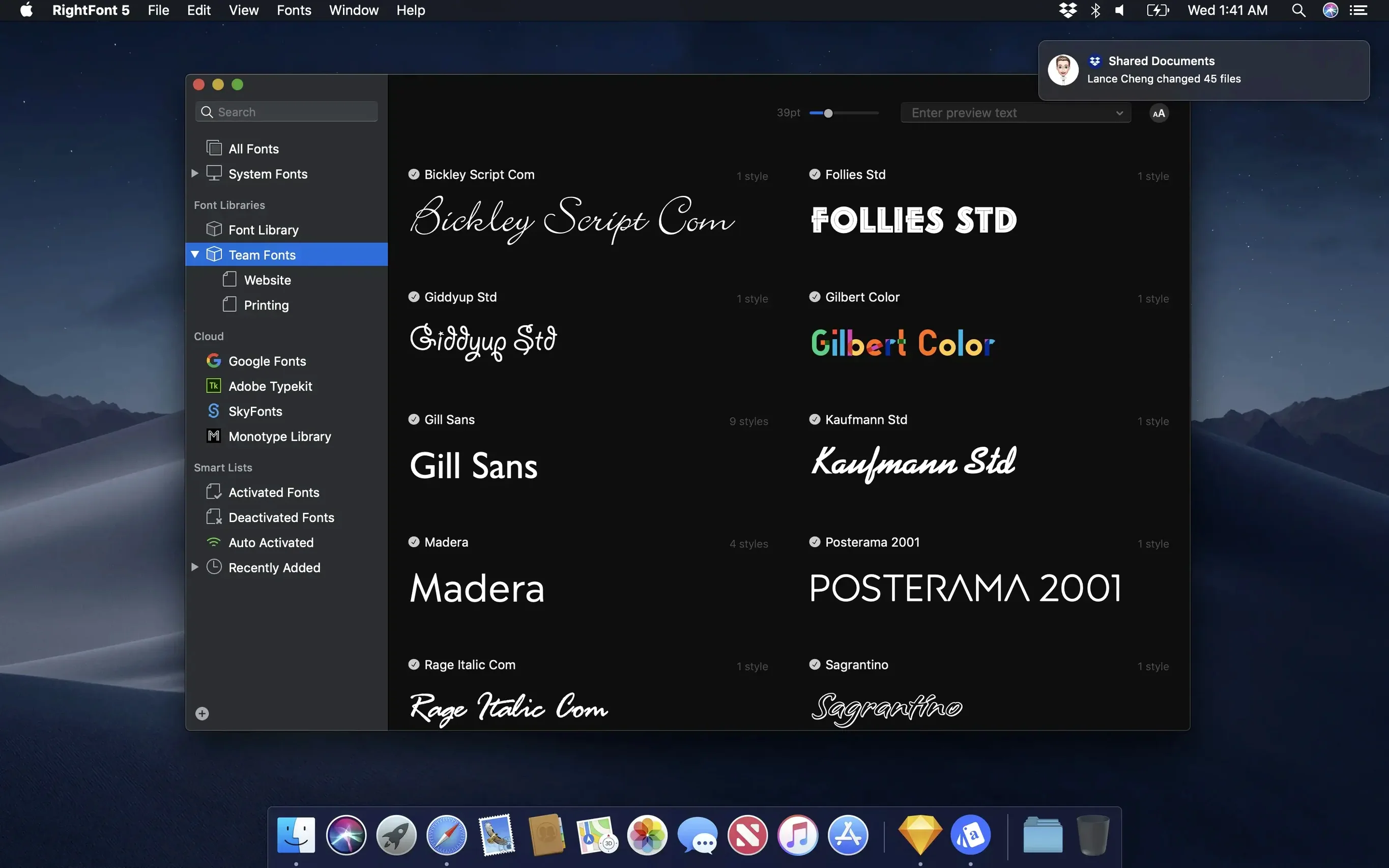
RightFont is a lightweight font manager that lives in your menu bar and stays out of your way until you need it. You can browse, preview, and organize fonts without installing everything into the system. It talks directly to Adobe Creative Cloud apps, Sketch, and other design software, so changing a text layer’s font is often a double-click. Font lists and tagging help you group typefaces by client, project, or style, and the menu bar panel gives you quick access when you are mid-layout.
Cut the back-and-forth with Adobe app auto-activation
Keeping a large font collection under control without slowing the system down. The direct integration with Illustrator and Photoshop means less back-and-forth when I am trying different type options. I would also lean on font lists to keep branding projects separate — one list for logo work, another for editorial, no scrolling through hundreds of families I am not using right now.
Filter by classification, width, and weight in the sidebar
RightFont packs a few subtle touches that even long-time users tend to overlook. The search field returns results as you type, which is obvious, but you can also filter by classification, width, and weight using the dropdown menus next to the search bar. That combination of text and metadata filtering is faster than scrolling through a flat list when you know roughly what you want but not the exact name.
One I missed for months: holding the Option key while dragging a font from RightFont into a design app temporarily installs and activates it without adding it to your permanent library. It is perfect for testing a typeface with a one-off project. Let go of the font and it deactivates on its own — no cleanup needed.
In the font list sidebar, you can reorder lists by dragging, and right-clicking a list gives you a quick export option for sharing a set of fonts with a collaborator. Subtags also support drag-and-drop now — you can pull a subtag back to the main Tags section, which keeps your organization flexible as projects change shape.
Point it at your current folders and check unsupported files
Start by pointing RightFont at your existing font folders rather than importing everything at once. The import progress panel now includes a finalization stage and a count of unsupported files, so you will see exactly what made it in and what did not. That alone saves you from wondering whether a missing typeface is a bug or just an old bitmap font that never belonged in a modern workflow.
Next, create two or three font lists based on what you are working on right now — not an idealized library structure. Something like “current client,” “weekend project,” and “to try later” is enough. You can always rename or reorganize later. The goal in the first days is to get comfortable activating and deactivating fonts through the menu bar panel without opening the full window every time.
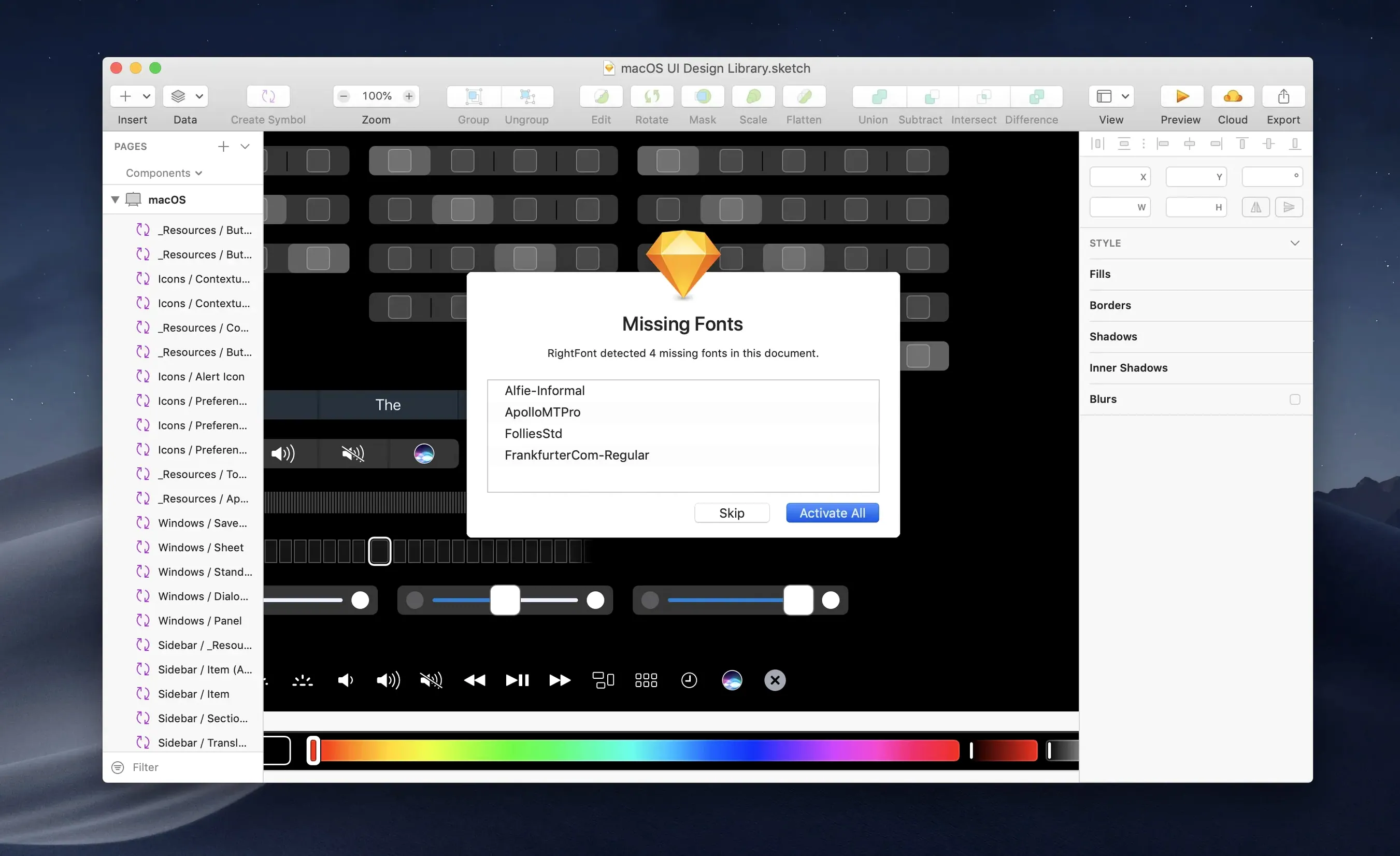
If you use Adobe apps daily, open InDesign or Illustrator after installing RightFont and confirm the auto-activation integration is working. Select a document with missing fonts and watch whether RightFont prompts you. The 10.2.1 update fixed several Illustrator and QuarkXPress issues, so the connection should be smoother than in previous releases. When it works as intended, you barely notice it — and that is the whole point.
A small habit worth forming: after installing new fonts, tag them immediately with something useful like “sans,” “serif,” or a client name. Tag management got a reliability boost in this version, and going back to tag three hundred untagged fonts two months later is nobody’s idea of a good afternoon.
Auditioning six typefaces for a poster without clutter
Let us say you are designing a poster for a music festival and need to audition several typefaces quickly without cluttering your system fonts. Here is how that flows in RightFont:
- Collect candidates. Browse your library and drag six or seven promising typefaces into a new font list called “Festival poster.” No need to install anything yet — just organizing.
- Preview side by side. Select the list and work through the typefaces in RightFont’s preview pane. Type the festival name into the custom preview field to see how each family handles the actual headline. Use the weight and width filters if you want to narrow the list further.
- Test in your design app. Open the poster file in Illustrator. Select the headline text layer, then double-click a font name in RightFont. The change happens immediately in the document. Cycle through your shortlist without touching Illustrator’s own font menu.
- Activate the winner. Once you settle on a typeface, activate it properly from the font list. RightFont installs it system-wide or just for Creative Cloud, depending on your preferences.
- Clean up. Delete the “Festival poster” list or keep it as a record of what you considered. The fonts you did not pick stay inactive and out of your system menus, exactly where they belong.
That whole process — from gathering options to a finished choice — takes a few minutes and leaves zero leftover fonts polluting your system.
Menu bar idle mode and on-demand activation
Does RightFont slow down my Mac? No, and that is one of its main selling points. It stays in the menu bar and uses minimal resources when idle. Font activation happens on demand, so you are not loading hundreds of typefaces into memory at startup. People switching from larger font managers often notice the difference within the first hour.
Will it break my existing font organization? RightFont does not move or rename your font files unless you tell it to. You can leave fonts in their current folders and simply point the app at those locations. The library is a reference layer on top of your file system, not a replacement for it. If you decide RightFont is not for you, your fonts are right where they were before.
How does it work with Adobe Creative Cloud? RightFont connects directly to Photoshop, Illustrator, and InDesign through a plug-in that installs automatically. You can browse, activate, and apply fonts without leaving your design app. The 10.2.1 update patched some long-standing Illustrator quirks, so the integration is more dependable than it was in previous versions. Sketch users get similar direct access, and the auto-activation feature handles missing fonts when you open documents.
What happens when I share a font list with someone? RightFont can export a font list as a folder of the actual font files, ready to send to a collaborator. The person on the other end does not need RightFont to use them, though having it makes organizing shared sets much tidier. Just keep licensing in mind — sharing a typeface file does not transfer the right to use it commercially.
Version 10.2.1 tightens up a few things:
- Font imports are more reliable, with clearer progress that shows a finalization stage and a count of unsupported files.
- Tag management is smoother — subtags can be dragged right back to the main Tags section.
- Fixes for Adobe Illustrator, QuarkXPress, and macOS 27.
- macOS 11 or newer
- Intel or Apple Silicon Mac
Questions from the stall
Does RightFont work with Adobe Illustrator?
Yes. Version 10.2.1 includes fixes for Adobe Illustrator, and RightFont supports direct font access in Creative Cloud apps — you can change a text layer font by double-clicking.
Notes from other shops 0
Sign in or open a shop account to leave a note.
No notes yet. If you've used this on a shop Mac, tell me how it went.