

You have a real project—maybe a portfolio, a product page, or a small shop front—and you need it online. The code side doesn't interest you. You just want to put the pieces together, make it look right, and publish.
Dragging pages into a full site structure
- Building a complete, multi-page site by dragging and renaming pages to get the structure you want
- Creating subpages simply by dragging one page onto another in the list
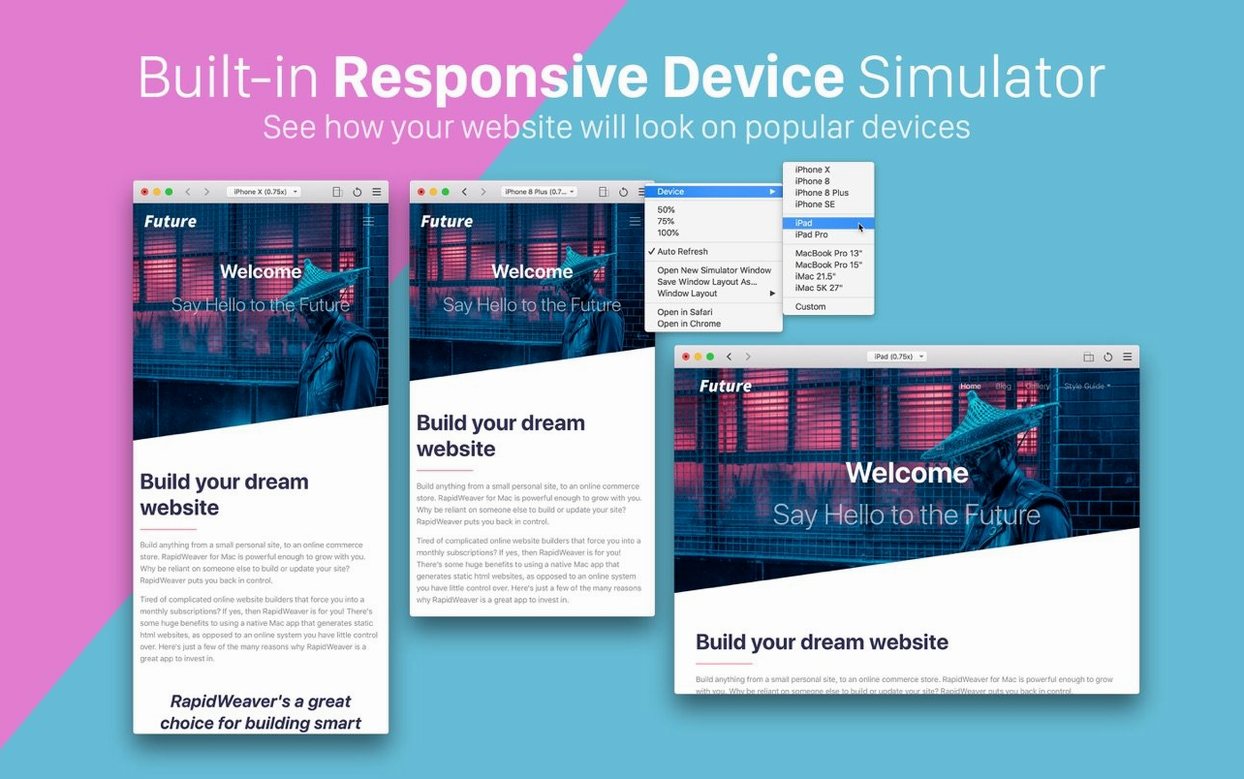
- Checking how your layout behaves on an iPhone, iPad, or iMac without leaving the app, using the built-in device simulator
- Zooming into a simulator window to inspect spacing and alignment
Classic Mac builder, English-only interface
- This is RapidWeaver Classic 9, Realmac Software's native Mac builder, separate from newer product lines
- It runs on both Intel and Apple Silicon Macs and needs macOS 10.14 Mojave or later
- The interface is English only
The task that made sense to me: roughing out a four-page portfolio site. I started by adding blank pages, giving each a clear name—Work, About, Contact, and a child page for a specific project. Dragging to reorder felt immediate, like arranging sheets of paper. The device simulator became my reality check, letting me catch a stretched image on the iPad view and tighten it before I'd written a single line of copy.
Option-drag to duplicate a page instantly
A few shortcuts in RapidWeaver 9 sit tucked away and don't call attention to themselves, but they save real minutes once you know them. If you hold down Option while dragging a page in the sidebar, the app duplicates it instead of moving it—handy when you need the same layout for a new section. While previewing in the device simulator, you can press Command–Shift–D to open another simulator window without hunting through the menu. That lets you keep an iPhone 15 view open next to an iMac view while you tweak, rather than switching back and forth. The Unsplash integration also has a quiet trick: drag an image straight from the Unsplash browser onto a page element instead of saving it to the assets library first. For quick prototypes, that skips a step.
Switch default image export to WebP
Out of the box, a couple of defaults are worth adjusting. Open the General preferences and set the Default image export format to WebP if your host supports it. The file-size difference compared to JPEG is noticeable on image-heavy pages, and the setting applies site-wide so you don't need to remember it per project. Also, the Site Publishing settings let you enable Back up site before publishing. It's off by default. Turning it on means every publish writes a dated backup of the exported site to a folder you choose. If you accidentally overwrite something on your server, you have a local safety net. Neither change is flashy, but both prevent little headaches later.
Putting together a small product page
Here's one way I'd approach a product page for a handmade ceramics shop, using only what's inside RapidWeaver 9. The goal is a clean, single scrolling page with a gallery, a short description, and a contact link.
- Create the page. Add a new page and name it after the product line—say, "Mugs." Drag it into position under the main Shop page so the site navigation reflects the real catalog structure.
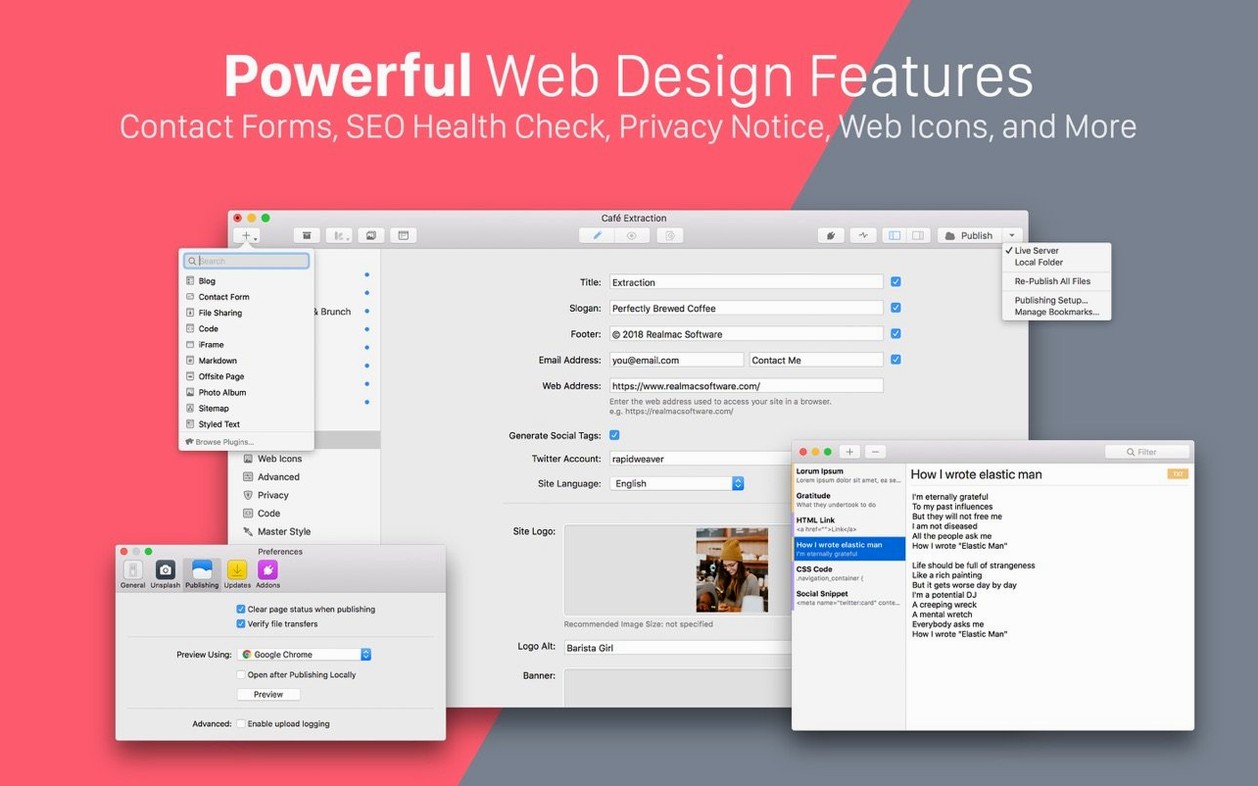
- Switch to the Styled Text page type. It's the most straightforward starting point for a mixed-content page. Write a one-sentence intro in the editor and style it using the theme's built-in heading options rather than fiddling with custom sizes.
- Build the gallery. Open the Unsplash browser, search for ceramic or pottery reference images, and drag four or five directly into the page body. Realmac's stack-like layout engine handles the responsive arrangement, so you can check the result in an iPad simulator window right away.
- Add a contact anchor. At the bottom of the page, type a short line like "Ask about custom glazes" and link it to the Contact page using the link inspector. No need to embed a form on the product page itself.
- Save a simulator setup. Once you have the page looking right on an iPhone and a desktop view, save that simulator arrangement. Next time you open the project, you can jump straight into the same two-window preview without reconfiguring anything.
- Preview and export. Use File → Export Site to a local folder and open the index file in a real browser for a final check. If the WebP setting is on, the gallery images will load noticeably faster than the JPEG defaults would.
That whole process, from blank page to local export, takes under twenty minutes once you know where the shortcuts live. It's the kind of workflow that suits a shop owner who wants a page live this afternoon, not after a weekend of tutorials.
- macOS 10.14 Mojave or later
- Works on Intel and Apple Silicon Macs
Questions from the stall
Does RapidWeaver 9 run on Apple Silicon Macs?
Yes, RapidWeaver Classic 9 runs natively on both Apple Silicon and Intel Macs.
Can I preview how my site looks on a phone?
The built-in device simulator lets you preview your site on iPhone, iPad, iMac, and other devices, and you can zoom each simulator window for a closer look.
How do I create a subpage in RapidWeaver 9?
You create a subpage by dragging one page onto another in the page list, which makes organizing site sections straightforward.
Notes from other shops 0
Sign in or open a shop account to leave a note.
No notes yet. If you've used this on a shop Mac, tell me how it went.