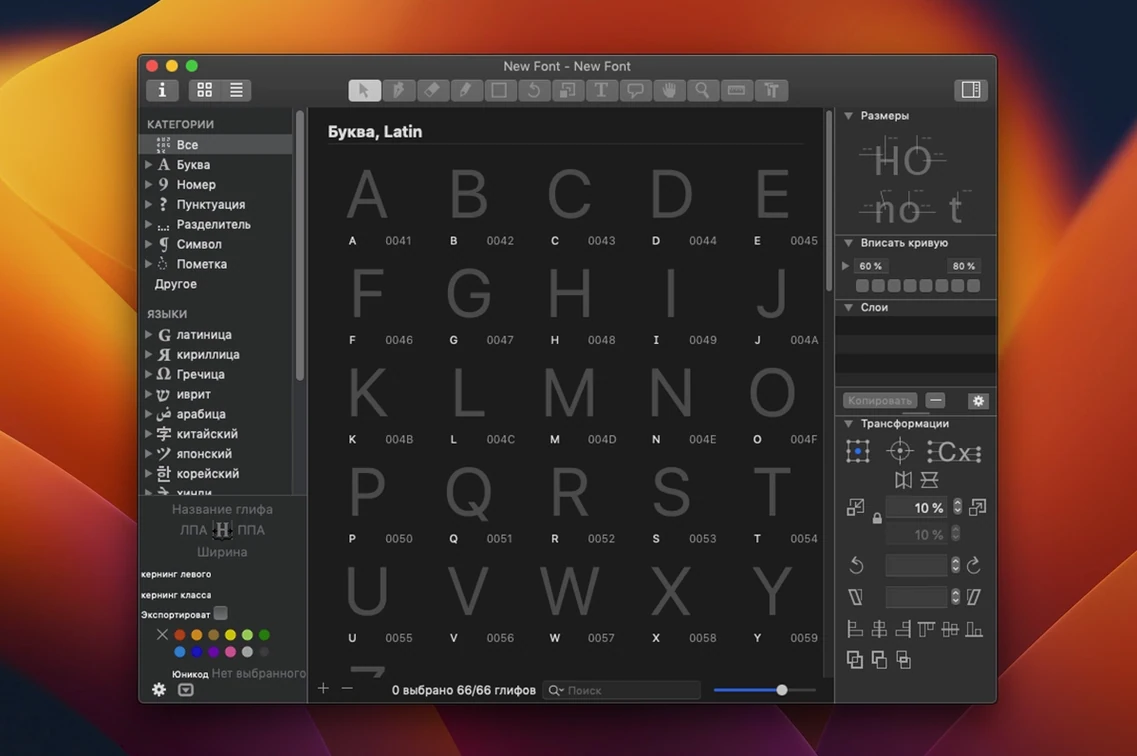
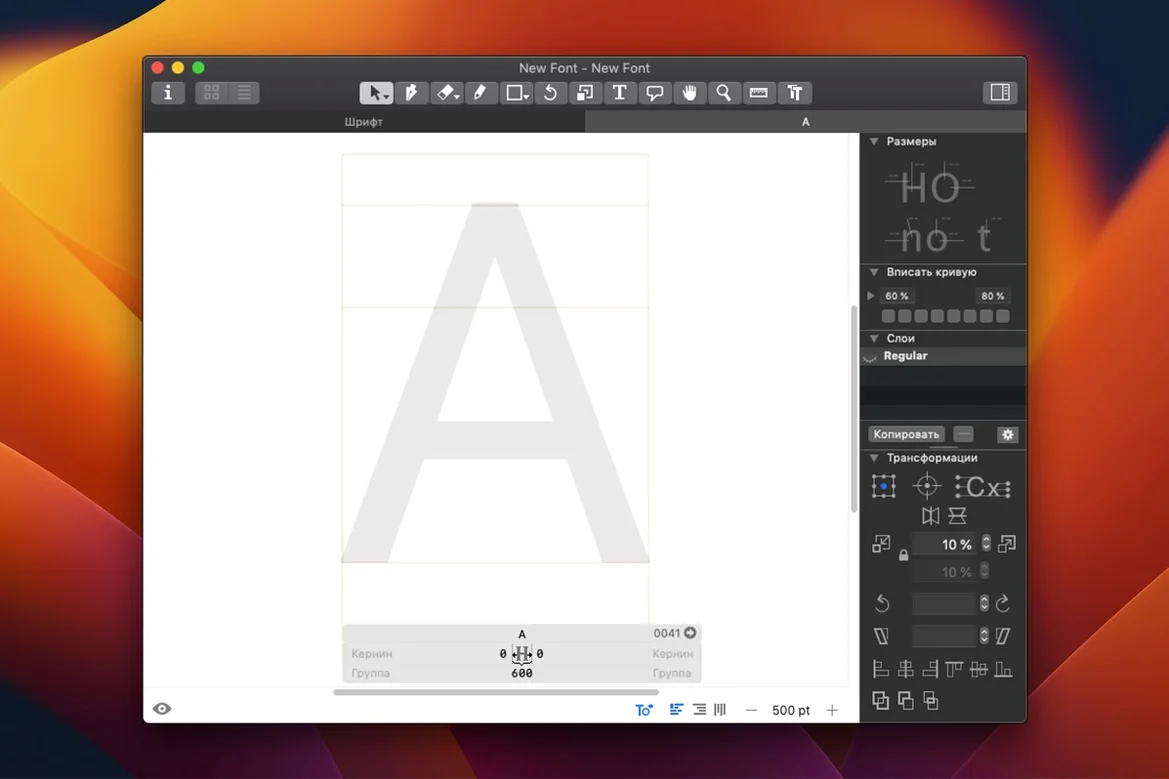
Glyphs is for type designers, lettering artists, and anyone who wants to shape their own OpenType fonts from scratch or refine existing ones. It runs on Apple Silicon and 64‑bit Intel Macs, and version 4 keeps the focus squarely on drawing, spacing, and engineering type that behaves well in the real world.
A refined build that keeps contextual text editing smooth
- Updated build that arrived September 2026, keeping the app smooth on recent macOS releases
- Refined support for contextual menu text editing — handy when you’re naming glyphs or adjusting notes
- Continued development of the interface module that lets you extend Glyphs with plugins
The features that stayed put
What hasn’t changed is why people pick Glyphs. You still get a clean, single-window workflow for drawing, kerning, and testing fonts. The companion Glyphs Viewer app lets you preview your work in progress without leaving your main canvas. Creating a new font family or opening an existing one to tweak outlines and OpenType features all happens in the same thoughtful environment. Interface language support covers thirteen languages, including Russian, Japanese, Korean, and Turkish, which makes it practical for foundries working across markets.
Temperament-driven choice between dense history and a lighter workflow
Glyphs sits alongside FontLab and RoboFont as the tools most working type designers talk about. The difference usually comes down to temperament. FontLab carries a lot of history and an interface that can feel dense if you’re opening it for the first time. Glyphs trades that for a leaner layout — the panels tucked into the side stay out of your way until you need them, which suits small foundries where one person handles drawing, spacing, and export. RoboFont is wonderfully scriptable and appeals to people who enjoy building their own workflow, but it assumes you’re comfortable with Python. Glyphs handles scripting too, yet it doesn’t make you write code to get a usable font out the door.
If you’re coming from a vector drawing app because you want to make a typeface, Glyphs will feel more familiar than its rivals. The drawing tools behave the way you’d expect from other Mac design software, and the export options — PNG, SVG, PDF, and SFSymbols — cover the usual ways a handmade-goods shop owner might preview lettering for products or packaging. I’d pick Glyphs when I want the engineering handled quietly in the background, and I’d consider the others only if I needed a very specific scripting setup from day one.
Switch the interface language before you do anything else
The defaults are sensible, but a few adjustments make the first week smoother:
- Switch the interface language early. Glyphs supports thirteen languages, so if you think more clearly in Spanish, Japanese, or Turkish, set that under preferences before you build muscle memory around English menu names.
- Check the grid and metrics views. Showing side bearings while you draw keeps spacing decisions visible instead of an afterthought. It’s one toggle that changes how you evaluate every outline.
- Set your export folder. Point Glyphs at a project folder you already back up. Font files in progress belong next to your sketches and reference images, not buried in a default location.
- Enable the plugin manager if you plan to extend things. The interface module is there from the start, but taking a few minutes to see what’s available saves you from rebuilding something a plugin already handles.
Tip: If you’ve used other font tools before, resist the urge to rearrange everything on day one. Draw a few practice glyphs first, then adjust the workspace around what you actually reach for.
A letterpress printer’s first week
Imagine a letterpress printer in Portland who wants a display face for wedding stationery and small-run posters. She’s comfortable with Illustrator but has never drawn a working font. She opens Glyphs, sets the interface to English, and starts with a simple uppercase alphabet. Each afternoon she draws three or four letterforms, checks the side bearings in the metrics view, and exports a quick PDF proof to print on her studio’s laser printer. By Friday she has a rough but functional set of twenty-six caps, a handful of punctuation marks, and a PDF she can show a client. The font isn’t finished — spacing still needs refinement and she hasn’t touched lowercase — but Glyphs gave her enough structure to get there without wading through manual OpenType code. For that kind of maker, the app earns its place next to the press.
Version 4.2 (build 4202) is now available. The release notes with the full list of adjustments live over on the Glyphs site.
- macOS 12 or later
- Works on Apple Silicon and Intel Macs
Questions from the stall
Does Glyphs work on Apple Silicon Macs?
Yes, Glyphs 4 runs natively on both Apple Silicon and 64‑bit Intel Macs.
Can I edit existing fonts with Glyphs?
Absolutely. You can open existing fonts, adjust outlines and spacing, and export them as updated OpenType files.
Notes from other shops 0
Sign in or open a shop account to leave a note.
No notes yet. If you've used this on a shop Mac, tell me how it went.