
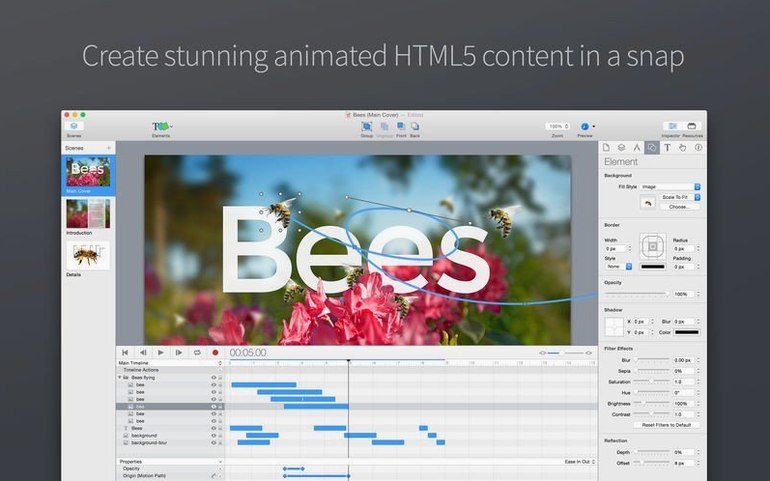
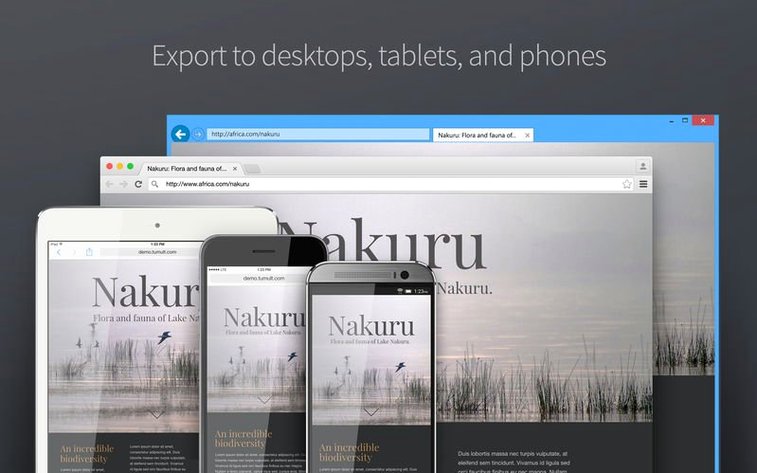
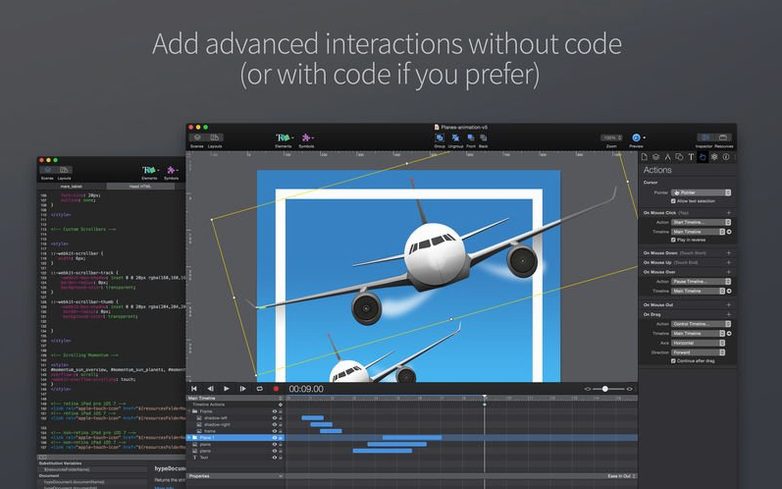
Hype 4 Pro runs on any Mac from macOS 10.10 Yosemite all the way through macOS 26 Tahoe, with native support for both Intel 64-bit and Apple Silicon machines. It is a design tool for building interactive HTML5 scenes and animations without writing code, and it exports everything into a web-ready package when you are done.
What Hype 4 Pro is good for
- Building animated web content alongside your usual toolkit. It exports finished material to HTML5 automatically, so the output slides right into a site built with a code editor, a static-site builder, or a CMS. You are not replacing your workflow, just adding a visual authoring step for motion and interactivity.
- Prototyping interactive ideas. Because you see exactly what a web visitor would see, it works as a companion to Sketch, Figma, or Photoshop when a flat mockup is not enough to test a hover effect or a timeline-driven sequence.
- Lightweight production for banners and explainer snippets. The standard and professional editions give you enough range to start small and grow into more complex scenes without switching apps.
Expect to capture, not export, your animation
- It lives in the browser, not on the desktop. The finished piece is HTML5; if you need a video file for social media, you will pair it with a screen recorder or a converter.
- It is a design tool, not a full web-authoring suite. You will still rely on other apps for layout, image prep, and site assembly. Hype handles the animated, interactive part that those tools were not built for.
Start with responsive constraints from scene one
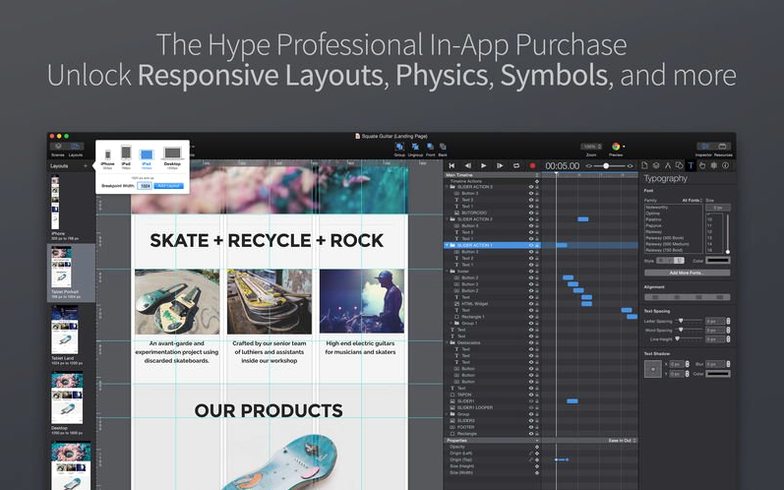
Open the Responsive Layout settings early, even if your first scene is simple. Setting constraints on a couple of elements teaches you how the tool thinks about scaling, and that knowledge pays off the moment you build something for multiple screen sizes.
Keep the Resources panel tidy from day one. Drag in only the images and audio you actually need for a scene, and give them plain English names before you place them. A scene with six “Untitled-3” assets gets messy faster than you expect.
Tip: assign a browser to the preview menu that you do not use for daily browsing. A dedicated window in Zen or Helium keeps your testing separate from your twenty open tabs, and the updated preview menu in version 4.1.21 makes that easy to set up.
A banner ad, from blank canvas to export
Say you need an animated banner for a local coffee roaster’s site. You start with a new document sized to 300 x 250 pixels. Drop the roaster’s logo and a bag-shot into the Resources panel, then drag them onto the canvas where they should sit at rest.
Open the Timeline and set a two-second span for the intro. Move the bag-shot off to the left at the start keyframe, then let it slide into place. Add a second timeline action that fades in the tagline half a beat later. The timing curve editor lets you ease the motion so it does not feel mechanical.
Because this is a one-off, you skip Symbols and keep the scene flat. Hit File > Export as HTML5, pick a folder, and the whole thing—images, script, and a ready-to-embed index file—lands on your drive. Drop that into the roaster’s site or hand it off to their web person. The whole job stays visual, and you never opened a code editor.
Version 4.1.21 shipped on June 21, 2026, with a handful of practical fixes and additions:
- Added Zen, Helium, and Dia browsers to the preview menu and stopped listing Puppeteer.
- Switched the default GIF encoding engine to Apple’s built-in encoder for simpler exports.
- Fixed a Tahoe-specific glitch where thumbnail generation briefly flashed an extra window.
- macOS 10.10 or later, including macOS 26 Tahoe
- Intel 64-bit or Apple Silicon Mac
Notes from other shops 0
Sign in or open a shop account to leave a note.
No notes yet. If you've used this on a shop Mac, tell me how it went.