Version 2.1.4 squashed a crash tied to specific installed fonts. Here's one realistic task from start to finish with this tool.
Quick animation mockup — build a reusable button component, then animate its hover state.
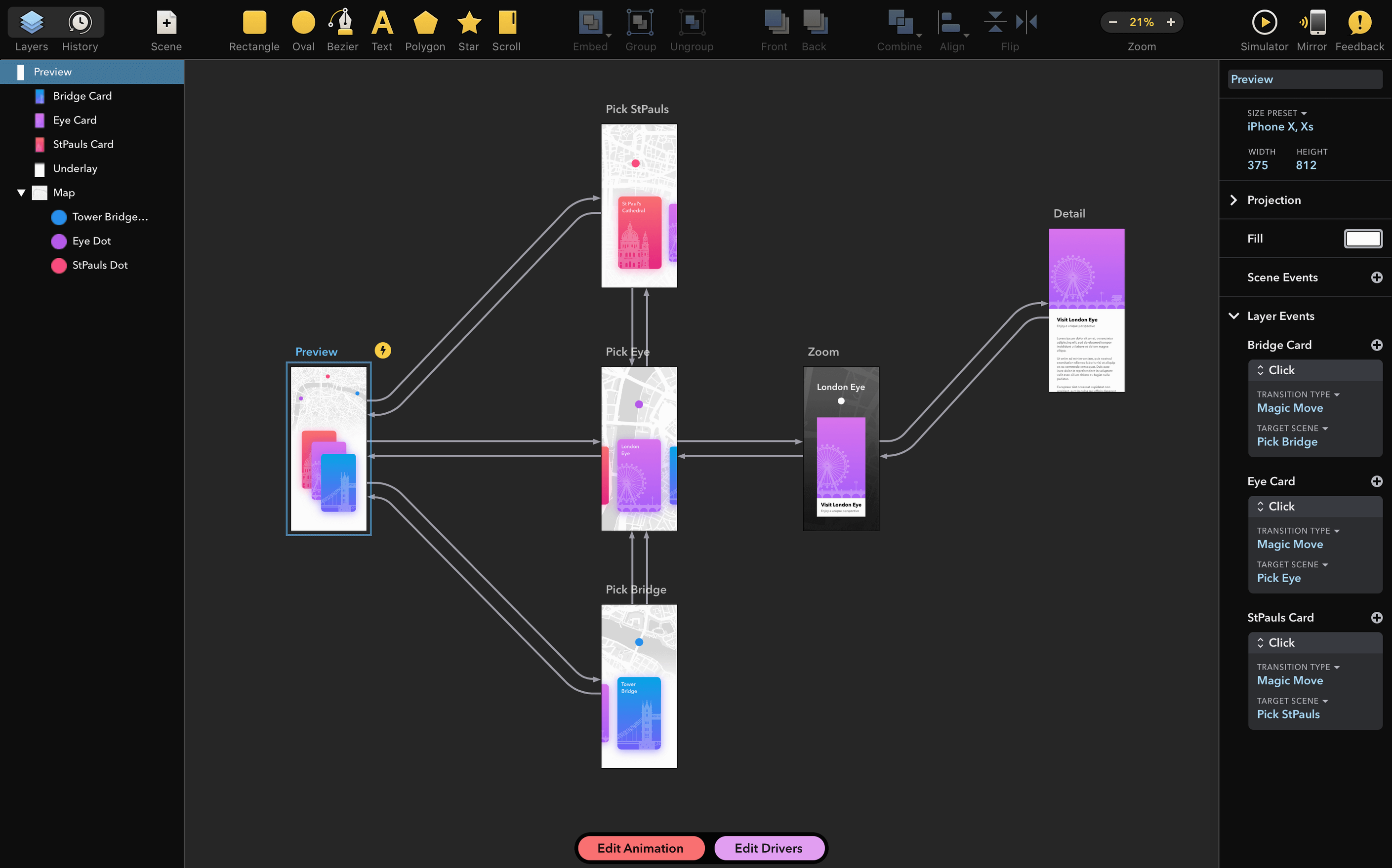
Design canvas — where you draw shapes, add text, and set colors. Everything lives on an infinite board.
Timeline — the strip at the bottom where you keyframe properties like position, opacity, or rotation. Drag a playhead to scrub through time.
Prototyping mode — link screens and add triggers without leaving the canvas. Tap a button and see the transition instantly.
Export — save the animation as a GIF or a short video to drop into a pitch deck or a client Slack thread.
You start by drawing a rounded rectangle, adding a label, and grouping them. Open the timeline, set a keyframe at zero, then move the playhead forward, scale the button slightly, and brighten the fill. Drama interpolates the in-between frames. Switch to prototyping mode, connect the button to another artboard, and play it back. The whole flow — design, animate, prototype — happens in a single window.
Dragging Vectors Between Sketch, Figma, and Drama
Drama isn't a silo. I regularly move work between it and the rest of my Mac.
- Sketch and Figma. Drag SVG exports from Drama into either app, or pull vector assets the other direction. It's not a one-click import, but SVG as the go-between keeps shapes clean and editable.
- Screen recording and QuickTime. I record a prototype playback with QuickTime Player, then drop the clip into iMovie or drop it straight into a Slack message. No extra encoder needed.
- Copy to clipboard. Select any artboard, copy as image, paste into Apple Notes or a Keynote slide. Dead simple for rough client previews.
- Continuity Camera. Point your iPhone at a sketch, choose Insert from iPhone right on the Drama canvas, and trace over it. The photo sits on a locked layer while you build vectors on top.
- Spotlight and Quick Look. Drama's saved documents preview in Quick Look with the spacebar, so hunting through a folder for the right mockup is fast.
PixelCut also makes PaintCode, and if you work in that app too, the mental model carries over — the inspector panels, the way bezier handles behave, the color picker layout. It's the same design language under the hood.
Right-Click a Keyframe to Change Its Easing
Some of the best bits are tucked where you wouldn't think to click.
- Right-click a keyframe to switch its easing from linear to ease-in-out. The difference in playback feel is immediate, and it's just two clicks.
- Hold Option while dragging a shape to duplicate it. Works on the canvas and in the layers list. Small thing, big time-saver when you're building a row of repeated elements.
- Nudge with arrow keys. Tap for 1px, hold Shift for 10px. When alignment guides aren't enough to satisfy your eye, nudging gets it right.
- Scroll wheel on the timeline ruler zooms the time scale in and out. No hunting for a zoom slider — just hover the ruler and scroll.
- Color picker anywhere on screen. The built-in color palette has a loupe that samples outside Drama's own window. Grab a hex value from a browser, a brand PDF, or a screenshot without switching apps.
Common snags and sorting them out
The Gatekeeper hurdle and why it happens
Because Drama is distributed outside the App Store, macOS will flag it on first launch. The disk image includes an "Open Gatekeeper friendly" script. Run that, press Enter in Terminal when prompted, and macOS lets the app through. You only do this once — after that, Drama opens like any other app. If you skip the script and just double-click the app, you'll see the "cannot be opened" message. So use the helper.
Font-related crashes
Version 2.1.4 specifically fixed a crash triggered by certain installed fonts. If you're on an older version and Drama quits on launch, a conflicting font is the likely culprit. The fix is simple: update to 2.1.4. If you rely on an older build for any reason, temporarily disabling suspect fonts through Font Book usually isolates the problem, but honestly, updating is the smoother route.
Timeline precision and lost keyframes
A common stumble: you tweak a property expecting a new keyframe, but Drama overwrites the one you already set. The trick is to move the playhead first, then change the property. If you adjust something without moving the playhead, the app assumes you're revising the current keyframe, not adding a new one. It's logical once you know it, but the first time it happens it feels like the timeline ate your work.
Export size and framerate mismatches
When exporting a GIF, the default framerate sometimes produces a file that's heavier than expected. Drop the framerate to 12 or 15 fps in the export panel — the motion still reads as smooth for UI transitions, and the file size shrinks considerably. For video exports, double-check the artboard dimensions before rendering; a tiny mismatch here means black bars or clipping in the final clip.
A small but welcome fix this time around:
- A crash on launch caused by specific installed fonts no longer happens.
- macOS 11.5 or later
- Intel-based Mac
Questions from the stall
Can I use Drama just for static design work?
Yes. The design canvas handles shapes, text, and layout without touching the timeline or prototyping features.
Does Drama work on Apple Silicon Macs?
The current build runs on Intel Macs and requires macOS 11.5. Check with PixelCut for native Apple Silicon support.
Who makes Drama?
PixelCut, the same developer behind the vector drawing app PaintCode.
Notes from other shops 0
Sign in or open a shop account to leave a note.
No notes yet. If you've used this on a shop Mac, tell me how it went.