
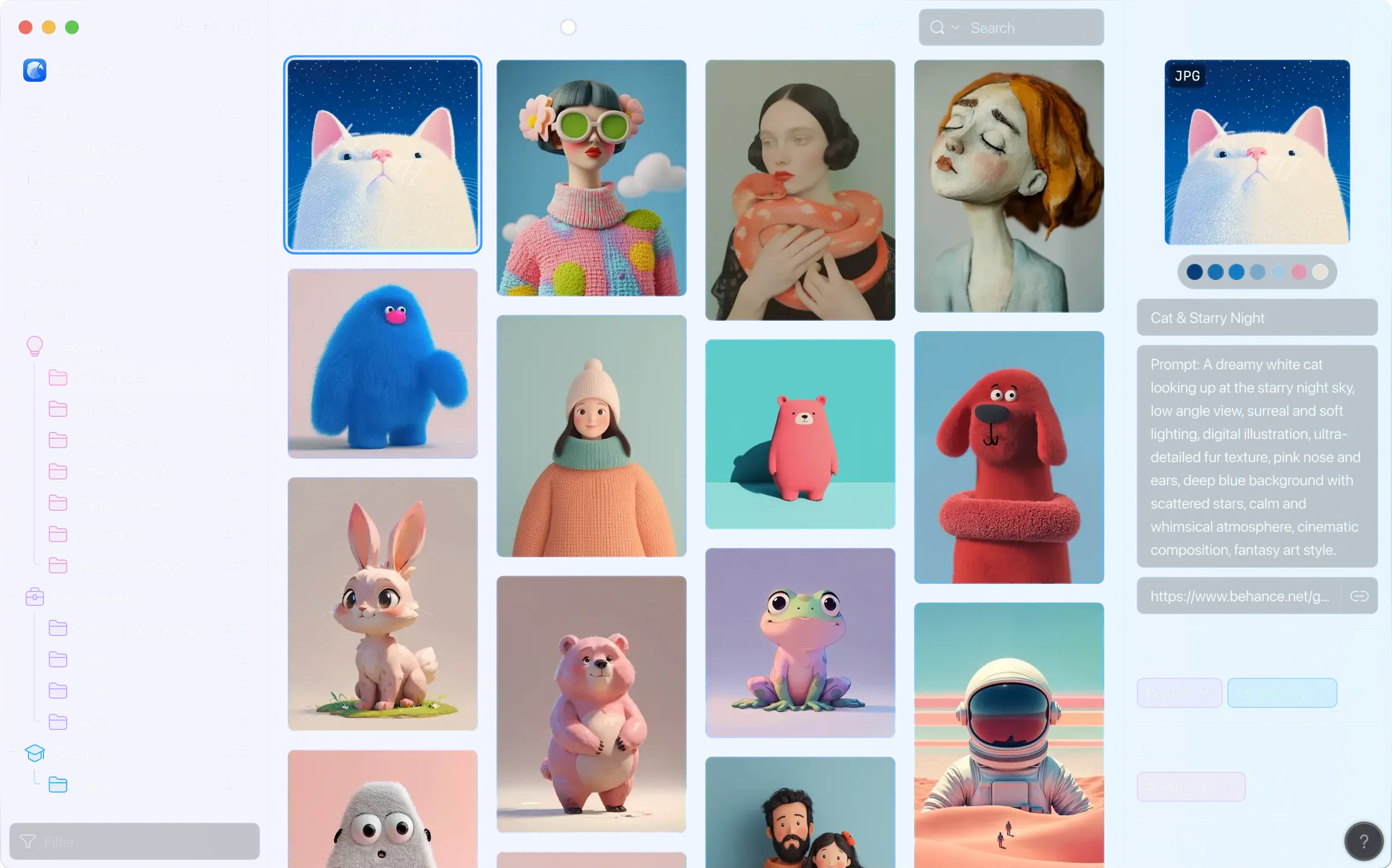
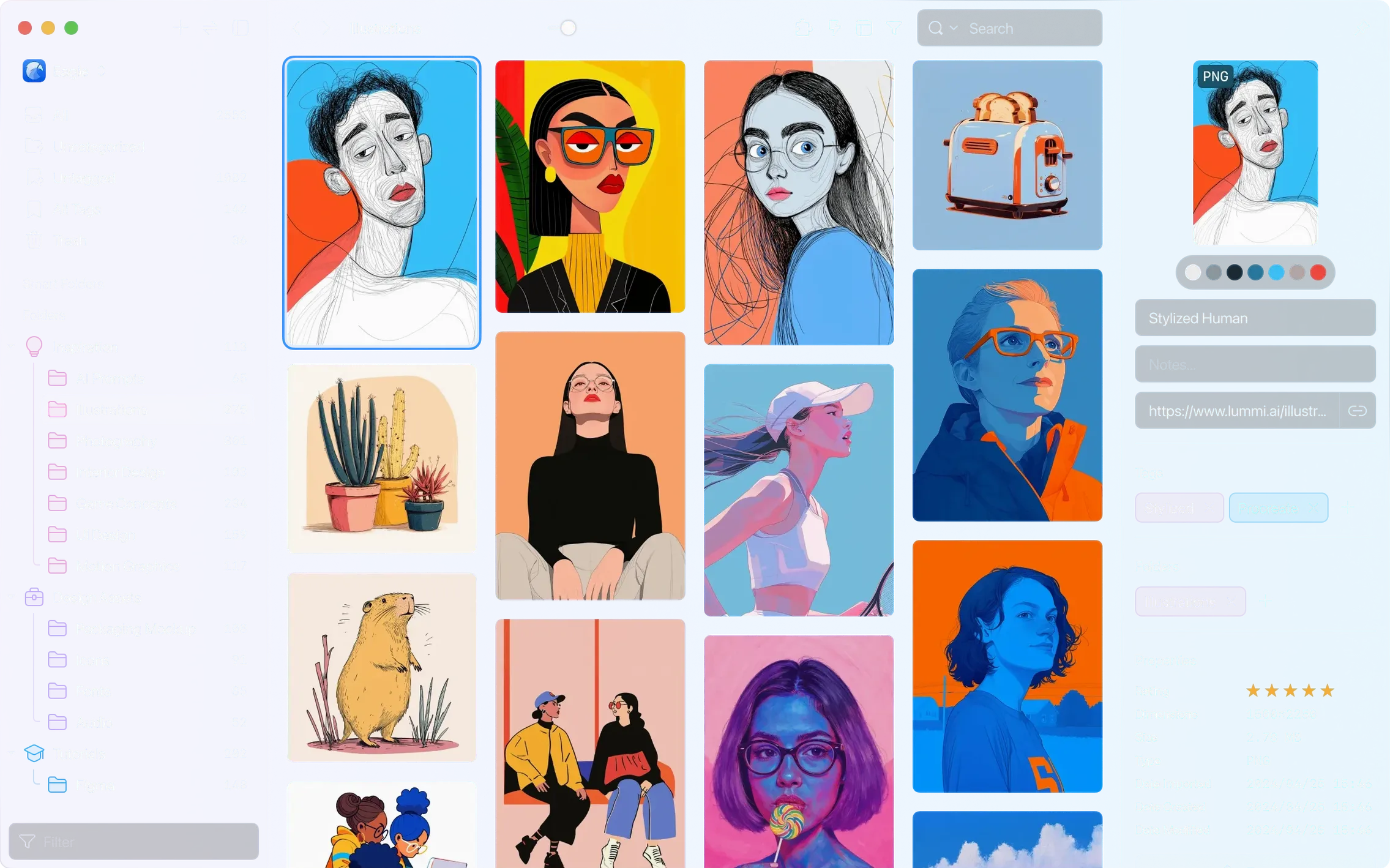
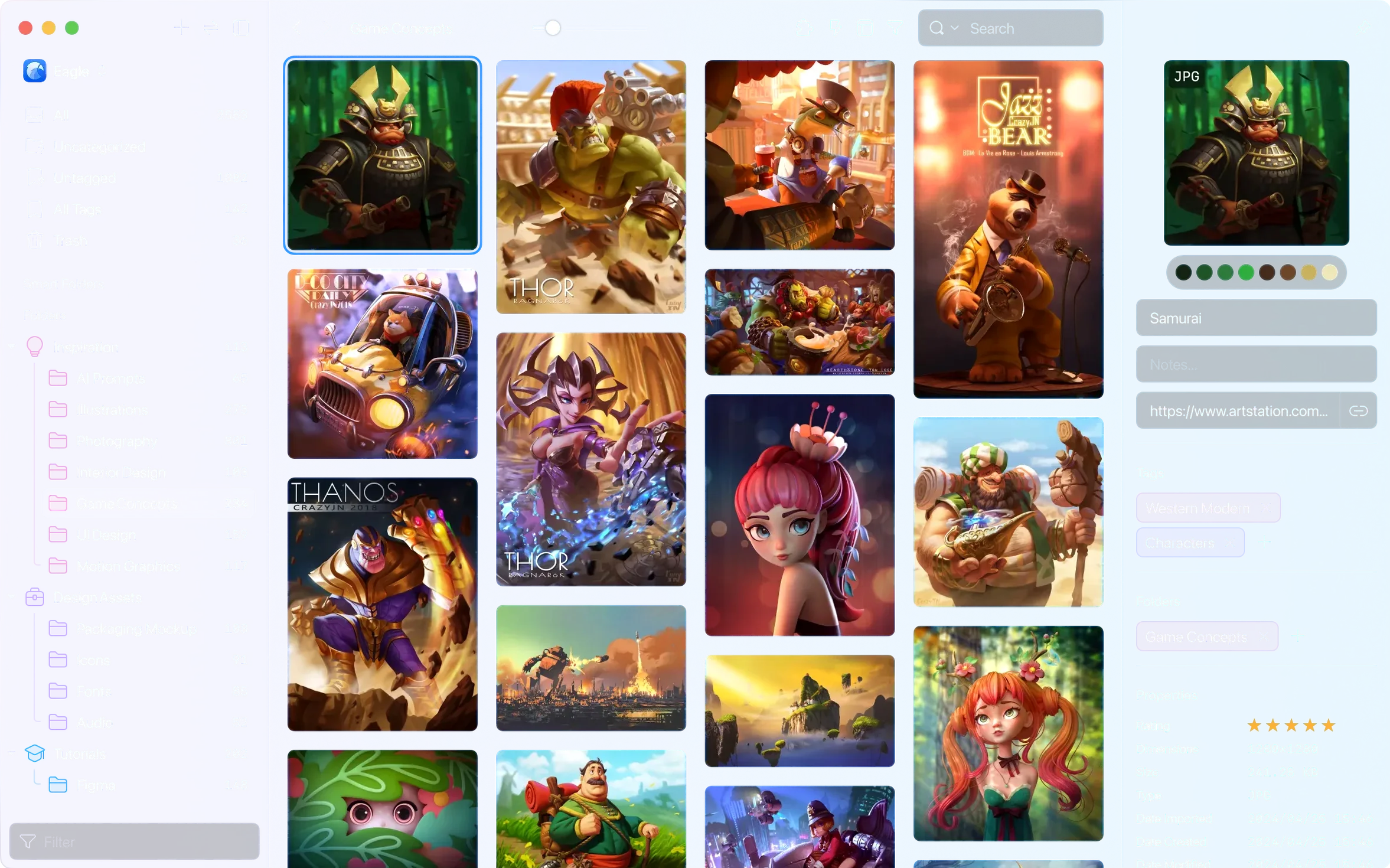
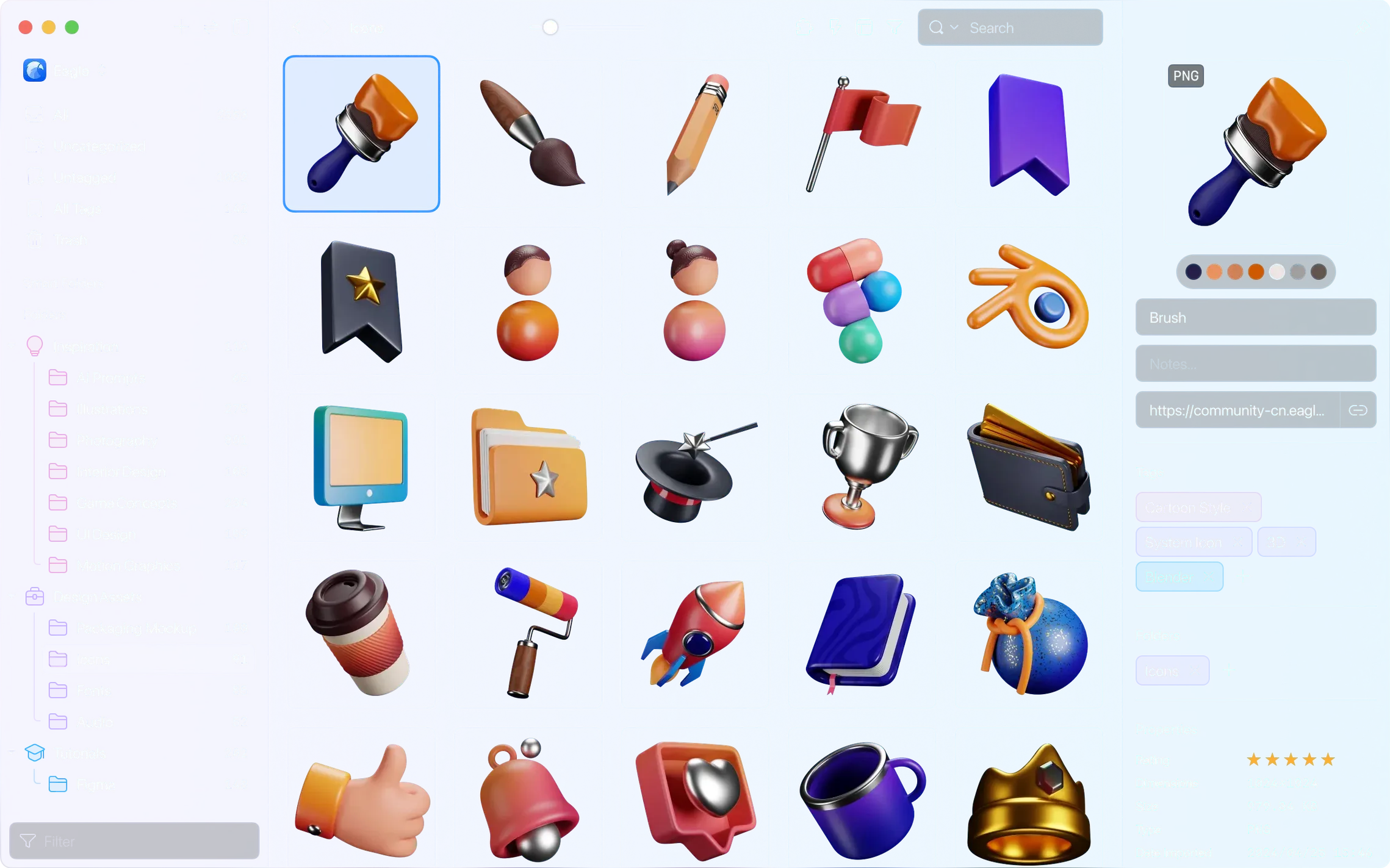
Smart Folders update automatically by rules you set, which means a folder for “unreviewed web grabs” or “red icons” can fill itself without dragging a single file. That’s the kind of quiet automation that sits comfortably next to the Finder and the design tools you already use every day.
A visual sidekick that catches the stray pieces your other apps leave behind
Eagle doesn’t replace Photoshop, Figma, or your screenshot tool — it lives alongside them. It acts as a visual library that pulls in the stray pieces those apps create:
- Clipboard capture drops screenshots and copied images straight into the library without saving intermediate files.
- Browser extensions for Safari, Chrome, Edge, and Firefox save images, GIFs, videos, and full web pages into the same catalog.
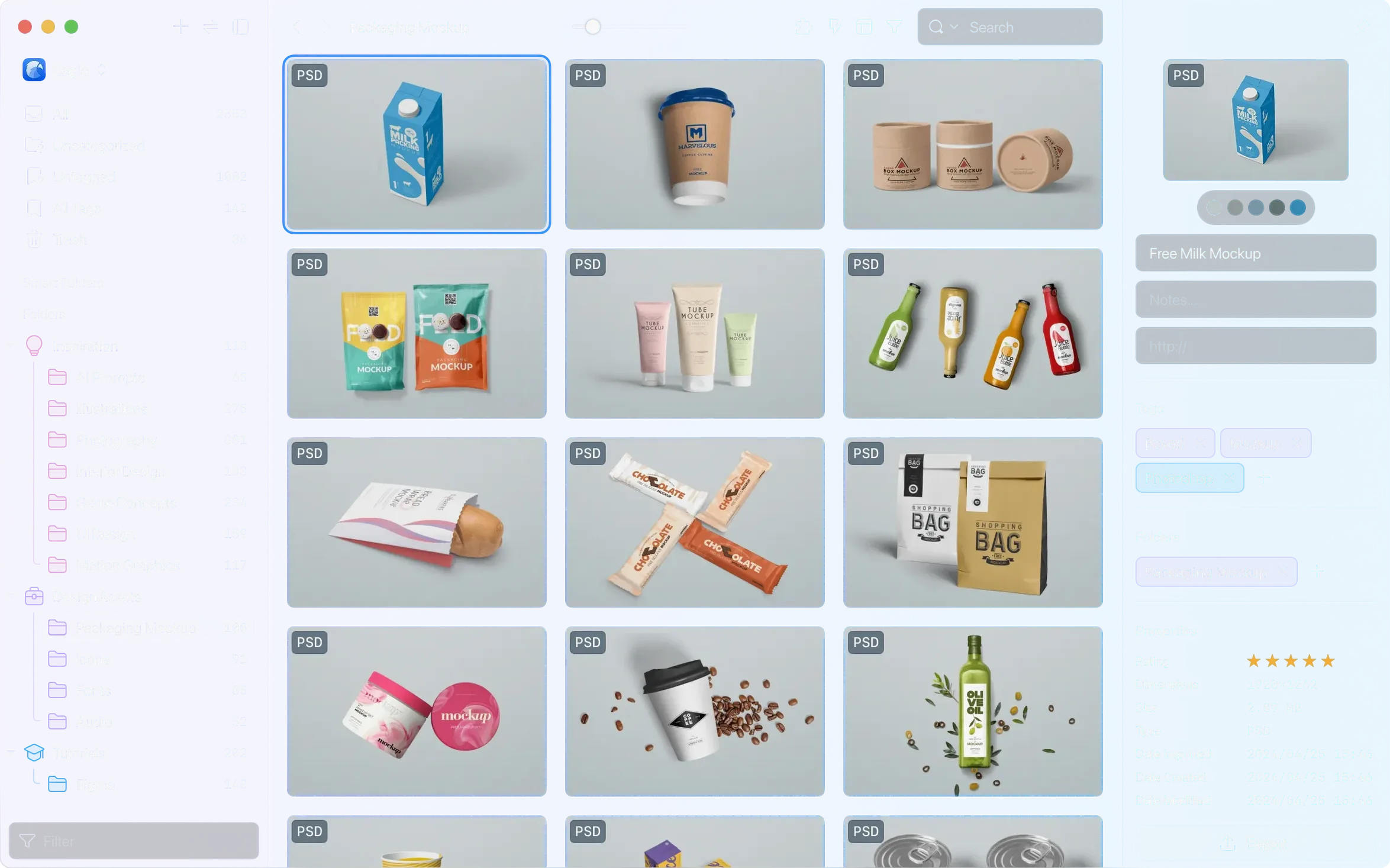
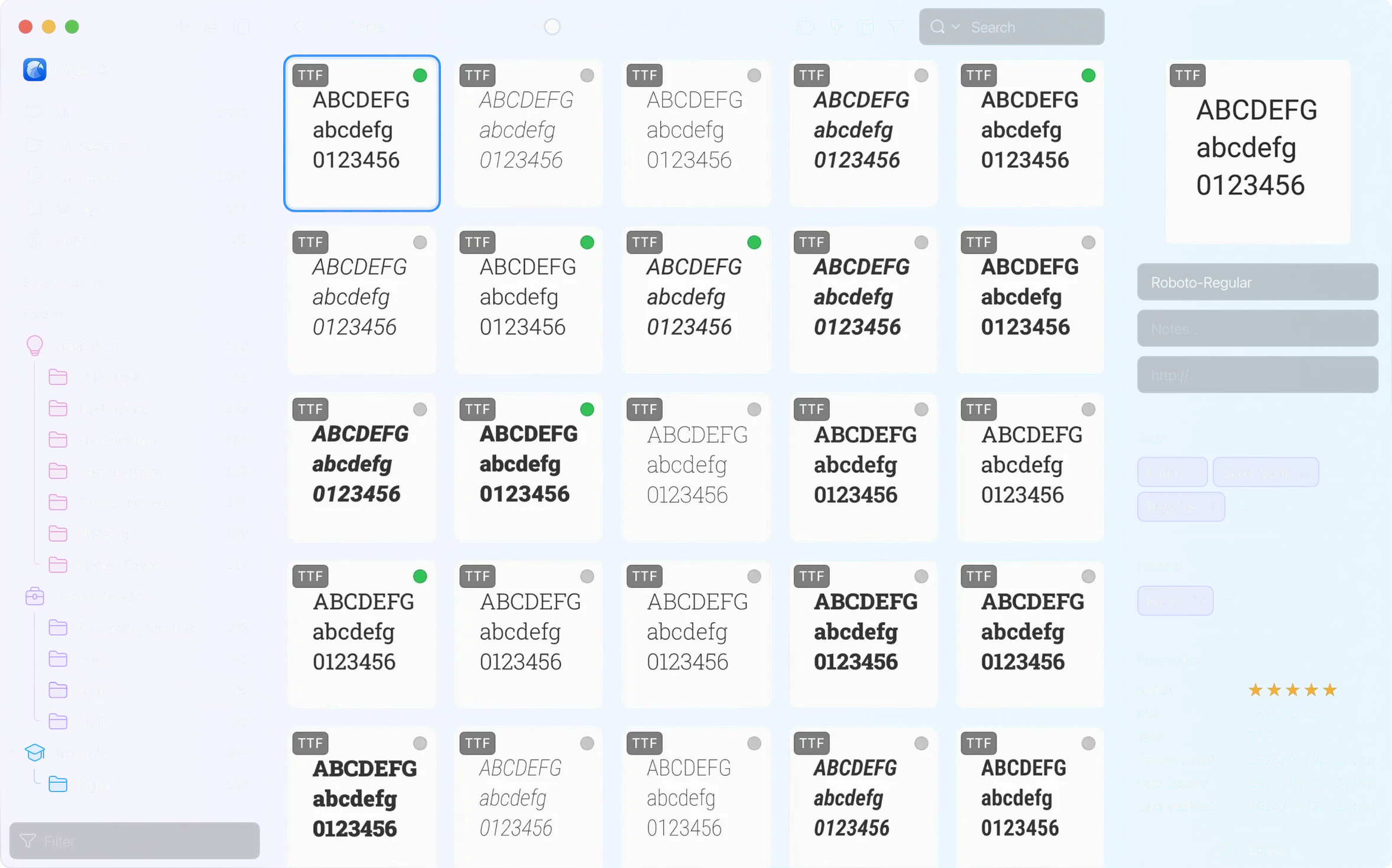
- File-type support covers PSD, AI, Figma, PDF, fonts, icons, 3D models, and video — most things a Mac user’s design pipeline already produces.
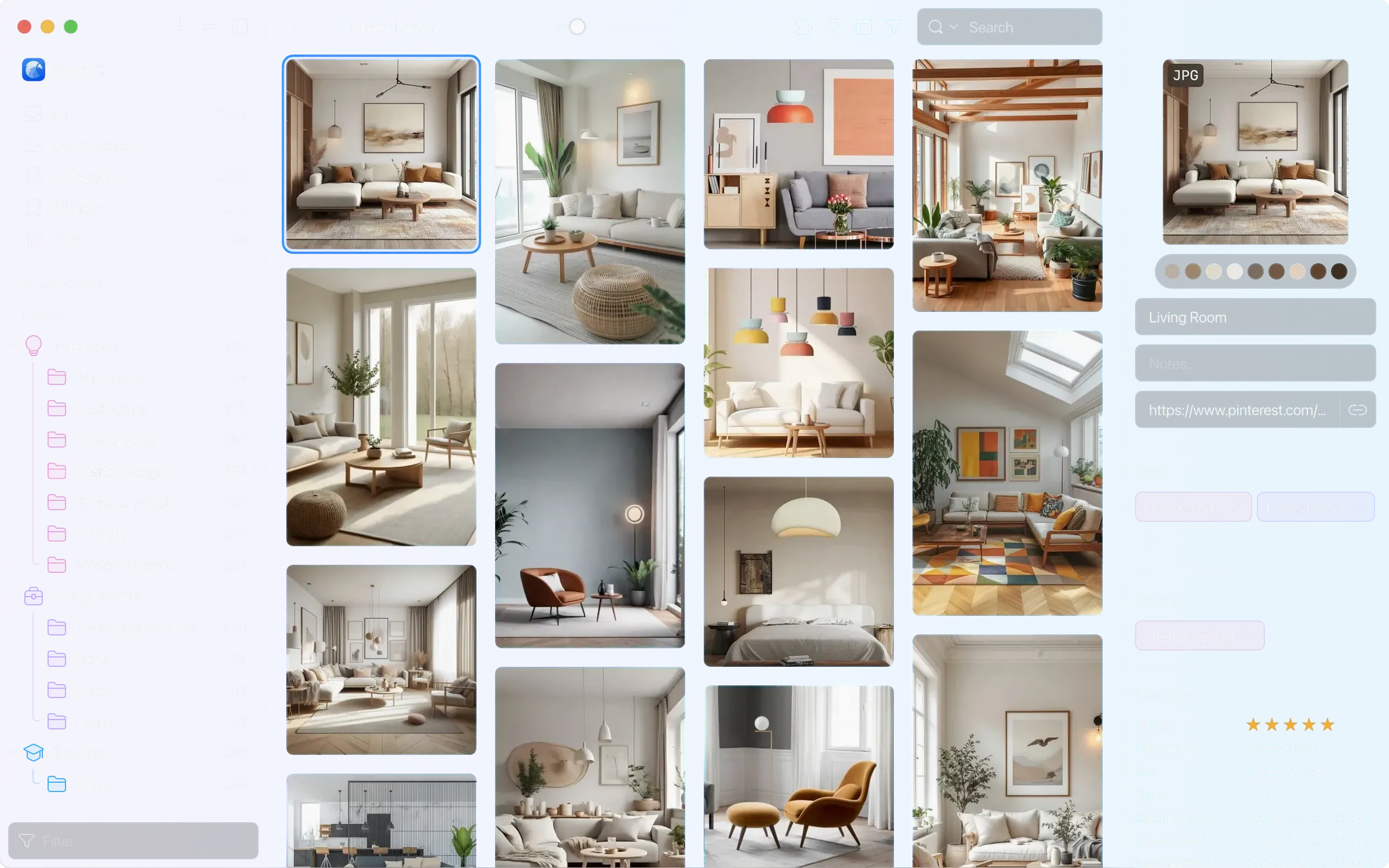
- Preview panel shows metadata, color palettes, and font details at a glance, so you check a file’s contents without launching its parent app.
Search that grows with your library
Once a reference folder passes a few hundred items, scrolling stops being practical. Eagle’s search uses AND, OR, and parentheses for precise queries, and filters by color, size, shape, file type, and date narrow results further. The similar-image detection now handles files up to 128 MB, which is useful when you’re hunting down high-res variants of a mockup or photo. Unlimited folders and subfolders mean you can mirror a project structure that already makes sense to you, rather than learning a new one.
One library, not three — building habits that keep things findable
A fresh install is the right moment to build a few habits that pay off later. Eagle won’t force a structure on you, but a little intention early on keeps things findable.
- Start with one library, not three. Keep everything on your internal drive for the first week. Once you know your tagging rhythm, move the library to an external drive if you need the space — Eagle supports that without hiccups.
- Add one watched folder. Point the auto-import at your screenshot directory or a “dumps” folder you already use. Let it pull in files while you work on other things, then tag them in batches later.
- Create three tags that match real decisions. Think “approved,” “palette-reference,” “layout-idea” — not abstract categories. Multi-level colored tags stack, so you can mark something “palette-reference / warm” and see both layers at a glance.
- Set up one Smart Folder right away. A rule like “rating is empty AND file type is image” gives you a quick inbox for untriaged items. It fills itself and you’ll see what slipped through.
- Drag the Eagle folder from an Eagle torrent Mac download into the app once if you’re migrating from a scattered collection — it’s faster than importing file by file.
A motion designer’s Tuesday morning
Imagine a freelance motion designer starting a client storyboard. She’s pulled references from three different project folders and a handful of browser tabs. In the morning, she uses the Firefox extension to grab full-page screenshots of animation style frames she found late the night before. Those land in Eagle alongside yesterday’s clipboard captures — color swatches and a GIF she copied from a studio portfolio.
She tags everything “client-name / storyboard” and applies a blue “phase-1” tag. The built-in viewer lets her scrub through the GIF frame by frame without opening After Effects, and the layered PSD preview shows her a comp structure she’d forgotten she saved. When she needs to find a specific frame with a dark background and square composition, the shape and color filters narrow a three-hundred-item folder down to four candidates in seconds. Before lunch, she exports the curated set to a clean folder structure and drops it into a shared drive for the client. No Finder windows piled up, no duplicate files, no mystery filenames.
A quiet update with practical quality-of-life improvements:
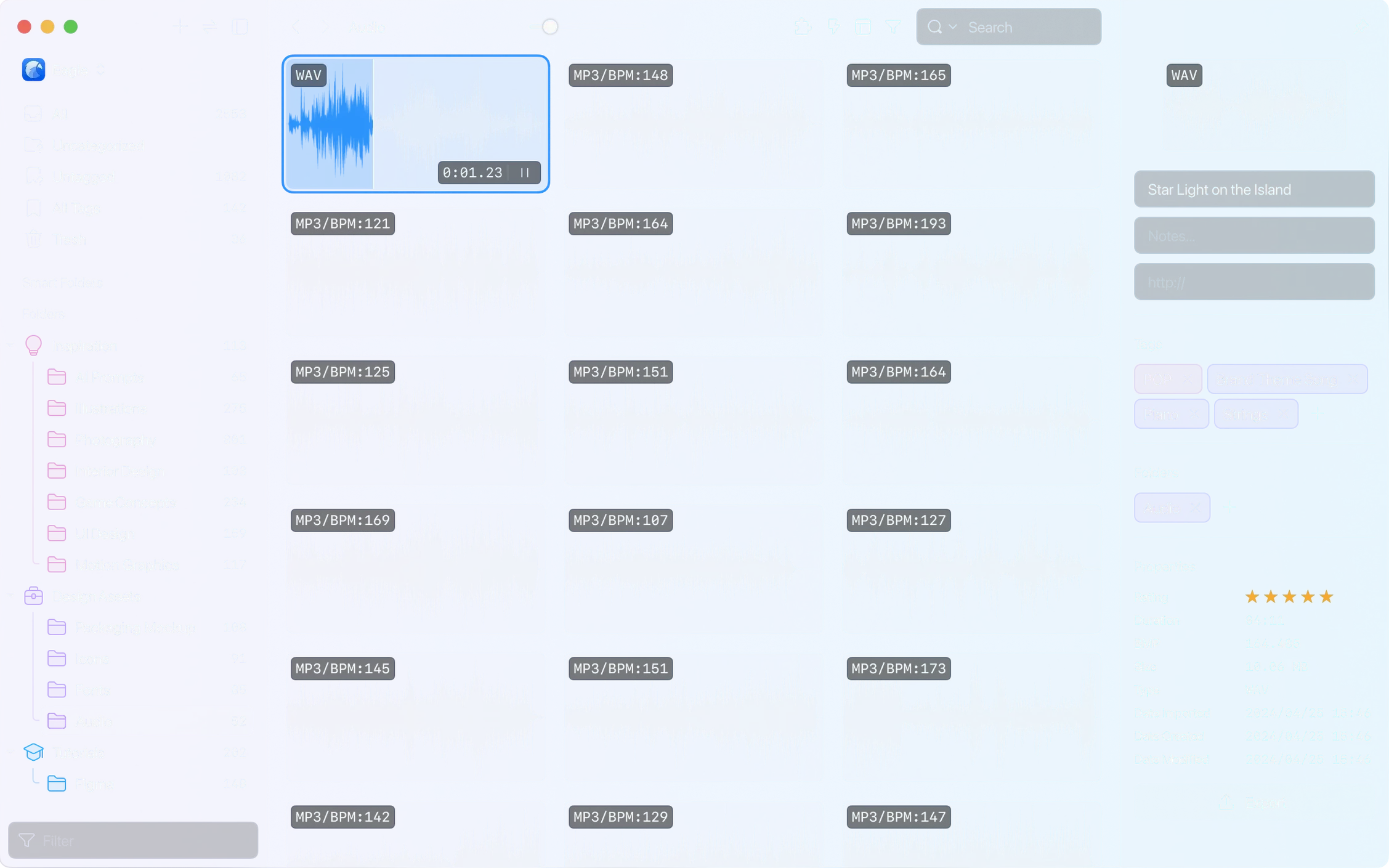
- Audio files longer than one hour are now supported.
- Thumbnail display controls sit in the layout panel for quick adjustments.
- Hover preview works for AVIF images.
- New actions let you remove a specified folder or a specified tag directly.
- Fixed a macOS issue where the main window could pop open unexpectedly after taking a screenshot.
- macOS 10.15 or later
- Intel and Apple Silicon Macs
Questions from the stall
Can Eagle handle large audio files?
Yes, version 4.0.0 added support for audio files longer than one hour.
Does the app work on Intel and Apple Silicon Macs?
Yes, Eagle runs on both architectures and requires macOS 10.15 or later.
Can I control how thumbnails appear in the layout?
The current build includes a thumbnail display control option right in the layout panel.
Notes from other shops 0
Sign in or open a shop account to leave a note.
No notes yet. If you've used this on a shop Mac, tell me how it went.