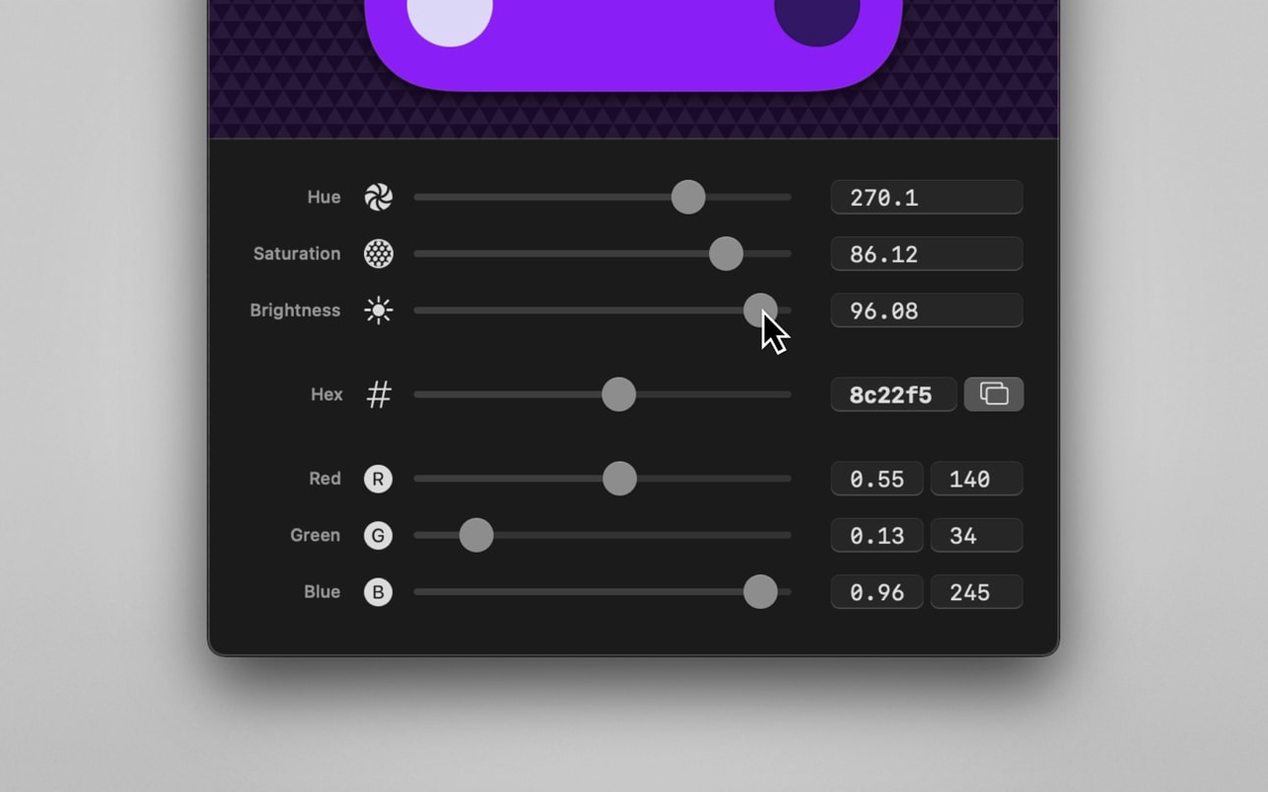
You already know how to pick a color in your design app. But when you need that same hue for a web stylesheet, a sketch file, or a developer spec, re-creating it by hand wastes time. Color UI is a quiet utility that sits on your Mac and turns color exploration into a one-stop task.
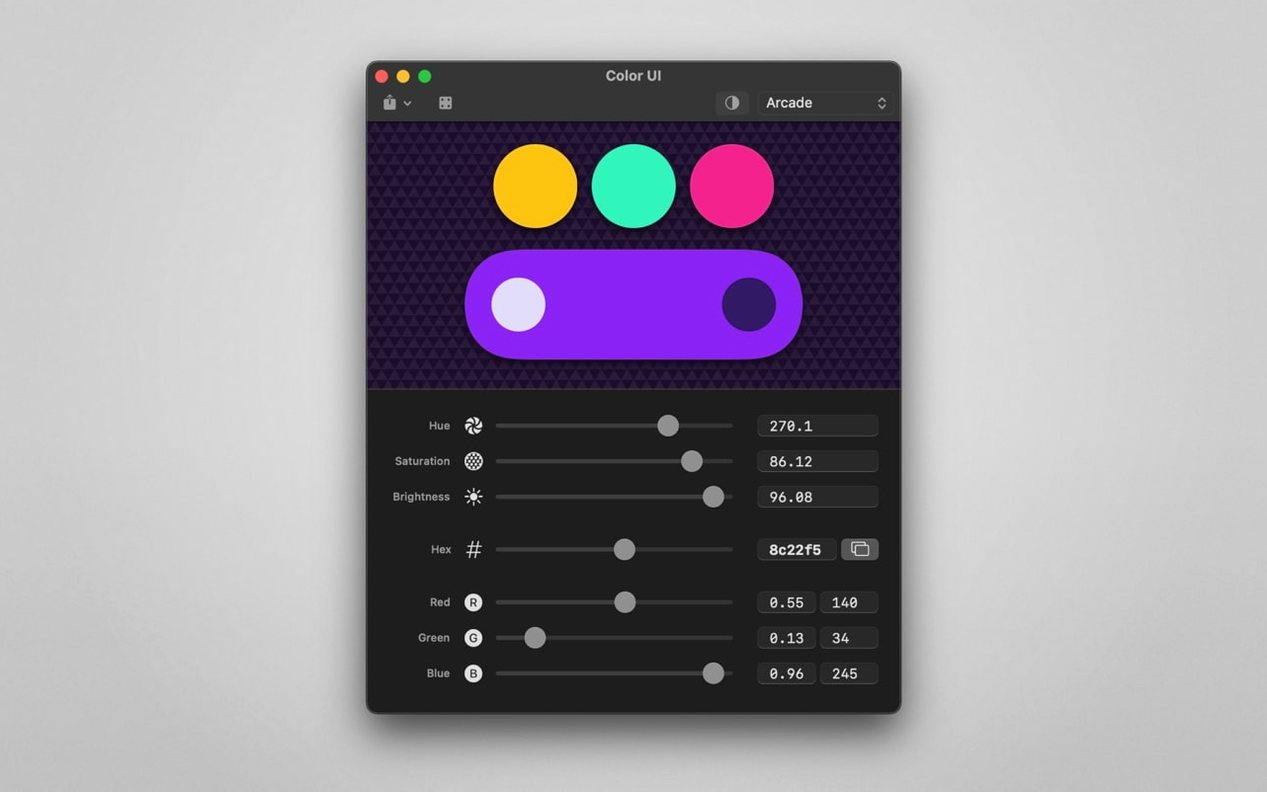
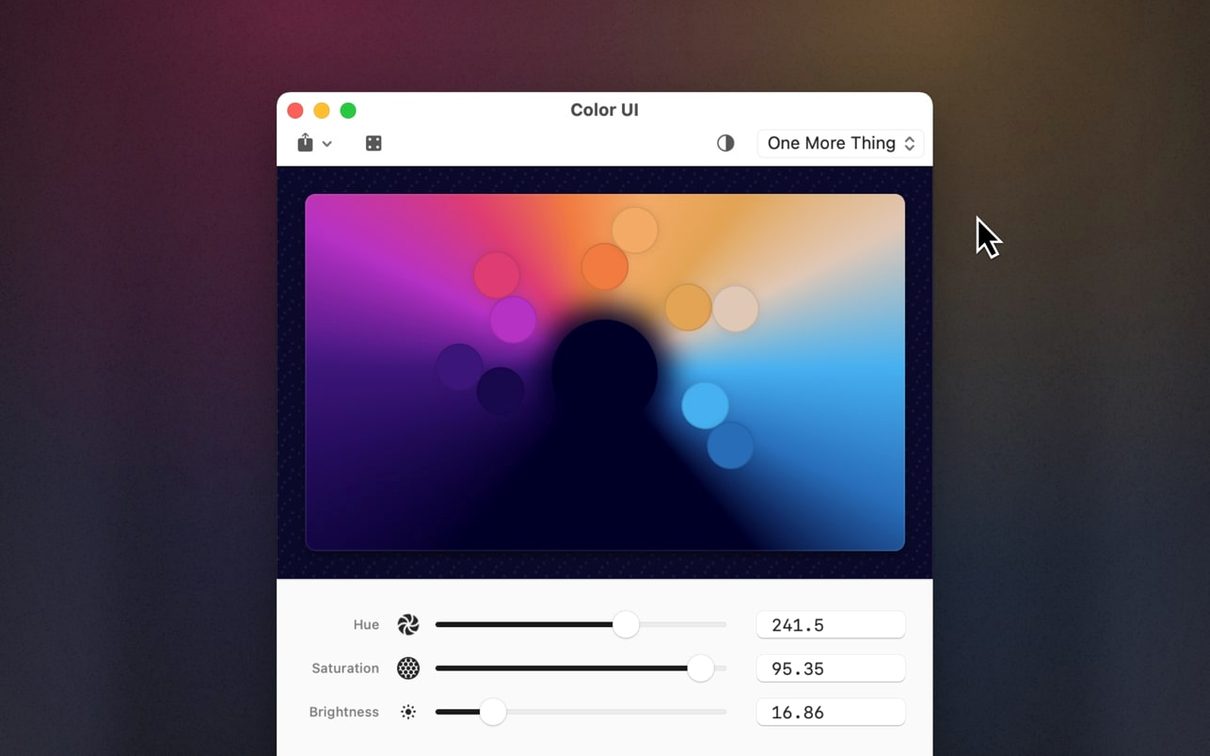
- Find your starting color. Open Color UI and use the picker or sliders to dial in any shade. The live preview shows how it behaves in light and dark contexts.
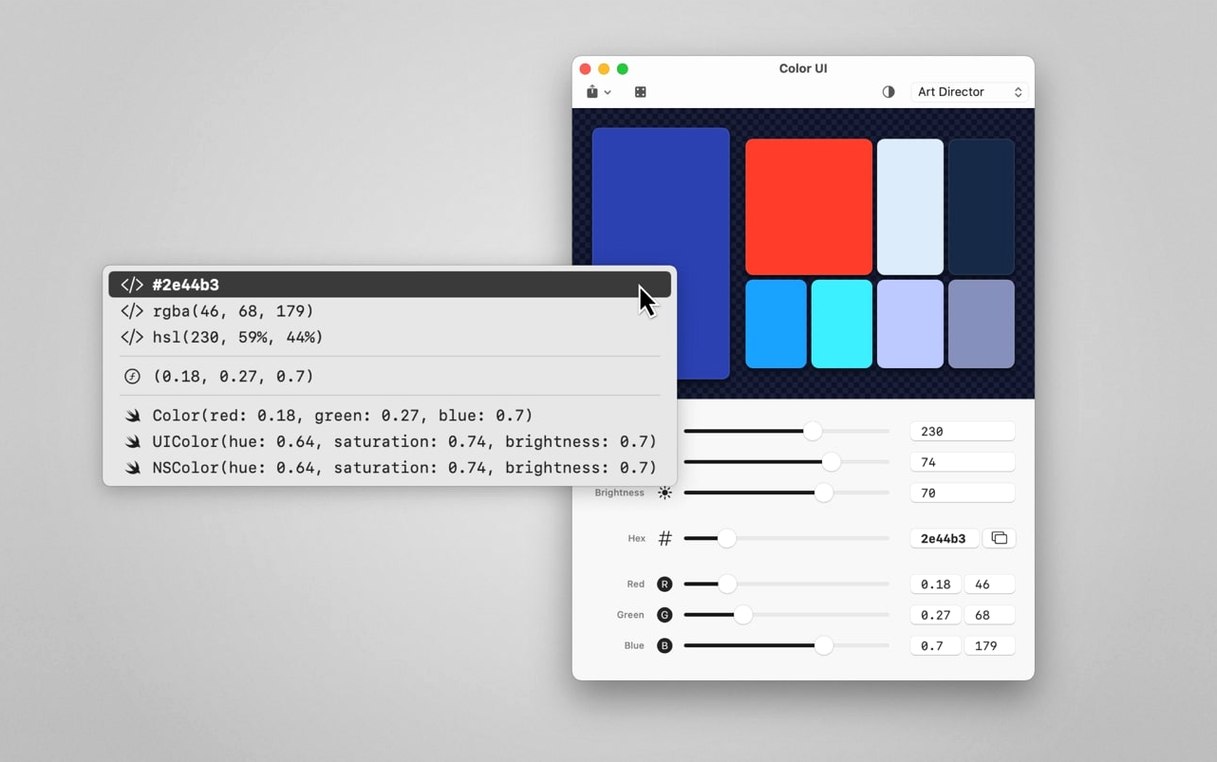
- See it in different formats. The app instantly converts that color to hex, RGB, HSL, NSColor, and more. No mental math, no switching tabs.
- Copy or export. Click any format to copy it to the clipboard. For a whole palette, use the export feature to save your colors as a file you can drop into code or another app.
What I'd use it for: when I'm building a small-brand color system for a client, I grab a reference color from a photo, convert it to hex for the website, then export the whole set as a Swift or CSS file. Color UI handles the translation, so I don't have to open a browser or do math. It runs on macOS 11 or later, works on both Intel and Apple Silicon, and speaks English, German, Spanish, Italian, and French.
A day in the life of a freelance illustrator
Say you're a freelance illustrator who works in Procreate but delivers final assets in multiple formats. You've got a brand palette you love — a warm coral, a deep teal, a soft cream — and you need to hand those off to a web developer as hex codes, to a print shop as RGB percentages, and to your own archive as a .ase file. Without Color UI, that means three browser tabs, a converter website, and probably a typo somewhere. With it, you open the app, punch in the HSB values you remember from your sketch, and copy each format in one click. The export feature saves the whole palette as a single file. No switching apps, no re-typing.
How Color UI compares to macOS's built-in eyedropper
There are a few other ways to handle color on macOS. Here's how Color UI compares with the ones I see most often.
- macOS built-in color picker (system eyedropper). It's fine for grabbing a single pixel value, but it only gives you RGB and hex. You can't convert to HSL, NSColor, or anything else. And there's no way to build or export a palette. Color UI turns that one-off task into a repeatable workflow.
- Sip. Sip is another dedicated color picker and converter. It's good for quick sampling, and it sits in your menu bar. But its export options are more limited — you mostly copy values one at a time. Color UI gives you a proper export feature that saves your colors as a file, which I find more useful when I'm working on a multi-color project.
- Color Palette. That app focuses on building and saving palettes from images. It's great if your starting point is a photograph. But it's not designed for live conversion between formats or for developers who need specific outputs. Color UI fills that gap — it's more of a translator than a palette builder, and it covers formats like NSColor that the others skip.
None of these are bad tools. But if your work involves moving colors between design, code, and print, Color UI saves you the extra steps.
Live preview speed boost in version 2.3
The current version, 2.3, runs on macOS 11 or later and supports both Intel and Apple Silicon Macs. The update that brought it to 2.3 smoothed out a few things I notice in daily use:
- Live preview is faster. The light and dark context previews update as you drag sliders, with less lag than earlier builds. That matters when you're fine-tuning a shade for both a light website background and a dark mobile app header.
- Export is more reliable. Earlier versions occasionally dropped a color when saving a multi-color palette file. Version 2.3 handles that cleanly — I've exported palettes with a dozen entries and every one came through.
- Interface feels tighter. The window rescales better on smaller screens, and the format dropdowns are a little easier to read at a glance. Small polish, but it adds up when you're in and out of the app all day.
- macOS 11 or later
- Intel or Apple Silicon
- Interface languages: English, German, Spanish, Italian, French
Notes from other shops 0
Sign in or open a shop account to leave a note.
No notes yet. If you've used this on a shop Mac, tell me how it went.