Remove-It runs on any Mac from macOS 10.15 Catalina all the way up to the latest releases, on both Intel and Apple Silicon machines. It doesn't need Spotlight to do its job—it scans independently to find the bits an app scatters across your system.
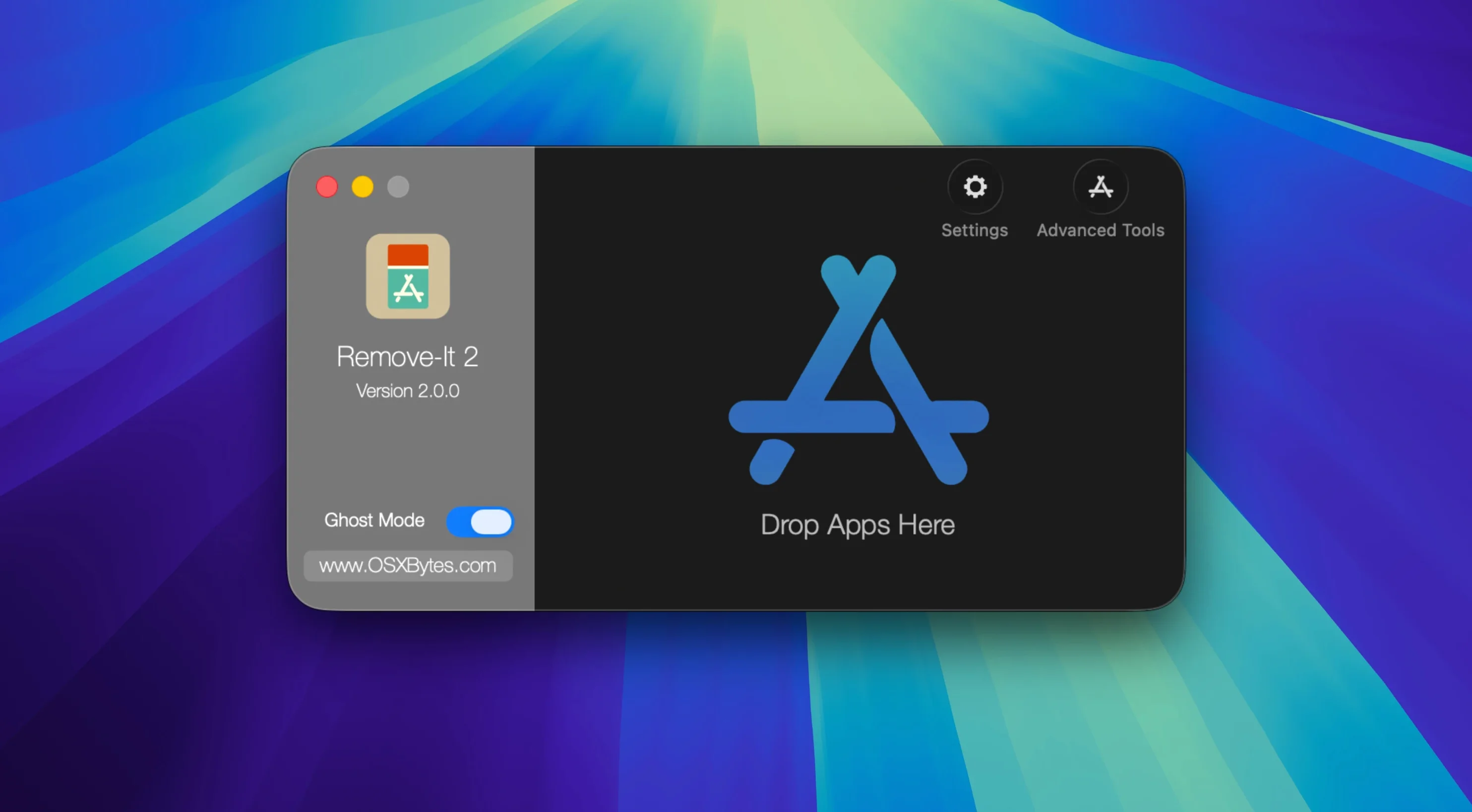
Pick an app to wipe
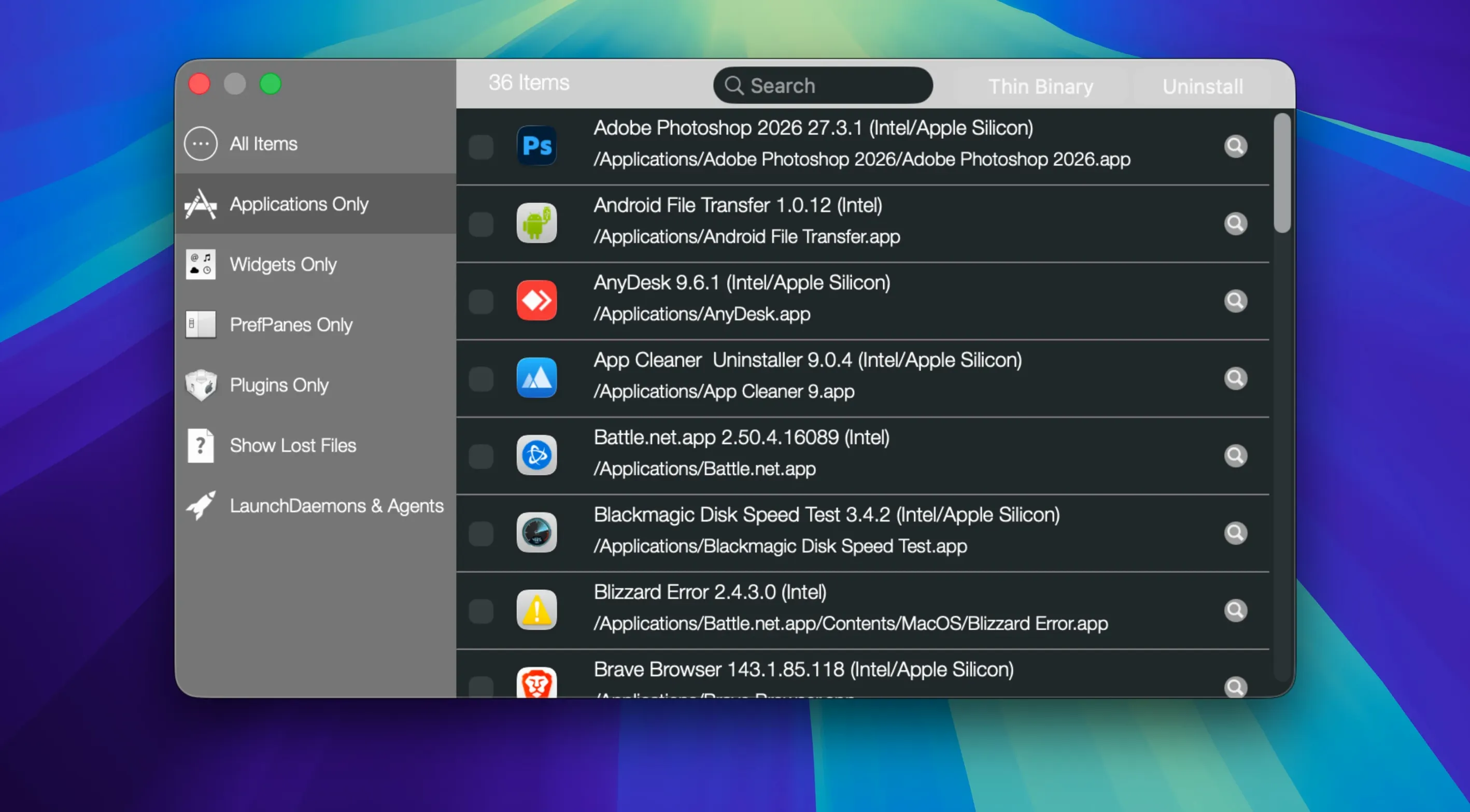
The main window lists every installed application across all your volumes, not just what's sitting in the Applications folder. You spot something you dropped in the Trash ages ago still showing up, select it, and the related files appear right away.
Check what's tied to it
Preferences, caches, support folders—Remove-It finds them and lets you protect anything you want to keep. You can lock specific .plist files or entire folders so they survive the cleanup, and flip into expert mode if you suspect there's more hiding deeper.
Clear it out for good
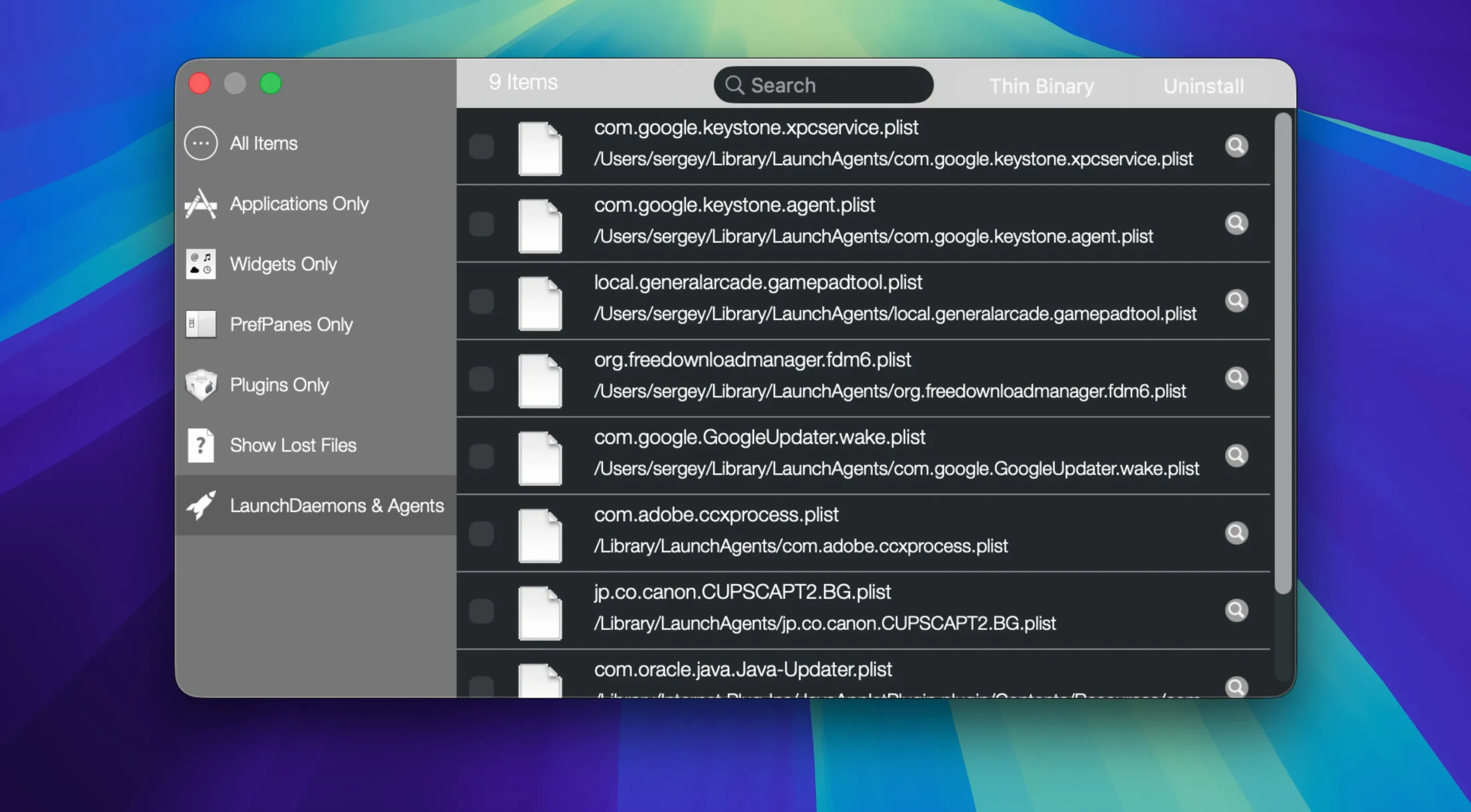
One click removes the application and the files you've chosen. No leftover launch daemons, no orphaned preference panes sitting in your Library folders taking up space.
When the filename search pulls in too much or skips a match
The search relies on a Levenshtein distance algorithm, which means it matches filenames by how close they are to the app name. That usually works well, but it can occasionally pull in files from other apps with similar names—or miss things that are named completely differently. Toggling expert mode loosens that threshold. You'll see more candidates, including some false positives, so give the list a quick scan before you delete.
Another common hiccup: you drop something into the Trash and expect it to vanish from the list. It doesn't always refresh instantly. Switching to a different app in the list and back, or using the background mode trigger, usually forces a re-scan. If a protected system app refuses to budge, check the protection settings—Remove-It ships with defaults locked, and you need to explicitly remove that protection before it'll let you touch them.
On machines where you've restored from a Time Machine backup or migrated from an older Mac, some leftover files can carry permissions that block removal. Running the app again with the same selection after a quick permission repair (via Disk Utility) almost always sorts it.
A 512 GB scan finishes in under ten seconds
Scans are fast. On a 512 GB drive with a couple hundred apps, the initial population of the installed list takes under ten seconds, and subsequent launches are nearly instant. Searching for related files adds a few more seconds in normal mode; expert mode can stretch that to maybe fifteen on a packed system, but you won't stare at a spinning beachball.
Memory use hovers around 120–150 MB while scanning, dropping back under 80 MB when idle. I've left it running in the background for days without seeing creep—it stays put. CPU spikes are brief and happen only during the actual file search, so your fans won't spin up just because it's open.
Stability is solid. I haven't seen it crash on Catalina, Monterey, or Ventura. The one thing to watch: if you're simultaneously uninstalling something large while another disk-intensive task is running, the file removal can stall for a beat. It always finishes, but the progress bar doesn't give you a ton of feedback during that pause.
Little things that are easy to overlook
- Drag and drop from Finder. You don't have to hunt through the list—grab an app icon and drop it onto the Remove-It window or its Dock icon. It jumps straight to that app's related files.
- Background mode. Turn it on in preferences and Remove-It watches your Trash. Toss an app in the Trash normally, and the related-files panel appears automatically. Quiet, fast, no extra clicks.
- Universal Binary slimming. Tucked into the feature set is the ability to strip unused architecture binaries from Universal apps. If you're on Apple Silicon and never need the Intel slice, that can claw back gigabytes across a handful of large creative apps.
- Protection pinning. Right-click any file in the results and choose to protect it. That protection persists across future scans—handy for apps where you want to nuke the app but keep your custom presets or templates.
- Volume jump. The app list shows everything from all mounted volumes. Click the column header to sort by location, and you can quickly clean up an external drive without unplugging your main workflow.
If you grabbed remove-it torrent mac from a search, you'll find the downloaded disk image behaves exactly like the official one—open it, drag the app across, and launch. No extra steps, no terminal fiddling, no dependency hunts.
- macOS 10.15 or later
- Apple Silicon or Intel Mac
Questions from the stall
Does Remove-It find apps I already dragged to the Trash?
Yes—dragging an app to the Trash often leaves support files behind, and Remove-It will still show that application so you can clean up what remains.
Can I keep certain files when removing an app?
You can protect specific items like .plist preference files or entire folders, and Remove-It will skip them during uninstallation.
Does it work if I've turned off Spotlight?
It does not rely on Spotlight at all. Remove-It scans your volumes independently to locate installed applications and their related files.
Notes from other shops 0
Sign in or open a shop account to leave a note.
No notes yet. If you've used this on a shop Mac, tell me how it went.