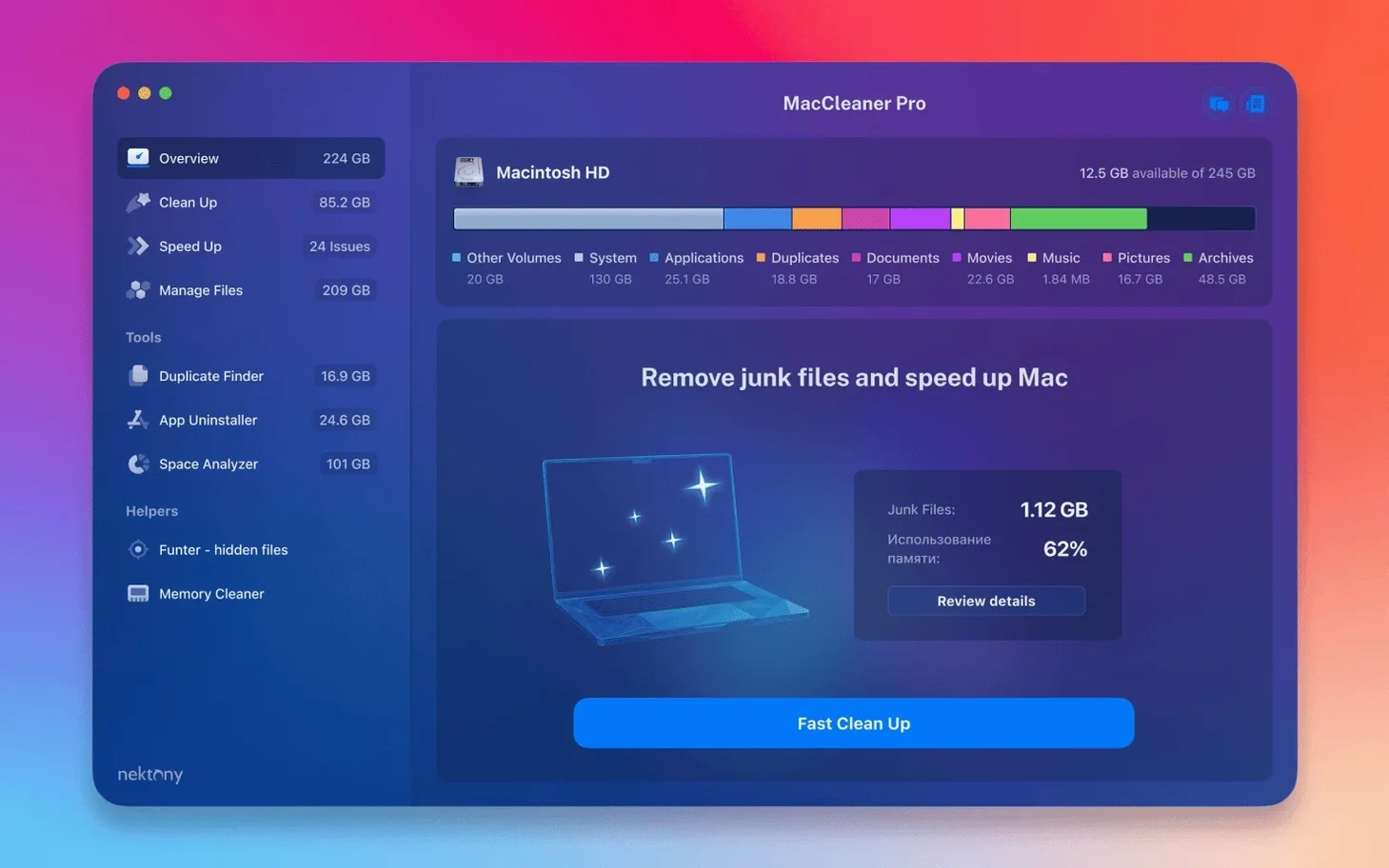
When a Mac’s startup disk creeps toward full, Finder’s vague “Other” and “System Data” bars tell you nothing useful. You know something is eating gigabytes, but tracking it down means chasing folder sizes by hand or trusting a one-button cleaner that hides what it’s doing. That’s where the tools in MacCleaner Pro start to matter—not for a quick wipe, but for seeing what’s actually on the drive and deciding what goes.
| What you get | Why it’s in the bundle |
|---|---|
| Disk Space Analyzer 6.0 | Visual map of disk usage so you spot the real space hogs. |
| Duplicate File Finder 8.5.2 | Finds identical files and folders—useful after years of scattered imports. |
| App Cleaner & Uninstaller 9.0.3 | Removes apps plus their leftover service files and extensions. |
| Memory Cleaner 5.5 | Shows memory pressure and clears inactive RAM without restarting. |
| Funter 7.1 | Shows and hides invisible files directly from the Finder toolbar. |
What I’d use it for: the Duplicate File Finder gets the attention, but Disk Space Analyzer is the one I’d open first. It draws a treemap of the whole drive, so a bloated cache or a forgotten disk image jumps out in seconds. From there, App Cleaner & Uninstaller handles removal properly—dragging an app to the Trash leaves behind preference files and launch agents, and this catches them. The bundle runs natively on both Apple Silicon and Intel Macs, and version 4.0.2 tightened detection for items in custom Home folders and iCloud directories—small fixes that matter when a script or a cloud-synced folder was the hidden culprit all along.
The middle ground between light tools and heavy suites
There’s no shortage of Mac cleaning tools, but they fall into two camps: single-purpose utilities and kitchen-sink suites that feel heavy the moment you launch them. MacCleaner Pro sits somewhere in the middle, and that’s what makes it worth comparing.
Next to CleanMyMac X, the difference shows up fast. CleanMyMac is a single app with a unified dashboard—polished, automated, and opinionated about what it removes. MacCleaner Pro breaks the same tasks into separate tools, each with its own window and focus. That means more clicking between apps, but also more transparency. When Disk Space Analyzer flags a 40 GB folder, I can see exactly which subfolders are responsible before I act. CleanMyMac tends to summarize, which is faster but less informative if you’re the type who wants to verify before deleting.
Compared to BuhoCleaner, the layout philosophy flips. BuhoCleaner is lightweight and scans quickly, but its duplicate finder and disk analyzer are built into one compact interface with fewer filtering options. MacCleaner Pro’s Duplicate File Finder lets you set rules by file size, type, and folder scope—handy when you know the duplicates are hiding in a specific photo archive and don’t want to scan the entire drive. BuhoCleaner works fine for a quick clean, but the bundle gives you finer knobs to turn.
Onyx is the other reference point, though it’s free and aimed at users comfortable with technical maintenance tasks. Onyx does deep system checks, but it doesn’t visualize disk usage or hunt duplicates with a preview pane. MacCleaner Pro covers fewer system-level parameters, but what it does is more visual and approachable. You trade some raw power for an interface that doesn’t assume you know what a kernel extension is.
Scan your disk first to skip the overwhelm
The first launch can feel like opening a toolbox and not knowing which tray to lift first. Here’s a practical sequence that avoids overwhelm while making the most of the initial scan time.
Start with Disk Space Analyzer. Point it at your main drive and let it build the treemap. This takes a few minutes on a full 512 GB SSD, but the result is a single view of every large folder. I’d sort by size and look for entries you didn’t expect—old iOS backups, Steam game libraries you forgot about, or a Downloads folder that ballooned over two years. Note the paths you want to revisit, then move to Duplicate File Finder with those folders as the scan scope. Scanning only your known trouble spots keeps the duplicate pass fast and relevant.
Check App Cleaner & Uninstaller’s extensions tab. Most people open it to remove an app, but the real value in the first week is scanning Launch Agents, login items, and Safari extensions. Leftovers from uninstalled apps often sit there doing nothing, and clearing them early means one less variable when you troubleshoot a slow boot later.
Let Memory Cleaner sit in the menu bar. Don’t force-clean RAM constantly—macOS manages memory well on its own. Instead, use the menu bar graph to learn your machine’s typical memory pressure during a workday. When the graph spikes into red during a specific task (say, exporting a large video), that’s your signal to close other apps first, then use the clean function as a targeted reset rather than a reflex.
Tip: Before running Duplicate File Finder on your entire drive, exclude Time Machine backup volumes and any external drives that are already organized. The scan stays faster, and you avoid false positives from backup snapshots.
Only one tool spikes RAM during its scan
The individual tools launch as standalone apps, each with its own memory footprint. That sounds heavier than a unified suite, but in practice only Disk Space Analyper carries a noticeable load during its initial scan—around 200–300 MB of RAM while crawling the drive, which drops back once the treemap is rendered. On an M1 Mac with 8 GB of RAM, running the analyzer alongside Safari and Notes didn’t trigger memory pressure warnings, though I wouldn’t stack a full duplicate scan on top of it at the same time.
Scan speed depends heavily on drive type. On an internal SSD, the disk space scan finishes in under two minutes for a 256 GB drive; a duplicate scan of the home folder with default filters takes about the same. External spinning drives are slower, as expected, but the app doesn’t lock up during the wait—you can pause or cancel mid-scan, which some bulkier suites don’t allow.
Stability has been uneventful, which is the best kind. Across a week of opening and closing the tools multiple times, no crashes or hangs showed up. Version 4.0.2’s interface fixes were minor—button alignment in the duplicate preview pane, a toolbar label that used to truncate on smaller screens—but they add to the sense that the bundle isn’t fighting the OS. One thing to note: Memory Cleaner’s “clean” action is aggressive in a way that can briefly stutter an active app if that app was relying on cached RAM. It’s not a bug, just a reminder to clean memory when you’re between tasks, not in the middle of one.
Funter adds a hidden-files toggle right into Finder
The bundle doesn’t try to replace Finder or System Settings—it extends them where they fall short. Funter is the clearest example. macOS lets you toggle hidden files with a Terminal command, but Funter adds a toggle to the Finder toolbar and a search filter that includes invisible items. When you’re cleaning up after a mac cleaner pro download and want to check for leftover config files in ~/Library, that toolbar button saves repeated trips to Terminal.
App Cleaner & Uninstaller works alongside Launchpad and the Applications folder rather than against them. You can drag an app from Finder into its window, or use its built-in list view that shows app sizes and last-opened dates—data Finder doesn’t surface in one place. After removing an app, the leftover scan catches files in ~/Library/Application Support, ~/Library/Caches, and ~/Library/Preferences that a manual Trash-drag misses. This pairs well with Disk Space Analyzer: find the large app you rarely use, then uninstall it completely from App Cleaner.
Memory Cleaner complements Activity Monitor rather than duplicating it. Activity Monitor shows you which processes are hungry right now; Memory Cleaner gives you a running chart of memory pressure over the last hour. If you notice a gradual climb during a Photoshop session, you can cross-reference with Activity Monitor’s process list to find the culprit, then use Memory
- macOS 10.13 or later
- Works natively on Apple Silicon and Intel 64-bit Macs
Questions from the stall
Which apps are included in MacCleaner Pro?
The bundle contains six apps: App Cleaner & Uninstaller, Disk Space Analyzer, Duplicate File Finder, Memory Cleaner, Funter, and the MacCleaner Pro app itself for coordinating scans.
Does it work on Apple Silicon Macs?
Yes, it supports both Apple Silicon and Intel 64-bit Macs running macOS 10.13 or later.
Notes from other shops 0
Sign in or open a shop account to leave a note.
No notes yet. If you've used this on a shop Mac, tell me how it went.