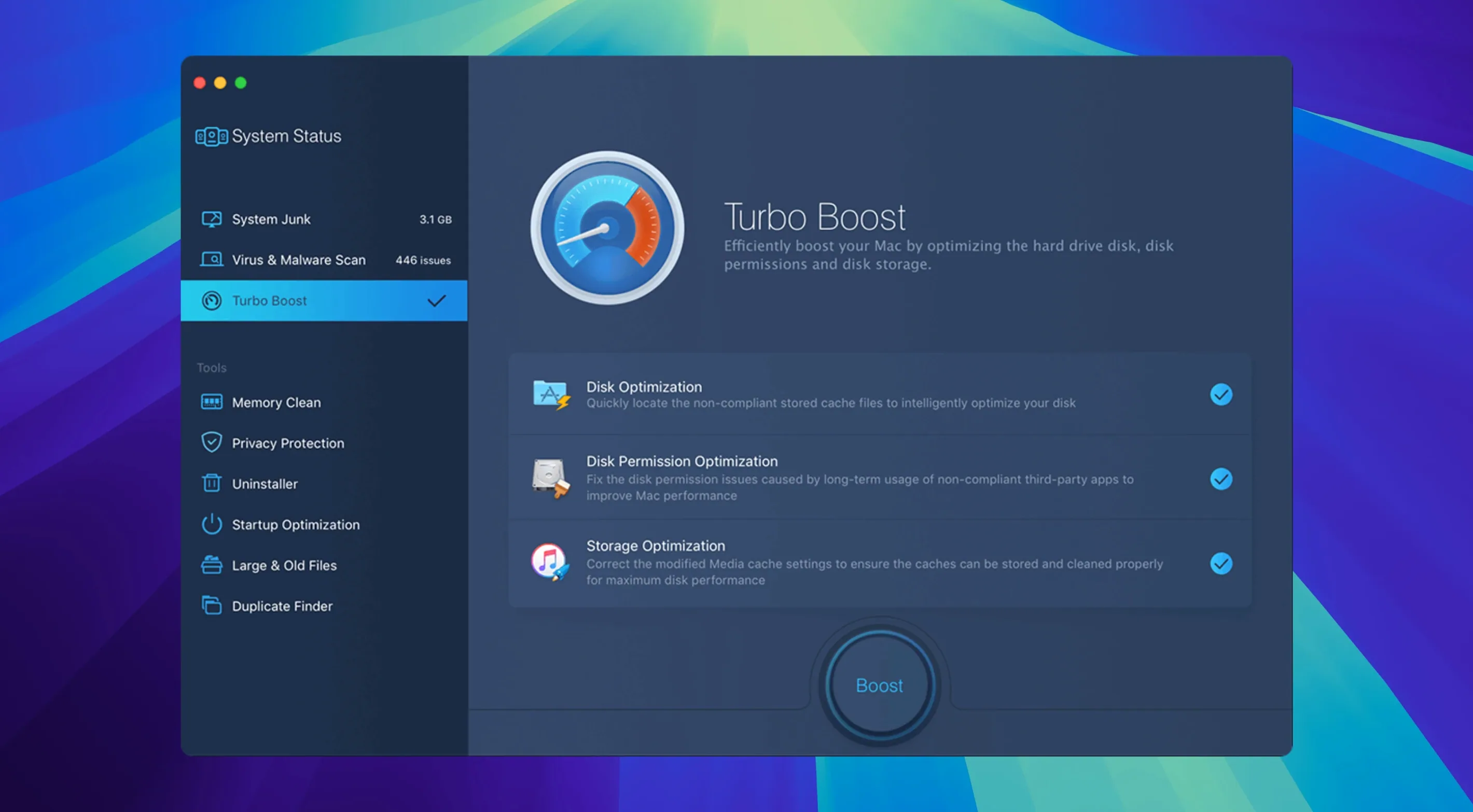
Right after the first launch, MacBooster 8 Pro checks for three things at once: junk files, malware, and RAM hogs. A single System Status scan runs all of them, which saves you from poking around seven separate tools blind.
Run the one-click System Status scan
Hit the big scan button on the home screen. In a minute or two you get a plain-language report showing how much space temporary files, caches, and logs are wasting, whether any known malware signatures turned up, and if memory pressure looks high. You can fix every finding with one click, or uncheck items you want to keep.
Clear out large and duplicate files
Once the quick scan is done, head to the Duplicates Finder and Large Files Cleaner. These two tools dig through the folders you point them at and surface old disk images, forgotten video exports, and identical photos that sit in multiple project folders. Good way to reclaim gigabytes without hunting manually.
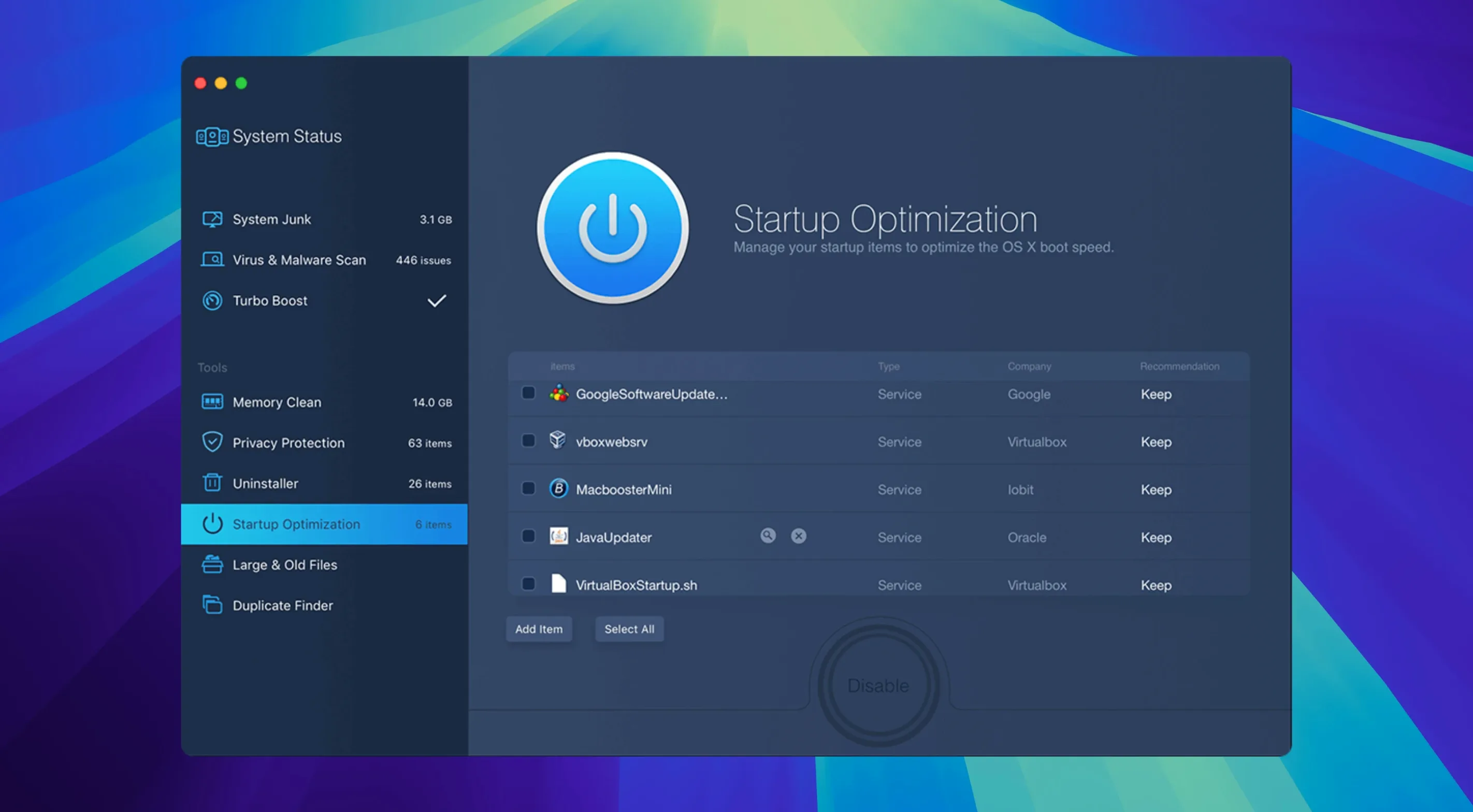
Prune your startup items
The Optimization section lists every launch agent and login item currently registered on your Mac. Toggle off the helpers you don't need running at boot and the login process feels noticeably lighter next time you restart.
Don't treat every scan result as a must-fix
After the first full scan, the report can look alarming: maybe 12 GB of "junk" and a dozen privacy items flagged. That's normal. The scanner casts a wide net on purpose. Before clicking Fix All, scroll through and uncheck anything you recognize—browser cache for a site you log into daily, recent file lists from apps you use constantly, or language packs for software that misbehaves when you remove them. A five-second review saves you from logging back into half your accounts tomorrow morning.
Let the memory cleaner settle before judging it
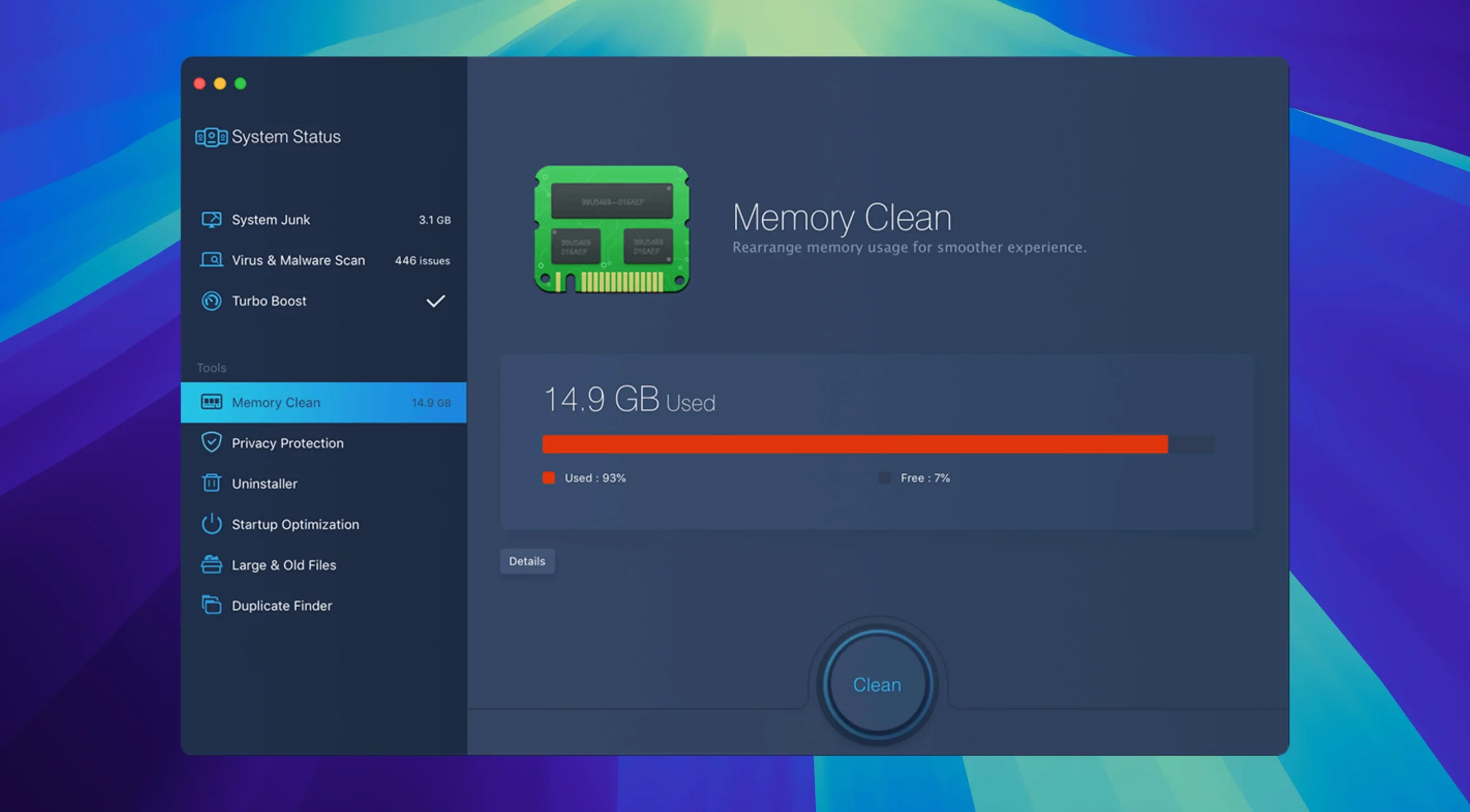
When you click Free Up RAM and watch the pressure graph drop, it's satisfying. The mistake people make is doing this obsessively while working. Modern macOS manages memory well on its own; what MacBooster's memory tool does best is give you a quick breather after closing a heavy app like Final Cut or a VM, so the system reclaims what the app left behind. Use it between tasks, not during.
Run the malware scanner separately the first week
The System Status scan includes a malware check, but the dedicated Security tool digs deeper and takes a few more minutes. I'd run it alone a couple of times in the first days, especially if you've downloaded utilities from outside the App Store. You're not being paranoid. A clean first week builds confidence, and you'll learn which folders keep throwing false positives.
Tip: If a "threat" turns out to be a keygen or patcher you knowingly kept, add its folder to the exclusion list so it stays right where you expect it and everything keeps running smoothly.
One setting to change before anything else
Open Preferences from the menu bar. Three things worth toggling right away:
- Launch at login — off, unless you plan to run daily scans. Most people don't need it running from boot.
- Scan schedule — pick weekly, not daily. A weekly scan catches buildup without turning maintenance into a nervous habit.
- Notifications — trim to "scan completed" only. The default can get chatty.
While you're in there, confirm the language matches your system. MacBooster ships with over a dozen localizations, and switching early avoids confusion when a tool name reads slightly off in a language you didn't mean to set.
The uninstaller tool is smarter than dragging apps to the trash
New users often skip the Uninstaller because they've been deleting apps the Finder way for years. But the Uninstaller hunts down leftover preferences, caches, and support files that survive a normal drag-to-trash. If you're cleaning house after migrating from an older Mac, this one tool can recover more space than the junk file scanner. Just don't use it on apps that run their own clean uninstall scripts; stick to the obvious candidates first—old utilities, trial software that expired, forgotten menu bar apps.
Scans run only when you ask, so your Mac stays responsive
The question I hear most often is whether MacBooster will slow down a Mac that's already struggling. The answer is no, not in normal use. The app runs scans on demand or on a schedule you pick. It doesn't install a background service that constantly monitors the disk. The memory cleaner is manual. So on a machine with tight specs, it's actually less intrusive than always-on antivirus tools that sit in the menu bar checking every file read.
Another common concern is overlap with CleanMyMac or Onyx. You don't need both for daily maintenance. Where MacBooster earns its keep is the malware scanner bundled with cleanup, which some Mac-only cleaners skip entirely. If security checking matters to you—especially if you regularly test software you're curious about—that combo saves you from installing a separate antivirus for occasional scans.
People also ask about the Gatekeeper bypass step during installation. It's a terminal command you run once. After that, the app behaves like any other. You aren't lowering your Mac's security permanently; you're just telling macOS to trust an app that didn't go through notarization.
- macOS 11.5 or later
- Apple Silicon and Intel 64-bit Macs
- 70 MB or more of free disk space
Notes from other shops 0
Sign in or open a shop account to leave a note.
No notes yet. If you've used this on a shop Mac, tell me how it went.