AppZapper runs on Intel Macs with OS X 10.9 or newer, and it extends the usual macOS app-removal workflow in a practical way. Instead of just dragging an app to the Trash and hoping you got everything, it hunts down the related preference files, caches, and other support items that often stay behind. You get a clear view of what's connected to an app before anything disappears.
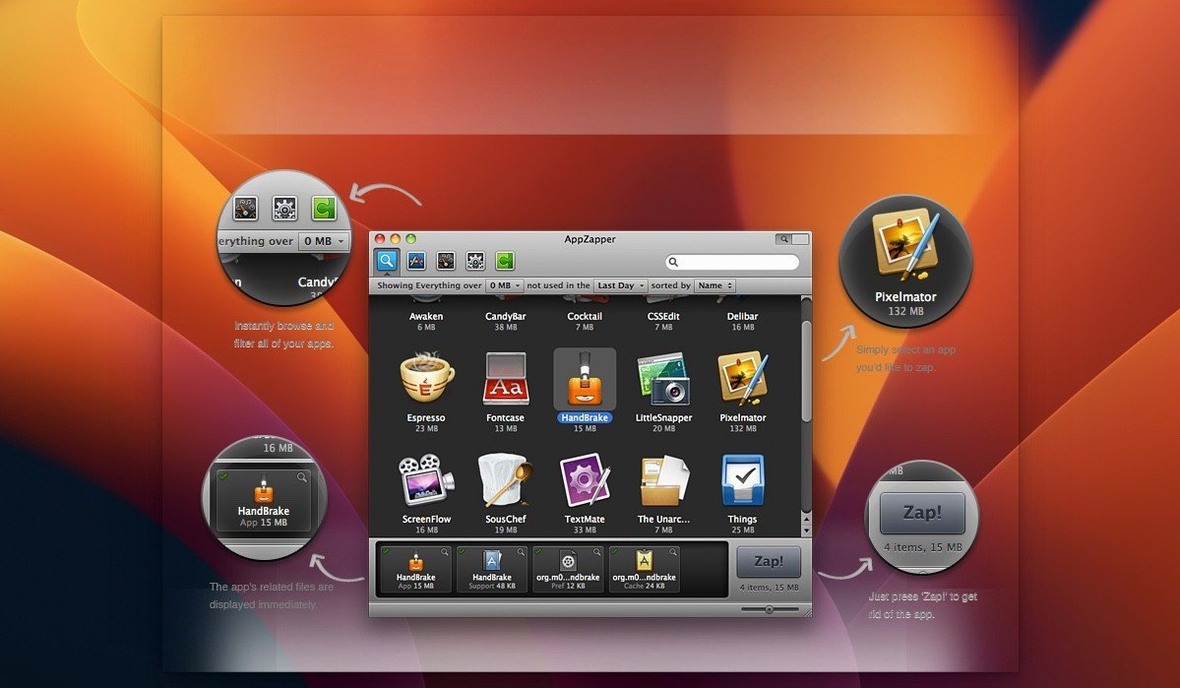
- Related-file discovery. Drop an app onto the window and AppZapper lists every associated file it finds on your drive. You see exactly what belongs to that program before you commit to removing it.
- Selective deletion. A checked item can be excluded from deletion. If you want to keep a preference file or a template but ditch the rest, just uncheck it from the list.
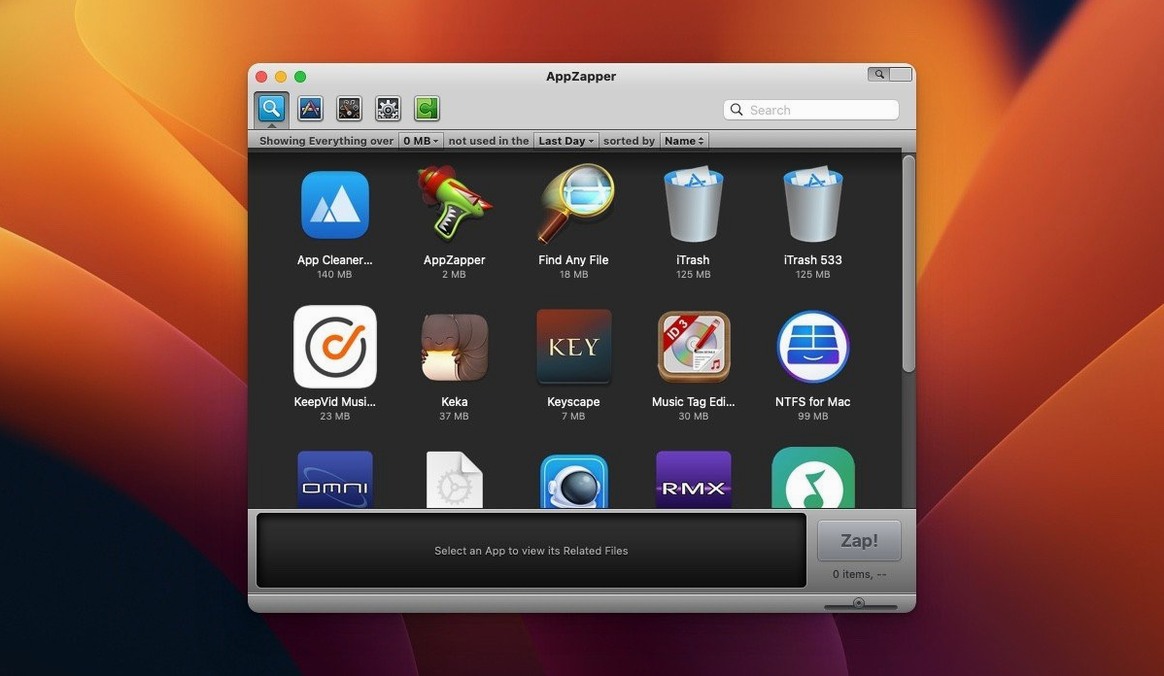
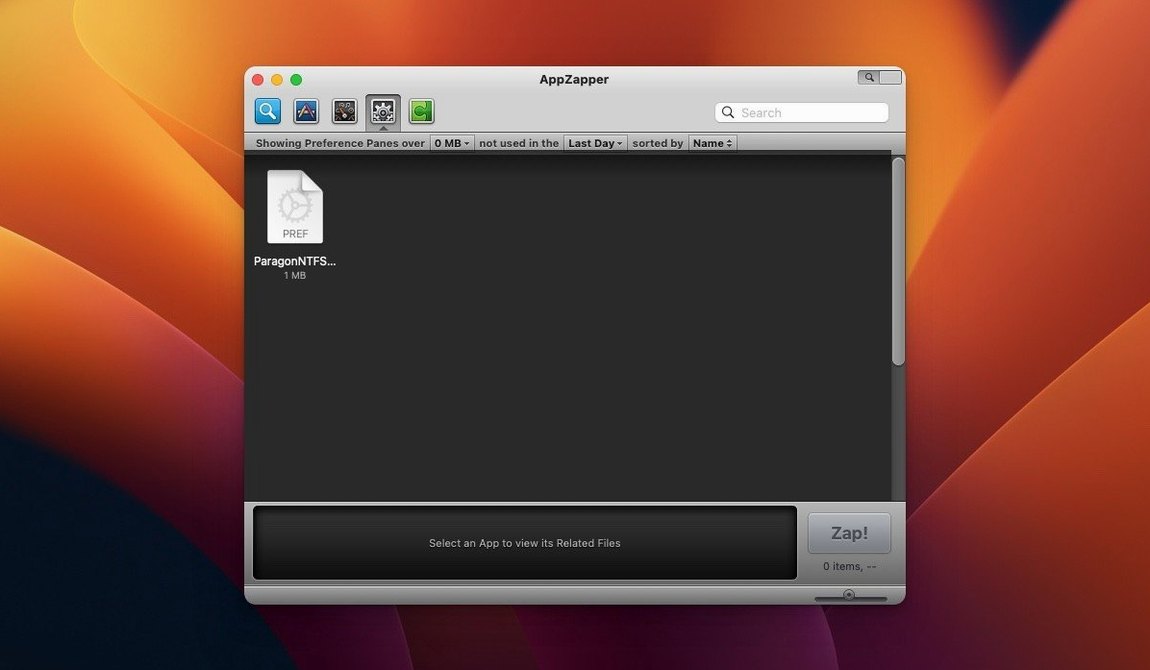
- Grid-style app browser. The second version added a button in the upper-right corner of the window that opens a large-icon grid of your installed apps. You can browse visually or filter by name and date last used, which is a real time-saver when you're thinning out old utilities.
- ZapGenie filtering. The built-in ZapGenie lets you sort your applications by the date you last opened them. It's a straightforward way to spot the ones you haven't touched in months and decide what can go.
It's a focused tool that does one job without overcomplicating it. For a small shop like mine, where I've installed and abandoned dozens of design and bookkeeping trials over the years, having a clean way to pull out every leftover file keeps the Mac tidy.
Why it won’t delete anything unless you tick the box
Most of the questions I hear boil down to the same worry: will this thing delete something I actually need? The short answer is no — not unless you check the box and tell it to. AppZapper shows you every related file before it acts, and each item has its own checkbox. If you're unsure about a preference file that stores your custom settings, just uncheck it. The app stays out of system-level folders and won't touch files that aren't linked to something you've explicitly dropped in or selected from the grid.
People also ask whether it handles apps that were installed from package installers. It does, but with the same caveat any uninstaller faces: it finds what the app registered as its own. A few stubborn support files placed by an installer script might slip past, which is why I still do a quick Spotlight search for the developer name after zapping something big. AppZapper catches most of it. Another common question is about the Gatekeeper prompt during setup — that's normal for software distributed outside the App Store, and the installer steps are straightforward about bypassing it.
For anyone searching terms like appzapper mac or app zapper mac and wondering if it still works on modern setups: the 64-bit Intel build runs on OS X 10.9 and later. If you're on an older Intel machine that never made the jump to Apple Silicon, it's still a viable option.
Blink-fast file scans on Intel Macs
AppZapper launches in about a second on most Intel Macs I've seen it on. The file scan itself is quick — drop an app in and the related-files list populates in a blink for smaller utilities, maybe two or three seconds for large creative suites with support files scattered across Library folders. Memory use sits low, usually under 40 MB while idle, and it doesn't install background helpers or launch agents. When you close it, it's closed. That matters to me because I don't want an uninstaller hanging around consuming resources when it's not actively cleaning something up.
Stability hasn't been an issue. Version 2.0.3 fix addresses earlier quirks, and I haven't run into crashes during bulk zapping sessions or while browsing the grid view with a few hundred apps installed. The Sparkle updater built in since version 1.6.0 means the app can check for fixes without a manual download, though you'd only need that if development picks up again.
Bypassing the Gatekeeper block on first launch
The most frequent hiccup is the Gatekeeper block on first launch. The disk image includes an "Open Gatekeeper friendly" script — run that, press Enter in Terminal when prompted, and the quarantine attribute clears. After that, drag the app to your Applications folder and open it normally. If you skip this step, macOS will refuse to launch it with a generic warning.
Another snag: some people drop an app onto the window and expect it to zap everything instantly. AppZapper shows you the list first on purpose. You still need to review the checked items and hit the Zap button. It's not a one-click-and-done tool, and that's by design.
Occasionally, an app's related files won't all appear — particularly with older software that stored preferences in non-standard locations. If you're cleaning up thoroughly, a manual pass through ~/Library/Preferences/ and ~/Library/Application Support/ catches the stragglers. And if you zap something by accident, deleted files land in the Trash first. You can restore them from there as long as you haven't emptied it.
A note for anyone arriving via searches like AppZapper torrent or AppZapper full Mac: the 2.0.3 fix package floating around includes activation handled by the TNT team. The app itself is the same build — the extra step is just about getting past the trial nag, and the Gatekeeper bypass still applies the same way.
A grid-style app browser with large icons now lives behind a button in the upper-right corner of the window, giving you a visual way to scan your installed applications.
- OS X 10.9 or newer
- Intel 64-bit processor
Questions from the stall
Does AppZapper work on Apple Silicon Macs?
The current version lists Intel 64-bit support and requires OS X 10.9 or newer. It may run through Rosetta 2, but native Apple Silicon support isn't stated.
Can I stop AppZapper from deleting certain files?
Yes. When the related-files list appears, every item is checked by default. You can uncheck any file you want to keep, and only the checked items will be removed.
What is the ZapGenie feature?
ZapGenie is an app browser added in version 1.5.0. It shows your installed applications in a list you can filter by name or by date last used, making it easier to find old apps to clean up.
Notes from other shops 0
Sign in or open a shop account to leave a note.
No notes yet. If you've used this on a shop Mac, tell me how it went.