Version 10.0.1 finds leftover files from apps you trashed months ago—service files that sat in Library folders taking up space without you knowing. That cleanup ability is what draws most people in, but it raises a few practical questions first.
Three things people want to know before they install
- Does it remove files from apps I already deleted? Yes. The scan picks up orphaned caches, preferences, and other support files from applications that were simply moved to the Trash earlier, so you can clear out what got left behind.
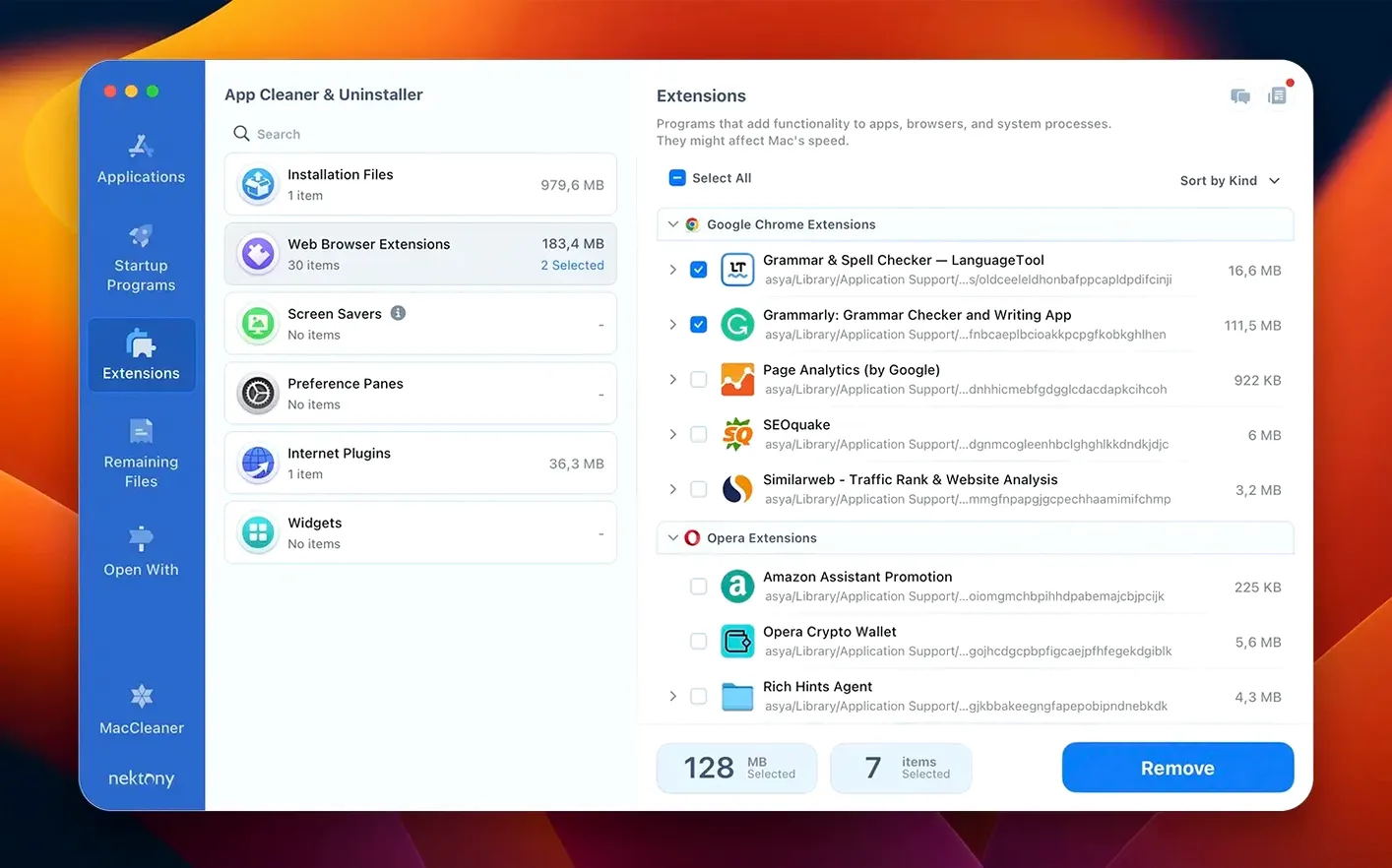
- Can it handle more than just uninstalling? It works as a full app manager. You can check which programs have network access, filter out incompatible applications for your macOS version, and manage Safari extensions or Homebrew command-line tools from a single place.
- Will it run on my Mac? It needs macOS 12 or later, with native support for both Apple Silicon and Intel Macs.
Removes stray service files regular Trash leaves behind
The uninstaller removes the application itself plus the scattered service files that a regular Trash-drag leaves untouched. A redesigned menu bar app now shows network traffic control, and an expanded database covers more updatable items—Safari extensions and Homebrew tools included. The interface runs in nine languages, including English, Japanese, Ukrainian, and both Simplified and Traditional Chinese.
Safety with daily apps and undoing mistaken deletions
I get a lot of email about this one. People want to know if it's safe with apps they rely on every day, or what happens when they remove something by mistake. Here's the stuff worth knowing before you open the disk image.
Will it delete shared components other apps need? App Cleaner & Uninstaller scans the files an app actually touches, not just the ones with its name on them. It won't rip out a shared framework that another program still uses. The scan highlights everything it found and lets you uncheck anything you want to keep. Nothing gets deleted unless you confirm it first.
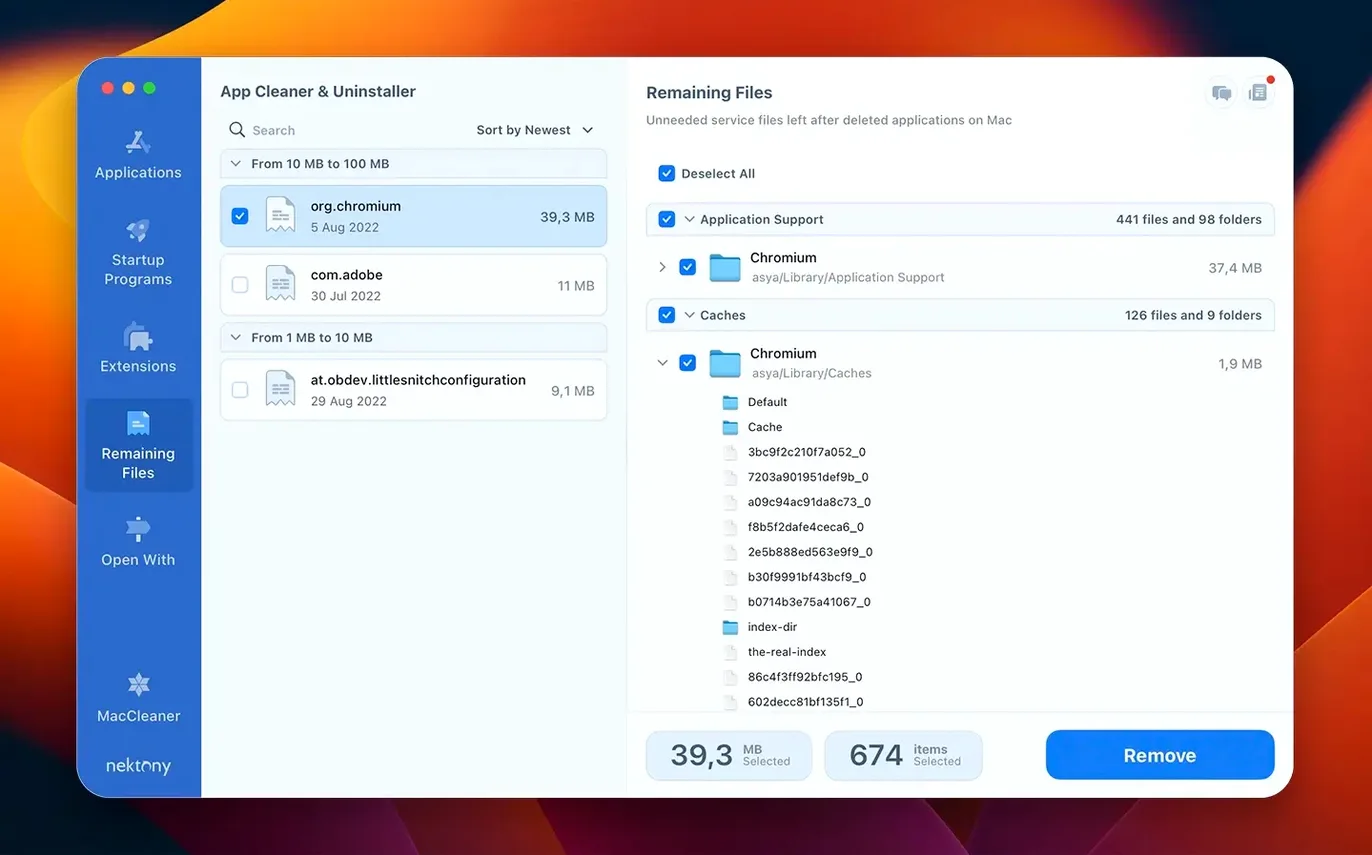
Does it know which leftovers belong to which app? The leftover scan groups files by their original application, even if you trashed that app six months ago. You'll see entries like "Adobe Photoshop — 12 leftover files" with a clickable list of caches, preferences, and support folders. It's not guessing. It reads the bundle identifiers baked into those files.
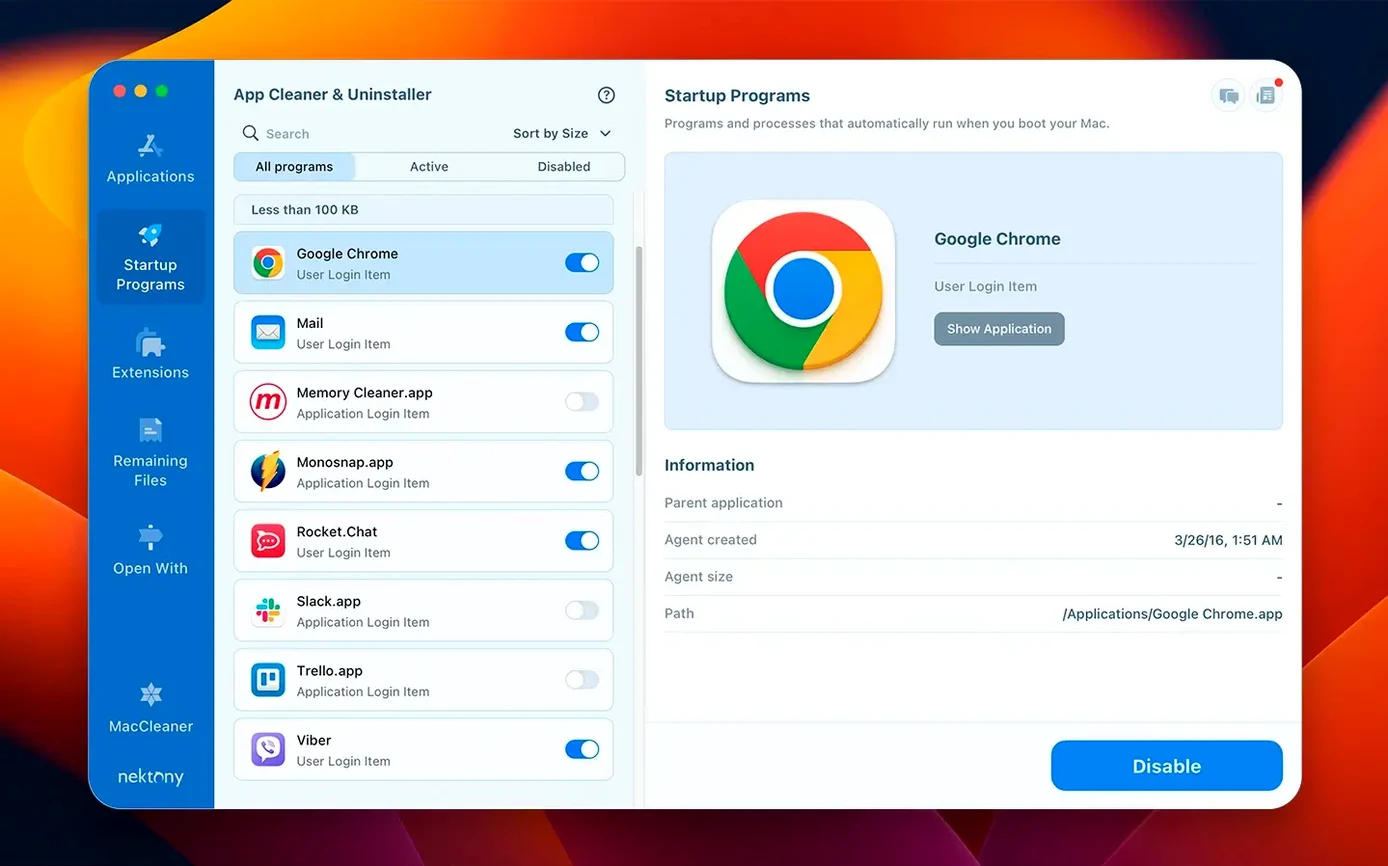
Can I use it instead of the built-in launch agents panel? You can. The startup items section shows login items, launch agents, and daemons in one list, with a toggle for each. It's neater than digging through System Settings or three Library folders. You can disable something without deleting it, which is handy when you're troubleshooting a slow boot.
Menu bar network access tab introduced quietly
A few conveniences aren't obvious on the first run. I spotted them after a week of daily use and wish I'd found them sooner.
The network access tab appeared in version 10.0 and sits quietly in the menu bar app. It lists every application that's made an outbound connection recently, with a switch to block it. If you're trying to figure out why a lightweight text editor is phoning home, this is where you check.
The incompatible apps filter saves time when you're setting up a new Mac or upgrading macOS. It flags applications that won't run on your current system version. Click it once and you've got a list of what needs an update or a replacement before you discover it the hard way.
Right-click on any app in the list and you'll see options to reveal its Finder location, show its service files, or jump straight to the uninstall screen. No digging through menus. The search box at the top finds apps by partial name too—type "photo" and it surfaces every photography tool you've installed, plus their leftover files if they've been removed.
Leftover file hiding in an app-specific Documents folder
Nothing's frictionless. These are the three things I hear about most often, with the fix that worked each time.
The scan missed a leftover file. Sometimes a service file sits in an unusual location—an app-specific folder inside ~/Documents, for example. The default scan covers standard Library paths. If you know a folder the app used, drag it onto the App Cleaner window. It'll scan that specific folder and add what it finds to the removal list.
An app keeps reappearing in the startup list after you disabled it. Some apps re-register themselves when they launch. Disable the launch agent in App Cleaner, but also check the app's own preferences—many have a "launch at login" checkbox that overrides external settings. Turn that off first, then use the cleaner to disable the agent. The combination sticks.
The menu bar network control doesn't show any apps. It needs a moment to build its list after you enable it. Open a few apps that connect to the internet—a browser, a mail client—and wait about thirty seconds. If the list stays blank, check that you've granted App Cleaner the network monitoring permission in System Settings under Privacy & Security. It'll prompt you on first launch, but it's easy to dismiss without reading.
Friday afternoon cleanup from launch to completion
Here's what a cleanup run looks like when I sit down to clear out a few things on a Friday afternoon.
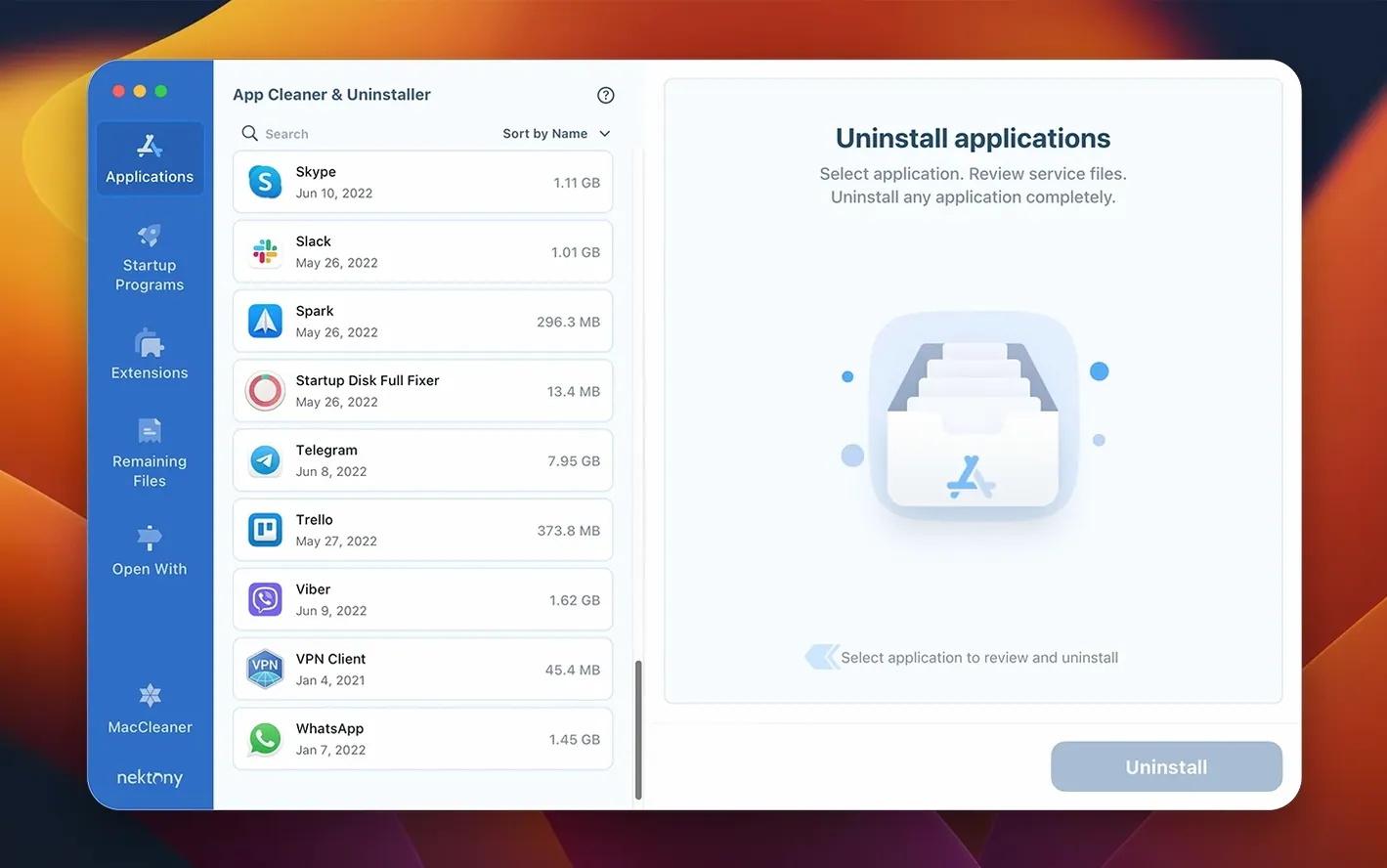
I launch App Cleaner from the Applications folder. The main window opens with a list of every app installed, sorted by name. I notice an old screen recorder I stopped using last spring. Clicking it shows the app itself plus seven service files: a cache folder, two preference plists, a saved state folder, and a couple of logs I never asked for. Total size: 340 MB. I leave everything checked and click Remove. It asks for confirmation, then clears them all in about two seconds.
Next I switch to the Leftovers tab. The scan runs automatically and shows twenty-three orphaned files from apps I dragged to the Trash months ago. Most are small—a few kilobytes each—but there's a 1.2 GB cache from a video editor I forgot I'd installed. I select everything, skim the file paths to make sure nothing important snuck in, and remove them. The free space counter in the corner ticks up.
I open the menu bar app to check network access. Three apps I don't recognize have recent connections listed. I block two of them and leave the third alone because it's a helper tool for something I actively use. The blocked apps still run; they just can't reach the internet anymore.
Finally I check startup items. A launch agent from a printer utility I uninstalled months ago is still trying to load at boot. It's disabled with one click. The whole session took under four minutes, and I didn't open a single Library folder manually.
A few helpful additions landed in version 10.0:
- A network access tab for checking which apps phone home.
- A redesigned menu bar app that includes network traffic control.
- Expanded update tracking—the database now covers Safari extensions and Homebrew command-line tools.
- An incompatible applications filter so you can spot software that won't play nice with your macOS version.
- macOS 12 or later
- Apple Silicon or Intel Mac
Questions from the stall
Does App Cleaner & Uninstaller find files from apps I already deleted?
Yes. It scans for leftover service files—caches, preferences, and other support items—left behind by applications that were previously moved to the Trash.
Is this only an uninstaller, or does it manage apps too?
It's a full app manager. Beyond removal, you can view network access, filter incompatible apps, and manage updates for Safari extensions and Homebrew command-line tools.
What macOS version does the current release require?
Version 10.0.1 requires macOS 12 or later and runs natively on both Apple Silicon and Intel Macs.
Notes from other shops 0
Sign in or open a shop account to leave a note.
No notes yet. If you've used this on a shop Mac, tell me how it went.