

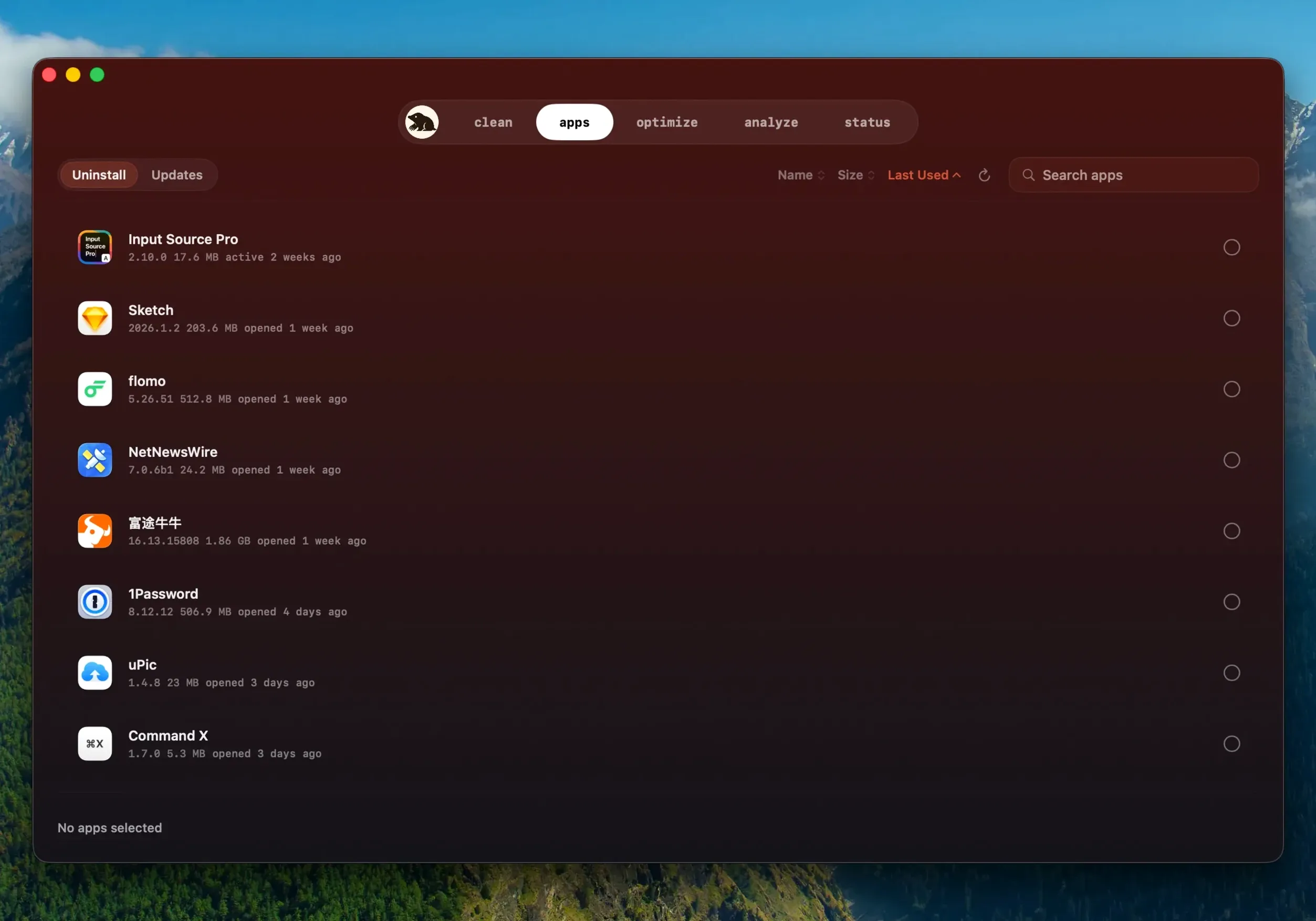

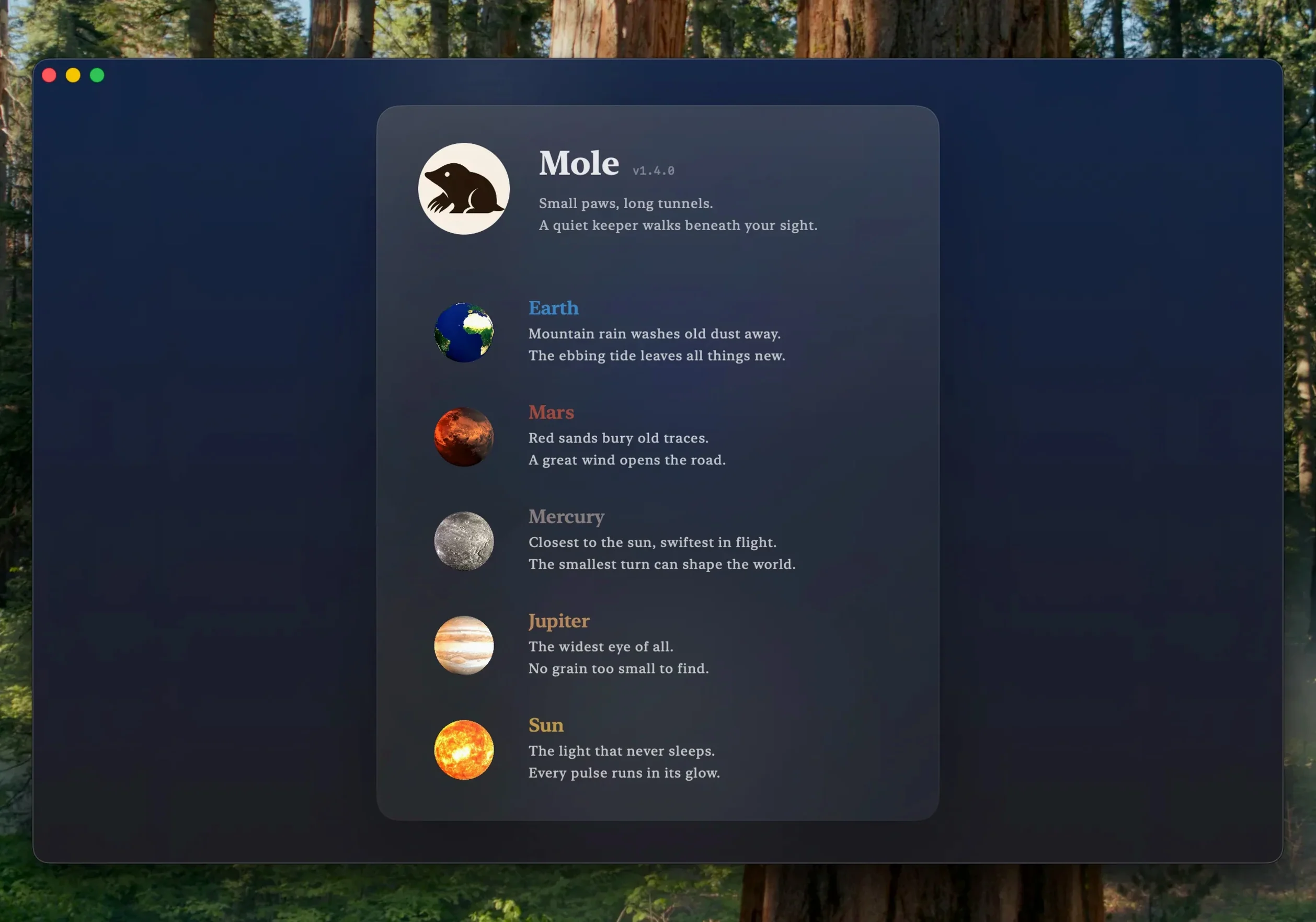
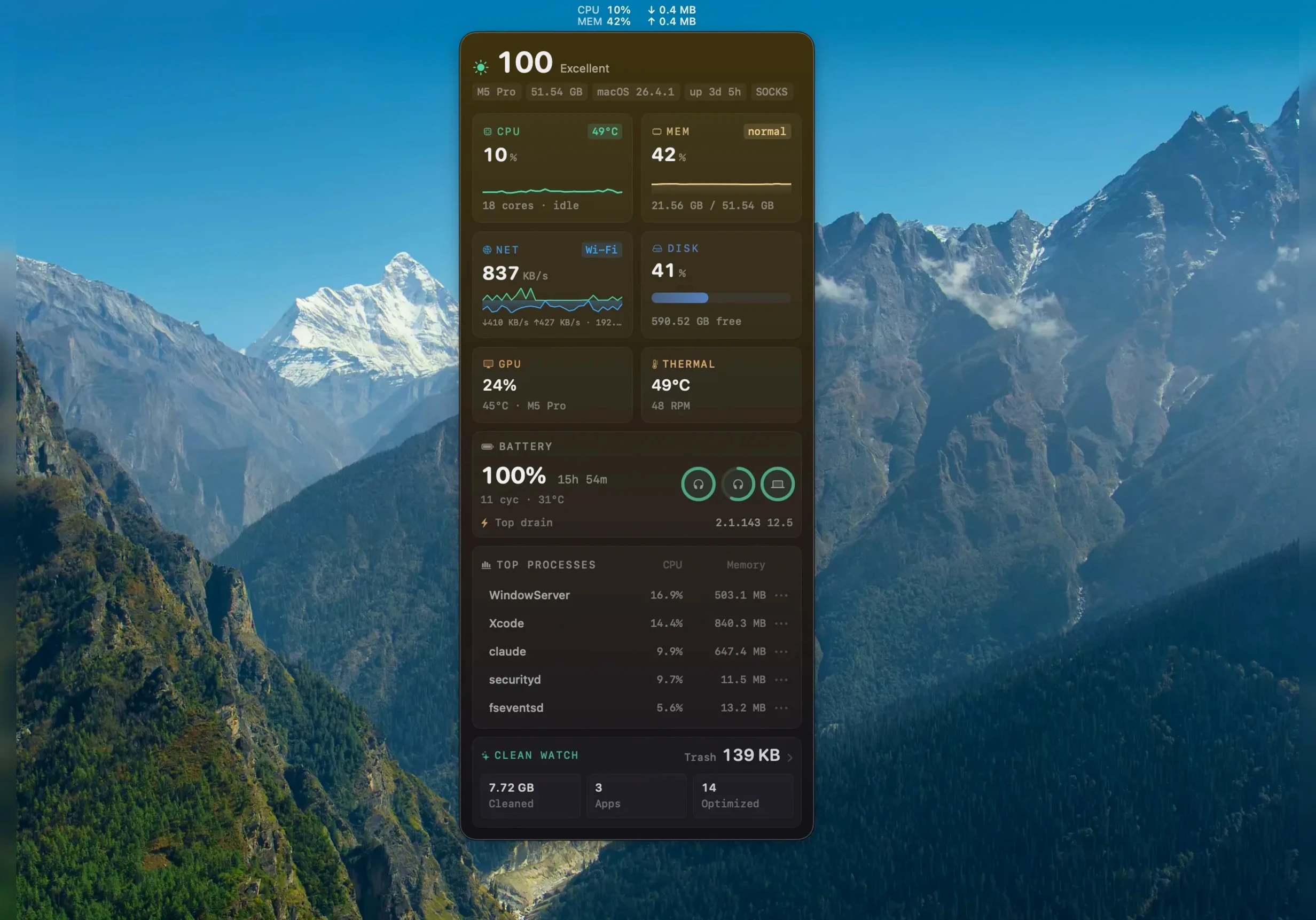
Version 1.14.0 brings a couple of thoughtful touches. Apps you grabbed directly from a developer's website can now update right inside Mole, which saves you chasing down new disk images yourself. It also got smarter about its own updates — if it spots a newer build of the same version, it'll offer to quit the running app, install the fresh copy, and reopen it for you. No hunting through folders, no guesswork.
Everything stays on your Mac by default
The first question is usually about privacy, and the answer is refreshingly plain: everything happens on your Mac. Scanning, cleaning, and disk space analysis stay local by default. File contents and your browsing history never leave the machine. When the scan isn't completely sure about an item, Mole errs on the side of caution and skips it rather than deleting something you might need. It's a tool built for people who'd rather keep their data to themselves.
Hunts down app leftovers regular uninstalls miss
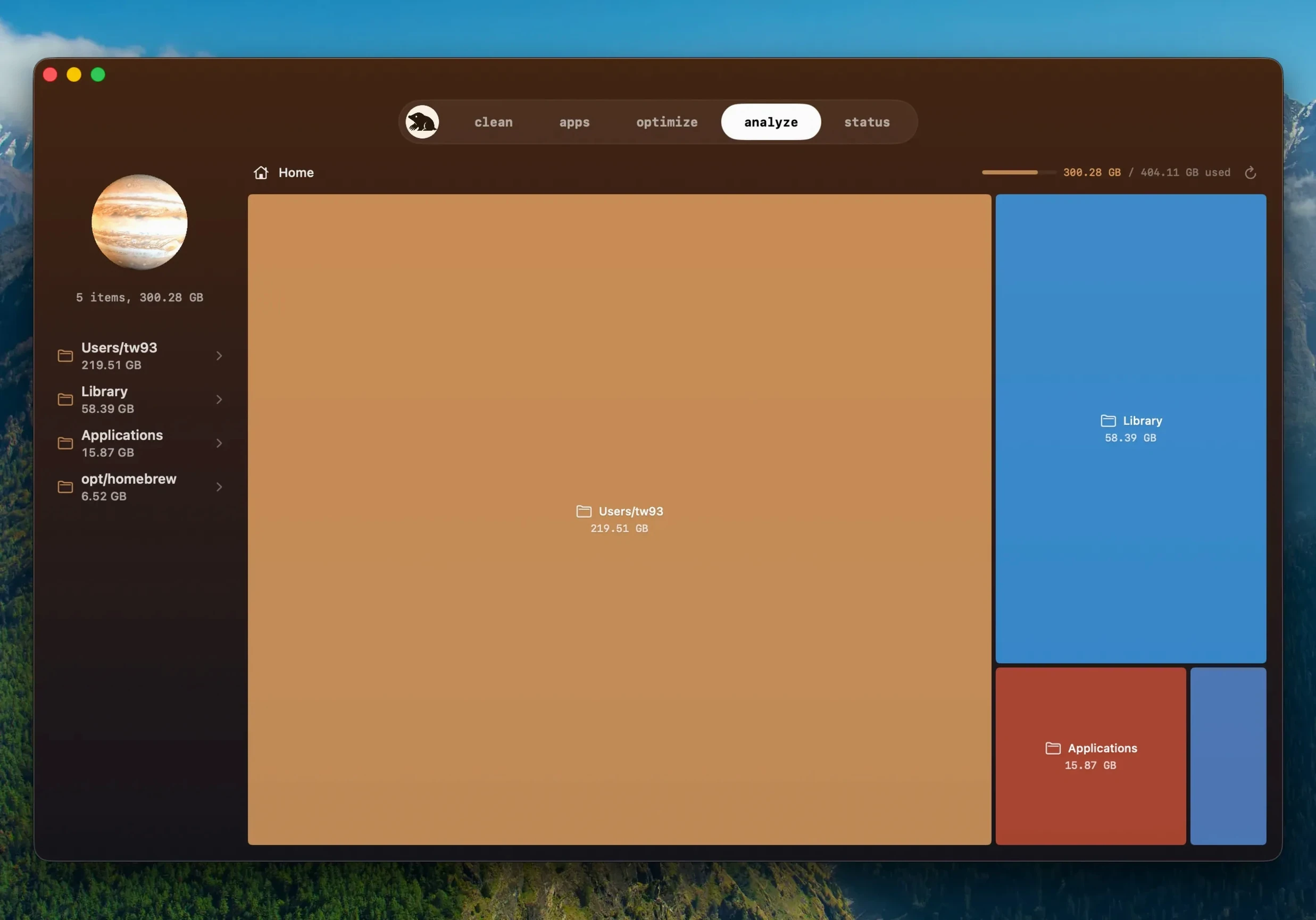
Beyond the safety net, Mole gives you a few genuinely handy levers for a tidier Mac. It hunts down application leftovers that regular uninstalls miss, clears out startup items cluttering your Dock, and runs a batch of system maintenance tasks in one click. The tree map view is a nice way to see what's eating your space — big blocks stand out immediately. Give it full disk access and it can do a deeper scan, but it never assumes you want everything scrubbed away. It asks, it shows, and it waits for you to decide.
Little shortcuts you might overlook
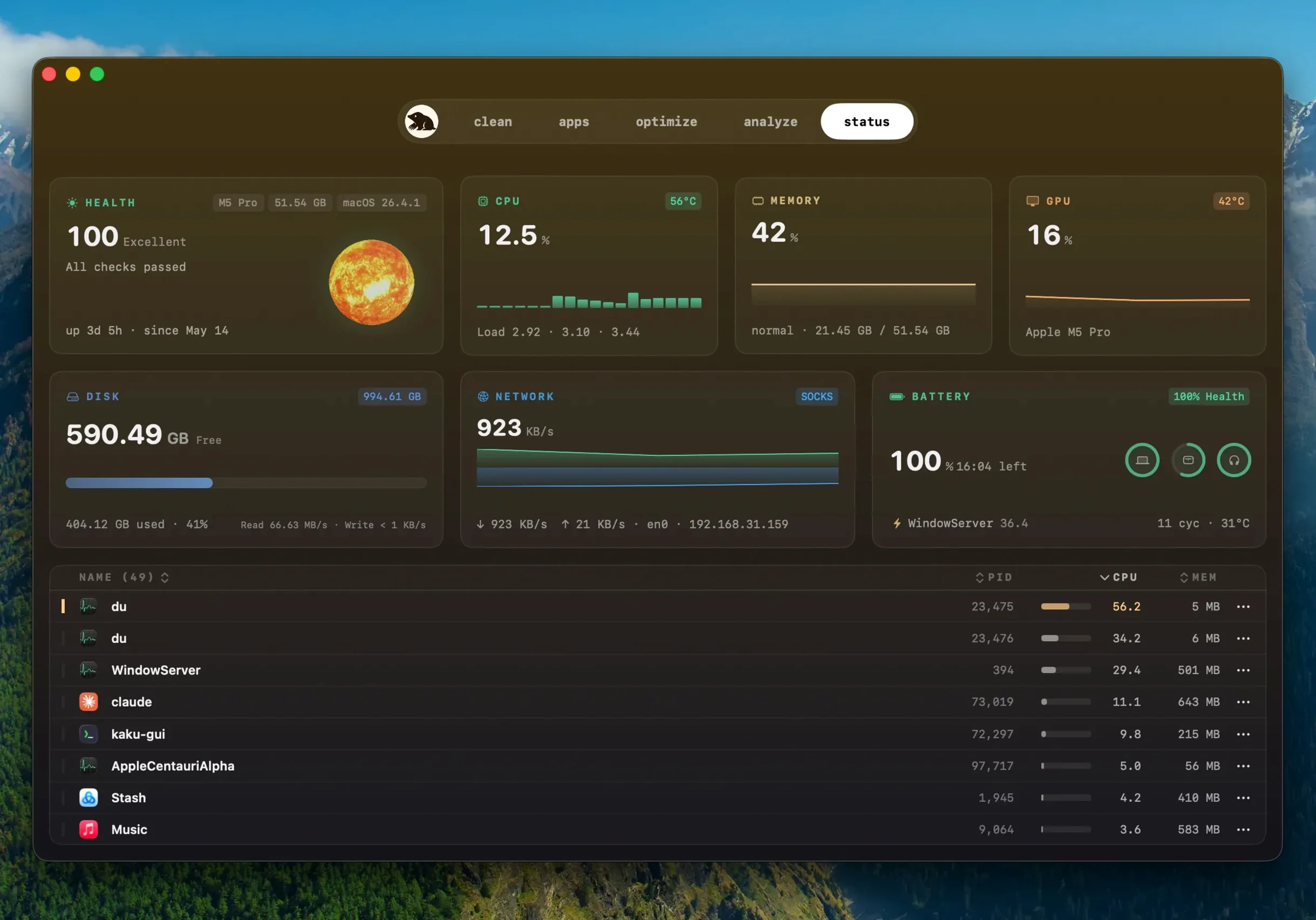
A few things in Mole are easy to miss on a first pass. You can hold Option while clicking a tree map block to reveal it in Finder instantly — no digging through nested folders. The status bar in the menu bar is off by default, but flip it on in preferences and you get CPU temperature and memory pressure at a glance without opening the main window. Right-clicking any scan result row gives you a quick "Show in Finder" option, and the file size column is sortable with a click on its header.
When you're in the leftovers list after removing an app, there's a small Reveal button next to each path entry. Tapping it opens the enclosing folder, which helps when you're on the fence about deleting something that looks vaguely familiar but you can't quite place. The one-click maintenance tasks — flushing DNS cache, rebuilding Spotlight index, clearing Quick Look thumbnails — are grouped under a single button, and Mole runs them sequentially with a tiny progress indicator so you know it hasn't stalled.
A visual map where Finder gives you a sorted list
Mole doesn't try to replace Finder or Activity Monitor; it sits alongside them and fills gaps. The disk analysis view complements Finder's "Manage Storage" pane by giving you a visual map instead of a sorted list, so you spot a forgotten 40 GB Parallels snapshot you'd never have found otherwise. When you delete application leftovers, Mole respects the same sandbox permissions as the rest of macOS — it won't touch protected system folders unless you've granted full disk access in System Settings.
For developers using the companion mole CLI project from tw93, the Mac app shares the same scanning logic, so results you see in the terminal match what the graphical tool reports. If you use Alfred or Raycast, you can trigger a quick scan by calling Mole from a script — the app accepts a few AppleScript commands for launching scans without touching the mouse. It also writes its findings to a local log file you can feed into Hazel or a custom Shortcuts workflow if you like automating cleanup reminders.
A typical cleanup session, step by step
Say it's Sunday morning and your MacBook Air has been feeling sluggish. You launch Mole and the home screen shows a compact dashboard: CPU hovering at 12%, memory pressure green, battery at 87%. You're not here for monitoring today — you tap the Clean tab and let it run a default scan.
Thirty seconds later, you get a categorized list: 2.3 GB of caches, 800 MB of logs, and a handful of Xcode simulator leftovers from a project you wrapped up last month. You uncheck the logs — you might need those for a support ticket — and confirm the rest. Mole clears them and drops you straight into the tree map view, where a chunky purple rectangle catches your eye: an old iOS backup you'd forgotten about, sitting in ~/Library. One right-click, "Show in Finder," and you drag it to the trash manually because Mole flagged it but left the final call to you.
Before closing the app, you hop to the maintenance section and hit the single button. It flushes the DNS cache, rebuilds the Launch Services database, and clears system font caches. The whole thing takes under a minute. You close Mole, and the menu bar widget keeps a quiet eye on temperatures while you get back to work.
The latest update tidies up how Mole handles its own installations and third-party apps:
- Apps downloaded from websites can now update directly inside Mole.
- Mole detects when a newer build of the same version is available.
- The app now asks before quitting a running program and reopens it once the update is in place.
- macOS 14 or later
- Intel and Apple Silicon Macs
- Full disk access supported for deeper scans
Notes from other shops 0
Sign in or open a shop account to leave a note.
No notes yet. If you've used this on a shop Mac, tell me how it went.