Starting with Stems
The Stems feature sits front and center in my workflow now. Hitting a single pad lets me pull the vocal out of a full track while the party's live, or drop the drums to let the melody breathe. It's four clean parts — vocals, melody, bass, drums — and the isolation stays musical even on older, poorly mixed recordings.
- Load a track onto a deck. The software analyzes it automatically and the waveform lights up with color-coded layers.
- Tap a Stem pad to mute or isolate a part. Holding a pad gives me a momentary kill, which is great for quick vocal drops during a transition.
- Drag the isolated acapella or instrumental straight onto the sampler or a new deck. One button press creates the file; no rendering, no waiting.
- Use Slip Release on supported hardware to let the track keep running silently under the hood while you juggle Stems, then release it right back on beat.
This isn't a stem-separation toy bolted onto a controller app. It's the core of Serato DJ Pro — a performance tool built for real-time use. The whole thing runs on my Mac without cloud processing, so there's no latency creep when I'm flipping between parts mid-mix.
Stems analysis stays inactive on your tracks
Most hiccups I see people run into aren't bugs — they're just settings that default to something unexpected. Here are the ones worth knowing before you're staring at a silent dancefloor.
Stems analysis doesn't kick in. If the waveform stays one flat color, check that Stems is enabled in the Playback preferences. Some older libraries need a right-click and "Re-analyze Files" after upgrading from version 3. Also, Serato won't analyze tracks while a deck is playing — pause both decks, then drag the files in.
Audio drops when switching between speaker and headphone cue. The cue mix knob on your controller might be fine, but the software's master output can get tangled if macOS reassigns the audio device. Open the Audio tab in Setup, confirm Serato DJ Pro still sees your hardware, and toggle the sample rate down to 44.1 kHz if you're getting crackles on an older USB hub.
Serato Stems pads light up but do nothing. This one tricked me: Performance Mode needs to be active. If you're in Library Mode, the pads control navigation, not Stems. Tap the Performance button top-left, or press Shift + Left Arrow on the keyboard.
Library won't load after a macOS update. Monterey and later tighten folder permissions. Go to System Settings > Privacy & Security > Files and Folders, and make sure Serato DJ Pro has access to your music directories and any external drives. A quick restart of the app after granting permission usually sorts it.
Controller not recognized. Unplug, wait five seconds, plug back in. If that doesn't do it, reset the controller's firmware mode — most Serato-ready hardware has a dedicated button combo. The official hardware list covers over 90 devices, and nearly all of them wake up with a cold reboot.
A Full Vocal-Drop Routine, Step by Step
Let's walk through something I do at least twice a set: grabbing a vocal from a playing track and weaving it into the next song. This isn't theory — it's the exact sequence I follow on a quiet Tuesday night with a coffee and a controller.
1. Prep both decks. Deck A has the track with the vocal I want — usually a chorus I know lands clean. Deck B holds an instrumental or a beat loop that'll carry the energy while I work. I let Deck A play through the verse so the crowd hears the full arrangement once.
2. Isolate the vocal on Deck A. As the chorus approaches, I tap the Vocal Stem pad. The bass, melody, and drums cut out, leaving just the singer. I lower Deck A's fader slightly so it sits under the next step without dominating.
3. Grab the acapella. With the isolated vocal still playing, I hit the "Create Acapella" button — it's a one-press operation now, no export dialogue. The file lands in my Stems crate automatically. I drag that fresh file onto a spare sampler slot or straight onto Deck C if I'm using a four-deck setup.
4. Cue and loop on Deck B. The instrumental on Deck B is already playing in my headphones. I set a 4-beat loop near the intro, then bring it in with the crossfader while Deck A's vocal fades out. The energy doesn't dip because the beat was already running underneath.
5. Drop the acapella over Deck B. On Deck C or the sampler, I trigger the acapella I just made. I pitch it up or down two semitones if the keys clash — Serato DJ Pro's key detection shows the current key right on the virtual deck, so I can match without guessing. A little high-pass EQ on the acapella keeps it from fighting the instrumental's mids.
6. Release and blend. After eight bars, I let the acapella finish, kill Deck C, and open up the low EQ on Deck B. The track breathes again. Total time from first isolation to full blend? Maybe forty seconds, and half of that is just listening.
Those Stem Pad FX echo my mix instincts
These aren't headline features, but they're the things that make the software feel like it's reading my mind after a few sessions.
Stems Pad FX are more than decoration. The Echoes effect on a vocal pad doesn't just add a tail — it feeds the isolated stem into a ping-pong delay that follows the track's BPM. Tap it on the last word of a line and it trails into the next phrase naturally. Brakers works like a tape-stop, but only on the muted parts, so the drums keep rolling while the melody warps. I use it as a tension builder right before a drop.
Slip Release timing is adjustable. Buried in the hardware setup for supported controllers is a Slip Release knob. Crank it fast for a snap-back effect on short vocal cuts; slow it down for a washed-out return that feels almost like a reverb swell. Default works fine, but tweaking it per gig makes a difference.
Silent Cue via keyboard. Holding Ctrl + Space (or Cmd + Space depending on your keyboard layout) previews a track from the last set cue point without sending it to the master output. No need to solo a headphone channel in the mixer — it's a pure software cue that doesn't touch your hardware routing.
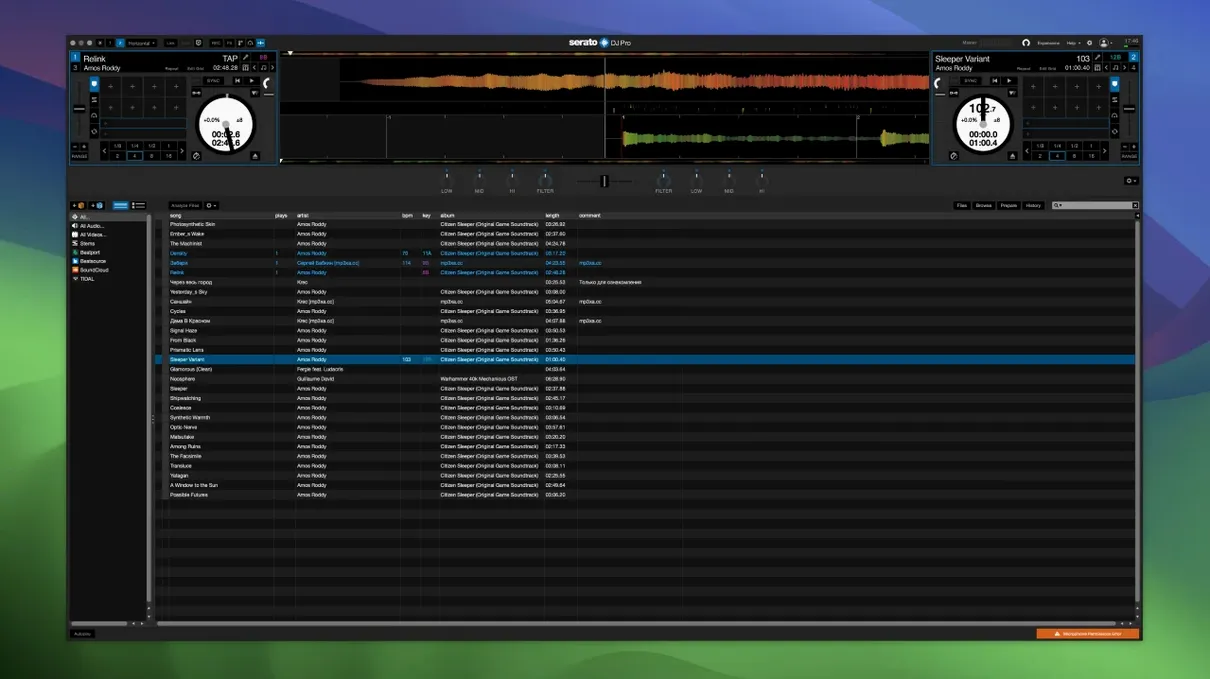
Color-coded Stems waveforms. Once a track is analyzed, the waveform shows four stacked colors: red for bass, blue for drums, green for melody, orange for vocals. You can see, at a glance, where the vocal drops out or where the bassline gets sparse. It makes planning a stem transition visual, not just audible.
Drag and drop from Finder. You don't have to import everything through the library. Drag an MP3 or FLAC straight onto a deck from a Finder window and it loads immediately. Helpful when a client hands you a USB stick with a walk-on track two minutes before doors.
Stem-analysis speed jumped on Apple Silicon
Version 4 brought Stems to the center of the interface, and point updates since then have mostly refined what's already there. The 4.0.5 release tightened up stem-analysis speed on Apple Silicon Macs — tracks that used to take eight or ten seconds to separate now finish in under five on an M-series machine. Memory handling improved too; large libraries with 50,000-plus files scroll without the spinner wheel showing up mid-gig.
Customizable hardware Slip Release arrived quietly in an earlier 4.x build. Before that, Slip Release behavior was fixed per controller model. Now you can dial in how fast the track snaps back after releasing a Stem pad, which matters more than it sounds like. A looser release suits long blends; a tight release works for quick cuts in faster genres.
Built-in FX got a subtle rework. The reverb algorithm no longer collapses into mud when you push the decay past 50%, and the high-pass filter on the echo effect was cleaned up so repeated taps don't stack low-end rumble. Small changes, but they add up over a four-hour set.
The installer also split: there's a standard Serato DJ Pro 4.0.5.pkg and a Serato DJ Pro Suite 4.0.5 patch for users with the full expansion pack. Launching from Launchpad after installation picks up both without extra configuration.
It reads your Music app playlists natively
Serato DJ Pro doesn't live in a bubble. I run it alongside a few things that make the whole setup smoother.
iTunes / Music library sync. The software reads your Music app library directly — playlists, ratings, smart folders all show up in the Serato browser. I build crates in the Music app during the week, then open Serato DJ Pro and they're already there. Changes sync both ways for BPM and key tags written inside Serato.
Ableton Link. Turn on Link in the settings and Serato DJ Pro syncs tempo with any other Link-enabled app on the same network or on the same Mac — useful if you're running a drum machine app or a live-looper alongside your set. No MIDI cables, no clock routing headaches.
Audio routing with BlackHole or Loopback. If you want to record a set with OBS or send audio to a visualizer, Serato DJ Pro's master output can be captured via a virtual audio driver. Set the virtual device as your Mac's output in Serato, then pick it up in your streaming software. There's a slight buffer to adjust, but once it's dialed in, it's set and forget.
macOS full-disk access and external drives. When you plug in a drive formatted as APFS or exFAT, Serato DJ Pro indexes it on the fly after you grant permission in System Settings. One thing I learned the hard way: if the drive has a name with a slash or special character, the library can throw a silent read error. Keep drive names simple — "MusicDrive" works, "Music/Drive" doesn't.
Spotlight and file metadata. Serato writes BPM, key, and waveform data into the file's metadata where possible. That means a track analyzed in Serato DJ Pro will show its tempo in Finder's Get Info panel and in other apps that read ID3 tags. It's a small touch, but it saves me from re-analyzing tracks if I move them to a different machine.
The whole package — stems, FX, hardware support, and macOS integration — is what makes the serato dj pro suite for mac feel like a professional tool rather than a sketchpad. It scales from a bedroom practice session to a club rig without changing apps. The fact that it runs on both Intel and Apple Silicon without translation-layer nonsense means the performance stays consistent regardless of which Mac I've got in front of me.
Version 5.0 is a big one — the kind of update that makes you rethink your whole set. Here's what landed:
- Lucid Beatgrids engine. A new analysis engine that spots downbeats more accurately and tracks tempo changes on its own. If you mix tracks with shifting BPM, this alone is worth the update.
- BPM on the waveform. Tempo change values now show right on the waveform, so you can see exactly where a track speeds up or slows down.
- Finer grid control. You can set tempo changes by bar or by individual beat. New Set Grid Start and Set Beat / Set Bar tools let you manually fix grid anchors and single beats when the analysis gets it slightly wrong.
- Cue Loops. Trigger a cue point and a loop at the same time — one press, both actions fire together.
- Open Streaming support. Use multiple streaming services side by side in your library instead of being locked into one.
- Serato iOS Transfer. Push tracks, playlists, cue points, beatgrids, and metadata straight to Serato DJ for iOS.
- Library protection and imports. M3U file import, a reset button for your played tracks list, and new safeguards for your music library.
- Explicit column. A dedicated column flags age-restricted content so you can see it at a glance.
- Smarter column management. Hide Status and Type columns, and control which columns appear in your library crates.
- Better metadata from Tidal and SoundCloud. BPM and key now display more reliably when the streaming service supplies that data.
- Favorites from streaming. Save tracks from supported streaming services to your favorites right from the context menu.
- Updated Pioneer DJ drivers for macOS Tahoe compatibility.
- Performance gains. Faster startup, quicker searches across large libraries, and a smoother feel overall.
- Bug fixes. Crashes, memory leaks, UI glitches, track loading hiccups, hardware connection issues, streaming problems, stem separation quirks, loop playback, cue point handling, and metadata errors all got attention.
- macOS Big Sur 11 and earlier are no longer supported.
- macOS 12 or later
- Apple Silicon or Intel 64-bit Mac
Notes from other shops 0
Sign in or open a shop account to leave a note.
No notes yet. If you've used this on a shop Mac, tell me how it went.