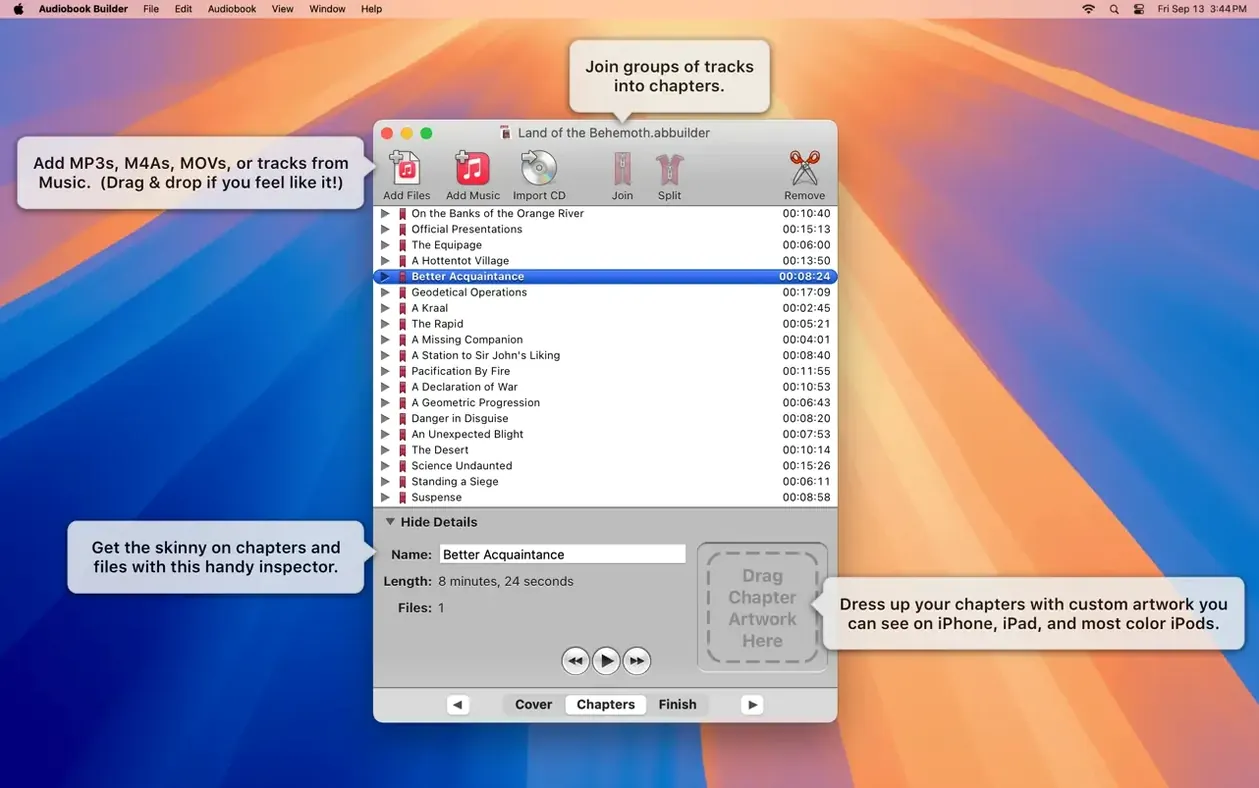
What does manual chapter control let me do?
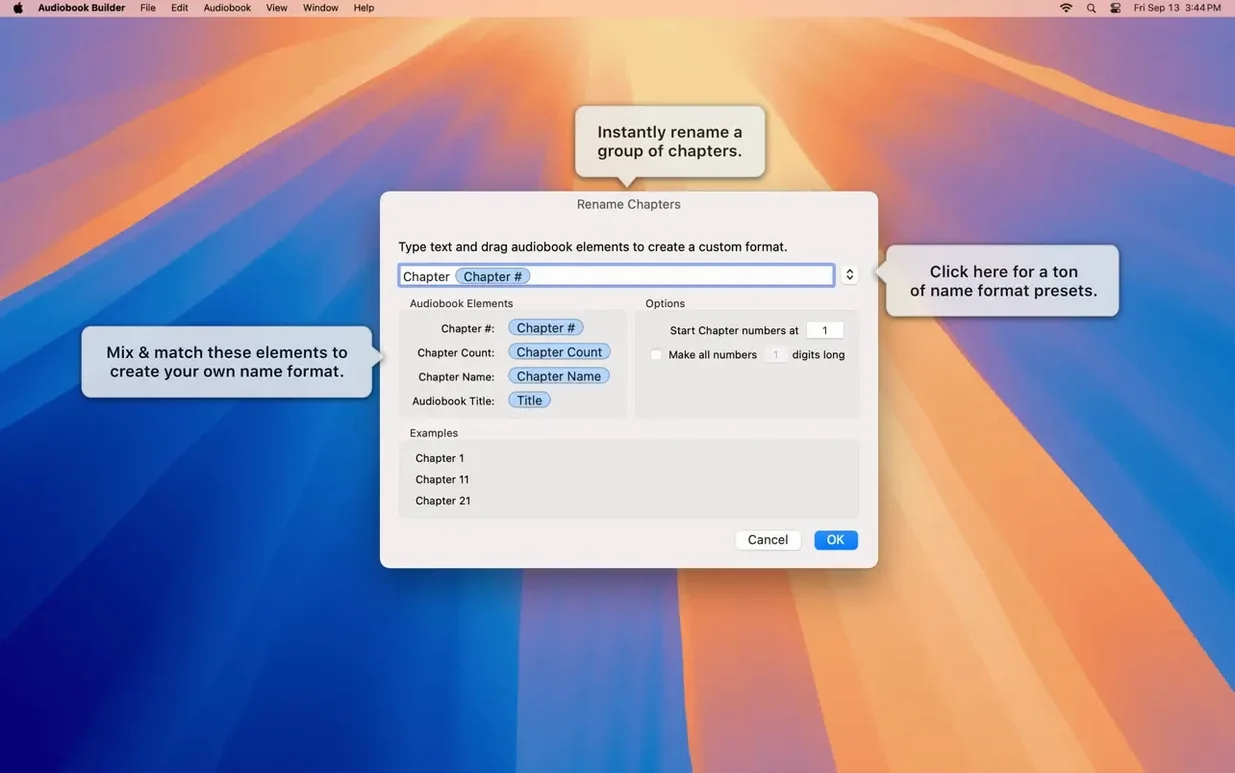
It gives you the final say over where one chapter ends and the next begins. You can split a long recording into logical parts, merge shorter source files into a single chapter, or rearrange the flow to match the book's actual structure instead of the raw file order.
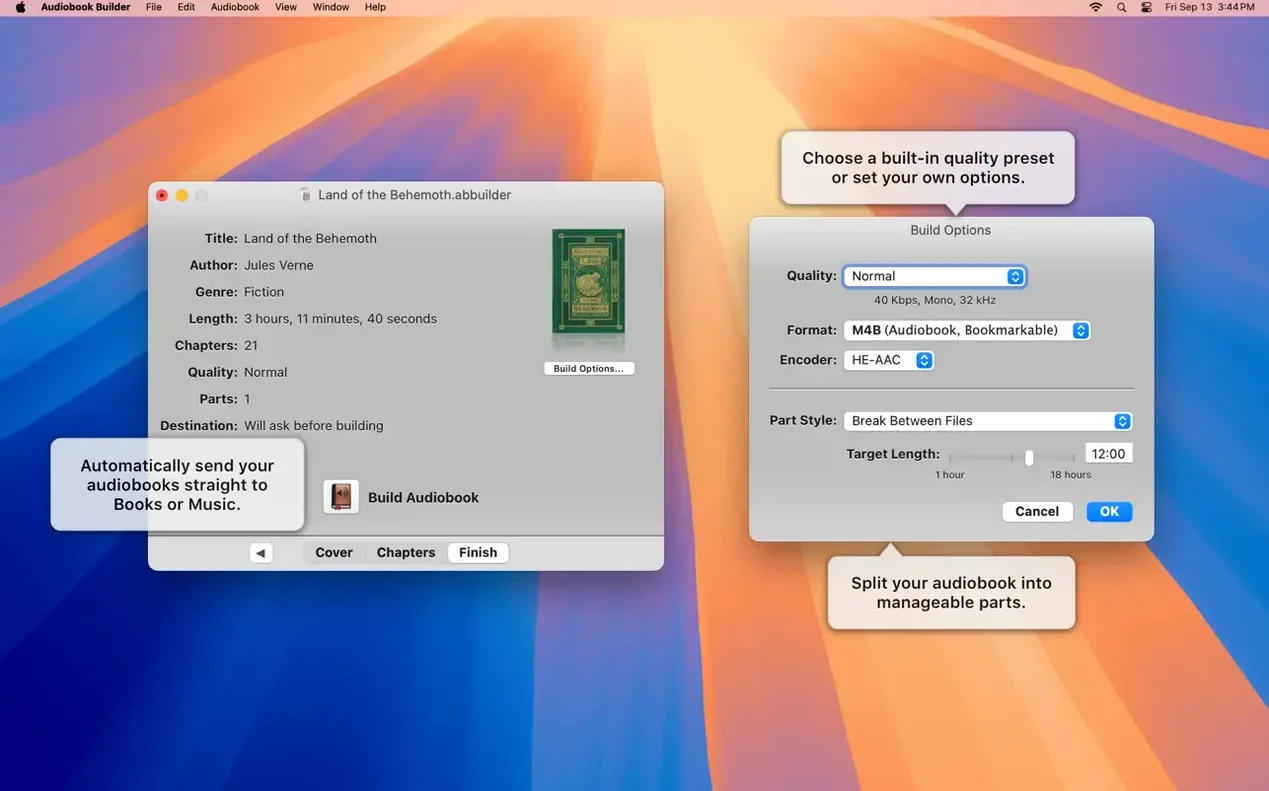
How do the sound quality presets work?
Each preset balances file size against clarity, so you don't have to guess at bit rates. You pick a setting once — say, for spoken word versus a full-cast drama with music — and the app remembers that choice for the whole build. It's a quiet time-saver when you're making books regularly.
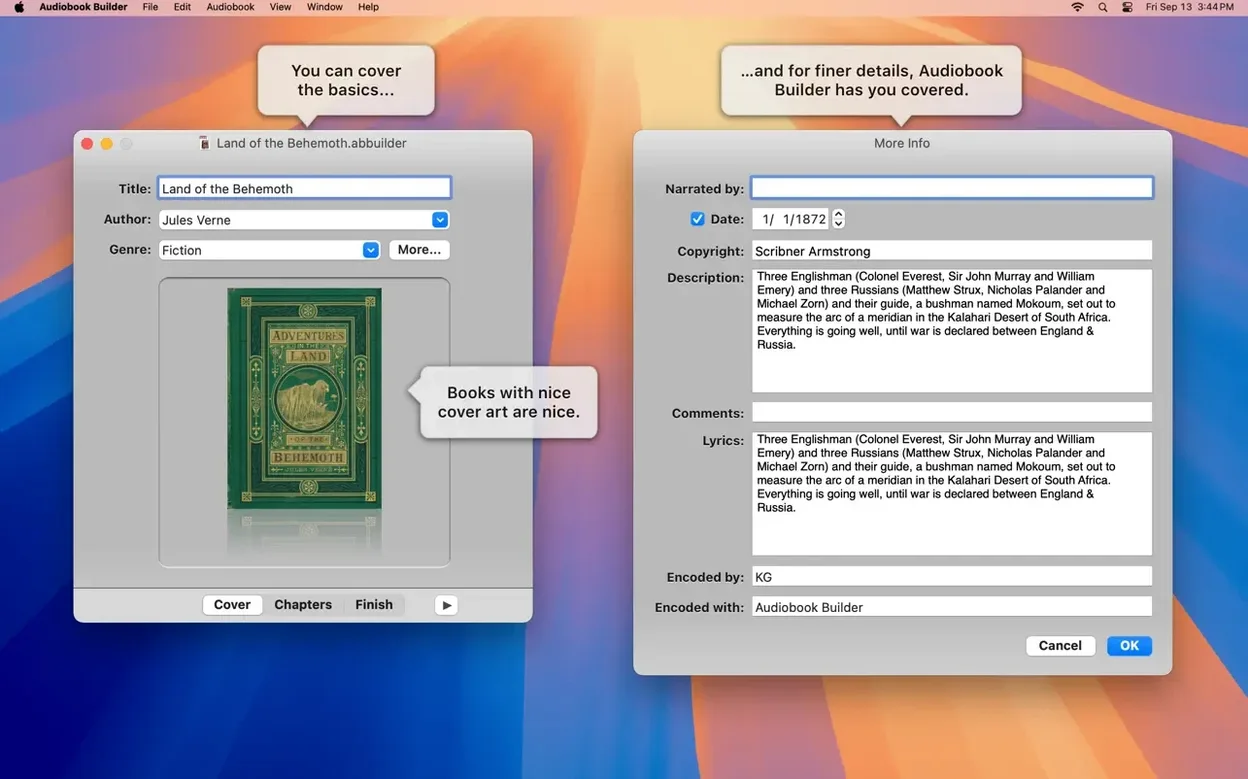
Where do cover and chapter artwork show up?
Artwork you add during creation travels with the audiobook into the Books app on macOS 13 Ventura and later. Chapter-specific images appear as the book plays, which gives a more polished feel when you're building something you intend to revisit or share.
Set an output folder before your first build
Audiobook Builder ships with sensible defaults, but a few tweaks make the first few projects feel less like guesswork. Open Preferences before you build anything and take five minutes with these.
Output location. The default sends finished audiobooks straight to the Books app (or iTunes on older systems). I switch mine to a desktop folder called Audiobook Builds. That way I can spot-check the final m4b file, rename it if needed, and drag it into Books myself. It also leaves me with a backup copy without hunting through a media folder.
Default quality preset. Head to the Quality tab and set your usual baseline. For voice-only nonfiction I keep AAC 64 kbps mono as the fallback — small files, perfectly clear speech. If you mostly build full-cast productions or books with music interludes, bump that default up to 96 or 128 kbps stereo. You can still override it per project, but the right default saves you from forgetting.
Chapter artwork behavior. Under the Chapters tab, decide whether you want artwork to carry through every chapter or stay on the first one only. For short story collections I let each chapter keep its own image. For a single novel, a single cover repeated feels cleaner.
File sorting. Audiobook Builder sorts source files alphabetically by name. If your CD rips come in as Track 01, Track 02 and so on, that's fine. But if you're pulling together mp3s from different sources, rename them with leading numbers before you drag them in. A minute of renaming in Finder beats rebuilding a whole book because chapter five landed before chapter two.
First days: tips that smooth things out
The learning curve is shallow, but a few habits formed early will keep you out of trouble later.
Build a one-chapter test book first. Grab three or four short audio files, give them a dummy title and author, and run through the whole process once. That ten-minute exercise teaches you where the prompts appear, how the chapter editor behaves, and where the finished file lands — without risking a seven-hour audiobook on a misclick.
Check your cover art dimensions. The Books app displays cover art best at square ratios, ideally 1400×1400 pixels or larger. If your source image is rectangular, crop it square before you feed it to Audiobook Builder. The app won't reject odd shapes, but the final display in your library may letterbox or clip in ways you didn't expect.
Name chapters before you build, not after. In the chapter editor, type real titles — "The Letter Arrives," not "Chapter 3." Those titles appear in the Books app's chapter menu and make navigation actually useful. Going back to rename them later means rebuilding the whole m4b file, so get it right on the first pass.
Watch the WAVE file behavior. Version 2.2.9 fixed the spurious "no audio in file" error for WAVE files containing MP3 data, but if you work with raw PCM WAVs from older CD rips, they'll convert fine. If you hit a format that confuses the importer, convert it to AAC or MP3 first with a quick Finder encode — the app handles those without fuss.
Keep your source files until you've listened. Once Audiobook Builder finishes, spot-check the beginning of each chapter. A skip, a wrong chapter break, or a missing few seconds is easiest to fix while you still have the original files on hand. Storage is cheap; re-ripping CDs isn't.
Choose between Auto and manual chapter stops
A few other tools live in the same neighborhood, and which one fits depends on what kind of builder you are.
Audiobook Builder vs. Audiobook Binder. If you search for audiobook binder download you'll find a lightweight utility that shares a similar name and roughly the same job — turning audio files into m4b audiobooks. The difference is depth. Audiobook Binder does one thing quickly: it binds files and sets chapter markers. Audiobook Builder adds the project-based workflow, quality presets, chapter artwork, and CD import. If you make a book once a year, Binder's simplicity might feel refreshing. If you make them monthly and care about chapter images and fine-grained quality control, Builder earns its place.
Audiobook Builder vs. iTunes (or Music) alone. The Mac's built-in media app can join tracks and remember playback position, but it can't produce a single m4b file with embedded chapters and artwork. You can sort an album and mark it as an audiobook, but you won't get chapter menus, you won't get merged output, and you won't control the encoding. Audiobook Builder fills exactly that gap — it's the step between "folder of mp3s" and "proper audiobook file."
Audiobook Builder vs. Podcasting tools. Some Mac users try to repurpose podcast editors like GarageBand or Ferrite for audiobook assembly. Those give you waveform editing and multitrack mixing, which Audiobook Builder doesn't offer. In return, Builder gives you m4b output with chapter stops, artwork, and direct library integration — none of which a podcast editor handles natively. If you need to remove coughs or equalize room tone, do that first in a proper audio editor. Then bring the clean files into Audiobook Builder for the final binding step.
It runs natively on Apple Silicon
Does it work on Apple Silicon Macs? Yes, it runs natively on ARM. You won't see a Rosetta prompt, and performance on an M1 or later Mac is snappy — encoding speeds are limited by the audio data itself, not by translation overhead. The same download works on Intel Macs going back to El Capitan, so one installer covers the whole fleet.
Will it mess with my existing Books library? It won't touch what's already there. Audiobook Builder creates new files and can optionally send them to Books, but it never modifies or removes existing books. If you prefer full separation, set the output to a folder outside your media library and import manually only the ones you're ready to keep.
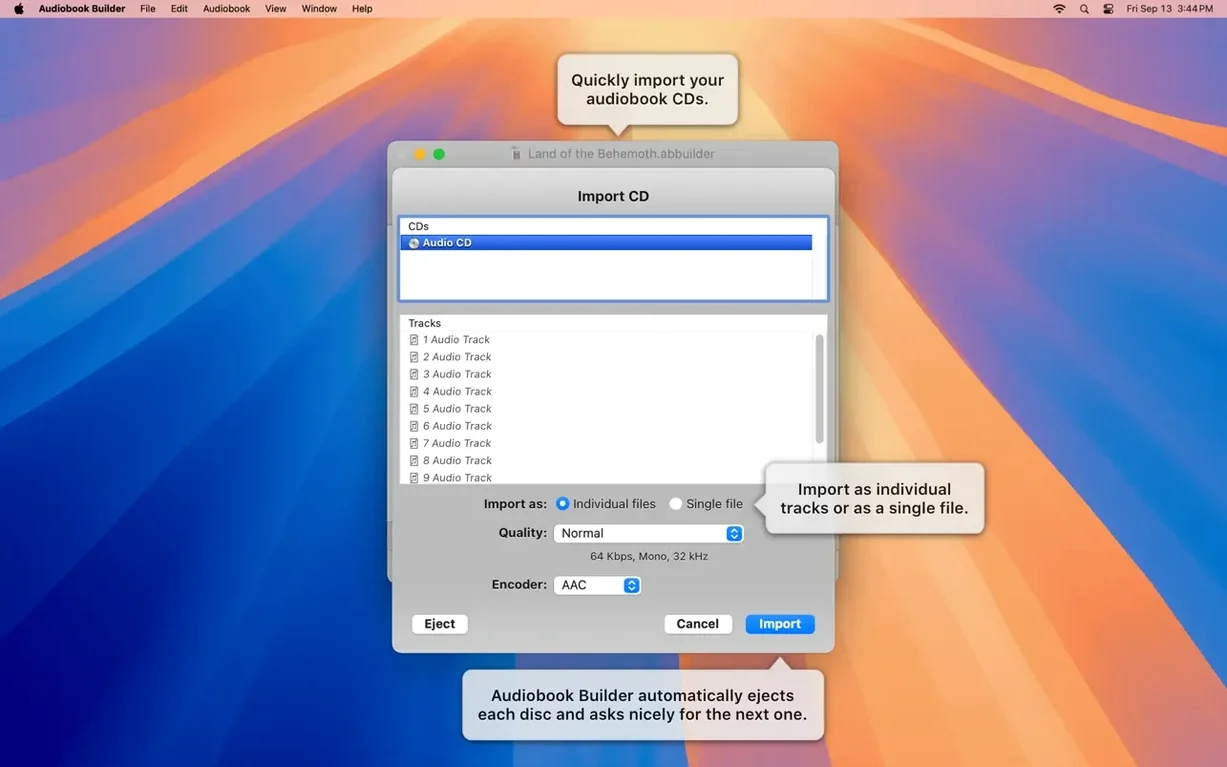
What formats can I feed it? It takes the common ones that Mac users actually have: MP3, AAC, WAV, AIFF, and Apple Lossless. It also imports directly from audio CDs with a built-in disc reader. It doesn't handle FLAC or Ogg Vorbis — if your collection leans
Version 2.2.9 is tested and ready for macOS 15 Sequoia. The update also fixes artwork display on Ventura, stops a false “no audio in file” error for certain WAVE files, and corrects a reporting glitch on older systems. If you still use a classic iPod, the Description tag is back too.
- macOS 10.11 or later
- 64-bit Intel or Apple Silicon Mac
Questions from the stall
Can I still use Audiobook Builder 2 with my older Intel Mac?
Yes. It runs on any 64-bit Mac with OS X 10.11 or later, including Intel machines and Apple Silicon Macs.
Which languages does the interface support?
The app speaks your language with interface options in Russian, English, German, Spanish, Portuguese, and Swedish.
Where does the finished audiobook end up?
It adds the completed audiobook directly to Music, the Books app, or iTunes, depending on your macOS version and library setup.
Notes from other shops 0
Sign in or open a shop account to leave a note.
No notes yet. If you've used this on a shop Mac, tell me how it went.