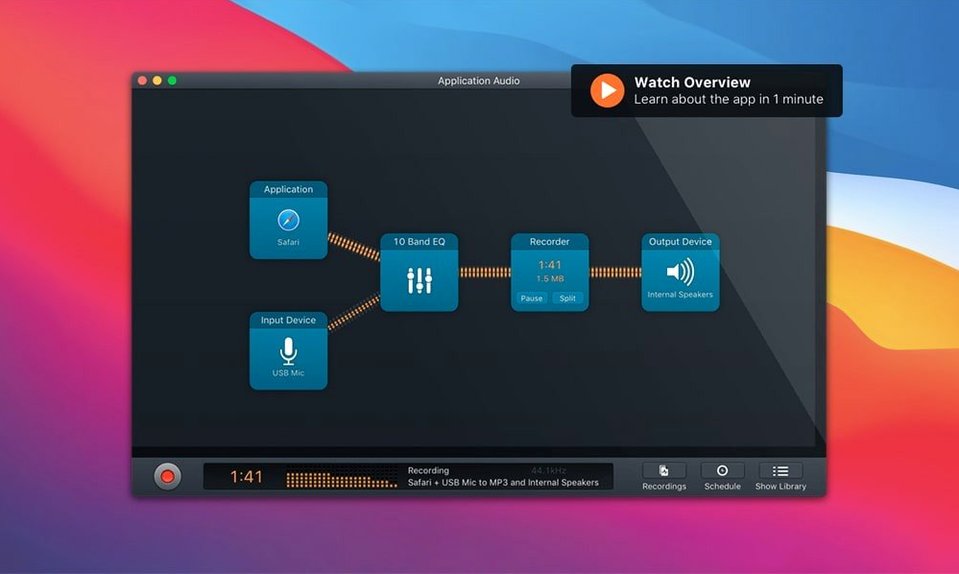
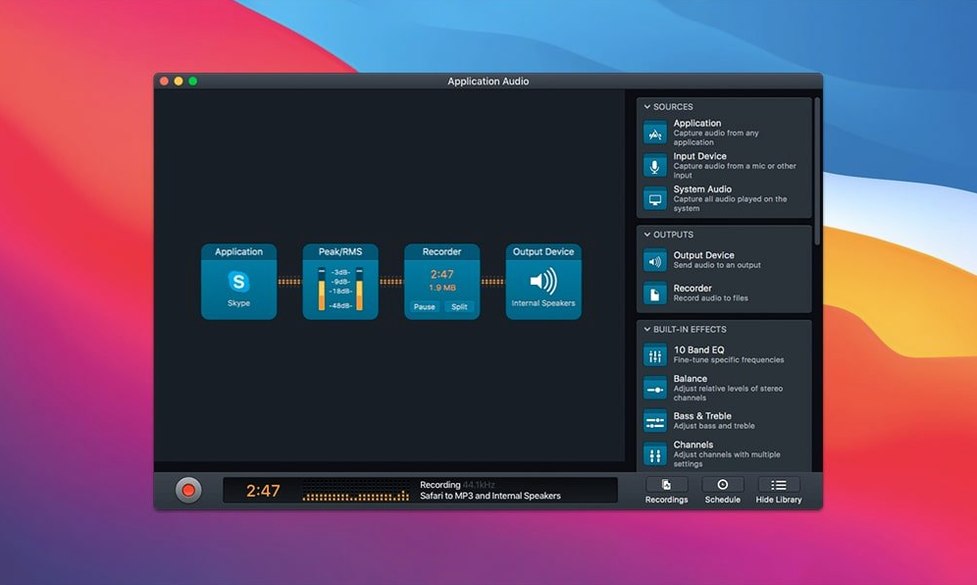
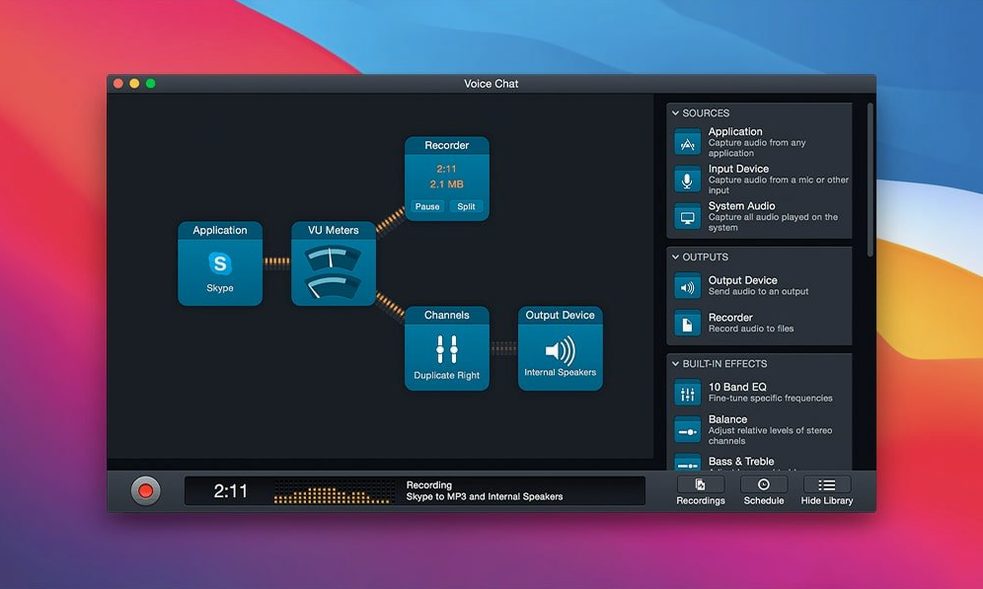
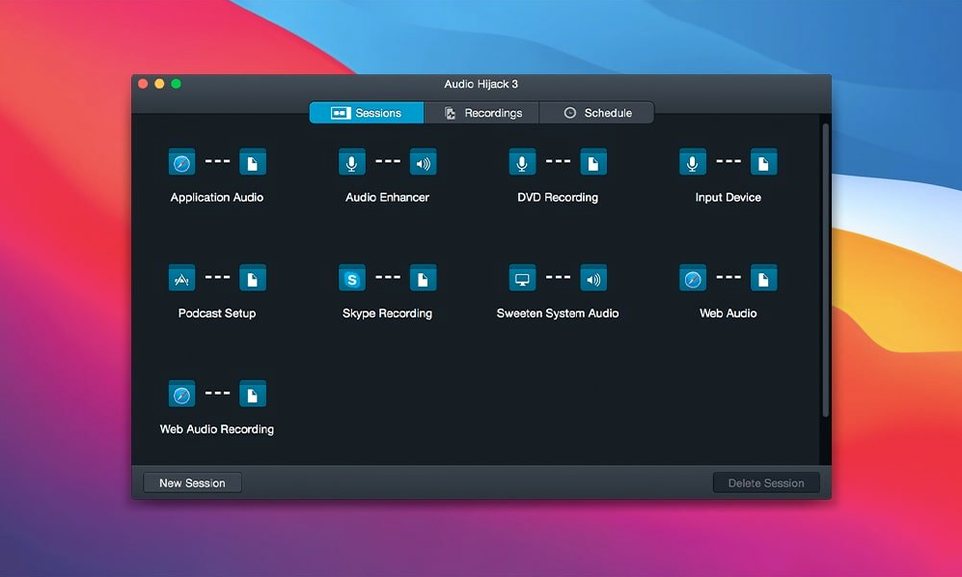
I see a lot of podcasters, musicians, and shop owners who run live streams reach for Audio Hijack. It solves a very specific problem: grabbing high-quality audio from practically anywhere on your Mac and routing it exactly where you need it.
Where this app shines
- Multi-source recording in one session. You can pull audio from a microphone, a web browser, and a music app all at once, adjusting each level independently. It feels like a mixing board built for software.
- Digitizing old media. If you still have cassette tapes or vinyl that never made it to a digital release, the built-in Declick and Dehum filters clean up the transfer as it happens.
- Block-based processing. You build a flowchart for your audio. Add a recorder block, throw in a Denoise filter, and pipe the result straight to a FLAC file—no waiting around for post-production.
Requires macOS 14.4 and captures any app’s audio
- Requires macOS 14.4 or newer.
- Records from any source the Mac can hear, including individual apps.
- The Transcribe block recently got a smarter recommended model for turning speech into text on the fly.
A ceramics teacher records her wheel and voice separately
Picture a ceramics instructor who runs paid Zoom workshops twice a month. She needs crisp recordings of her voice and the ambient sound of the wheel, plus a separate copy of the Q&A portion for a members-only podcast. Audio Hijack lets her build one session that captures her USB microphone, the application audio from Zoom, and a third track from a lavalier mic she clips on during demos—all synced and saved to different folders automatically. No more recording the whole call and chopping it up later.
The app you want hasn’t been launched yet
Over the years I’ve seen a handful of recurring hiccups when folks first open the app. None of them are dead ends.
- “It records everything except the app I want.” This usually means the application hasn’t been launched yet when you set up the source block. Quit Audio Hijack, open the target app first, then relaunch Audio Hijack. The source list should now show it.
- Silence from a browser tab during a call. Some browsers route audio through a helper process that Audio Hijack doesn’t see by default. Switch the source from “Safari” (or “Chrome”) to the system-wide “Application Audio” and select the specific tab from the dropdown. That almost always pulls the stream back.
- Transcribe block spinning forever. The latest Whisper.cpp backend (1.9.2 in version 4.6.0) prefers a short warm-up. On first run, let the model download completely before hitting record. If it still stalls, toggle the model picker to “Recommended” and back—it forces a reconnection.
- Dehum filter making vocals sound hollow. The Dehum block defaults to 60 Hz for North American power. If you recorded near a 50 Hz mains hum, slide the frequency down in the block inspector. A small tweak there often restores the low end.
Saving a live radio drama and cleaning it up
Last week I wanted to save a live radio drama stream and clean it up for archive. Here’s how the session played out.
- Opened Safari and started the stream so Audio Hijack could see it in the source list.
- Launched Audio Hijack and picked the Web Audio template. It dropped in an application source block, a Denoise block, and a recorder block already wired together.
- Clicked the source block and chose Safari from the application menu, then picked the specific tab playing the drama.
- Added a Declick block between Denoise and the recorder—old radio plays have plenty of pops from the original vinyl transfer.
- In the recorder block, set the format to FLAC and pointed the save location to an “Archive” folder on an external drive.
- Hit the orange record button. The meters showed a healthy signal, so I let it run the full hour.
- After stopping, the file appeared exactly where I’d set it. I opened it in my editor and the pops were already tamed.
The whole thing took maybe three minutes to configure, and now that session lives as a saved template for next month’s broadcast.
Switch the default recording format to FLAC or AIFF
Out of the box, Audio Hijack works, but a few quick changes make it feel like your own.
- Default output format. Under Preferences > Recording, switch from AAC to FLAC or AIFF if you plan to do any editing later. Lossy compression in the first pass just adds work.
- Post-recording actions. You can tell the app to open the file in your editor or run an AppleScript after the recording stops. It’s tucked away in the recorder block’s “Advanced” tab and saves a repetitive step every time.
- Global hotkeys. The default start/stop shortcut is fine, but I remap it to something that doesn’t conflict with my design software. Preferences > Hotkeys lets you set a combo you’ll actually remember.
- Meter display. By default the meters are compact. If you’re monitoring levels across several sources, drag the block inspector wider or switch to the floating meters window—it gives you peak hold lines that are easier to read at a distance.
Version 4.6.0 is ready for macOS 27 and brings a smarter transcription experience:
- Full support for macOS 27 (Golden Gate).
- The Transcribe block now defaults to a Recommended model that picks the best fit for your audio.
- Updated the Whisper.cpp engine behind the scenes for smoother speech-to-text conversion.
- macOS 14.4 or newer
- Apple Silicon or Intel Mac
Questions from the stall
Can I clean up noisy audio while recording with Audio Hijack?
Yes. It includes built-in Denoise, Declick, and Dehum filters you can insert directly into the recording chain before the sound ever hits the file.
Notes from other shops 0
Sign in or open a shop account to leave a note.
No notes yet. If you've used this on a shop Mac, tell me how it went.